
Quick answer. AI SVG generation turns a written prompt, an uploaded reference image, or both into an editable vector file. The right workflow is prompt, generate, inspect the SVG markup, refine the result, and download a file you can edit in code, Figma, Illustrator, Inkscape, or a web project.I built SVG AI because the phrase "AI SVG generator" had become too vague. Some tools write SVG code directly; others generate an image and then vectorize it. Both can produce editable paths. A file containing only an embedded PNG has different editing limits. This guide helps you choose the method and inspect the resulting file. If you want to make something now, start with the AI SVG generator for logos, icons, and illustrations. If you want to understand what is happening, how to evaluate the file, and how this differs from converters, ChatGPT SVG code, and raster AI image tools, keep reading. In this article
- What AI SVG generation means in 2026
- Can AI generate real editable SVG files?
- AI SVG generation method comparison
- What a real AI-generated SVG should contain
- Why SVG is different from PNG, JPG, and WebP
- Choose the workflow for your project
- Choose text, reference image, or both
- A practical prompt-to-SVG workflow
- Prompt patterns that work
- Five real SVG examples and why they matter
- Where AI SVG generation fits in a design stack
- How to inspect an SVG before shipping it
- Related guides
- Frequently asked questions
What AI SVG Generation Means In 2026
AI SVG generation is the process of creating a new Scalable Vector Graphics file from a prompt, a reference image, or both. The useful part is not only that AI can draw. The useful part is that the final asset is an SVG: a file made from paths, shapes, colors, groups, and text that can scale, edit, animate, and ship cleanly on the web. That distinction matters because search results for this category now mix several different products:- Prompt tools that generate new SVG artwork.
- Image-to-SVG converters that trace existing PNGs or JPGs.
- Design suites that can export SVG after a broader editing workflow.
- Generic image generators that make a nice preview but do not give you editable vector markup.
- "I need a logo, icon, badge, sticker, or web graphic."
- "I want the output as SVG, not just PNG."
- "I need it to be editable."
- "I want transparent background by default."
- "I need to know whether this file will work in Figma, Illustrator, Inkscape, a website, or a cutter."
Can AI Generate Real Editable SVG Files?
Yes. AI can generate real SVG files when the workflow is built for vector output. The practical test is not the file extension. The practical test is what is inside the file. A real AI-generated SVG should contain editable vector markup such aspath, rect, circle, polygon, line, g, linearGradient, or text. A weak export may only wrap a raster image inside an SVG file with an image href="data:image/png;base64..." payload. That second file may open in a browser, but it does not give you the same editing, scaling, or code-level control.
Use this quick decision rule:
| Question | Good sign | Warning sign |
|---|---|---|
| Does it scale cleanly? | The asset stays crisp from icon size to large display size | Edges blur or reveal pixel artifacts |
| Can you edit shapes? | Individual paths and groups are selectable | The file behaves like one flat image |
| Is the markup understandable? | You see paths, shapes, groups, gradients, and fills | You see a huge base64 image block |
| Is it useful at the target size? | Logo or icon still reads at the size you need | Detail collapses when reduced |
| Can it move into a real workflow? | Works in Figma, Illustrator, Inkscape, React, or plain HTML | Requires a second cleanup step before it is usable |
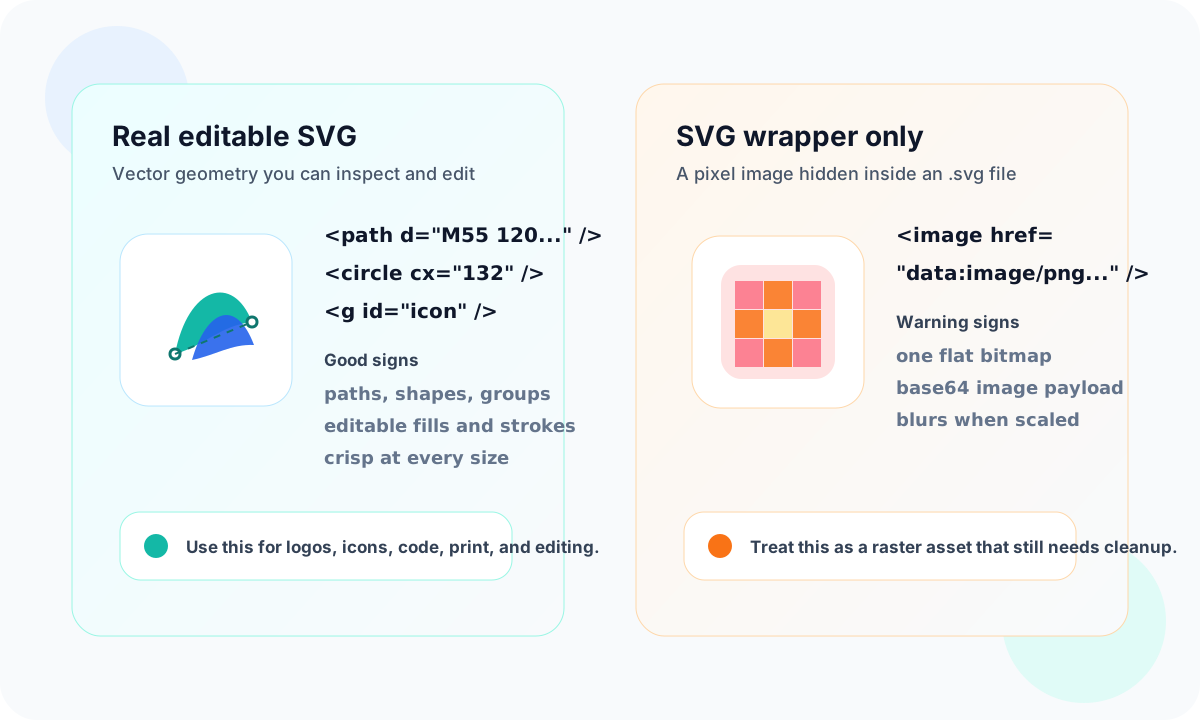 That is the difference between "vector style" and a usable vector asset.
AI SVG Generation Method Comparison
The fastest way to pick the right tool is to name the workflow before you start.| Method | Best when | Typical output | What to verify |
|---|---|---|---|
| Prompt-to-SVG generation | You have an idea and need a new logo, icon, illustration, badge, sticker, or web graphic | New editable SVG | Check path structure, small-size readability, transparent background, and color editability |
| Reference-to-SVG generation | You have a sketch, screenshot, old logo, product photo, or style image | New SVG guided by visual context | Check that the reference informed the design without copying unwanted details |
| Image-to-SVG conversion | You already have a PNG, JPG, WebP, scan, or screenshot | Traced vector paths | Check node count, jagged curves, file size, and whether the trace is simpler than the raster |
| ChatGPT or code-based SVG | You need a simple diagram, geometric icon, chart, or code example | SVG code written as text | Check visual quality, path accuracy, accessibility labels, and whether the image is too literal |
| Raster AI plus vectorizer | You used Midjourney, DALL-E, or another raster image generator first | PNG/JPG traced into SVG | Check for bloated paths, rough edges, stray colors, and low editability |
| Manual SVG editing | You need final brand polish, exact typography, animation, or trademark-ready paths | Polished production SVG | Check spacing, optical alignment, path cleanup, naming, and export settings |
What A Real AI-Generated SVG Should Contain
A useful SVG for shape editing contains vector elements. Try editing this simple hand-written mark to see how a path and fill work. Download the before file.<svg xmlns="http://www.w3.org/2000/svg" viewBox="0 0 24 24">
<title>Manual path and color edit: before</title>
<path id="mark" fill="#2563EB" d="M4 18 L12 4 L20 18 L12 18 Z" />
</svg>
L12 18 to L12 14 to pull the lower center upward, then change the fill to #0F766E. Download the edited file to compare your changes.
<svg xmlns="http://www.w3.org/2000/svg" viewBox="0 0 24 24">
  <title>Manual path and color edit: after</title>
  <path id="mark" fill="#0F766E" d="M4 18 L12 4 L20 18 L12 14 Z" />
</svg>


image element containing PNG data:
<svg viewBox="0 0 1024 1024">
  <image href="data:image/png;base64,iVBORw0KGgo..." />
</svg>
What an actual AI edit changed
An AI edit can change more than the detail you requested. In this FlowMint example from September 5, 2026, a Classic generation produced a navy shield with a mint leaf. The edit prompt asked for only a warm-orange leaf, keeping the shield, veins, composition, shape, and size unchanged.

rgb(5,36,72) to rgb(5,39,76), path coordinates changed, and the viewBox tightened. Both are real path-based SVG files. Editability does not mean that an AI instruction preserves all other nodes.
Use an AI revision to explore a visual alternative. For an exact color or point change, edit the SVG directly. The complete FlowMint project includes both prompts and a manual color correction that preserves the original shapes.
Why SVG Is Different From PNG, JPG, And WebP
PNG, JPG, and WebP files are grids of pixels. They are excellent for photos, textures, screenshots, and detailed raster artwork. But scale them far enough and the pixel grid becomes visible. SVG files are instructions. A circle is a circle. A curve is a curve. A shape can scale from a 24px icon to a billboard without becoming blurry because the browser or design tool redraws the geometry at the target size. For AI-generated design assets, this creates three advantages:- Editability. Designers can open the file in Figma, Inkscape, Illustrator, or a code editor and change individual shapes.
- Performance. Simple SVG icons, logos, badges, and illustrations are often small on disk compared with high-resolution raster images.
- Reuse. The same asset can become a website icon, app logo, print mark, Cricut cut file, or React component.
Choose the workflow from the deliverable
The right starting point depends on how much of the design already exists and which details must stay fixed:| Task | Start with | Final check |
|---|---|---|
| New icon or logo concept | A prompt in the AI SVG generator | Shape quality, spelling, small-size clarity |
| Artwork based on a visual direction | A reference you have permission to use, plus a prompt describing the change | Features that changed and features that had to stay recognizable |
| Preserve an existing raster design | An image to SVG converter | Lettering, corners, proportions, and source fidelity |
| Exact color or node correction | A vector or code editor | Changed values match the requirement |
| Cut or print handoff | A file checked against the receiving tool | Closed contours, dimensions, and accepted formats |
Choose Text, Reference Image, Or Both
A strong AI SVG workflow gives you more than one input mode. Use text only when the idea is clear in words:Minimal SVG icon of a rocket launching from a document, single color #2563EB, rounded outline style, transparent background, readable at 24px.
Use the uploaded sketch as a reference. Keep the shield shape and checkmark idea, simplify the geometry, use navy #1E3A8A, transparent background, return an editable SVG icon.
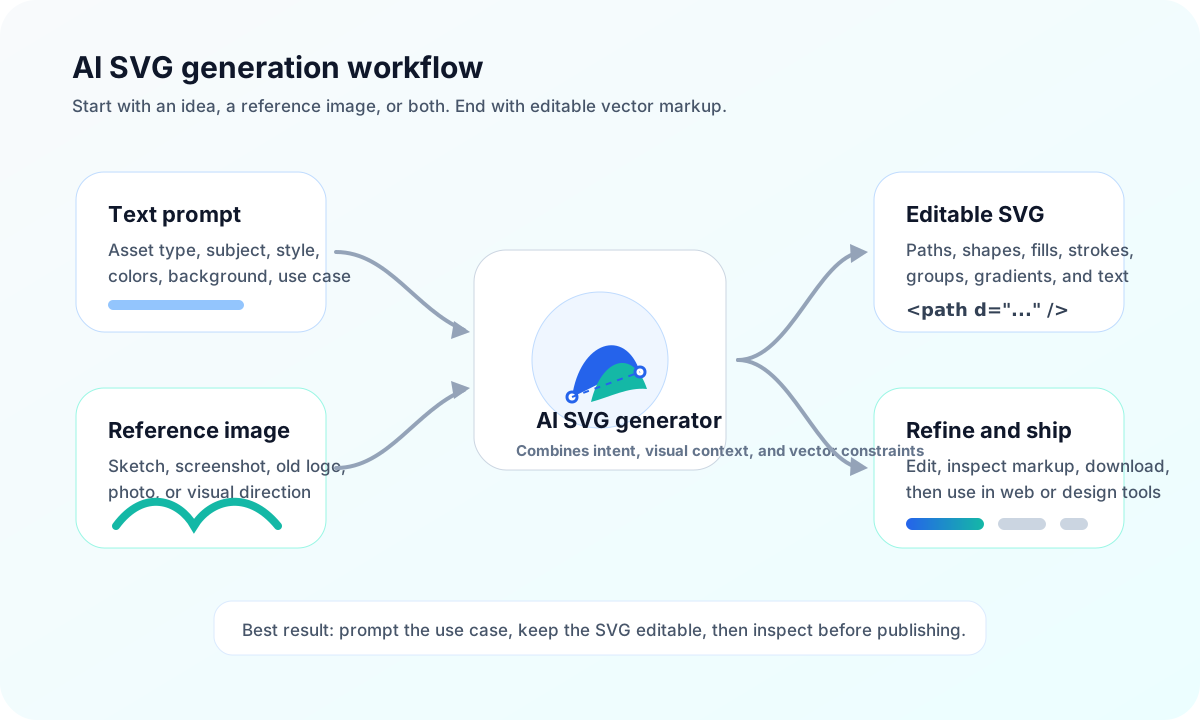
A Practical Prompt-To-SVG Workflow
Here is the workflow I recommend if you are making an SVG from scratch.- Name the asset type. Say logo, icon, badge, sticker, illustration, pattern, character, app icon, or wordmark.
- Describe the subject. Name the main object before the style.
- Constrain the style. Use one or two style directions: flat, outline, geometric, minimal, premium, playful, editorial, vintage, technical.
- Specify color. Use hex codes when precision matters.
- State the background. Transparent background is usually best for SVG assets.
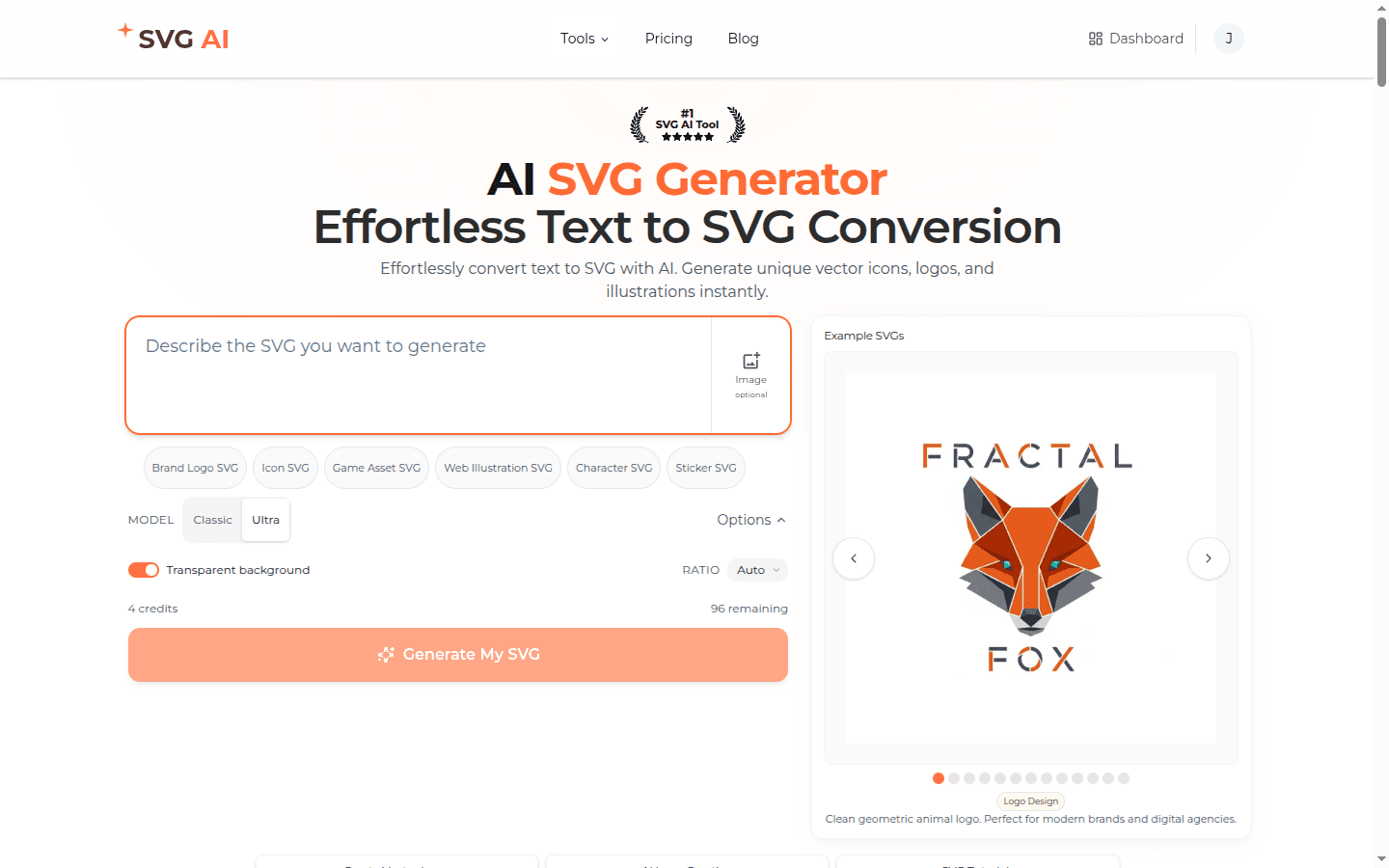
- Start with one direction. Inspect the selected model and displayed credit estimate; add variations when they help answer a specific design question.
- Refine the strongest result. Change one thing at a time instead of restarting.
- Download and inspect. Sign up to get starter credits for generation. SVG downloads require paid access through an eligible subscription or credit purchase. Save the file and check its paths, colors, and display size.
Flat SVG logo mark for a developer tool called Pathline, geometric path-node symbol, color #FF5A1F and dark navy #111827, transparent background, simple enough for a favicon.
Prompt Patterns That Work
The best prompts are specific, but not bloated. For SVG output, constraints are more useful than style adjectives stacked for drama.| Pattern | Example | Why it works |
|---|---|---|
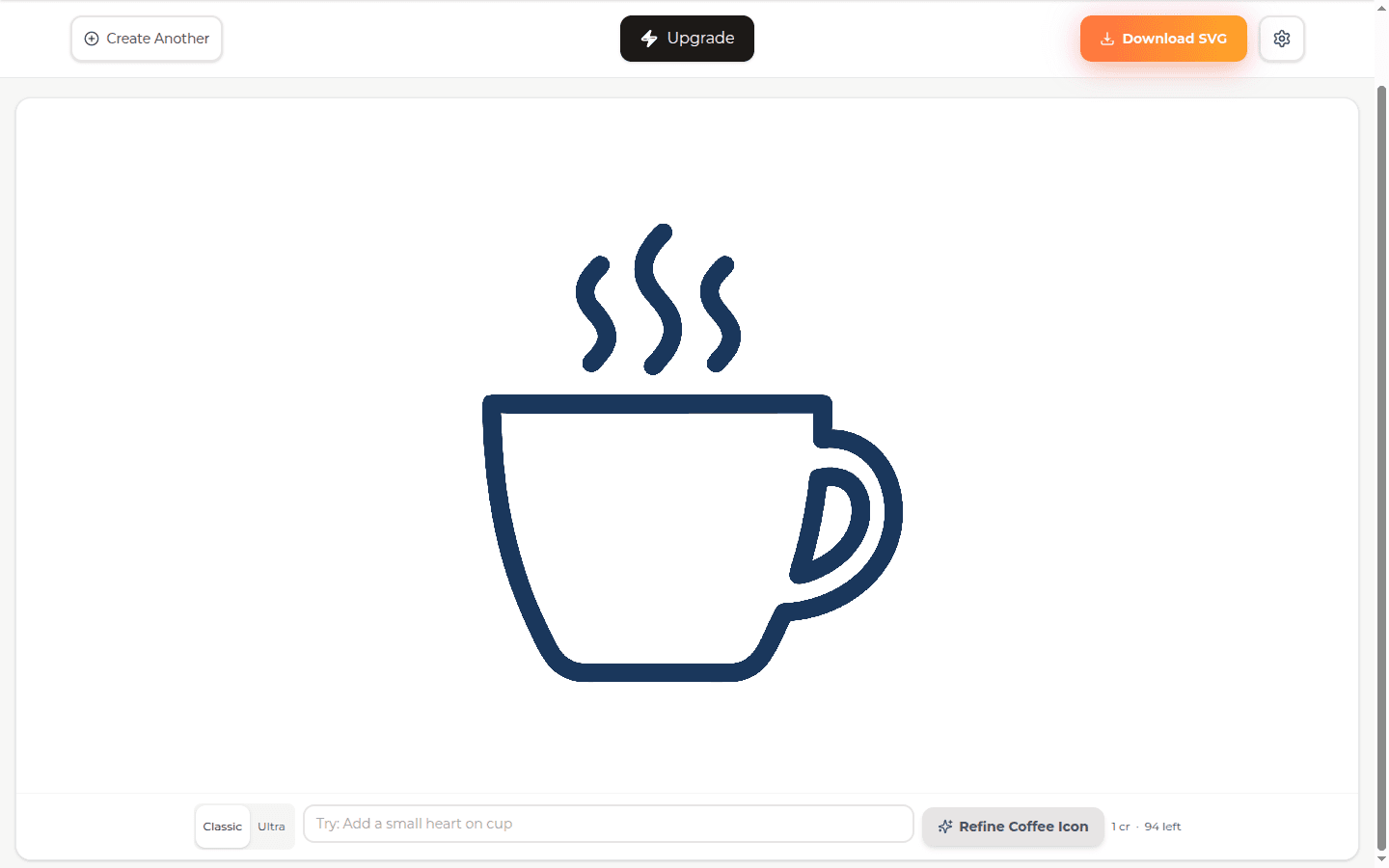
| Subject + style + color | A minimalist line-art icon of a coffee cup, dark blue stroke, transparent background. | Clear object, clear style, clear palette |
| Use case + size constraint | Sidebar icon for an analytics dashboard, readable at 24px, single color #2563EB. | States a small-size constraint to inspect |
| Brand mark + hex code | Logo concept for the fictional brand Luma Grove, color #0F766E, one simple geometric mark. | Gives brand context and exact color |
| Reference + difference | Use the uploaded sketch as reference, keep the shield shape, simplify it into a clean SVG icon. | Lets the image carry shape while the prompt controls transformation |
| Print or cut file | Single-color silhouette of a mountain bike, clean closed shapes, no gradients, transparent background. | Avoids details that cutters and screen printers dislike |
Five Real SVG Examples And Why They Matter
These examples from the May 2026 gallery cover several common SVG projects. Each requires a different finishing check: readable lettering, balanced icons, recognizable characters, or shapes suited to cutting.



Where AI SVG Generation Fits In A Design Stack
AI SVG generation is useful for exploring concept, composition, style, and color before a finishing pass. Compare every revision against the original brief. It does not replace every vector workflow. Use SVG AI or another prompt-to-SVG tool when you need:- A first logo or brand-mark direction.
- A small icon set in a consistent style.
- A web illustration for a landing page or blog.
- A sticker, badge, label, or simple merch graphic.
- A vector version of a sketch or reference idea.
- A transparent SVG you can download quickly.
- Pixel-perfect spacing.
- Final typography decisions.
- Exact path cleanup for trademark filing.
- Complex export packages.
- Design-system documentation.
- Manual animation timelines.
How To Inspect An SVG Before Shipping It
Before you put an AI-generated SVG in production, run this quick checklist.- Open the file in a text editor. Look for
path,rect,circle,polygon,line,g, ortextelements. - Check for embedded images. A big
image href="data:image/...base64"block is a warning sign. - Scale the file. It should stay crisp at small and large sizes.
- Test the background. If you need transparency, place it on a dark surface and a light surface.
- Inspect the colors. Make sure brand colors can be edited and do not drift into unwanted shades.
- Check small-size readability. Logos, icons, and app assets often fail at 24px before they fail at hero size.
- Optimize if needed. Run SVGO or your favorite optimizer for production web use.
Related Guides
If you are new to the product workflow, start with the beginner's guide to generating SVG files with AI. It walks through a first SVG from prompt to download. If you are comparing tools, read the best AI SVG generators in 2026. That page is where we compare SVG AI, Recraft, Adobe Illustrator, Canva, Kittl, Vectorizer.AI, and other tools by workflow. For a specific project, continue with one of these guides:- Text to SVG AI guide for prompt-to-SVG typography, references, variations, and code inspection.
- Best free SVG generators for free tools, editors, converters, and AI workflows.
- Best AI SVG logo generator for startups for logo-specific tests and brand workflow.
- Generating SVG icons with AI for icon sets, app assets, and UI symbols.
- SVG file format guide if you want the technical foundation.
Frequently Asked Questions
What is AI SVG generation?
AI SVG generation is the workflow of turning a prompt, reference image, or both into a new editable SVG file. The output should be vector geometry, not a fixed pixel image.Can AI generate real SVG files?
Yes. A real AI-generated SVG contains vector elements such aspath, rect, circle, polygon, g, and sometimes text. You can open it in a code editor or vector editor and inspect the shapes.