SVGAI
SVGAI
ToolsPricingBlog
LoginSign Up
SVGAI

SVG AI helps you create professional vector graphics from text prompts, including logos, icons, illustrations, and text-to-SVG designs.

Product

  • AI SVG Generator
  • AI Icon Generator
  • SVG to MP4 Converter
  • Pricing

Popular Converters

  • PNG to SVG
  • SVG to PNG
  • Image to SVG
  • SVG to JPG
  • SVG to PDF
  • View All →

Resources

  • What is SVG?
  • SVG Gallery
  • SVG Animation
  • Blog
  • Learn Center
  • Sitemap

Legal

  • Privacy & Cookies
  • Terms of Service

2026 SVG AI. All rights reserved.

X (Twitter)LinkedInYouTubeInstagram
Back to blog

Best AI SVG Generators in 2026: 8 Tools Tested

Updated May 17, 2026
By Ashesh Dhakal, Founder, SVG AI
Best AI SVG Generators in 2026: 8 Tools Tested
best ai svg generatorai svg generatortext to svg aiai vector generatorsvg generator comparisonrecraft alternativecanva vector aisvg generator
Quick answer. The best AI SVG generator in 2026 depends on the workflow. For a dedicated prompt-to-SVG product with transparent output, reference-guided creation, saved projects, AI editing, marked-region refinement, and direct SVG production, SVG AI is the strongest overall pick. Recraft is the best general AI vector generator. Adobe Illustrator is best for professional post-generation editing. Canva is easiest for beginners inside a design suite. Kittl is useful for merch and template-led design. Vectorizer.AI is the best converter when you already have a raster image.
Editor's note. This guide is written by Ashesh Dhakal, founder of SVG AI. The ranking is intentionally opinionated: SVG AI is the top pick for a dedicated SVG-native workflow, while the other tools are ranked by the jobs they actually serve best.
If you only need the short version, use this:
RankToolBest ForTested Takeaway
1SVG AIDedicated AI SVG generationBest focused workflow for prompt-to-SVG, reference-to-SVG, transparent output, edit/mark refinement, saved projects, and SVG production.
2RecraftGeneral AI vector generationStrongest broad vector competitor; excellent visual quality and style exploration, but less SVG-specific as an end-to-end workflow.
3Adobe IllustratorProfessional editingBest for designers who need mature path editing, typography, cleanup, and production handoff after generation.
4Canva Vector AIBeginner design workflowsBest when vector-style graphics belong inside Canva layouts, presentations, and marketing assets.
5KittlMerch and templatesStrong for badges, stickers, posters, and shop assets, but less direct as a standalone SVG production workflow.
6Vectorizer.AIRaster-to-SVG conversionBest when you already have a PNG/JPG and need a traced vector; not a prompt-to-SVG generator.
7SVGMakerBroad SVG utilityUseful generate/edit/convert/API surface, but thinner as a dedicated AI SVG generation workflow.
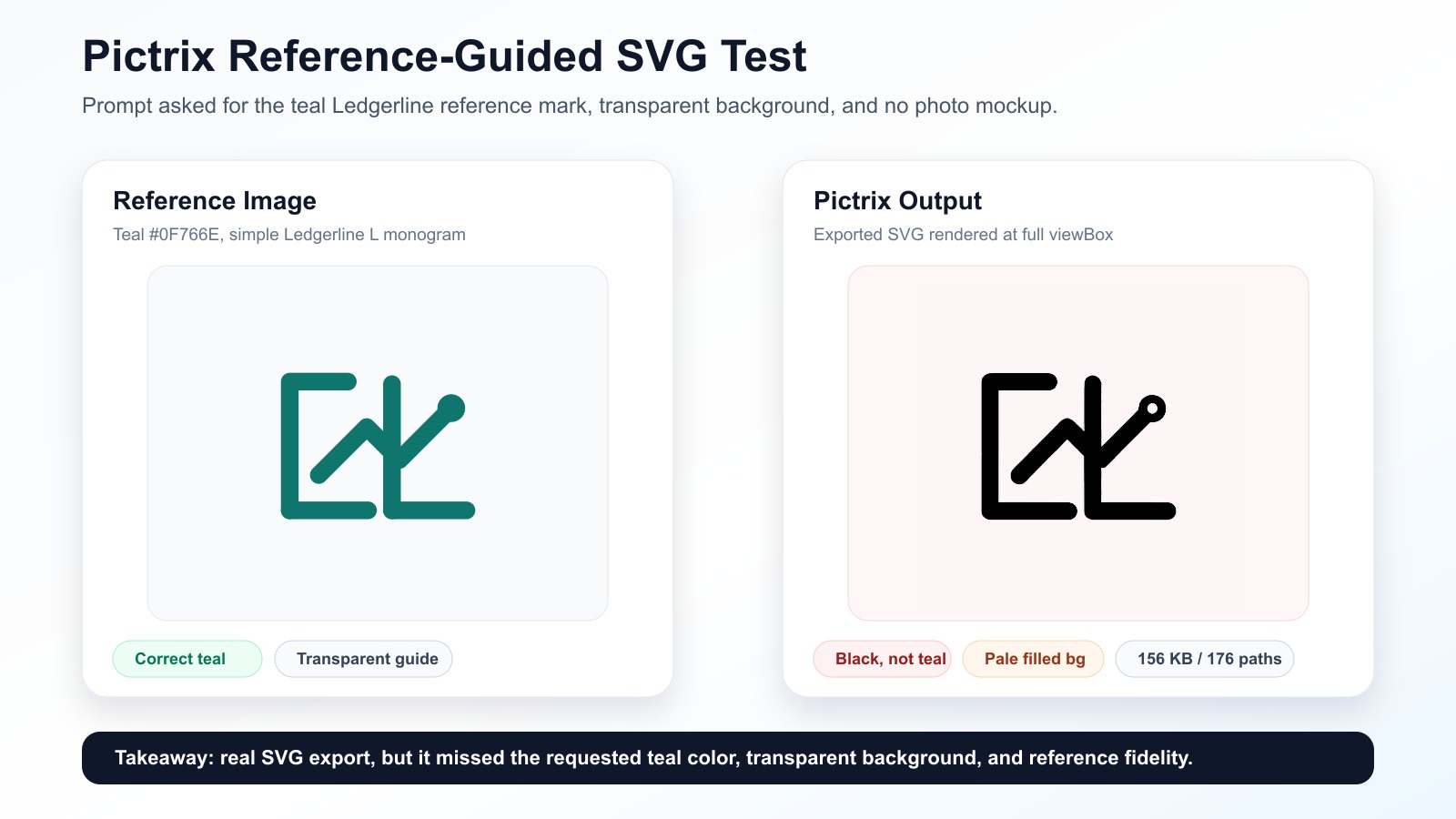
8Pictrix / SVG.ioPrompt-to-SVG alternativeCan produce real SVG files, but missed color/reference constraints and output was heavy for simple logo work.

How We Tested

We tested the tools the way a designer, founder, or developer would actually use them: prompt a logo, prompt an icon set, try a reference-guided logo task, inspect export options, and look for evidence that the final file is a real SVG rather than a raster image wearing an SVG label. Exact prompts used:
Create a clean SVG logo for a fintech app called Ledgerline, teal #0F766E, simple monogram mark, transparent background.
Create four matching SVG dashboard icons: analytics, user profile, settings, notifications. Rounded outline style, single color #2563EB, transparent background.
Use the guide image as reference. Create a clean editable SVG logo for Ledgerline: preserve the L monogram structure, use teal #0F766E, simple fintech style, transparent background, no people, no tablet, no photo mockup.
What we checked:
  • Prompt adherence: Did the tool respect the object, style, color, background, and "SVG" intent?
  • SVG structure: Did the output behave like vector geometry, or like a raster image wrapped in SVG language?
  • Workflow depth: Does the product support saved work, reopening generations, editing the output, marking a region, adjusting settings, and downloading SVG?
  • Export reality: Is SVG handoff direct, plan-dependent, or secondary to another workflow?
  • Best-fit use case: Is the tool actually best for prompt-to-SVG, broader vector design, Canva layouts, merch, conversion, or pro editing?
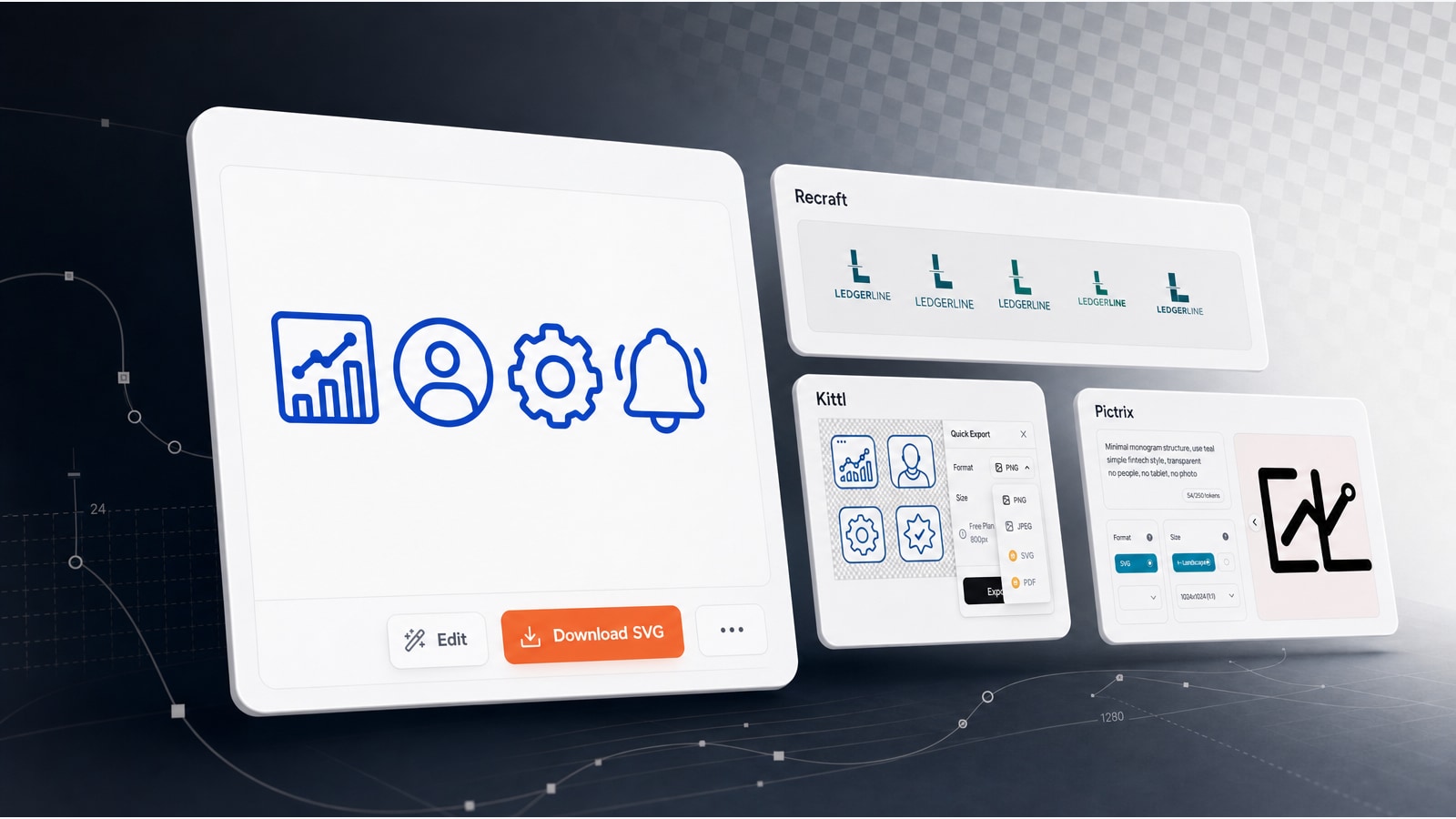
The screenshots below show the workflows and outputs behind the recommendations. Evidence collage from the 2026 best AI SVG generator tests, including SVG AI, Recraft, Kittl, and Pictrix.

What Counts As A Real AI SVG Generator?

A real AI SVG generator should create editable vector geometry from a prompt, a reference image, or both. When you open the file, you should see elements like <path>, <rect>, <circle>, <polygon>, or <g>, not a base64-encoded bitmap hidden inside an <image> tag. There are three related categories that often get mixed together:
  • Prompt-to-SVG generators: SVG AI, Recraft, SVGMaker, Pictrix/SVG.io. These create new vector artwork from text.
  • Design-suite AI vector workflows: Adobe Illustrator, Canva, Kittl. These are strongest when generation lives inside a larger design canvas.
  • Raster-to-SVG converters: Vectorizer.AI. These start from an existing PNG/JPG and trace it into vector paths.
That distinction matters because many "AI SVG" comparisons accidentally rank image generators, vector tracers, and professional editors as if they solve the same problem. They do not. A founder asking for "best AI SVG generator" usually wants a new logo, icon, badge, illustration, or web graphic from a prompt. A print shop asking for "SVG conversion" usually wants a raster logo converted. A professional illustrator may want generated vector art inside Illustrator, then manual cleanup.

1. SVG AI - Best Dedicated AI SVG Generator

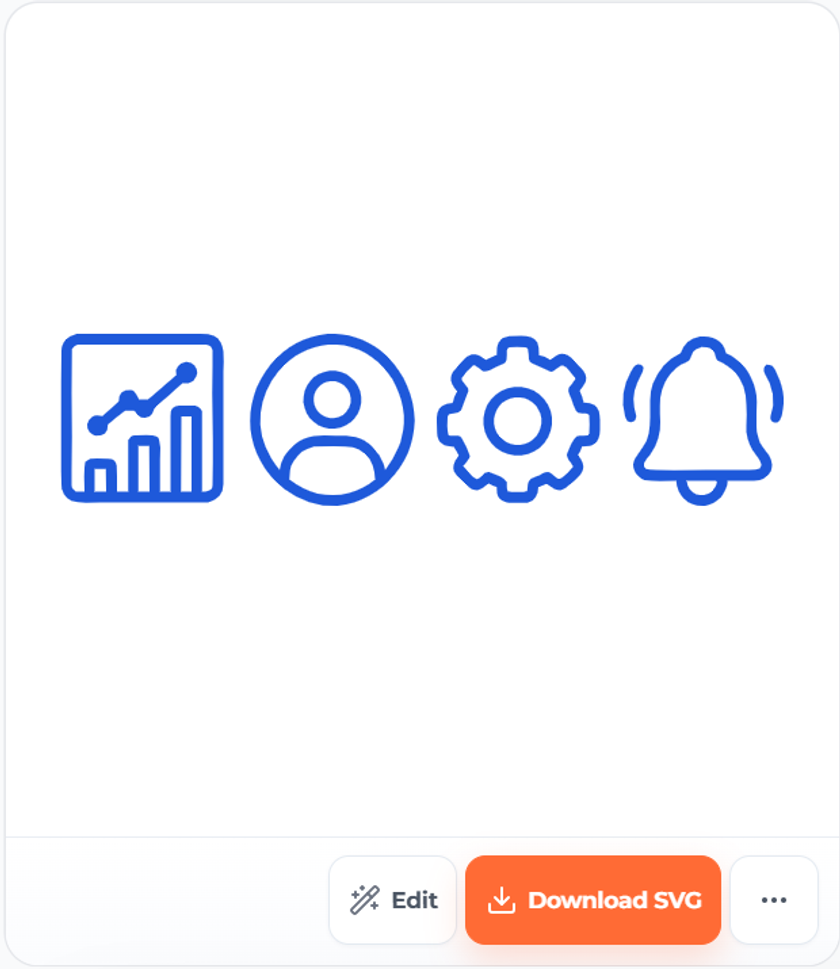
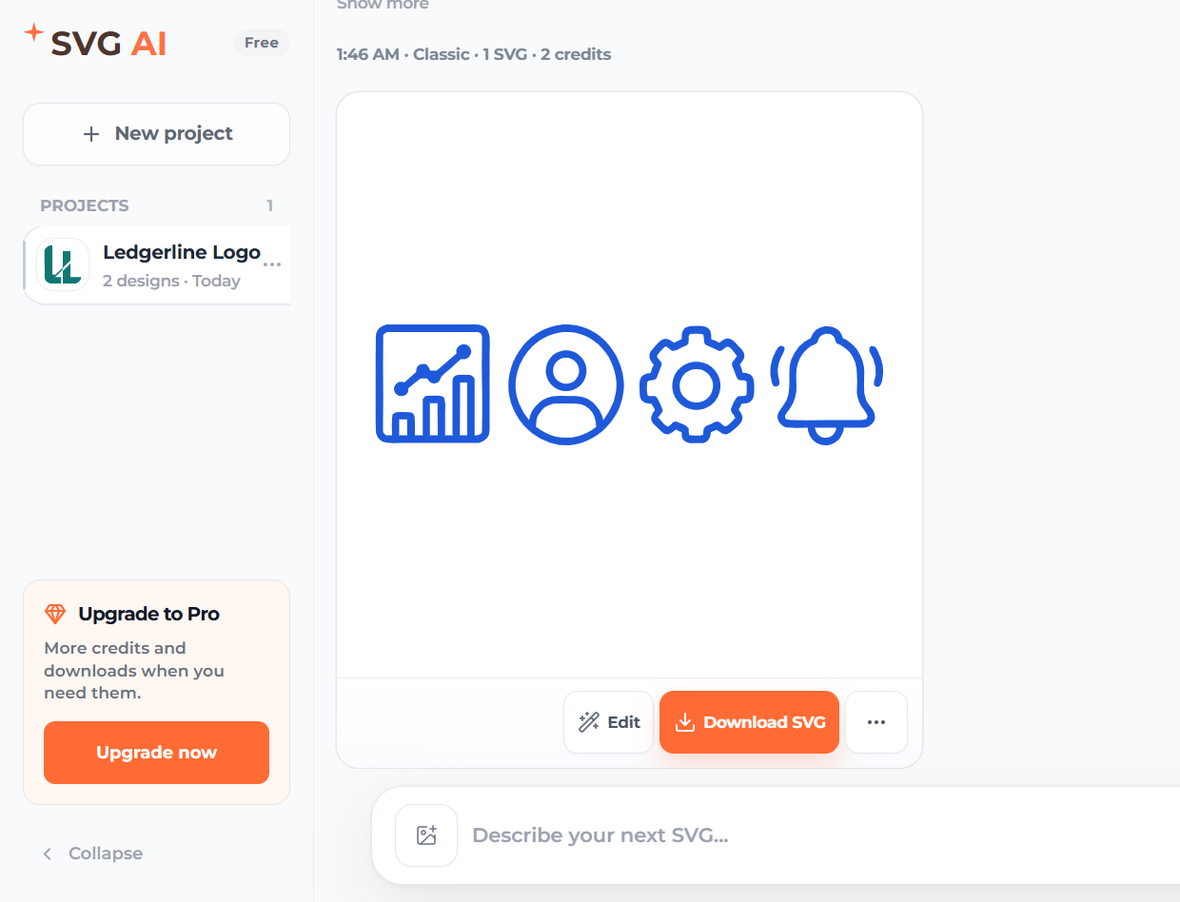
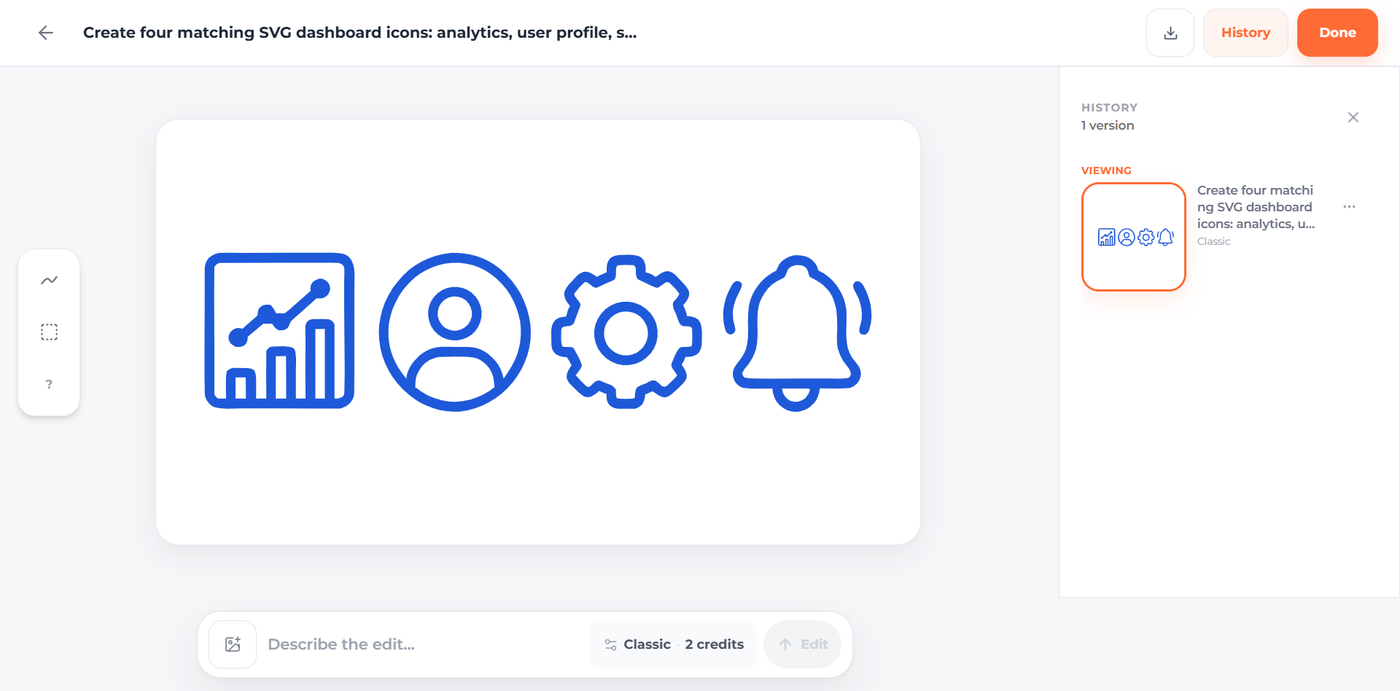
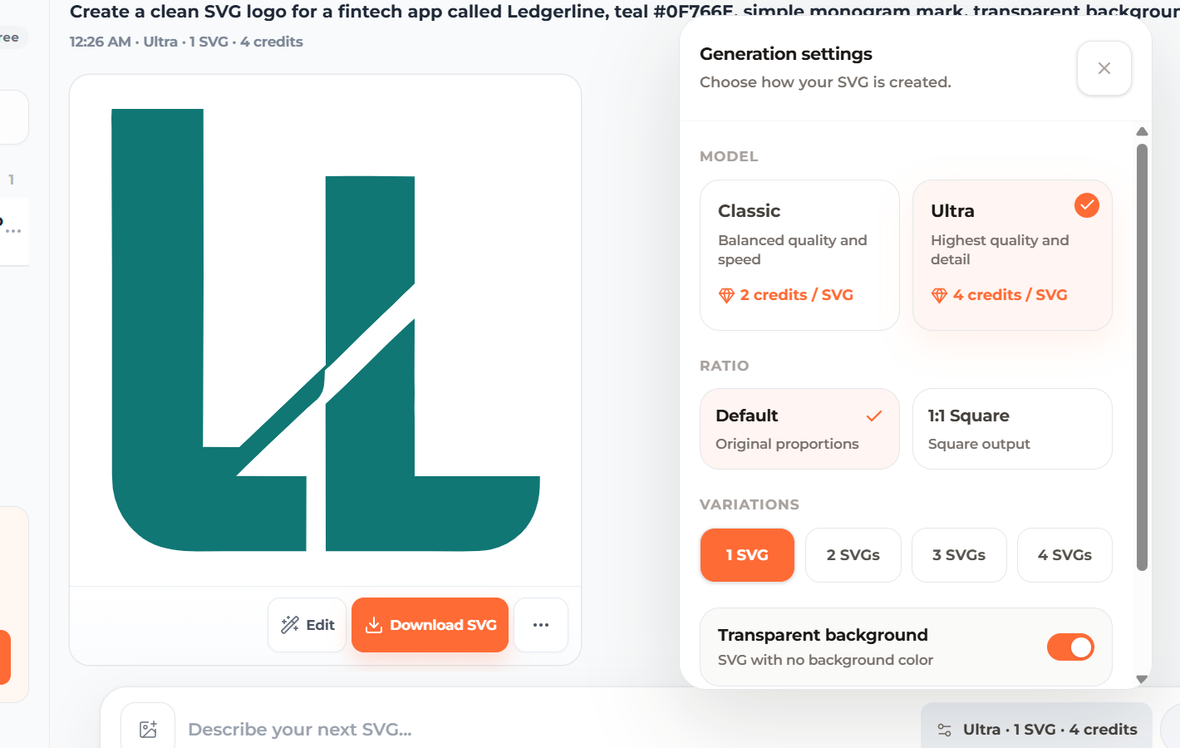
If you want a focused AI SVG generator, SVG AI is the best choice when the thing you want is specifically an SVG workflow: prompt creation, optional reference guidance, transparent background output, project history, edit controls, marked-region refinement, and SVG downloads. In the icon-set test, SVG AI created a single-color blue dashboard icon set with transparent output and no raster image inside the rendered SVG. The inspected result contained 9 paths, 0 image tags, 0 text nodes, and no base64 image data in the main generated SVG. That is the kind of proof I want before calling something an SVG generator. SVG AI generated four matching blue dashboard icons as editable SVG-style vector artwork. The bigger advantage is workflow depth. SVG AI is built around the full SVG creation loop: prompt or reference image in, transparent SVG result out, saved project history, AI editing, marked-region refinement, and SVG download controls in the same product. The saved project view keeps generated designs tied to the prompt and lets a user return to the work later instead of treating each generation as a disposable one-off. SVG AI saved project view showing generated SVG results, edit controls, and download controls. The edit flow matters more than people think. Most first generations are close, not final. SVG AI lets you move from "generate this SVG" to "edit this SVG" without exporting to a separate tool immediately. The marked-region workflow is especially useful when only one part of the image is wrong. SVG AI edit and mark interface with brush and box controls for region-specific SVG refinement. Generation settings are also explicit: quality tier, ratio, number of SVG variations, and transparent background controls are visible before generation. That is important for repeatable work because a logo prompt, a four-icon prompt, and a wide website illustration should not all be forced through the same output settings. SVG AI generation settings modal showing Classic and Ultra quality options, ratio choices, variation count, and transparent background control. Where SVG AI wins:
  • Dedicated text-to-SVG and reference-to-SVG workflow.
  • Transparent background as a first-class option.
  • Saved projects instead of throwaway generations.
  • AI edit controls after generation.
  • Marked-region editing for targeted changes.
  • Real SVG evidence from inspected output.
  • Good fit for logos, icons, web graphics, badges, app illustrations, and developer handoff.
Limits to know:
  • If you need node-by-node manual path surgery, you still want Illustrator, Figma, or Inkscape after generation.
Best use case: You want the shortest path from a plain-English idea to a clean, transparent, editable SVG that you can refine in the same product.

2. Recraft - Best General AI Vector Generator

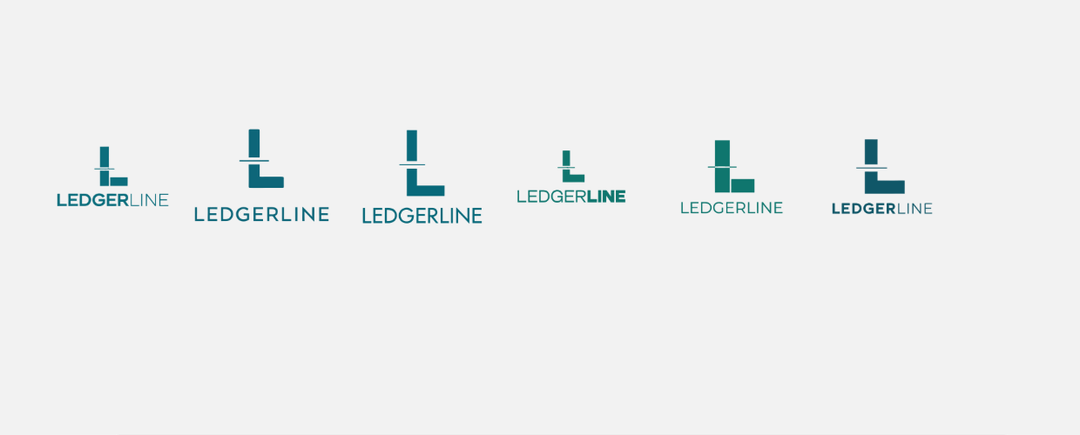
Recraft is the strongest general AI vector competitor in this comparison. If the question is "which broad AI design tool produces the most polished vector-style art?", Recraft deserves to be near the top. In our Recraft vector-mode test, the Ledgerline logo variants looked coherent, teal, and brandable. The tool is especially strong when you care about style exploration, multiple variations, and a broader creative suite around vector and image work. Recraft vector result showing several teal Ledgerline logo variations generated from the same prompt. Why SVG AI still ranks above Recraft here: this article is about the best AI SVG generator, not the best overall AI design suite. SVG AI showed more dedicated SVG workflow depth in our test: saved SVG projects, transparent SVG-oriented settings, direct edit flow, mark controls, and inspected real-SVG evidence from the generated output. Where Recraft wins:
  • Excellent general AI vector visual quality.
  • Strong fit for illustrators and brand designers exploring many styles.
  • Broader creative workflow than a narrow SVG-only tool.
  • Good alternative when the deliverable may become vector art, a raster export, or a broader brand system.
Limits to know:
  • The product is broader than SVG generation, so the dedicated SVG workflow is not as direct as SVG AI's.
  • If the job is specifically prompt-to-SVG with saved SVG projects and in-product refinement, SVG AI is the more direct workflow.
Best use case: You are a designer who wants high-quality vector concepts and style exploration across logos, icons, and illustrations.

3. Adobe Illustrator - Best Professional Vector Editing Workflow

Adobe Illustrator's generative vector tools belong in this ranking because Illustrator is where many professional SVGs are finalized. The value is not just generation. It is generation inside a mature vector editor with path editing, typography controls, layers, exports, color management, and production cleanup. Adobe is not the fastest path for a beginner who simply wants a quick SVG icon from a prompt. It is also not a lightweight web app. But if you are already in Illustrator, the ability to generate vector subjects, icons, patterns, or scenes and then clean them up with the full Illustrator toolset is powerful. Where Adobe wins:
  • Best post-generation path editing.
  • Best professional typography and brand-system cleanup.
  • Strongest fit for agencies, illustrators, and print/design production teams.
  • Mature export and handoff controls.
Limits to know:
  • Heavier learning curve and subscription cost.
  • Not a simple dedicated prompt-to-SVG web workflow.
  • Best results still depend on a designer knowing how to clean and simplify vector paths.
Best use case: You are a professional designer who wants AI-assisted vector creation inside the industry-standard editing environment.

4. Canva Vector AI - Best Beginner Design Workflow

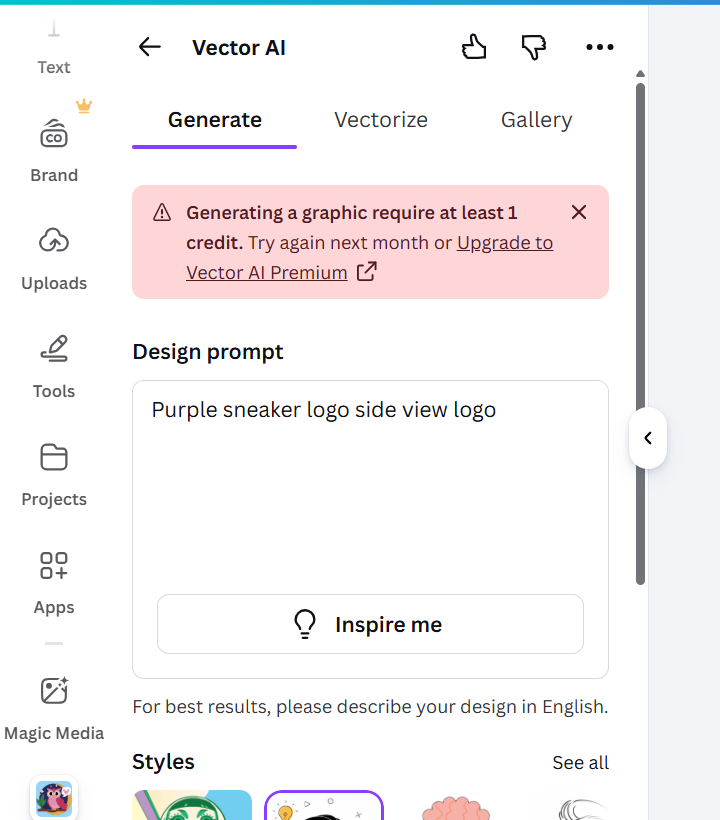
Canva Vector AI is the easiest tool in this list for people who already live inside Canva. If your SVG-like graphic is going into a social post, presentation, website banner, classroom material, flyer, or quick marketing asset, Canva's strength is the surrounding design environment. That is also the reason Canva does not rank higher for this specific query. It is a design-suite workflow first and a standalone SVG generator second. Plan credits and export options matter more here than they do in a dedicated SVG product, so Canva is best for beginners who want vector-style assets inside Canva rather than a focused prompt-to-SVG production flow. Canva Vector AI panel showing a credit gate before generation. Where Canva wins:
  • Beginner-friendly design canvas.
  • Great when the vector is part of a bigger design layout.
  • Templates, brand kits, presentation workflows, and social formats are already there.
Limits to know:
  • Plan credits and export options can shape the workflow.
  • Less direct than SVG AI for dedicated prompt-to-SVG production.
Best use case: You want simple vector-style graphics inside Canva, not a standalone SVG production workflow.

5. Kittl - Best Merch And Template Workflow

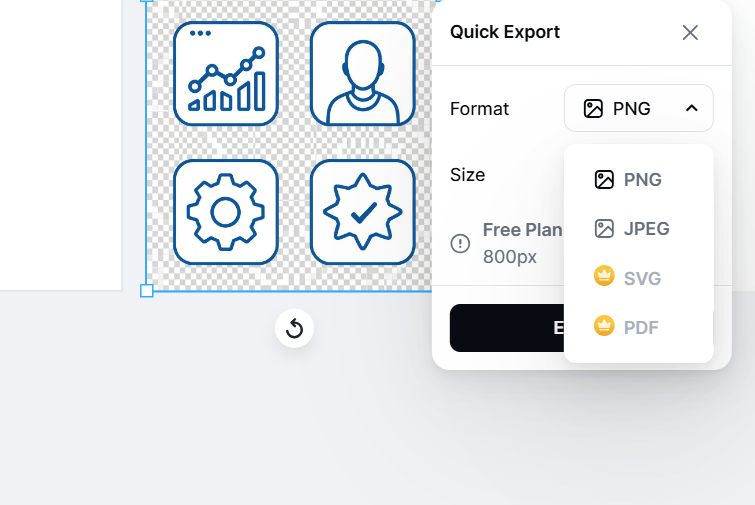
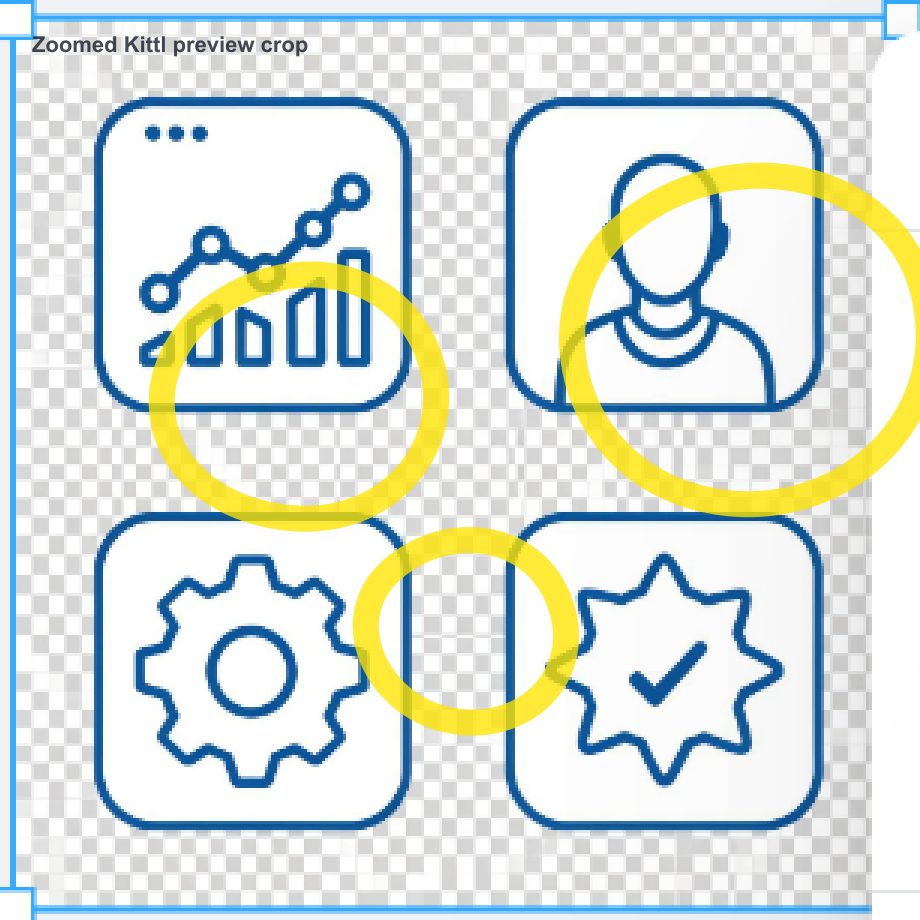
Kittl's vector generator is a good fit for creators making badges, sticker-style graphics, posters, T-shirt graphics, Etsy-style designs, and template-led brand assets. In our icon-set test, Kittl produced a visually usable blue icon set. The issue is that Kittl feels strongest as a merch/design platform, not as the cleanest standalone SVG generator. The Quick Export menu showed PNG and JPEG available while SVG and PDF were locked behind upgrade badges. That puts Kittl below SVG AI for anyone whose deliverable is a direct SVG file. Kittl Quick Export menu showing PNG and JPEG options while SVG and PDF exports are locked. The generated icon set also looked like it belonged on a transparent checkerboard canvas. Zooming in showed the more important problem: the checkerboard pattern itself was distorted inside the selected artwork area, which is a common raster-generation tell when an image model is asked for "transparent background" but cannot produce true transparency. In other words, the preview did not look like a real editor transparency grid behind vector objects; it looked like transparency was baked into the generated pixels. That is why Kittl ranks below SVG-native tools for transparent SVG work. Zoomed Kittl preview crop with yellow marks highlighting distorted checkerboard pixels around generated icons. For a reader deciding between tools, the practical takeaway is simple: if SVG export is the deliverable, Kittl is not the first tool to reach for. If the job is merch, templates, or shop-ready graphics, it becomes much more compelling. Where Kittl wins:
  • Strong templates and merch-oriented design surface.
  • Good for badges, posters, stickers, T-shirt graphics, and shop assets.
  • Easy to keep generated artwork inside a broader layout.
Limits to know:
  • SVG/PDF export can sit behind plan limits.
  • The visible canvas can make an output look vector/transparent even when the available export path is raster.
  • Less direct than SVG AI if the only job is prompt-to-SVG.
Best use case: You are already using Kittl for merch or templates and are comfortable with its plan-based export model.

6. Vectorizer.AI - Best Raster-To-SVG Converter

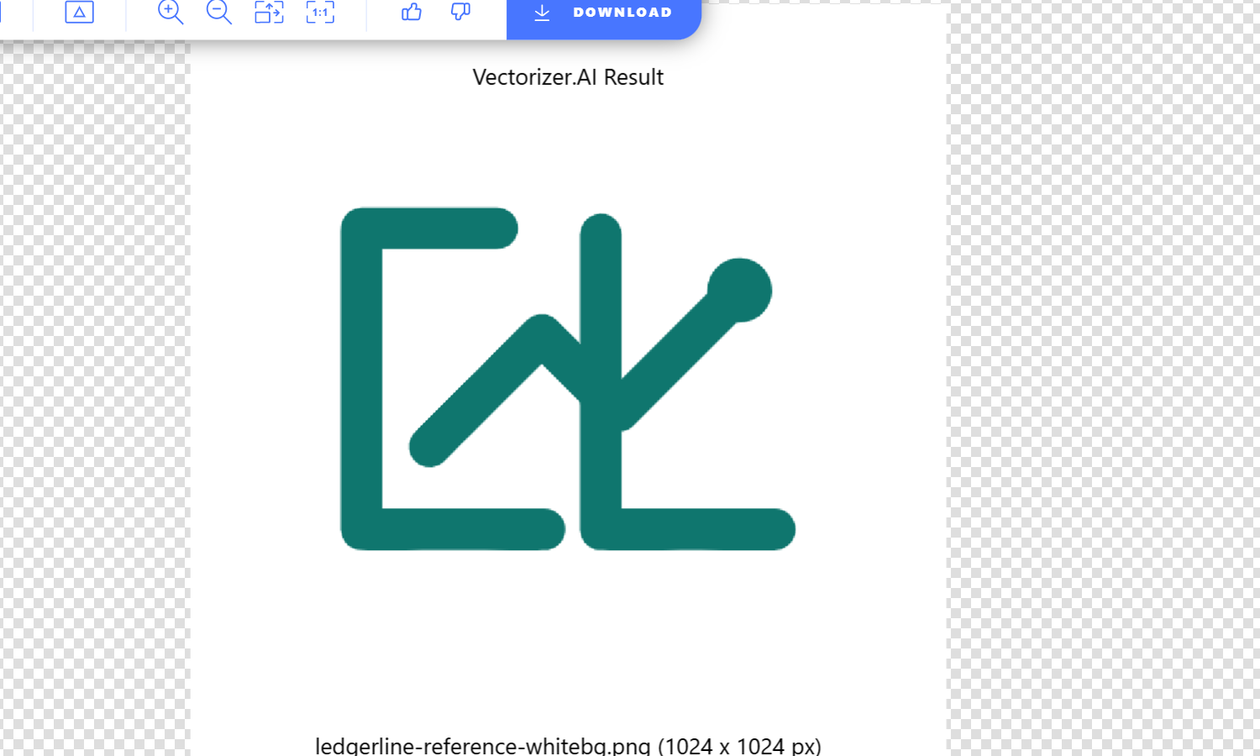
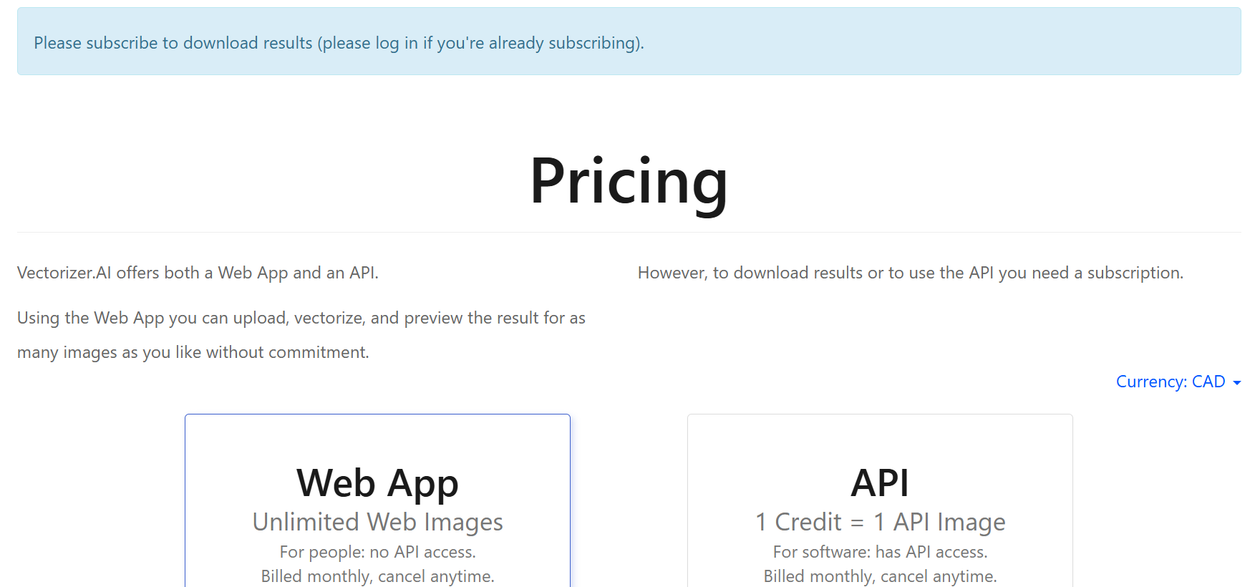
Vectorizer.AI is the best tool here when the input already exists as a PNG, JPG, or other raster image. It should not be judged against SVG AI or Recraft as a prompt generator because it solves a different job. In our reference conversion test, Vectorizer.AI produced a clean preview from the uploaded Ledgerline reference image. When we attempted download, the workflow routed to pricing: preview was available, but download required a subscription. Vectorizer.AI preview after uploading a Ledgerline reference image for raster-to-SVG conversion. Vectorizer.AI pricing screen shown after attempting to download a vectorized result. Where Vectorizer.AI wins:
  • Best fit for converting existing PNG/JPG artwork into vector form.
  • Strong preview experience.
  • Useful for rescuing old logos, sketches, scans, and raster AI images.
Limits to know:
  • Not a text-to-SVG generator.
  • Download requires a subscription at handoff.
  • The output quality depends heavily on the input image.
Best use case: You already have an image and need to vectorize it.

7. SVGMaker - Broad SVG Utility, Not A Close SVG AI Alternative

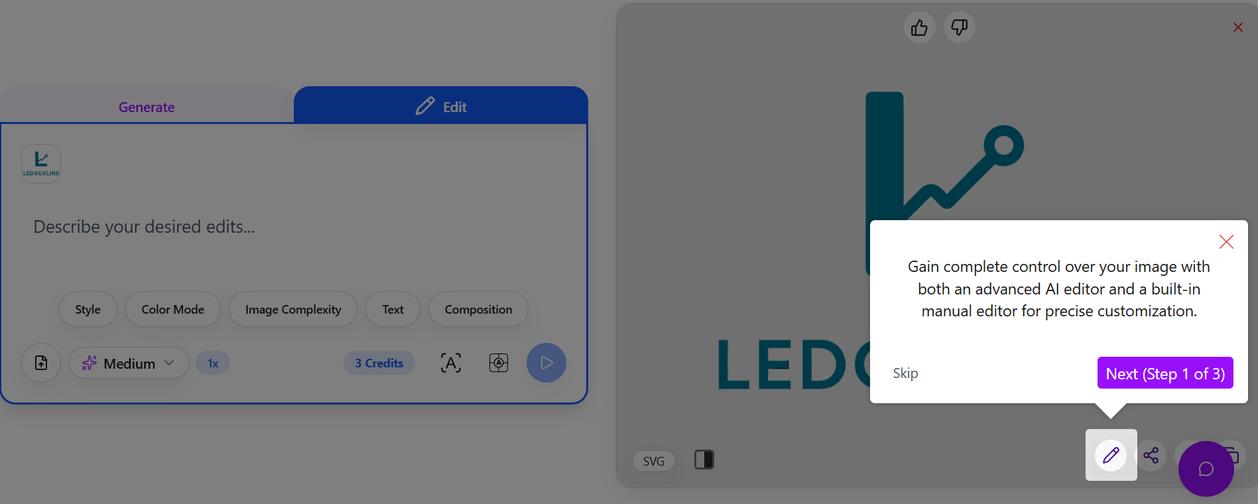
SVGMaker is a broad SVG utility: generate, edit, convert, API, and integrations all sit inside its public positioning. That is a wider utility pitch than SVG AI's focused prompt-to-SVG workflow. The product generated a teal logo/wordmark-style result and exposed edit controls, so it belongs in the comparison. But the workflow depth was not close to SVG AI's: no equally strong saved-project story, no marked-region refinement proof, less visible generation control, and a broader utility feel instead of an SVG-native creation loop. SVGMaker generated-result screen showing a teal logo output, edit panel, and editor onboarding overlay from the tested session. That is the practical ranking call. SVGMaker is worth knowing if you want a general SVG workbench, but it is not the tool I would put next to SVG AI for dedicated prompt-to-SVG, reference-guided creation, transparent output, saved projects, edit/mark refinement, and SVG download workflows. Where SVGMaker is useful:
  • Broad SVG utility positioning across generation, editing, conversion, API, and integrations.
  • Prompt generation and visible edit controls.
  • Useful if you want one product surface around several SVG-related jobs.
Limits to know:
  • Broader utility positioning makes it less focused than SVG AI.
  • The dedicated SVG generation workflow is thinner than SVG AI's saved projects, edit/mark controls, explicit generation settings, transparent-background workflow, and inspected SVG output.
  • Not a close first pick for logo/icon generation from prompts.
Best use case: You want a broad SVG utility, not the strongest dedicated AI SVG generator.

8. Pictrix / SVG.io - Real SVG Output, Weaker Prompt Adherence

Pictrix and SVG.io are direct prompt-to-SVG alternatives, so they belong in the long list. They do not belong near the top. Pictrix can export real SVG files. The Ledgerline logo download was an SVG with no embedded image tag and no base64 raster image. The problem was quality and constraint adherence. The simple logo test produced a file around 336 KB with 619 paths for a simple logo, used a pale background fill, and missed the teal brand-color direction. In the reference-guided test, the exported file was around 159 KB with 176 paths, but the visual result did not preserve the teal reference structure well. The comparison image below renders the actual exported SVG next to the reference asset so the mismatch is visible without relying on a cropped app screenshot. Side-by-side Pictrix reference-guided SVG test showing the teal Ledgerline reference image beside the black Pictrix output with pale background and file metrics. That is the distinction readers should care about: "real SVG" is necessary, but not sufficient. A tool can export actual paths and still fail the prompt, color, transparency, or simplicity requirements. Where Pictrix wins:
  • It can output real SVG files.
  • It is a direct prompt-to-SVG alternative.
  • Useful as a benchmark for the gap between "exports SVG" and "exports a good SVG."
Limits to know:
  • Missed important color and reference constraints in our tests.
  • Output was heavy for simple logo work.
  • Background handling and prompt adherence lagged behind the top tools.
Best use case: Use it as an alternative to test, not as the first recommendation for production SVG logos or icons.

SVG Reality Check

ToolBest RoleSVG ConfidencePractical Verdict
SVG AIDedicated prompt/reference SVG generatorStrongBest SVG-native workflow: transparent output, saved projects, edit/mark refinement, generation controls, and inspected clean SVG output.
RecraftBroad AI vector suiteStrongBest general AI vector competitor, but SVG AI is more direct when the deliverable is a generated SVG workflow.
Adobe IllustratorProfessional vector editorStrongBest for cleanup, typography, path editing, and final production handoff after generation.
Canva Vector AIBeginner design suitePlan-dependentBest when vector-style assets belong inside Canva layouts; less direct for standalone SVG production.
KittlMerch/template design suitePlan-dependentStrong for badges, stickers, posters, and shop assets; weaker when direct transparent SVG export is the main job.
Vectorizer.AIRaster-to-vector converterStrong converterBest for turning an existing PNG/JPG into a vector, not for creating a new SVG from a prompt.
SVGMakerBroad SVG utilityMediumUseful generate/edit/convert surface, but not as focused or deep as SVG AI for AI SVG generation.
Pictrix / SVG.ioPrompt-to-SVG alternativeMixedCan produce real SVG, but prompt adherence, background handling, and file weight lag behind the leaders.

Decision Tree

Use SVG AI if you want a dedicated AI SVG generator for logos, icons, web graphics, transparent SVGs, saved projects, reference-guided generation, and in-product AI edits. Use Recraft if you want the strongest broad AI vector tool and are exploring polished illustration or brand directions beyond a dedicated SVG workflow. Use Adobe Illustrator if you are a professional designer and the main job is cleanup, typography, node editing, print handoff, or brand-system finalization. Use Canva if the vector-style output belongs inside a Canva design and you value beginner-friendly templates more than exported-file control. Use Kittl if the work is merch, stickers, posters, badges, or template-led design and your plan includes the export formats you need. Use Vectorizer.AI if you already have a PNG/JPG and need to convert it into an SVG. Use SVGMaker if you want a broad generate/edit/convert SVG utility and do not need the strongest dedicated prompt-to-SVG workflow. Use Pictrix/SVG.io if you want a lower-ranked prompt-to-SVG alternative and can tolerate heavier files and weaker prompt adherence.

Other Tools We Left Out

NeoSVG, SVG Genie, and svggenerator.org did not make the main ranking because they were less relevant to the strongest 2026 comparison set: SVG AI, Recraft, Adobe, Canva, Kittl, Vectorizer.AI, SVGMaker, and Pictrix/SVG.io. That can change if a smaller tool ships a serious SVG-native workflow or starts producing stronger real-vector output than the tools above.

How To Run Your Own SVG Test

Before you commit to any AI SVG generator, run this five-minute check:
  1. Prompt the same tool for one simple logo and one four-icon set.
  2. Include an exact hex color and "transparent background" in the prompt.
  3. Download the SVG if the plan allows it.
  4. Open the file in a text editor.
  5. Search for <image, base64, and data:image.
  6. Count whether the file has a reasonable number of paths for the design.
  7. Drop it into Figma, Illustrator, Inkscape, or your app and scale it to 400%.
  8. Check whether it remains crisp, editable, transparent, and close to the prompt.
That test is more useful than most comparison tables. A real SVG generator should survive inspection, not just look nice in a screenshot.

Related SVG AI Guides

If you are still learning the workflow, start with our beginner's guide to generating SVGs with AI. For adjacent tool decisions, compare free SVG generators, learn how to make SVG icons with AI, or review SVG logo generators for startups.

FAQ

What is the best AI SVG generator in 2026?

For dedicated SVG generation, SVG AI is the best overall pick. It supports prompt-to-SVG, reference-guided SVG creation, transparent output, saved projects, in-product editing, marked-region refinement, and SVG-oriented settings. Recraft is the best general AI vector competitor.

Is SVG AI better than Recraft?

For a focused AI SVG workflow, yes. SVG AI is more direct for transparent SVG creation, saved projects, edit/mark workflows, and SVG production. Recraft is stronger as a broader AI vector and design tool. The right pick depends on whether you want a dedicated SVG generator or a general AI vector suite.

Is Kittl a good AI SVG generator?

Kittl is good for merch and template-led creative work: badges, posters, stickers, T-shirt graphics, and shop assets. It is weaker as a first-choice standalone AI SVG generator because SVG handoff is more plan-dependent and the workflow is less SVG-native than SVG AI.

Is Canva Vector AI worth using?

Yes, if you already work inside Canva and need beginner-friendly vector-style graphics inside a broader design. It is not the most direct option if your main goal is prompt-to-SVG generation, transparent output, saved SVG projects, and SVG-specific editing.

What is the best AI tool for converting PNG to SVG?

Vectorizer.AI is the best fit in this comparison for raster-to-SVG conversion. It starts from an existing image, previews a vectorized result, and is a different category from prompt-to-SVG generators like SVG AI or Recraft.

How do I know if an SVG is fake?

Open it in a text editor. If you see an embedded raster image, base64 image data, or a single large <image> element, it is probably a bitmap wrapped in an SVG container. A real SVG should contain editable vector elements like paths and shapes.

Can AI-generated SVGs be used in production?

Yes, if the file is clean, transparent when needed, editable, reasonably sized, and licensed for your use case. The safest workflow is to generate with an AI SVG tool, inspect the SVG file, then finalize important brand assets in a vector editor before shipping.