SVGAI
SVGAI
ToolsPricingBlog
LoginSign Up
SVGAI

SVG AI helps you create professional vector graphics from text prompts, including logos, icons, illustrations, and text-to-SVG designs.

Product

  • AI SVG Generator
  • AI Icon Generator
  • SVG to MP4 Converter
  • Pricing

Popular Converters

  • PNG to SVG
  • SVG to PNG
  • Image to SVG
  • SVG to JPG
  • SVG to PDF
  • View All →

Resources

  • What is SVG?
  • SVG Gallery
  • SVG Animation
  • Blog
  • Learn Center
  • Sitemap

Legal

  • Privacy & Cookies
  • Terms of Service

2026 SVG AI. All rights reserved.

X (Twitter)LinkedInYouTubeInstagram
Back to blog

How to Generate SVG Files With AI: A Beginner's Guide for 2026

Updated May 4, 2026
By Ashesh Dhakal, Founder, SVG AI
How to Generate SVG Files With AI: A Beginner's Guide for 2026
how to generate svgai svg generatorai svg generationbeginnertutorial2026 guide
I built SVG AI as a professional SVG generator because every other prompt-driven vector tool I tested either demanded design knowledge or returned an .svg file that was secretly a raster pretending to be vector. This guide walks the beginner workflow I optimized over 12,175 measured production runs between March 5 and May 4, 2026, with 100% structurally valid SVG output. The numbers below come from our production logs. The embedded SVG examples are real files from real paying users, verbatim prompt and all (typos, all-caps, informal phrasing intact).
What 12,175 runs show. Classic model median 8.84 seconds. Ultra model median 19.68 seconds. AI Edit median 26.29 seconds. Reference-image uploads in the trailing 30 days: 973 from 748 unique users. Real production prompts in at least ten languages. Users in 183 distinct countries. Free credits on signup; sign-up takes about ten seconds (Google or email).
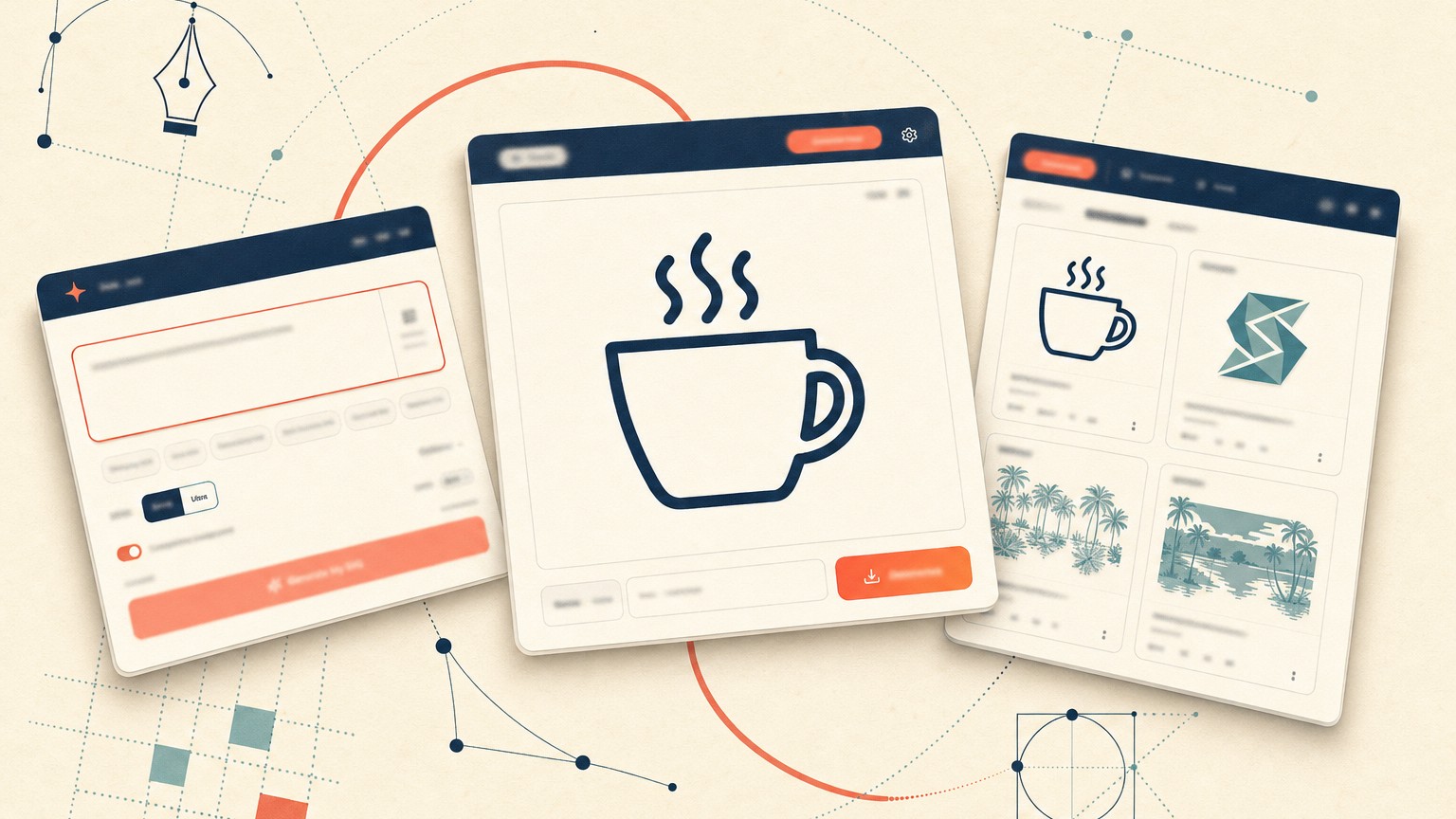
A small transparency note before we start: the hero illustration above was generated by an image model, and the embedded SVG examples below are real product outputs from real paying users (their verbatim prompts are kept in the captions). In this article
  1. Yes, AI can generate SVG files. Here's how it actually works
  2. What an SVG actually is, and why AI changes the math
  3. Three input modes you actually have today
  4. Your first SVG in under thirty seconds, step by step
  5. Refining what you generated: AI Edit in plain English
  6. Five real beginner SVGs (and the prompts that made them)
  7. Four prompt patterns that ship usable output on the first try
  8. Five mistakes I see beginners make every week
  9. A six-point quality checklist for the SVG you downloaded
  10. When AI generation is NOT the right tool
  11. Best AI SVG generator for a beginner in 2026
  12. What to do with the SVG you just generated
  13. Frequently asked questions
  14. What's next: from your first SVG to a real workflow

Yes, AI can generate SVG files. Here's how it actually works.

Yes. A modern AI SVG generator turns one or two sentences of plain English into a real, editable vector file in roughly nine to twenty seconds, depending on which model you pick. The model writes geometric shapes, paths, and curves directly. There is no canvas to learn first. There is no Bezier handle to pull. The file you download is genuine vector code, not a raster image dressed up with a .svg extension. The piece worth understanding before you start: vector output and raster output are not the same thing. A JPG, a PNG, or a WebP is a grid of pixels with fixed resolution that blurs when enlarged. An SVG is code, an <svg> element with <path> children describing geometry. Both can come from a text prompt. Only one stays sharp at a hundred-foot billboard size, edits cleanly in Illustrator, and weighs four kilobytes on disk. If you want the shortest possible path from idea to file, use the free svg generator I built at SVG AI. It accepts a text prompt, an uploaded image, or both, and ships transparent backgrounds by default. It's also what the rest of this guide demonstrates.

What an SVG actually is, and why AI changes the math

An SVG (Scalable Vector Graphics) is a small text file that describes shapes mathematically rather than as pixels. Because the file is geometry rather than a grid of dots, it stays sharp at any size: twenty pixels wide on a watch face, twenty feet wide on a billboard, identical clarity in both. That's the historical pitch for the format, and it's still the reason designers reach for SVG instead of PNG. The 2026 pitch is different. SVG is the only graphics format AI models can natively write, in code, with the same primitives a human designer would reach for. A model that has read enough SVG learns to construct logos, icons, and illustrations from a description and to output them as <path> elements with proper Bezier curves. Once you're past the "is this real vector or a fake one?" question, the file behaves exactly like an SVG you'd hand-build in Inkscape: same shapes, same editability, same downstream uses. What that lets a beginner do, in one paragraph: download a brand mark in nine seconds, open it in Figma to recolor it, paste the markup into a React component, send the same file to a Cricut to cut a vinyl decal, drop it into a print layout at billboard scale. One file, every size, no re-export. The use-case mix our production logs show is more concrete than I expected when I started. Across the last few thousand saved designs: logos and brand marks lead at 19.4%, followed by icons and icon sets at 10.8%, then image-to-vector workflows at 7.9%. Patterns and backgrounds (7.6%), characters and mascots (4.2%), and silhouettes for Cricut and laser cutting (4.2%) each fill a smaller slice. The format covers whatever a beginner is reaching for; the model handles the variety without complaint.

Three input modes you actually have today

A modern AI SVG generator accepts three ways to give it your idea: text-only prompts (fastest, lowest friction), image-only uploads (when describing the look in words is harder than showing it), and text-plus-image hybrids (the most controllable mode, the one that produces brand-consistent output). On SVGai.org, the prompt input on the homepage handles all three from the same box. Text only. Describe what you want, click generate. This is the path most first-time users take. "A minimalist outline icon of a coffee cup with steam, dark blue stroke, transparent background" takes nine seconds on the Classic model and produces a publishable file. The model supports 50+ languages; production prompts arrive in at least ten scripts (English, French, Spanish, Portuguese, German, Hungarian, Russian, Hindi, Arabic, CJK). You don't need to translate to English. Image only. Drop in a reference image (a hand sketch, a logo screenshot, a photo of an object, an existing icon you want re-styled) and let the model interpret it as a fresh vector. This is what to use when describing the look in words is harder than showing it. Production data from the trailing 30 days: 973 reference-image uploads from 748 unique users. Roughly one in five active sessions uses image input. It's not an obscure power-user feature; beginners reach for it constantly. Text plus image. Combine both. Upload a reference and add a text prompt that tells the model what to keep, what to change, what style to apply, what colors to match. This is the most controllable mode and the one that produces the brand-consistent output professional users keep coming back for. A prompt like "Professional brand SVG logo for 'ARCHIVERSE', clean modern memorable, COLOR #FE5F55, MATCH EXACTLY THE IMAGE PROVIDED" generates a finished logo in roughly twenty seconds. The choice matters because the wrong input mode is the most common reason a first attempt feels off. If you have a clear visual in your head, type it. If you have a picture in front of you, drop it in. If you need to keep brand colors and want a fresh take on a layout, do both. Compared to the other tools we cover in our best free SVG generators in 2026 roundup, three-mode input on a single free tier is uncommon; most free generators ask you to pick a lane.

Your first SVG in under thirty seconds, step by step

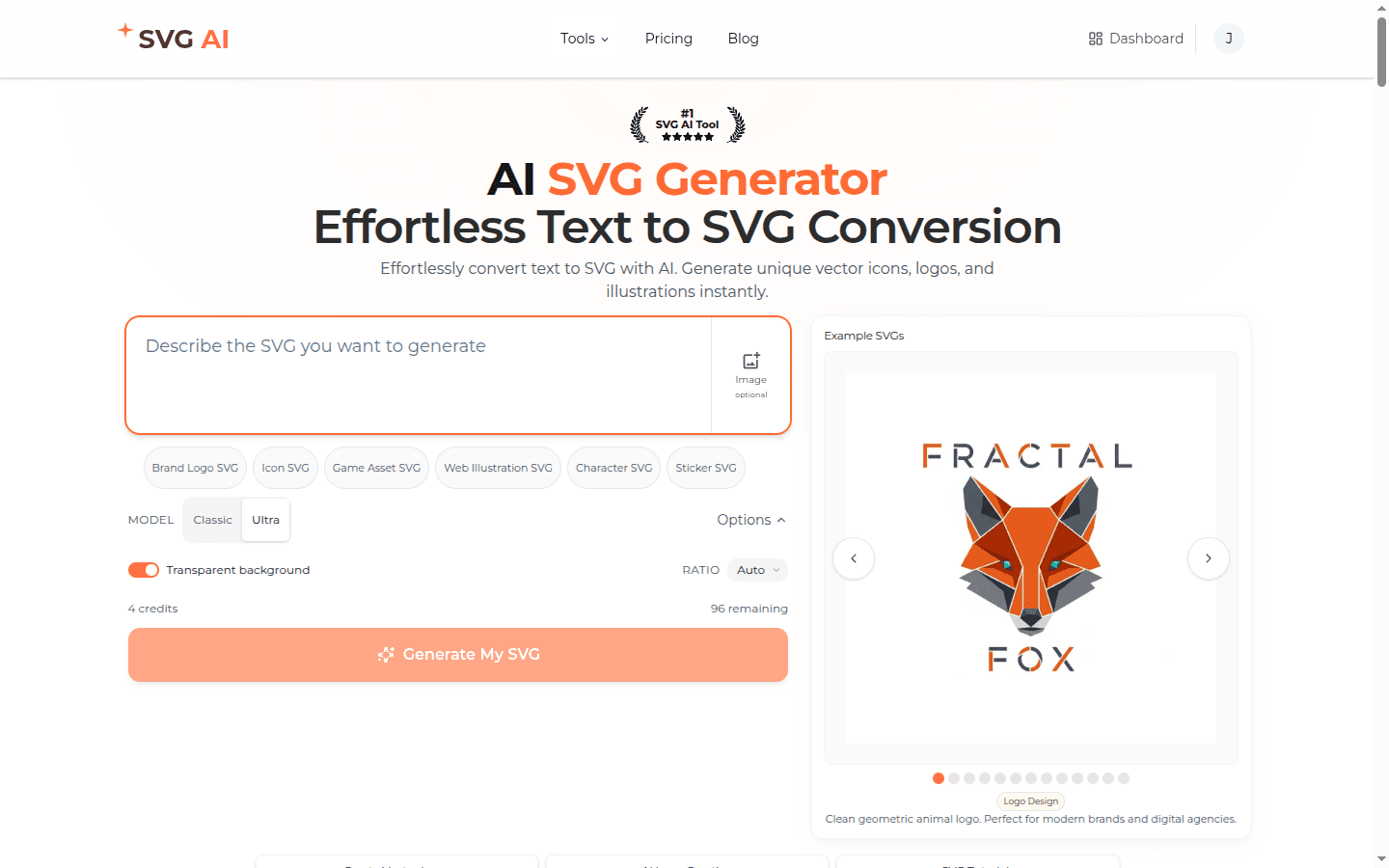
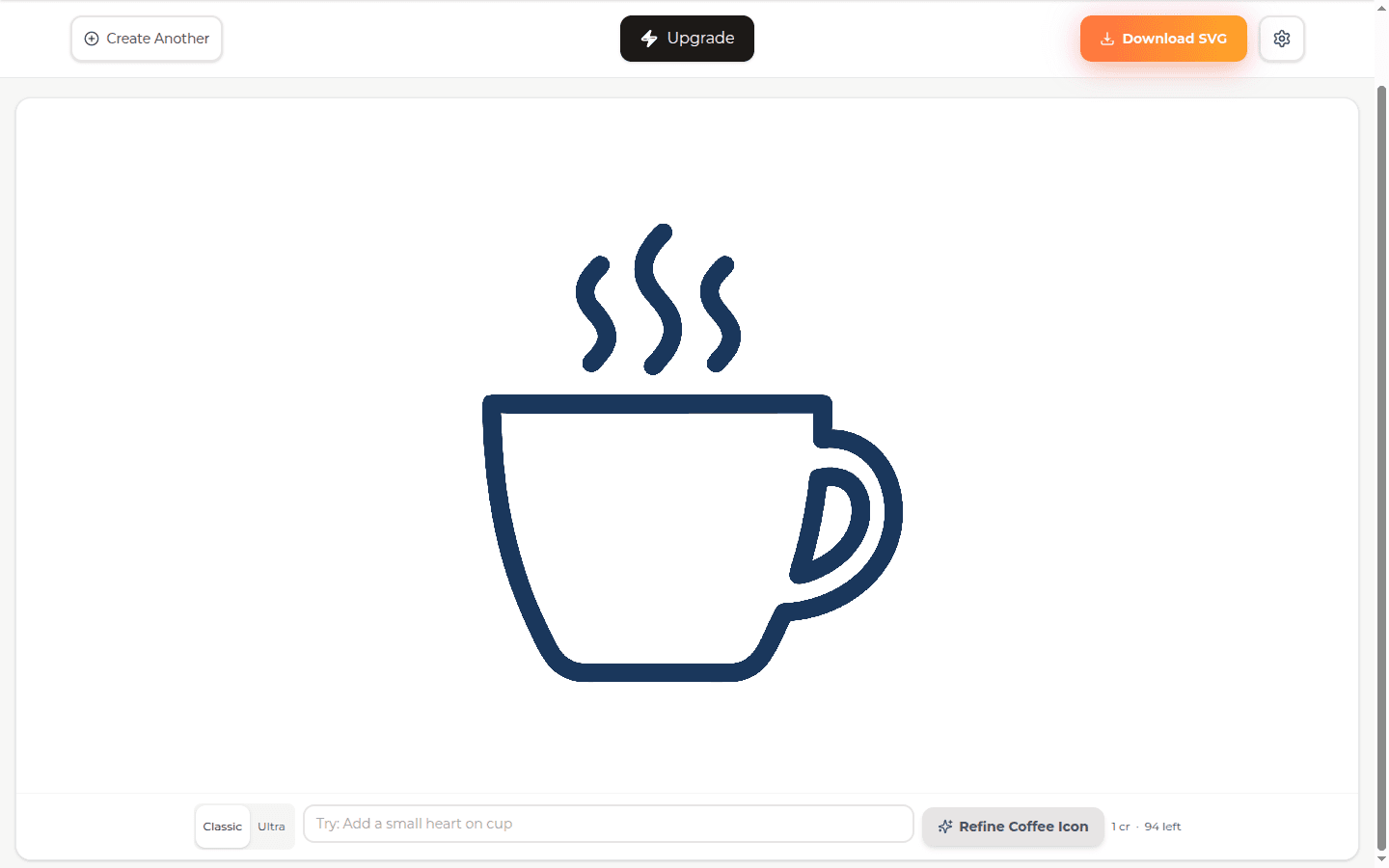
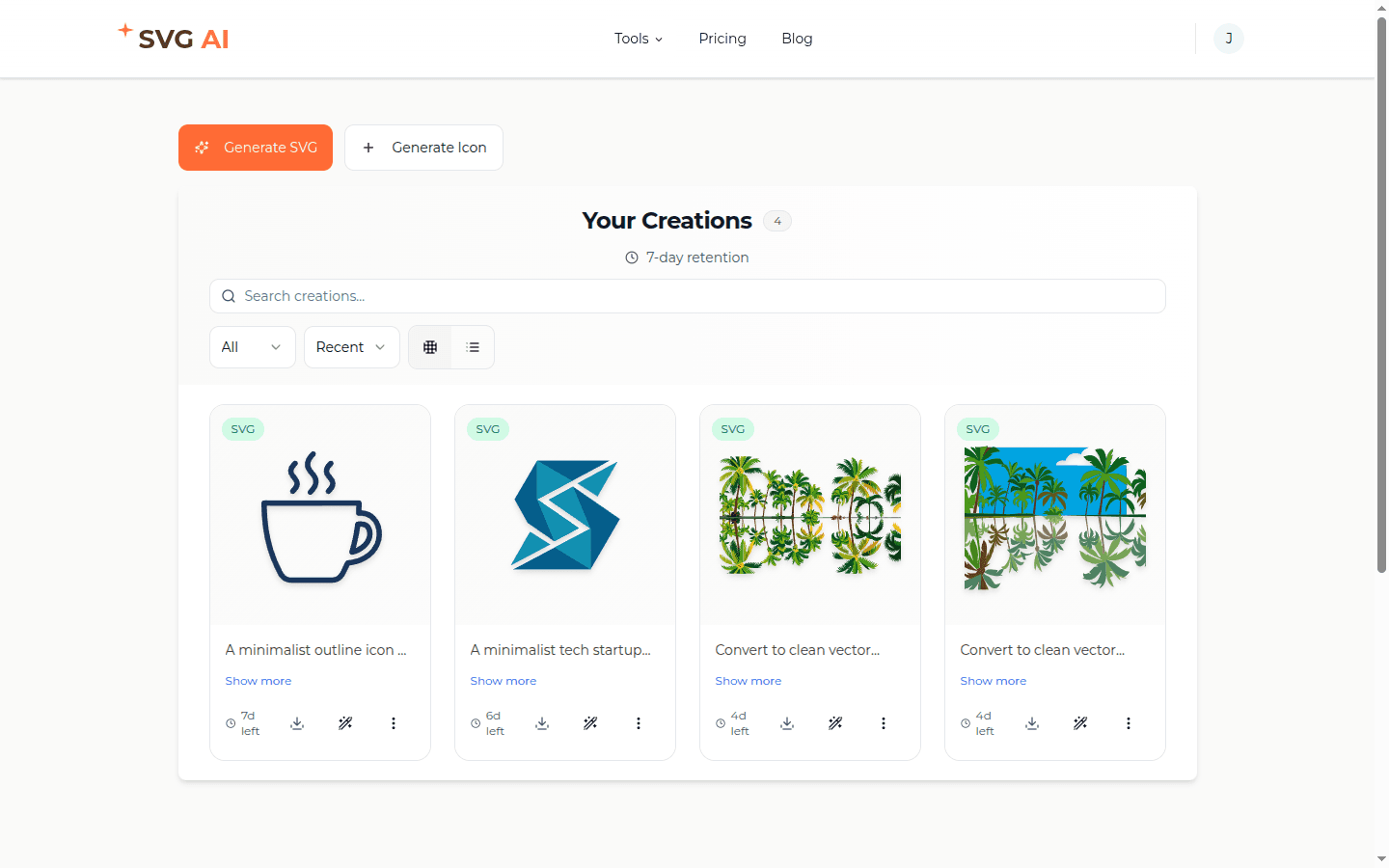
A beginner's first SVG takes under thirty seconds end to end on SVG AI. Open the prompt input (if you're new to SVG AI, sign-up takes about ten seconds via Google or email), write one sentence describing the result you want, pick Classic for speed or Ultra for fidelity, click Generate, wait roughly nine to twenty seconds, then download. That's the entire workflow. There are no settings to tune for the first run. Step 1. Open the prompt input. The AI SVG Maker homepage centers a single text box with one button beneath. Below the button is a disclosure labeled Options with three controls: a transparent-background toggle (on by default), a Ratio selector (Auto / 1:1 / 3:2 / 2:3 / 16:9 / 9:16), and a Model toggle between Classic and Ultra. There's also an Image (optional) button next to the prompt for the image-input flow. Above the prompt sit six one-tap sample buttons (Brand Logo, Icon, Game Asset, Web Illustration, Character, Sticker) for when you want a starting point instead of a blank cursor. SVG AI homepage prompt input with the Options panel expanded, transparent background toggle on, Ratio set to Auto, Classic and Ultra model toggle visible, six sample-prompt buttons for Brand Logo / Icon / Game Asset / Web Illustration / Character / Sticker Step 2. Write your first prompt. Skip the ceremony. Try: "A minimalist outline icon of a coffee cup with steam, dark blue stroke, transparent background." Pick Classic for the fastest result; reach for Ultra when you need higher fidelity on something you'll ship. Step 3. Click generate, wait nine to twenty seconds. Classic returns in a median of 8.84 seconds. Ultra returns in 19.68 seconds. The result page lands you on a focused canvas with the SVG rendered, plus four primary controls in the header: a Download SVG button (orange, top right), a settings cog, a Create Another button to start a new prompt, and an Upgrade shortcut. At the bottom sits an AI Edit panel with a refine prompt input and a contextual button labelled with the subject of your generation (in our case Refine Coffee Icon). SVG AI result page after a real Classic-model generation, clean dark-navy outline coffee cup icon with steam, Download SVG CTA top right, Refine Coffee Icon button bottom right, AI Edit prompt input ready for follow-up Step 4. Decide. If the result is what you wanted, click Download SVG. The file lands as a real vector (typically 5 KB to 30 KB), no watermark, commercial-use rights included. If it's almost what you wanted, type a one-sentence change in the AI Edit input (try "make the cup brown instead of blue", "add a small heart in the steam", or "remove the saucer") and click the refine button. The model rewrites only the targeted region in roughly twenty-six seconds. We'll come back to AI Edit in the next section. Step 5. (Optional) Visit the dashboard. Every saved design lives in your dashboard with a 7-day retention window on the free plan, longer on paid. Each card shows a thumbnail, a prompt excerpt, a retention countdown, and quick actions for download, edit, and regenerate. SVG AI dashboard after the coffee-cup generation, Your Creations panel with four saved-design cards, 7-day retention badge, Generate SVG and Generate Icon CTA buttons, retention countdowns on each card That is the entire surface area. One prompt, one button, three result-page actions. No tutorial required, no canvas to master, no color theory homework. Try it now: write one sentence describing an icon, logo, or illustration you want, and click Generate. The first attempt costs you nothing on the free tier and the file is yours when it lands. Generate your first SVG with AI →

Refining what you generated: AI Edit in plain English

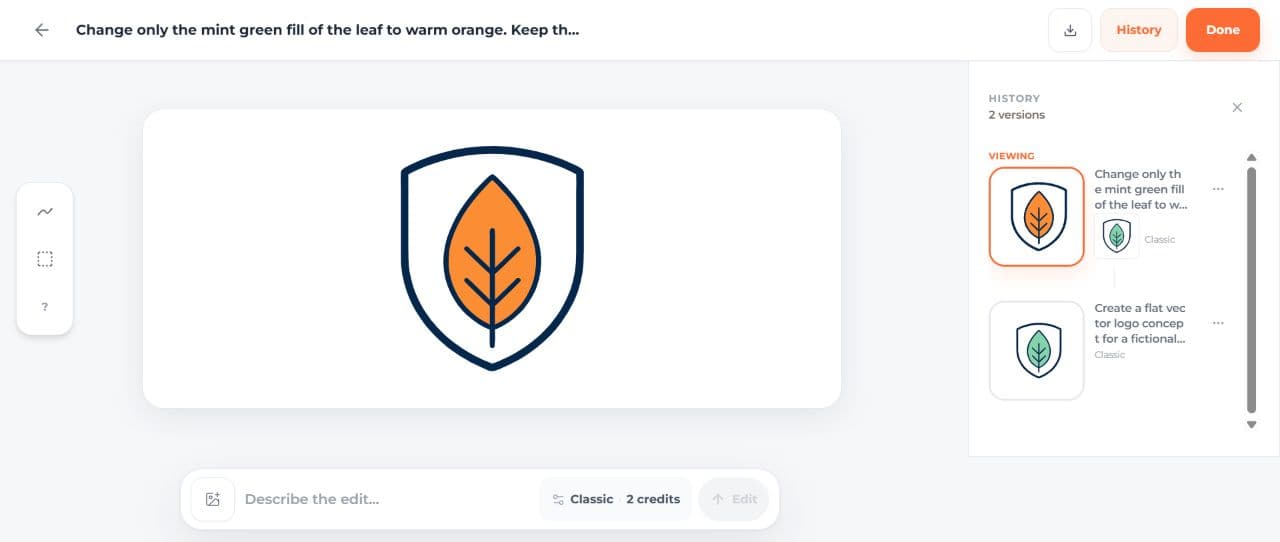
AI Edit rewrites only the part of an SVG you describe in plain English; the rest of the design stays untouched. Type "make the cup orange", click refine, and only the cup recolors. The steam, the proportions, and the line weight all stay intact. Median refine time on SVG AI is 26.29 seconds. In the trailing 90 days, 126 saved designs went through at least one AI Edit pass; nineteen of them went through three or more. Iteration is where the workflow turns from "a try" into "a tool." The mechanic that matters: when you describe a change, the model isolates the region you targeted before rewriting. If you ask for a color swap on one element, that one element re-renders. If you ask to add a small object ("a heart in the steam"), the rest of the design holds while the new object slots in. You don't lose what was working. You don't have to re-prompt from scratch. You can iterate ten times in a row and end up with a result that compounded on every previous step instead of starting from zero each round. A typical refine sequence I see beginners run on their first session looks like this: prompt one (initial generation), refine one (color swap), refine two (style tweak, "make the lines a bit thicker"), refine three (final polish, "remove the small detail near the handle"), download. Four steps, under two minutes total, ends with a file that wouldn't have come out of a single-shot prompt. The 19 designs that ran through three-plus edits in the last 90 days represent users who landed there naturally. Nobody told them to iterate; the workflow rewarded it. If a refine doesn't land the change you wanted, undo and try again with more specific phrasing. "Add a heart" is vaguer than "add a small red heart in the steam, above the cup". Specificity helps AI Edit the same way it helps the initial prompt. The next time you generate, you'll prompt more decisively to begin with. That's the iteration loop teaching you, not just the tool. Try AI Edit yourself the next time a first generation lands close-but-not-quite: describe the one change you'd make in plain English, click refine, and watch the targeted region rewrite while everything else holds.

Five real beginner SVGs (and the prompts that made them)

Here are five SVGs that real paying users generated on SVG AI in the past seven days. I picked them to span the full beginner range: the simplest one-sentence starter, a multi-element descriptive scene, a typo-heavy brand request, an icon batch, and a real-world physical-product use case. Prompts are quoted verbatim (all-caps, typos, informal phrasing intact). The files below are the actual SVGs exported from the users' dashboards, not screenshots. Open any of them in Inkscape or Figma and every line, color, and path is selectable.
1st-place medal icon generated from the prompt "i need a 1st place medal icon. clean and simple."
Cartoon blue dinosaur with magnifying glass generated from a descriptive multi-element prompt
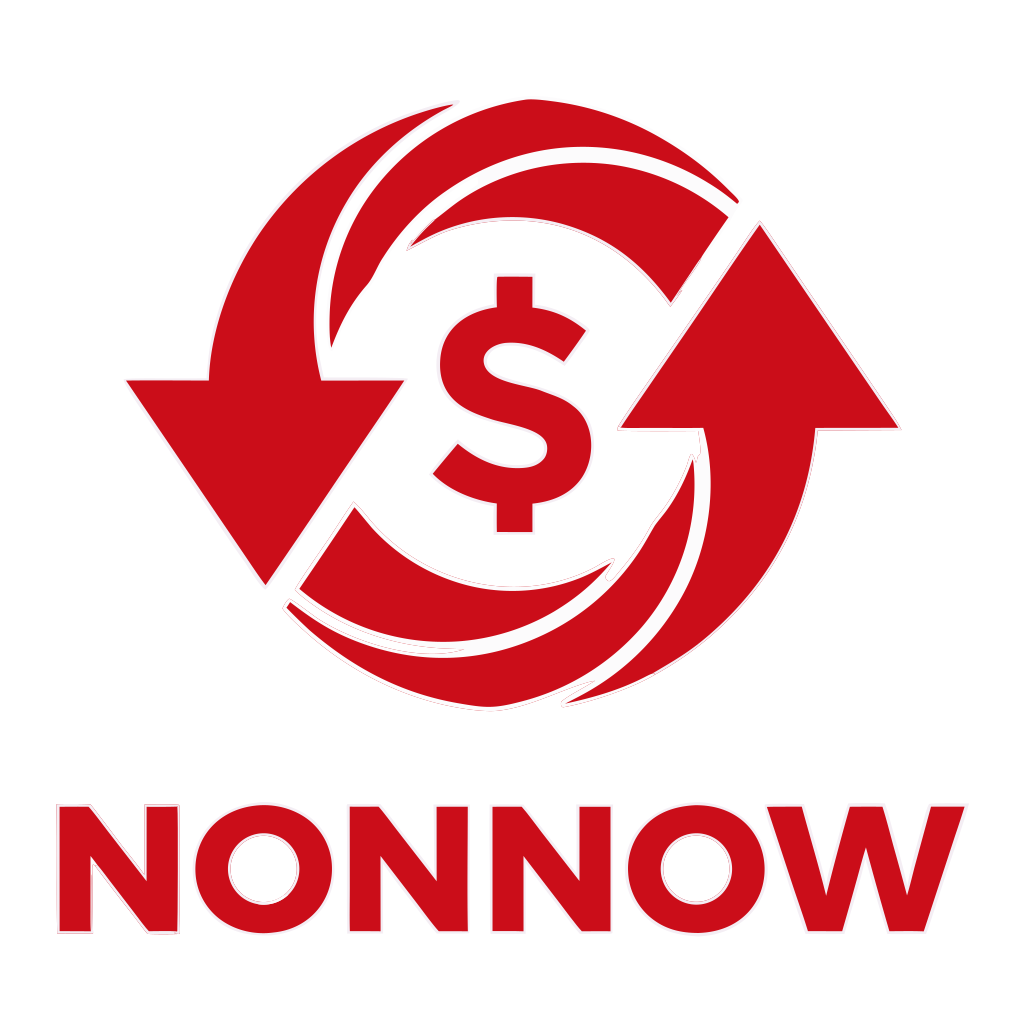
NONNOW bank logo generated from a typo-heavy beginner prompt
Set of 4 minimalist SaaS icons (Daily.co, Typeform, Twilio, SendGrid) generated from one prompt
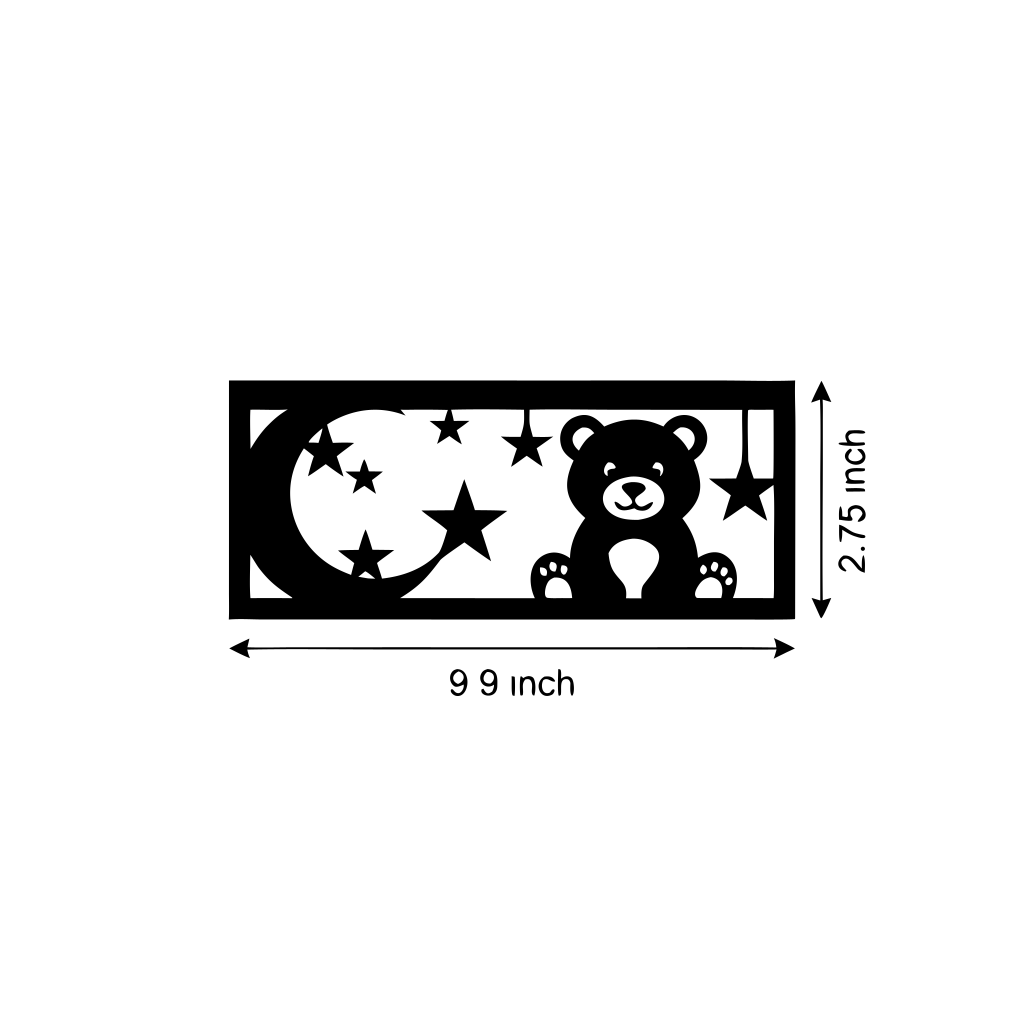
Kids night-light silhouette generated to specific physical dimensions for a Cricut cut
What ties these five together: every prompt is one to two sentences. None of them uses jargon. None of them is grammatically correct. None of them costs anything beyond the time it took to type. That's the bar a 2026 AI SVG generator clears.

Four prompt patterns that ship usable output on the first try

After watching 12,175 prompts move through the system, I see four prompt families that produce a usable SVG on the first try. They share one trait: each makes a single decisive choice about subject, style, and color, then stops. Stacking adjectives like "ultra-detailed 8K photorealistic award-winning" doesn't help for vector output, despite what general prompt-engineering tutorials suggest. Brevity beats verbosity here every time. Pattern 1. Subject + style + color, in that order. "A minimalist line-art icon of a coffee cup, dark blue stroke, white background." Subject is what, style is how it should look, color is what palette. The model uses the order itself as a hint; what you mention first weights more. This is the single most reliable beginner pattern. It works on logos, icons, illustrations, mascots, and simple scenes. If you can't decide on a style, try "minimalist", "flat", or "outline" as defaults; they give the model a clean anchor. Pattern 2. Hex codes for color when precision matters. "Professional brand SVG logo, COLOR #FE5F55, transparent background." Hex codes get respected literally. If your brand uses #7A9E9F and #0d1520, write those exact strings. No "navy blue" guesswork. Colour fidelity in the model is high enough that branded output stays on-palette across regenerations and across AI Edit passes. This matters most for client work and trademark-track designs where one consistent value of orange is the difference between approval and a re-spin. Pattern 3. Multi-step constraints in one sentence. "A coffee cup with a heart made of steam, flat illustration style, transparent background, no text." Modern AI SVG generation handles constraint stacking when each constraint is unambiguous. Four ideas, one sentence, all four respected. Where this breaks down is when constraints contradict each other. A prompt like "minimalist line art with detailed gradient shading" asks for two opposite styles, and the model picks one. Audit your prompt for contradictions before clicking generate; if two adjectives fight, drop one. Pattern 4. Reference image plus correction prompt. "Recreate this logo, exactly as is, but make the background transparent." For brand work and visual consistency, drop the existing logo or sketch in and write a one-sentence diff describing what to change about the reference. This is the workflow our production data calls "image transformation"; 7.9% of all saved designs use this exact pattern. It's especially strong for refreshing existing brand assets, recoloring icons to a new palette, or turning a sketch into a polished version of itself. A pattern that emphatically does not matter: prompt length. Across our 12,175 measured runs, prompts of thirty characters succeed at the same 100% structurally-valid rate as prompts of three hundred characters. Write what you mean, stop, generate. If you want to practice AI Text to SVG patterns specifically for typography work, the text-to-SVG complete guide covers what works best for type-forward output.

Five mistakes I see beginners make every week

These are the five failure modes I watch new users hit during their first session on SVG AI, with a one-sentence fix for each. Some are about how the prompt is phrased. Some are about iteration discipline. The patterns are predictable enough that fixing them up front cuts your time-to-finished-design roughly in half. Mistake 1. Asking for everything at once. "A logo for my coffee shop with a cup, beans, steam, my name in cursive, a star, sunrise, and a slogan in latin." Fix: Pick one focal idea, generate, then AI-Edit a single addition if you need more. The model can hold five constraints comfortably; eleven becomes lottery. Mistake 2. Vague prompts that delegate the entire decision. "Make me a cool logo." Fix: State the subject explicitly. Even "a logo for a coffee shop, minimalist style, dark brown" outperforms "cool logo" by a wide margin. Vagueness gets you the model's average guess; specificity gets you yours. Mistake 3. Forgetting style direction. "A bicycle icon." Fix: Add one style adjective. "A flat outline icon of a bicycle, single black stroke, transparent background." Without a style anchor, the model has to invent one. The result rarely matches what you actually pictured. Mistake 4. Vague color language. "A blue logo." Fix: Either name a specific shade, "deep navy", "pale sky blue", "electric cyan", or paste a hex code. Two prompts that say only "blue" rarely produce the same blue. The model has thousands of options and no way to read your mind. Mistake 5. Treating the first try as the only try. First generation isn't perfect, so the new user closes the tab. Fix: Use AI Edit. Describe what to change in one sentence. The model rewrites the targeted region in roughly twenty-six seconds, and 8.17% of all production designs go through at least one edit pass. That's where the polish lives. The single biggest reason new users underestimate how good the output can be is that they treat "first try" as "the only try."

A six-point quality checklist for the SVG you downloaded

Before you ship a generated SVG, run it through six quick checks: real vector code (not embedded raster), scales without blur, readable text where present, transparent background where you want one, fully editable in a vector tool, and light on disk. The checks are tool-agnostic. If any fails, regenerate or AI-Edit before shipping.
  1. Real vector, not embedded raster. Open the file in a text editor (or run head on it). You should see <path>, <rect>, <circle>, <polygon>, or <line> elements with d="…" or coordinate attributes. If you see one giant <image> tag with a base64 string inside, the file is fake-vector and won't scale.
  2. Scales without blur. Resize the file in your browser or design tool from 24 px to 2,000 px. Edges should stay crisp at every step. Real vector output passes this trivially; the failure mode is uncommon but worth verifying once.
  3. Readable text (if it has text). Logos with brand names should render the letters cleanly at small sizes. If text inside the SVG is garbled or approximated by random shapes, the file failed at typography. Regenerate, or render the type separately and composite later.
  4. Transparent background where you want it. SVG AI ships transparent backgrounds by default; if your output has a white box behind the design, the toggle was off. Re-generate with the toggle on, or remove the background rectangle by hand in Inkscape.
  5. Editable in a vector tool. Drop the file into Figma, Inkscape, or Adobe Illustrator. Every shape should be selectable. Every color should be editable. Every node should be moveable. If the file imports as one flat unselectable raster, it's not real vector.
  6. Light on disk. A finished SVG of a simple icon or logo should weigh under 30 KB. If it's heavier than 50 KB without good reason, run it through npx svgo --multipass to cut redundant attributes. Outputs from SVG AI typically land under 30 KB without further optimization.
If a download fails three or more checks, the format isn't the problem. The tool is. Pick another generator and re-evaluate.

When AI generation is NOT the right tool

AI SVG generation is not the right tool for every vector job. Three workflows where I tell beginners to reach for something else: pixel-perfect art direction with a brand specification to match, photorealistic raster output where pixels and shading matter more than infinite scalability, and faithful raster-to-vector tracing of an image you already have. Each of those has a better tool category. You need pixel-perfect art direction. If the design is going through a strict brand-system review where every node, every kerning value, and every curve has to match a specification someone else wrote, AI generation gets you 80% of the way there fastest. The last 20% (exact node placement, sub-pixel adjustments, brand-team approval) happens in Inkscape, Figma, or Adobe Illustrator with manual editing. Use AI for the first draft, then hand-edit. Don't expect the AI to land a brand-system handoff on the first try. You need photorealistic raster output. SVG generation is for vector. If you want a photorealistic product mock, a textured illustration, or a painterly scene with shaded depth, a raster image generator is the right tool category. SVG outputs are clean geometric shapes with flat or simple-gradient fills. That's the format's strength and its limit. Trying to coerce SVG into photorealistic raster work fights the medium. You're vectorizing an existing image, not creating new artwork. If you have a PNG of a logo and want it as a clean SVG, a converter (raster-to-vector tracing) is the correct tool. Image converters don't generate from a description; they trace what's already there. SVG AI's image-input mode is closer to AI-driven re-interpretation of a reference, which is excellent for stylizing an existing asset but isn't the right pick for a faithful raster-to-vector copy. For pure tracing, see our best free SVG generators in 2026 roundup which separates generators from converters explicitly. Knowing when to skip the tool is part of using it well.

Best AI SVG generator for a beginner in 2026

For a beginner's first SVG, the AI SVG Generator at SVG AI is the pick I'd recommend even if I hadn't built it. Classic model: 8.84-second median first generation (last 30 days). Ultra model: 19.68 seconds for higher fidelity. AI Edit polishes in 26.29 seconds. Across all 12,175 measured runs, 100% of outputs were valid vector SVG: paths, shapes, real Bezier curves, no embedded raster pretending to be vector. Free credits, no watermark, commercial rights included. The reasons it works for beginners specifically: one prompt does the job, transparent backgrounds are on by default, the free tier needs no card on file, and the workflow is short enough that your second generation feels easier than your first. The fair comparison: if your goal is batch icon sets in one consistent style, Recraft is genuinely the strongest free-tier alternative; its style-locking is built for that exact use case. If your goal is hand-edit precision on something the AI got 80% right, Inkscape is the open-source vector editor that has been the credible Adobe Illustrator alternative for over twenty years. If your goal is pure raster-to-vector conversion of an image you already have, an image-to-SVG converter, not a generator, is the right category. For a generalist beginner with an idea and no image, the deciding factors are: how fast does the tool return a usable file, does the output ship without watermarks, can the file be edited freely afterward, and does the workflow get easier on the second attempt. SVG AI clears all four bars on the free tier, which is why it's where the rest of this guide pointed you. Generate your first SVG free. Sign-up takes about ten seconds, free credits are included, and most beginners finish their first design before the page finishes scrolling. Try it in SVG AI →

What to do with the SVG you just generated

Once you have an SVG, five downstream uses cover almost everything beginners want to do with it: embed in a website, import into a design tool for further editing, cut on a Cricut or vinyl plotter, source for app icons, or drop into a brand kit. Each is about a minute of work from the file you just downloaded. The format scales to all of them from one source. Embed in a website. Two ways. Use <img src="my-icon.svg" alt="…" /> for the simplest case (the SVG behaves like an image). For full styling control, paste the actual <svg>…</svg> markup directly into your HTML, and now you can change colors with CSS, animate paths with keyframes, and respond to clicks. Import into a design tool. Drop the SVG into Figma, Canva, Adobe Illustrator, or Boxy SVG and it imports as a fully editable vector layer. Ungroup it once and every shape, color, and path is yours to modify. This is the AI-draft-plus-manual-polish workflow most working designers use. Cut on a Cricut, silhouette, or vinyl machine. Cricut Design Space accepts SVG natively. Most laser cutters and vinyl plotters do too. The kids-night-light example above was specifically prompted at 2.75 by 9.9 inches because that's the physical size the user planned to cut. Use as an app icon source. SVGs scale to every iOS, Android, and watchOS asset size from a single file. Most modern app-icon pipelines accept SVG input and export the rasters automatically. Add to a brand kit. Generate a logo on SVG AI, optionally hand it to Inkscape for a final clean-up pass, run it through an optimizer, and you have a brand mark you own outright with commercial rights. Outputs from SVG AI ship under 30 KB on average and are already production-clean; the optimizer pass is optional polish, not a requirement. For deeper coverage of the trade-offs between manual, automated, and AI-driven SVG creation methods, see how SVG generation methods compare. For coherent multi-icon sets in one visual style, building consistent AI SVG icon sets walks through the prompt patterns that produce 50-icon families in one visual language. One prompt is between you and your first SVG. Generate it now →

Frequently asked questions

Can AI generate SVG files without tracing or drawing?Yes. A modern AI SVG generator interprets a text prompt (or a reference image, or both together) and writes vector shapes directly. SVG AI accepts text-only, image-only, or text+image input and produces a real vector SVG with editable paths and curves. Tracing tools are a separate category. They convert an existing raster image to vector and don't do prompt-driven generation. The two answer different needs.
What's the best AI for generating SVG files in 2026?For a beginner who wants a working SVG from a single prompt, with transparent backgrounds by default and a measured 100% structurally valid output rate over 12,175 production runs in the trailing 60 days, SVG AI is the recommendation. For batch icon sets in one consistent style, Recraft is the alternative. For pure raster-to-vector conversion of an existing image, an image-to-SVG converter is the right tool.
Do I need design experience to use an AI SVG generator?No. The fastest path is to describe what you want in one or two sentences, pick a model, and click generate. There's no canvas to learn, no Bezier curves to pull, no color theory to memorize. Real beginners on SVG AI write prompts like "i need a 1st place medal icon. clean and simple." and get a usable file in roughly nine seconds.
How long does it take to generate one SVG?On SVG AI in the trailing 30 days (n = 5,383 runs, 100% structurally valid), the Classic model returns an SVG in a median of 8.84 seconds, the Ultra model in 19.68 seconds, and AI Edit in 26.29 seconds. Other free AI generators report similar order-of-magnitude speeds when network and queue conditions are good. Your first generation feels the slowest. After that, the rhythm clicks.
What does an AI-generated SVG actually look like in code?A normal SVG file you can open in any text editor. You'll see an <svg> root element with a viewBox, then <path>, <rect>, <circle>, or <polygon> children carrying d="…" and fill="…" attributes. Every shape is selectable, every color editable. There's no embedded <image> tag pretending to be vector; the file is genuine vector code top to bottom.
Can I use AI-generated SVGs commercially?On SVG AI, yes; outputs ship with commercial-use rights and no per-export license to track. Other tools differ: open-source editors like Inkscape and Boxy SVG grant unrestricted rights to anything you create; some free tiers (Recraft's, notably) retain ownership of free-tier outputs and display them publicly. Always read the Terms of Service for the tool you use before filing a trademark.
Will Google penalize content that uses AI-generated SVGs?No. Google's stated position (March 2026 core update guidance, plus the long-running Helpful Content guidance) is that AI-generated visual assets are fine when they're original, useful, and embedded in real expertise. The risk is in mass-produced low-effort AI content with no editorial value. Using a tool to produce a clean icon for a real article is the opposite of that pattern.
Can I edit the SVG after the AI generates it?Yes, two ways. AI Edit on SVG AI lets you describe a change in plain English ("make the cat orange", "remove the inner gradient", "add a heart in the steam") and only the part you targeted rewrites. For pixel-level precision, drop the file into Inkscape, Figma, or Boxy SVG and edit nodes directly. The combination of AI for first draft and manual editor for polish is the workflow most working designers use.
What languages does the AI accept in prompts?The model supports 50+ languages. Production data from SVG AI shows real prompts arriving in at least these ten scripts: English, French, Spanish, Portuguese, German, Hungarian, Russian, Hindi, Arabic, and CJK (Chinese / Japanese / Korean). Mixed-language and code-switched prompts work cleanly too. You don't need to translate to English.
What's the difference between a free SVG creator and a free SVG converter?A free AI SVG Creator generates a brand-new vector from your description or your reference idea. A converter (image-to-SVG) takes an existing raster file (PNG, JPG, WebP) and traces it into vector. Same output format, completely different inputs. If you have an idea, use a creator. If you have a pixel image you want vectorized, use a converter.

What's next: from your first SVG to a real workflow

The first generation is the hard part. Once you have a usable file, the rest is choosing where it ships and which adjacent skill you most need to build next. Three short paths from here, depending on what you want to learn. For a wider survey of free options across AI generators, vector editors, and image converters, see the best free SVG generators in 2026. For prompt patterns specifically tuned for typography work, see the text-to-SVG complete guide. For coherent multi-icon sets in one visual style, see building consistent AI SVG icon sets. For the underlying differences between AI-driven, automated, and manual SVG creation methods, see how SVG generation methods compare. You don't need any of those next steps to make your first SVG. You need a prompt, a button, and ten seconds. Everything else is what to do with the file once it's yours.