Creating iOS App Icons with AI SVG Generator: Complete 2026 Tutorial
By SVG AI Team
ai svg generatorios app iconsapp icon designmobile app designsvg generator
Your app icon is the first thing users see in the App Store. It's your app's face, your brand ambassador, and often the deciding factor in whether someone taps "Get" or keeps scrolling. Yet creating a professional iOS app icon that looks perfect across all required sizes—from the 1024x1024 App Store listing down to a tiny 20x20 notification badge—traditionally required expensive design software, significant expertise, or hiring a professional designer.
That's changed dramatically with AI-powered tools. Using an AI SVG Generator, you can now create stunning, App Store-ready iOS app icons in minutes rather than hours. Describe your vision, and get professional vector graphics that scale perfectly across every iOS device, from iPhone SE to iPad Pro.
In this comprehensive tutorial, we'll walk through everything you need to know about creating iOS app icons with AI, including exact size requirements, prompt engineering techniques, and export workflows that will have your icons ready for submission in no time.
Why iOS App Icons Require Special Attention
Apple's ecosystem demands pixel-perfect graphics at multiple resolutions. Unlike Android's more flexible approach, iOS has strict requirements for app icons that every developer must follow:
- Mandatory sizes: Apple requires specific dimensions for different contexts (App Store, home screen, settings, notifications)
- No transparency: iOS app icons cannot have transparent backgrounds
- No alpha channels: The icon must be opaque on all edges
- Automatic corner radius: iOS applies its signature rounded corners automatically—don't include them in your design
- Single icon, multiple contexts: The same design must work at 1024 pixels and 20 pixels
Getting these requirements wrong can lead to App Store rejection or, worse, icons that look blurry or unprofessional on users' devices.
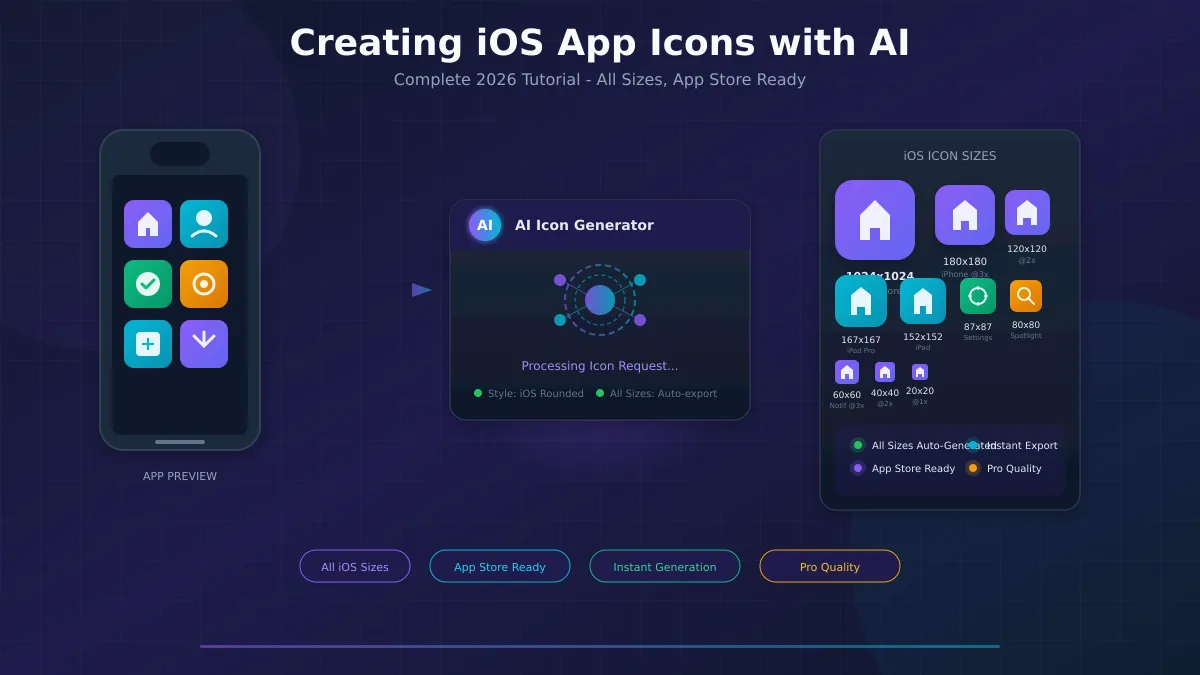
Complete iOS Icon Size Reference Chart
Before generating your icons, you need to understand exactly what sizes Apple requires. Here's the complete 2026 reference chart:
App Store Icon
| Size | Scale | Use Case |
|---|---|---|
| 1024×1024 | @1x | App Store listing (required) |
iPhone Icons
| Size | Scale | Use Case |
|---|---|---|
| 180×180 | @3x | Home screen (iPhone 12 Pro, 13, 14, 15, 16) |
| 120×120 | @2x | Home screen (older iPhones) |
| 60×60 | @1x | Home screen (base resolution) |
iPad Icons
| Size | Scale | Use Case |
|---|---|---|
| 167×167 | @2x | iPad Pro home screen |
| 152×152 | @2x | iPad, iPad mini home screen |
| 76×76 | @1x | iPad home screen (base) |
Settings Icons
| Size | Scale | Use Case |
|---|---|---|
| 87×87 | @3x | Settings app (iPhone) |
| 58×58 | @2x | Settings app (iPhone, iPad) |
| 29×29 | @1x | Settings app (base) |
Spotlight Search Icons
| Size | Scale | Use Case |
|---|---|---|
| 120×120 | @3x | Spotlight search (iPhone) |
| 80×80 | @2x | Spotlight search (iPhone, iPad) |
| 40×40 | @1x | Spotlight search (base) |
Notification Icons
| Size | Scale | Use Case |
|---|---|---|
| 60×60 | @3x | Notifications (iPhone) |
| 40×40 | @2x | Notifications (iPhone, iPad) |
| 20×20 | @1x | Notifications (base) |
That's 18+ different sizes you need to export for full iOS coverage. This is exactly why starting with vector graphics from an SVG generator is so valuable—you create once and export at any resolution without quality loss.
Step-by-Step iOS Icon Generation Process
Let's walk through the complete process of creating an iOS app icon using AI, from initial concept to App Store-ready exports.
Step 1: Define Your App's Visual Identity
Before opening any tool, answer these questions:
- What does your app do? (This influences the icon's subject matter)
- Who is your target audience? (Affects style choices—playful vs. professional)
- What emotion should the icon convey? (Trust, excitement, calm, energy)
- What's your brand color palette? (Usually 1-2 primary colors work best)
- What category is your app? (Productivity, games, social—each has visual conventions)
For example, one mobile developer used our tool to create a complete icon library for their password management app—over 150 icons covering categories like login, WiFi, servers, identity cards, and medical records, all in a consistent soft pastel style. They started by defining a clear visual identity: security-focused, trustworthy, and professional.
Step 2: Craft Your Initial Prompt
The prompt you write determines everything. For iOS app icons, you want to be specific about:
- Style: Flat, gradient, 3D, realistic, minimalist
- Subject: The main visual element
- Colors: Specific hex codes or color descriptions
- Background: Solid color (required for iOS—no transparency)
- Level of detail: Simple for small sizes, detailed for large
Example prompt for a productivity app:
Minimalist checklist icon for a productivity app, soft gradient
background from #6366f1 to #8b5cf6, white checkmark symbol,
clean geometric design, professional and modern, solid background,
no transparency, app icon style
Example prompt for a fitness app:
Dynamic fitness app icon, person running silhouette in white,
vibrant orange to red gradient background (#f97316 to #ef4444),
energetic and motivational, bold and simple, solid background,
no transparency, iOS app icon style
For more advanced prompt techniques, check out our guide on prompt engineering for SVG creators.
Step 3: Generate and Iterate
With your prompt ready, generate your initial icon. AI tools like our AI SVG Generator will produce a vector graphic that you can then refine:
- Generate the initial design using your crafted prompt
- Review at multiple sizes—zoom in and out to see how it reads
- Iterate on the prompt if needed—add or remove details
- Request variations to explore different directions
- Select your winner once you find a design that works at all sizes
Pro tip: The best iOS icons are simple. If your design has too many details, they'll become muddy at smaller sizes. When in doubt, simplify.
Step 4: Export and Prepare for All Sizes
Once you have your final SVG, you need to export it at all required iOS sizes. Since SVG is vector-based, you can export at any resolution without quality loss.
Export workflow:
- Export your SVG as PNG at 1024×1024 (App Store size)
- Use automated tools or batch export for all other sizes
- Organize files according to Apple's Asset Catalog naming conventions
- Verify each size looks crisp and recognizable
Prompt Templates by App Category
Different app categories have different visual conventions. Here are proven prompt templates for common app types:
Productivity Apps
Clean productivity app icon, [specific symbol like checklist,
calendar, or notes], professional blue gradient (#3b82f6 to #1d4ed8),
white iconography, minimal and focused, corporate-friendly,
solid background, no transparency, iOS style
Social & Communication Apps
Friendly social app icon, [speech bubble, people, or connection symbol],
warm gradient from [primary color] to [secondary color], rounded shapes,
approachable and inviting, modern flat design, solid background,
no transparency, iOS style
Gaming Apps
Exciting game app icon, [main character or game element],
vibrant and dynamic, bold colors, slight 3D effect,
eye-catching and fun, action-oriented, solid background,
no transparency, iOS app icon
Health & Fitness Apps
Motivational fitness app icon, [heart, running figure, or
activity symbol], energetic gradient (#10b981 to #059669),
clean athletic design, encouraging and active,
solid background, no transparency, iOS style
Finance Apps
Trustworthy finance app icon, [dollar symbol, chart, or shield],
professional dark blue or green (#0f766e to #115e59),
security-conveying design, premium and reliable,
solid background, no transparency, iOS banking style
Education Apps
Engaging education app icon, [book, lightbulb, or graduation cap],
friendly bright colors, approachable academic design,
encouraging knowledge, playful yet professional,
solid background, no transparency, iOS style
These templates give you a starting point. Customize with your brand's specific colors and adjust the symbols to match your app's actual function.
Creating Consistent Icon Sets
If your app needs multiple icons—perhaps for different features, settings, or a companion app—consistency is crucial. Here's how to maintain a unified visual language.
The Anchor Icon Method
- Create your main app icon first—this becomes your "anchor"
- Document the style elements: gradient colors, stroke weight, corner treatments
- Use the same style prefix for all subsequent icons
- Generate variations that share the visual DNA
Example style prefix:
Soft flat vector style, 2px stroke weight, rounded corners,
purple gradient (#8b5cf6 to #a78bfa), minimal detail,
consistent optical weight, iOS app icon style —
Then append specific elements:
— home icon with simple house shape— settings icon with gear symbol— profile icon with user silhouette
This approach ensures every icon in your set feels like it belongs to the same family.
Dark Mode Variants
iOS supports light and dark appearances. For some icons, you may want alternate versions:
Dark mode prompt modifier:
[Your icon prompt], optimized for dark mode display,
lighter accent colors, ensuring visibility on dark backgrounds
Consider if your icon needs a dark mode variant. Most app icons work in both modes, but settings icons or tinted variants sometimes benefit from adjustments.
Export and Optimization Tips
Converting SVG to PNG for App Store
The App Store requires PNG files, not SVG. Here's the proper conversion workflow:
- Open your final SVG in a graphics tool or use a batch converter
- Set the export dimensions to 1024×1024
- Choose PNG-24 format (24-bit color, no transparency)
- Verify color accuracy—some tools shift colors during conversion
- Check file size—App Store icons should be under 1MB
Asset Catalog Organization
Xcode expects icons organized in a specific structure. Name your files:
AppIcon@1x.png (60×60)
AppIcon@2x.png (120×120)
AppIcon@3x.png (180×180)
AppIcon-iPad.png (76×76)
AppIcon-iPad@2x.png (152×152)
... and so on
Or use Xcode's Asset Catalog GUI, which lets you drag and drop each size into the correct slot.
Optimization Checklist
Before submission, verify:
- No transparency anywhere in the icon
- Square aspect ratio (1:1 exactly)
- sRGB color space (standard for iOS)
- No embedded profiles that might cause color shifts
- Clean edges without anti-aliasing artifacts
- Recognizable at 29×29 (test the smallest size)
Common Mistakes to Avoid
1. Too Much Detail
What looks great at 1024×1024 becomes an unreadable blob at 60×60. iOS app icons need to communicate instantly. If you can't describe your icon in one word (checkmark, camera, music note), it might be too complex.
Fix: Simplify. Remove secondary elements. Focus on one central symbol.
2. Ignoring App Store Guidelines
Apple has specific rules about icon content. Avoid:
- Photographs of hardware (iPhones, iPads, etc.)
- App Store badges or download buttons in the icon
- Screenshots of the app's interface
- Copyrighted characters or imagery you don't own
Fix: Review Apple's Human Interface Guidelines before finalizing.
3. Adding Your Own Corner Radius
iOS automatically applies the rounded rectangle mask. If you add rounded corners to your design, you'll end up with awkward gaps.
Fix: Design your icon to the edges as a perfect square. Let iOS handle the rounding.
4. Not Testing at Small Sizes
Designers often obsess over the 1024×1024 version and forget that users see the 60×60 version most often.
Fix: Test your icon at every required size. The smallest sizes matter most.
5. Inconsistent Style Across Icon Sets
If you have multiple apps or icons, visual inconsistency weakens your brand.
Fix: Use the anchor icon method and document your style guide.
Real-World Success: Password Manager Icon Library
Let's look at how one developer approached a complex icon project:
"I needed over 150 icons for my password manager app—covering everything from login and WiFi to servers, identity cards, and medical records. Using the AI SVG Generator, I established a consistent soft pastel style with purple accents and created the entire library in a fraction of the time it would have taken with traditional tools."
Key decisions that made this project successful:
- Defined a clear style upfront: Soft flat, pastel, rounded geometric
- Used consistent dimensions: 1024×1024 as the source for all exports
- Maintained color harmony: Stuck to a limited palette across all icons
- Tested at small sizes: Ensured every icon was recognizable as a 29×29 thumbnail
Advanced Techniques
Using AI for Icon Iteration
Don't settle for the first generation. Use AI's ability to produce variations:
- Request 3-5 variations of your initial concept
- Identify what works in each variation
- Combine the best elements in a refined prompt
- Generate again with the improved prompt
- Repeat until you have a winner
This iterative approach often produces better results than trying to nail it on the first attempt.
Creating App Icon Mockups
Once you have your icon, visualize it in context:
- Home screen mockups showing your icon among others
- App Store listing mockups with screenshots
- Marketing materials featuring the icon
Seeing your icon "in the wild" helps catch issues you might miss in isolation.
Related Resources
Ready to dive deeper? Explore these related guides:
- AI SVG Generator Complete Guide - Master all aspects of AI-powered vector generation
- Prompt Engineering for SVG Creators - Advanced techniques for better results
- How to Generate Consistent SVG App Icons for iOS and Android - Cross-platform icon strategies
- Create SVG Icons: Professional Icon Set Design Guide - Deep dive into icon design principles
Conclusion
Creating professional iOS app icons no longer requires expensive design tools or hiring a freelancer. With an AI SVG Generator, you can:
- Generate App Store-ready icons from simple text descriptions
- Export at all required iOS sizes without quality loss
- Maintain visual consistency across icon sets
- Iterate quickly to find the perfect design
- Save hours compared to traditional design workflows
The key is approaching your icon design strategically: define your visual identity first, craft specific prompts, test at small sizes, and follow Apple's guidelines to the letter.
Whether you're a solo indie developer building your first app or a team creating a suite of productivity tools, AI-powered icon generation puts professional-quality graphics within reach.
Ready to create your iOS app icon? Visit our AI SVG Generator and start with your app's concept. Describe what you want, and watch as AI transforms your vision into pixel-perfect vector graphics ready for the App Store.
Your app's first impression starts with its icon. Make it count.