How to Generate Consistent SVG App Icons for iOS and Android
By SVG AI Team
app icon generatorcreate svg iconsios iconsandroid iconsmobile app iconssvg icons
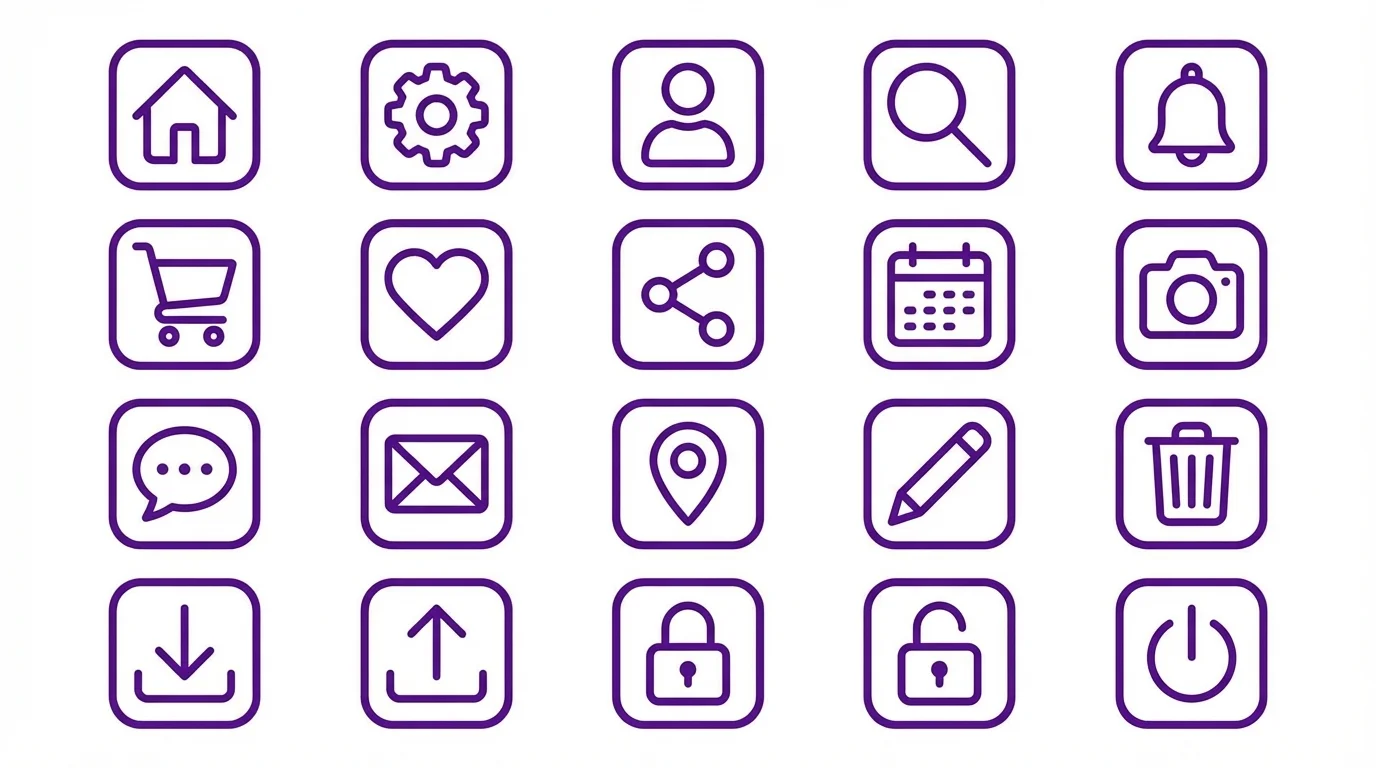
The hardest part of UI design isn't creating a single beautiful icon—it's making 20 icons that look like they belong together. Every mobile app needs a cohesive icon set: navigation tabs, action buttons, settings menus, and status indicators. Creating these manually while maintaining perfect consistency is a time-consuming challenge that even experienced designers struggle with.
With AI-powered tools, you can now generate SVG app icons that maintain consistent style, weight, and visual language across your entire set. No design skills needed—just describe your style once, and generate an entire matching icon family in minutes.
The Consistency Challenge
Why Manual Icon Design Falls Short
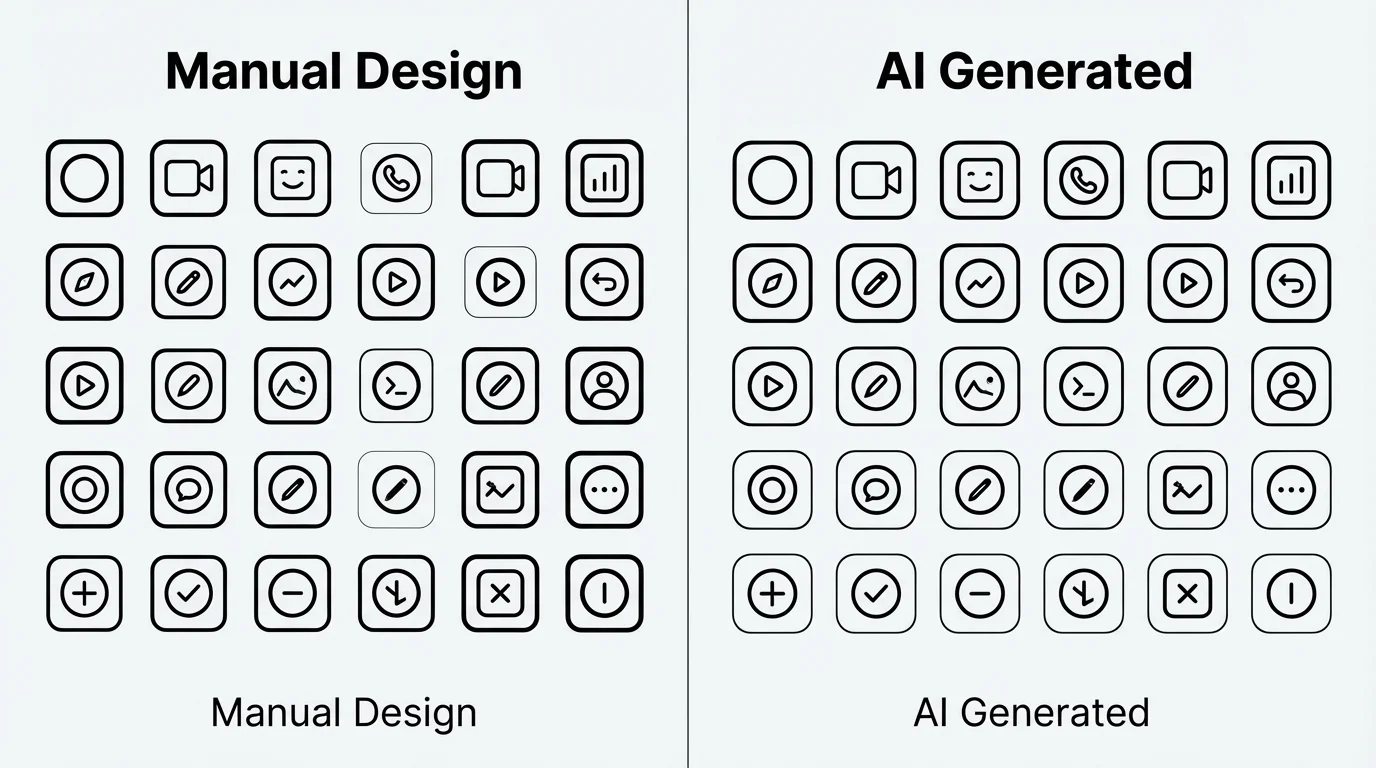
When designing icons manually, maintaining consistency across a set is remarkably difficult:
Line Weight Drift Even with careful attention, stroke widths tend to vary between icons. One icon might have 2px strokes while another creeps up to 2.3px—subtle differences that create visual discord when icons appear together.
Corner Radius Inconsistency Rounded corners should be identical across your set. But when drawing freehand or using different source files, you end up with 4px corners on some icons and 6px on others.
Visual Weight Imbalance A simple circle icon appears lighter than a complex settings gear. Manually balancing visual weight across diverse shapes requires experience and constant comparison.
Style Drift Over Time Icon sets evolve. The icon you designed on Monday might not match the one from last Friday, especially on larger projects spanning weeks.
The Real Cost of Inconsistency
Inconsistent icons create:
- Unprofessional appearance — Users notice when something feels "off"
- Cognitive load — Mismatched icons slow down visual scanning
- Brand dilution — Your app looks like a patchwork of different designers
- Maintenance headaches — Adding new icons becomes increasingly difficult
Using AI for Icon Sets
The Style Prompt Approach
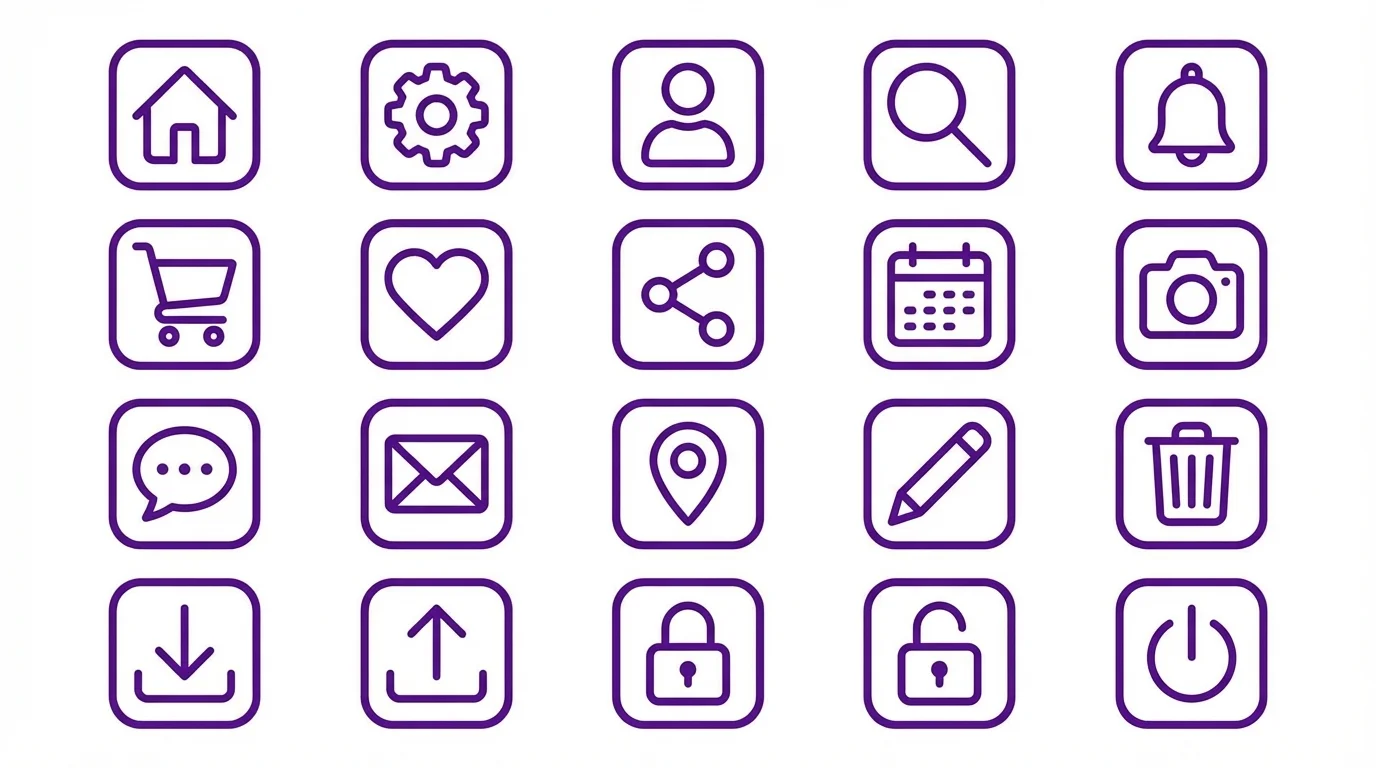
The key to consistent AI-generated icons is using a style prompt that defines your visual language once, then applying it to every icon in your set.
Example Style Prompt:
flat style, 2px stroke weight, rounded corners (4px radius),
purple (#8B5CF6) outline, 24x24 grid, minimal detail,
consistent optical weight
With this foundation, you can generate dozens of icons that share:
- Identical line weights
- Matching corner treatments
- Consistent color palette
- Unified level of detail
Generating Your Icon Set
Step 1: Define Your Style Foundation
Before generating a single icon, establish your design system:
- Style: Flat, outlined, filled, duotone, or 3D
- Stroke weight: 1.5px, 2px, 2.5px (pick one and stick to it)
- Corner radius: Sharp, slightly rounded (2px), or fully rounded (4px+)
- Color palette: Monochrome, brand colors, or gradient
- Grid size: 24x24, 32x32, or 48x48
Step 2: Generate with Consistency
Using a tool that outputs Real Vector Paths (not rasterized approximations), generate each icon with your style prompt prefix:
[Your style prompt] + home icon
[Your style prompt] + settings gear icon
[Your style prompt] + user profile icon
[Your style prompt] + notification bell icon
Step 3: Review and Refine
AI generation gives you a strong starting point. Review your set together:
- Do all icons feel like siblings?
- Is visual weight balanced?
- Do complex icons overpower simple ones?
Real-World Icon Set Example
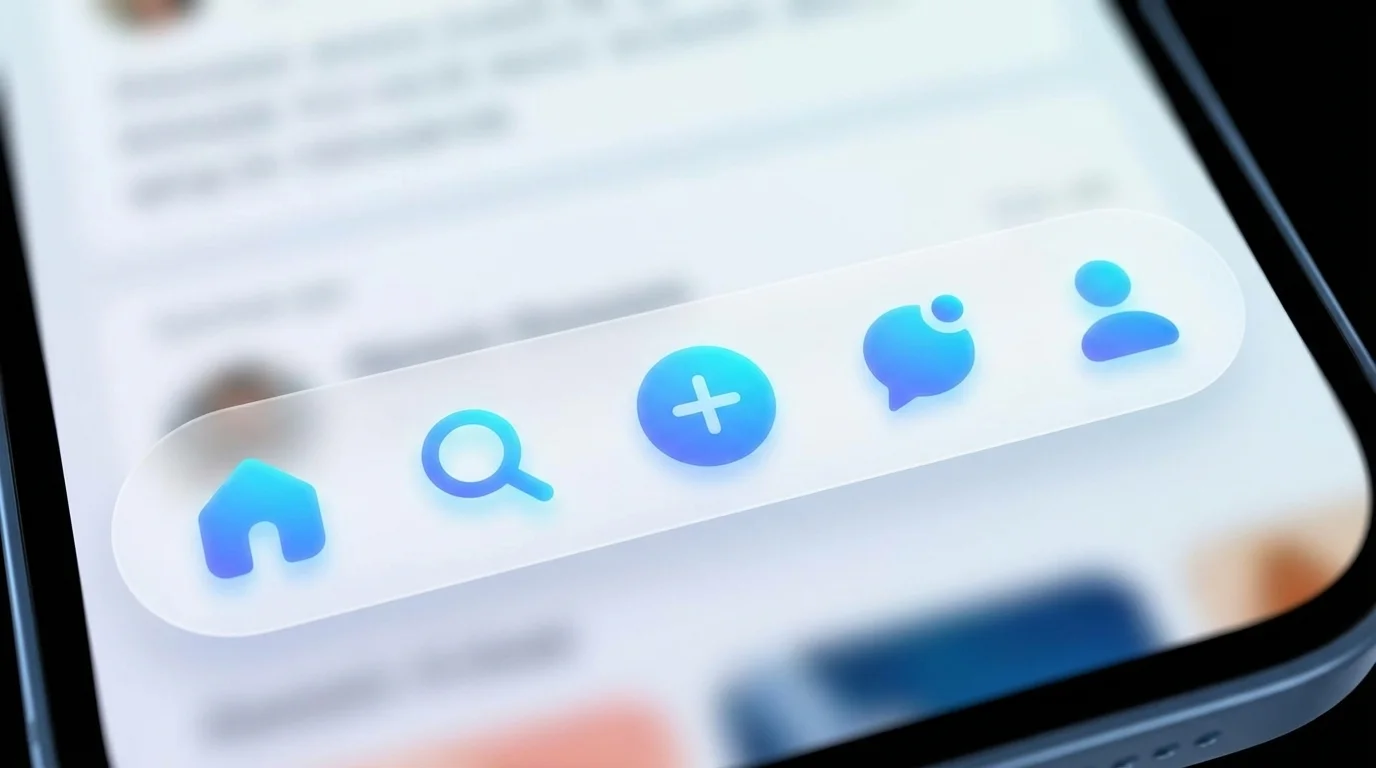
Here's how to generate a consistent navigation bar icon set:
| Icon | Prompt Addition |
|---|---|
| Home | house with chimney, simple geometry |
| Search | magnifying glass, circular lens |
| Add | plus sign in circle |
| Messages | speech bubble, rounded rectangle |
| Profile | user silhouette, circular frame |
Each prompt includes your style foundation, ensuring every icon matches.
Exporting for Mobile
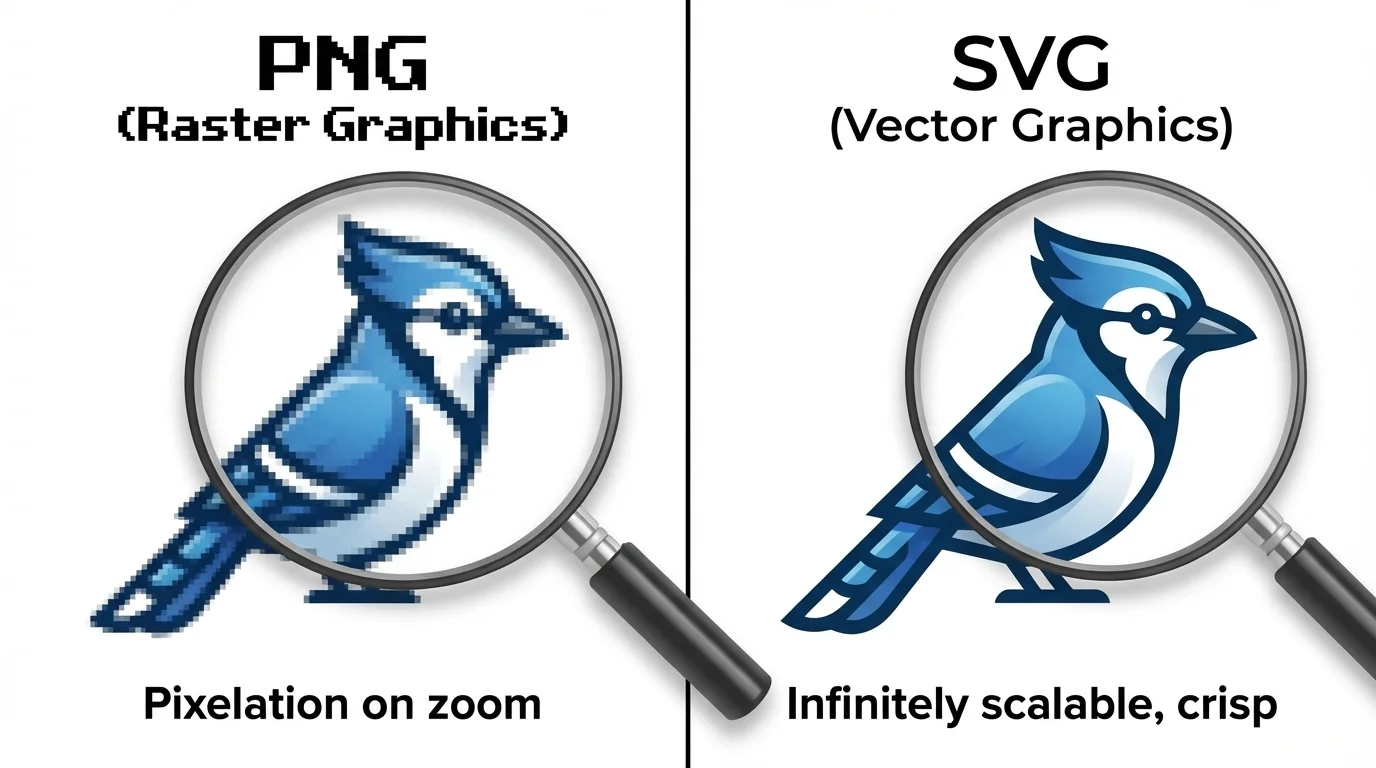
Why SVG Beats PNG for Modern Apps
Mobile developers have traditionally exported icons as PNGs at multiple resolutions (@1x, @2x, @3x for iOS; mdpi through xxxhdpi for Android). This approach has serious drawbacks:
The PNG Problem:
- 6-8 files per icon (different densities)
- Large asset bundles (megabytes of images)
- Blurry on unexpected screen densities
- Color changes require re-exporting everything
The SVG Advantage:
- Single file works at any resolution
- Infinite scaling on Retina and high-DPI screens
- Tiny file size (often under 1KB per icon)
- Runtime theming (change colors via CSS/code)
- Future-proof for any screen density
Platform-Specific Considerations
iOS (Swift/SwiftUI):
// SVG icons scale perfectly on all devices
Image("home-icon")
    .resizable()
    .frame(width: 24, height: 24)
iOS 13+ supports SVG assets natively in Asset Catalogs. Your single SVG looks crisp on iPhone SE through iPad Pro.
Android (Kotlin/Compose):
// Vector drawables derived from SVG
Icon(
    painter = painterResource(id = R.drawable.ic_home),
    contentDescription = "Home"
)
Android Studio converts SVGs to VectorDrawables, maintaining scalability while optimizing for the platform.
React Native / Flutter:
Both frameworks have excellent SVG support through libraries like react-native-svg and Flutter's built-in SvgPicture, making cross-platform icon management simple.
Export Workflow
- Generate your icons with consistent style prompts
- Optimize SVG output (remove unnecessary metadata)
- Test at target sizes (24px, 32px, 48px)
- Implement using platform-appropriate methods
Speed Up Your UI Workflow
Creating a professional icon set used to take days of meticulous manual work. With AI-powered generation, you can:
- Generate 20+ consistent icons in under an hour
- Iterate on style without starting over
- Export production-ready SVGs immediately
- Add new icons that match your existing set perfectly
Ready to build your app's icon system? Generate SVG app icons with consistent style, Real Vector Paths, and instant export. No design skills needed—just describe your vision and let AI handle the pixel-perfect execution.