Icon design appears deceptively simple—until you attempt creating a cohesive set of 20+ icons that work harmoniously at multiple sizes while maintaining visual clarity and stylistic consistency. Professional icon creation requires systematic approaches balancing creativity with technical precision.
After analyzing icon systems from leading design teams, creating thousands of professional icons, and identifying patterns that distinguish excellent from mediocre icon sets, we've developed comprehensive frameworks for systematic icon creation. Our svg creator implements these principles, enabling rapid exploration while maintaining professional quality standards.
This guide explores complete icon creation workflows from conceptualization through delivery, covering grid systems, consistency frameworks, technical optimization, and practical production techniques. Whether designing your first icon or building extensive icon libraries, these systematic approaches ensure professional, cohesive results.
Essential qualities:
1. Instant Recognition
Test: Show icon for 1 second, hide it. Can viewer identify purpose? If no, icon fails primary function.
2. Visual Clarity
Test: Display at smallest intended size. Still clear? If no, simplify.
3. Stylistic Consistency
Test: Display icons together. Feel like family? If no, refine consistency.
4. Scalability
Test: Scale from 16px to 512px. Maintains quality? If no, optimize structure.
5. Technical Excellence
Test: Run through validators and optimization tools. Pass all checks? If no, clean up code.
Use our svg creator to quickly explore icon concepts while maintaining these quality standards.
Style Categories:
Filled (Solid):
<svg viewBox="0 0 24 24">
<path fill="currentColor" d="M12,2 L2,22 L22,22 Z"/>
</svg>
Characteristics: Solid shapes, minimal detail, bold appearance Best for: Primary actions, high emphasis, small sizes File size: Smallest
Outlined (Stroked):
<svg viewBox="0 0 24 24">
<path fill="none" stroke="currentColor" stroke-width="2" d="M12,2 L2,22 L22,22 Z"/>
</svg>
Characteristics: Hollow shapes, consistent line weight, clean appearance Best for: Secondary actions, UI navigation, clarity at medium sizes File size: Medium
Duotone (Two-Color):
<svg viewBox="0 0 24 24">
<path fill="currentColor" opacity="0.3" d="..."/>
<path fill="currentColor" d="..."/>
</svg>
Characteristics: Base + accent color, depth perception, visual interest Best for: Featured content, visual hierarchy, medium to large sizes File size: Medium-large
Colored (Multi-Color):
<svg viewBox="0 0 24 24">
<path fill="#FF6B6B" d="..."/>
<path fill="#4ECDC4" d="..."/>
<path fill="#FFE66D" d="..."/>
</svg>
Characteristics: Brand colors, detailed, recognizable Best for: Branded icons, large sizes, feature graphics File size: Largest
Selection criteria: Match style to application context, size requirements, and brand guidelines.
Learn comprehensive workflows in how to create SVG files guide for complete SVG creation fundamentals.
Common grid sizes:
16×16:
24×24: ⭐ Most Popular
32×32:
48×48:
Our recommendation: Start with 24×24 for maximum versatility and wide adoption.
ViewBox setup:
<svg xmlns="http://www.w3.org/2000/svg" viewBox="0 0 24 24">
<!-- Icon content -->
</svg>
Before creating first icon, define:
1. Visual Language
Geometric Style:
Example decision: "All icons use 2px corner radius, no sharp corners"
2. Stroke Width (for outlined icons)
Options:
Example decision: "All icons use 2px stroke weight"
3. Detail Level
Minimal: 3-8 elements per icon Moderate: 8-15 elements per icon Detailed: 15-30 elements per icon
Example decision: "Icons contain 5-12 elements maximum for clarity at small sizes"
4. Padding
Safe area: Distance from icon edge to content
16×16 grid: 2px padding (content in 12×12 area) 24×24 grid: 3px padding (content in 18×18 area) 32×32 grid: 4px padding (content in 24×24 area)
Example decision: "3px padding on all sides (content in 18×18 area within 24×24 grid)"
5. Color System
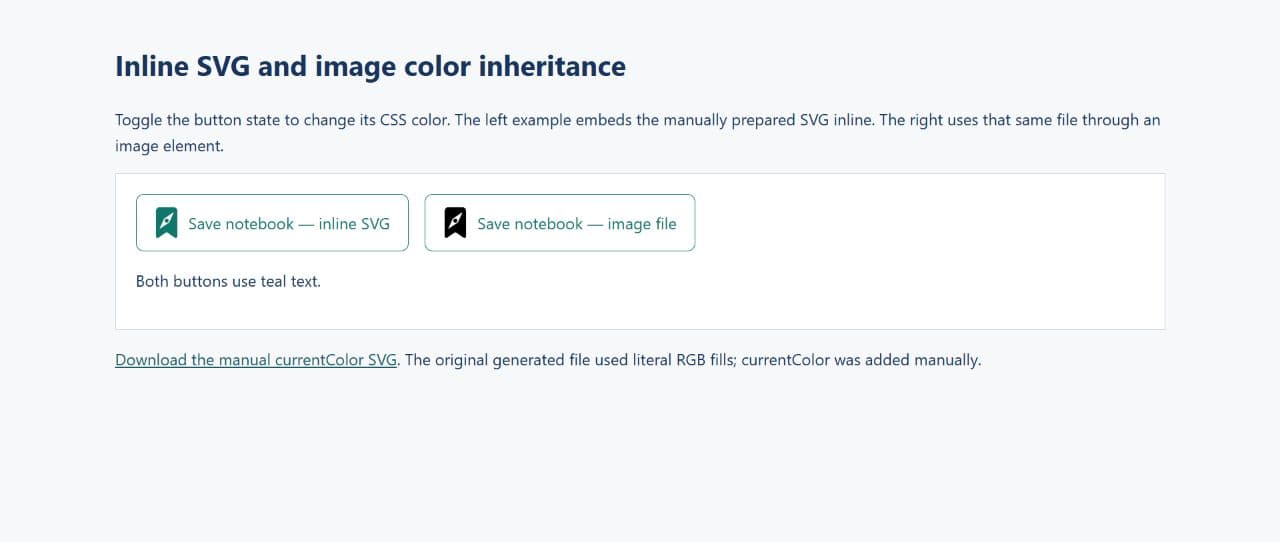
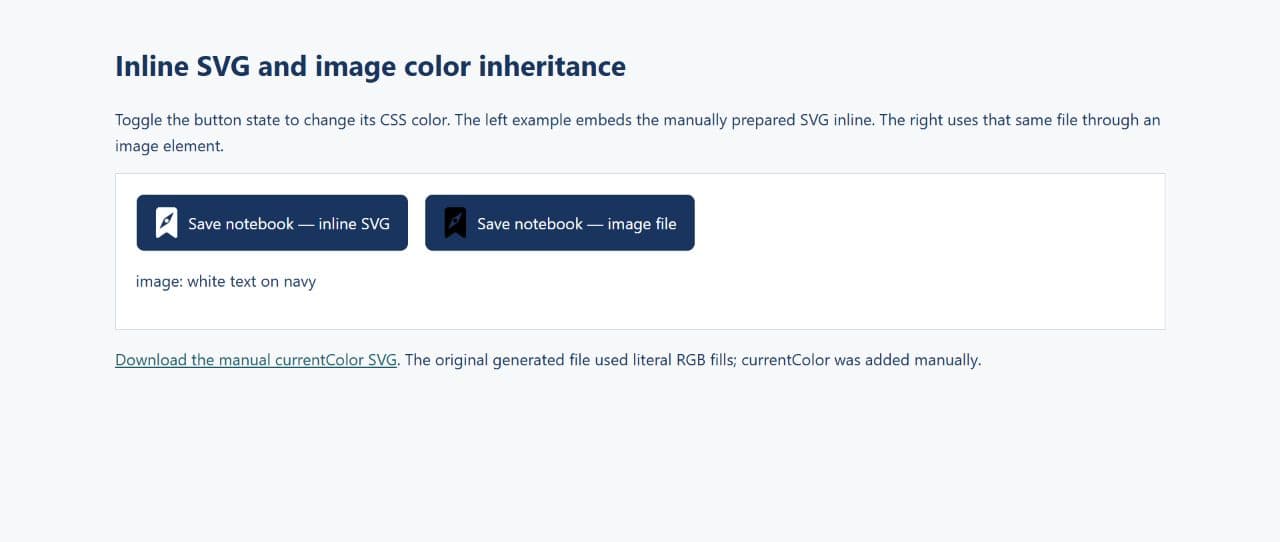
Single color: currentColor (inherits text color)
Brand colors: Specific hex values
Themeable: CSS custom properties
Example decision: "Icons use currentColor for maximum flexibility"
Document all decisions in style guide for consistency as set grows.
Base template saves time and ensures consistency:
<svg xmlns="http://www.w3.org/2000/svg" viewBox="0 0 24 24" width="24" height="24">
<title>Icon Name</title>
<desc>Brief description for accessibility</desc>
<!-- Guide rectangles (remove before delivery) -->
<rect x="0" y="0" width="24" height="24" fill="none" stroke="#CCC" stroke-dasharray="1,1"/>
<rect x="3" y="3" width="18" height="18" fill="none" stroke="#999" stroke-dasharray="1,1"/>
<!-- Icon content goes here -->
</svg>
Guide elements:
Create template file to copy for each new icon.
Step 1: Understand Requirements
Questions to answer:
Example: "Create 'download' icon for file management app, displays at 24px, appears in toolbar with other outlined icons"
Step 2: Research Conventions
Check existing icon systems:
Identify common visual metaphors:
Follow conventions unless intentional differentiation needed.
Step 3: Sketch Variations
Rapid exploration (10 minutes):
Goal: Generate options, not perfection
Step 4: Select Direction
Evaluation criteria:
Select 1-2 concepts for detailed development.
Step 1: Set Up Grid
Open svg creator or preferred tool with 24×24 grid visible.
Step 2: Block Out Basic Shapes
Example: Download Icon
<svg viewBox="0 0 24 24">
<!-- Container box -->
<rect x="4" y="15" width="16" height="6" rx="1" stroke="currentColor" stroke-width="2" fill="none"/>
<!-- Arrow shaft -->
<line x1="12" y1="5" x2="12" y2="14" stroke="currentColor" stroke-width="2"/>
<!-- Arrow head -->
<polyline points="8,10 12,14 16,10" stroke="currentColor" stroke-width="2" fill="none"/>
</svg>
Step 3: Refine Proportions
Check:
Adjust coordinates until visually harmonious.
Step 4: Add Details (If Appropriate)
Rule: Add detail only if improves clarity or meaning, not for decoration.
Example: Database Icon
<svg viewBox="0 0 24 24">
<!-- Simple version -->
<ellipse cx="12" cy="7" rx="8" ry="3"/>
<path d="M4,7 L4,17 Q4,20 12,20 Q20,20 20,17 L20,7"/>
<!-- With detail (middle section) -->
<ellipse cx="12" cy="12" rx="8" ry="3" fill="none" stroke="currentColor"/>
</svg>
Detail adds realism without compromising clarity.
Step 5: Test at Size
Display at actual size (24px). Still clear? If not, simplify.
Common issues at small sizes:
Discover rapid SVG prototyping techniques for accelerated iteration workflows.
Creating cohesive icon sets requires systematic consistency:
1. Optical Alignment
Mathematical center ≠ Visual center
<!-- Mathematically centered (feels too low) -->
<circle cx="12" cy="12" r="8"/>
<!-- Optically centered (better) -->
<circle cx="12" cy="11.5" r="8"/>
Rule: Trust eyes over math. Adjust until visually balanced.
2. Stroke Weight Uniformity
All strokes same visual weight:
<!-- Consistent -->
<path stroke-width="2" d="..."/>
<circle stroke-width="2" cx="..." cy="..." r="..."/>
<line stroke-width="2" x1="..." y1="..." x2="..." y2="..."/>
Watch for: Diagonal lines appear thinner than horizontal/vertical. May need slight weight increase.
3. Corner Radius Consistency
<!-- All rectangles use same corner radius -->
<rect rx="2" ry="2" .../>
Standardize corner radius value (typically 1-2px for 24×24 icons).
4. Spacing Patterns
Internal spacing (between elements) should be consistent:
Common spacing values:
Pick one, use consistently.
5. Visual Weight Balance
All icons should have similar visual "mass":
Too light: Feels incomplete or weak Too heavy: Dominates, draws attention incorrectly Balanced: Comfortable weight matching set
Test: Display entire icon set. Any outliers? Adjust to match.
For rapid icon exploration, AI-powered SVG Creator tools generate consistent icon concepts from text descriptions—produce professional icons, logos, and UI graphics instantly without manual drawing.
Creating large icon sets efficiently:
Approach 1: Template-First
Process: 1. Create template with guides and safe area 2. Duplicate template for each new icon 3. Add unique content within template structure 4. Maintain all system constraints
Best for: Solo designers, smaller sets (under 50 icons)
Approach 2: Component Library
Process: 1. Create library of reusable elements (arrows, containers, common shapes) 2. Assemble icons by combining components 3. Customize as needed per icon 4. Maintain component updates propagate to icons
Best for: Large sets (50+ icons), teams, evolving systems
Approach 3: AI-Assisted Generation
Process: 1. Define system parameters clearly 2. Generate multiple concepts with svg creator 3. Select best concepts 4. Refine to perfect consistency 5. Optimize and deliver
Best for: Rapid exploration, large sets, time constraints
Hybrid approach: Combine methods. Use AI for exploration, components for efficiency, templates for consistency.
Before marking any icon "complete":
Visual Quality:
Technical Quality:
System Consistency:
Cross-Browser Testing:
Only icons passing all checks are production-ready.
Optimization workflow:
Step 1: Initial Export
Export from design tool with clean settings:
Step 2: SVGO Optimization
npx svgo icon.svg -o icon-optimized.svg
Typical optimizations:
Step 3: Manual Refinement
Check optimized output:
Common SVGO over-optimizations:
Restore manually if needed.
Step 4: Final Validation
Explore comprehensive create SVG from scratch guide for beginner-friendly fundamentals.
When you need production-ready icons quickly, our AI-driven SVG Maker generates complete icon sets from text descriptions in seconds—create matching icons for navigation, actions, and UI elements instantly.
Subtle animation enhances user experience:
Hover Animation:
<svg viewBox="0 0 24 24">
<style>
.icon-element {
transition: transform 0.3s ease;
transform-origin: center;
}
svg:hover .icon-element {
transform: scale(1.1);
}
</style>
<circle class="icon-element" cx="12" cy="12" r="8" stroke="currentColor" stroke-width="2" fill="none"/>
</svg>
Loading Animation:
<svg viewBox="0 0 24 24">
<style>
@keyframes spin {
from { transform: rotate(0deg); }
to { transform: rotate(360deg); }
}
.spinner {
animation: spin 1s linear infinite;
transform-origin: center;
}
</style>
<circle class="spinner" cx="12" cy="12" r="8" stroke="currentColor" stroke-width="2" fill="none" stroke-dasharray="15 35"/>
</svg>
Active State Animation:
<style>
@keyframes bounce {
0%, 100% { transform: translateY(0); }
50% { transform: translateY(-4px); }
}
.active .icon-element {
animation: bounce 0.5s ease;
}
</style>
Use sparingly: Animation for purpose (feedback, loading state), not decoration.
Color Customization:
Method 1: currentColor (Recommended)
<svg viewBox="0 0 24 24">
<path stroke="currentColor" fill="none" stroke-width="2" d="..."/>
</svg>
.icon-red { color: #FF6B6B; }
.icon-blue { color: #4ECDC4; }
Icon automatically inherits text color.
Method 2: CSS Custom Properties
<svg viewBox="0 0 24 24">
<style>
path { stroke: var(--icon-color, currentColor); }
</style>
<path stroke-width="2" d="..."/>
</svg>
.icon { --icon-color: #FF6B6B; }
More control, requires CSS support.
Method 3: Class-Based
<svg viewBox="0 0 24 24" class="icon icon-primary">
<path class="stroke" stroke-width="2" d="..."/>
</svg>
.icon-primary .stroke { stroke: #007AFF; }
.icon-secondary .stroke { stroke: #8E8E93; }
Maximum flexibility, verbose.
Making icons accessible:
1. Semantic Markup
<svg role="img" aria-labelledby="icon-title icon-desc">
<title id="icon-title">Download</title>
<desc id="icon-desc">Click to download file</desc>
<!-- icon content -->
</svg>
2. Decorative Icons
<!-- Icon is purely decorative, hide from screen readers -->
<svg aria-hidden="true">
<!-- icon content -->
</svg>
<span class="sr-only">Button text here</span>
3. Interactive Icons
<button>
<svg aria-hidden="true"><!-- icon --></svg>
<span class="sr-only">Download</span>
</button>
Always provide text alternative for interactive icons.
4. Color Contrast
Ensure sufficient contrast:
Test: Use browser dev tools or online contrast checkers.
icons/
├── raw/ # Unoptimized source files
│ ├── outlined/
│ │ ├── download.svg
│ │ ├── upload.svg
│ │ └── ...
│ └── filled/
│ ├── download.svg
│ └── ...
├── optimized/ # Production-ready files
│ ├── outlined/
│ └── filled/
├── sprite.svg # Combined sprite sheet
└── style-guide.md # Icon system documentation
Consistent naming critical for large sets:
Pattern: [style]-[name]-[variant].svg
Examples:
outline-download-24.svgfilled-heart-24.svgduotone-folder-open-24.svgRules:
Icon library documentation should include:
1. Usage Guidelines
2. Technical Specs
3. Icon Catalog
4. Implementation Code
<!-- HTML Usage -->
<svg class="icon">
<use href="sprite.svg#icon-name"/>
</svg>
<!-- React Component -->
<Icon name="download" size={24} color="primary" />
Well-documented icon libraries are adopted more readily and used correctly.
Q1: What's the ideal number of shapes per icon?
A: Depends on display size and style. For 24×24 UI icons: 5-12 shapes optimal. Fewer than 5 often too simplistic; more than 12 risks clarity at small sizes. Test at intended display size—if details disappear, simplify.
Q2: Should I create icons in Illustrator, Figma, or code?
A: Figma or svg creator for visual creation, export clean SVG, refine code if needed. Illustrator works but exports bloated code requiring more cleanup. Pure hand-coding slow for complex icons but excellent for learning. Hybrid approach recommended.
Q3: How do I maintain consistency across large icon sets?
A: Define clear system rules (stroke weight, corner radius, padding, detail level), create templates, use component libraries for common elements, regular visual audits comparing new icons to existing set, peer review before marking complete.
Q4: What file size should I target for icons?
A: UI icons: Under 2KB ideal, under 5KB acceptable. Simple outlined icons often under 1KB. Complex illustrated icons may reach 5-10KB. If exceeding 10KB, likely over-complex for icon—consider simplifying or using as illustration instead.
Q5: How do I handle icons at multiple sizes?
A: Single SVG scales perfectly to any size due to vector nature. Display at 16px, 24px, 48px, 512px with same file. Only exception: Very small (under 16px) may benefit from simplified version with less detail. Create separate simplified versions only if necessary.
Q6: Should icons be outlined or filled?
A: Context-dependent. Outlined: Better clarity at small sizes, modern aesthetic, versatile. Filled: Bolder, higher visual weight, faster recognition. Common pattern: Outlined for secondary actions, filled for primary/active states. Choose based on brand and application.
Q7: How do I create a sprite sheet from individual icons?
A: Combine individual SVGs into single file with symbols:
<svg>
<symbol id="icon-download" viewBox="0 0 24 24"><!-- icon 1 --></symbol>
<symbol id="icon-upload" viewBox="0 0 24 24"><!-- icon 2 --></symbol>
</svg>
Reference with <use href="sprite.svg#icon-download"/>. Single HTTP request, cached efficiently.
Q8: Can I use icon fonts instead of SVG?
A: SVG icons strongly recommended over icon fonts in 2025. SVG advantages: Better accessibility, easier styling, crisp rendering, no FOUT issues, searchable/indexable. Icon fonts still viable but consider SVG first.
AI-powered tools let designers create SVG icons faster than manual workflows—generate custom icon concepts from descriptions, then refine to match your system's style guide for production-ready results.
Professional icon creation isn't about artistic talent—it's about systematic processes ensuring consistency, clarity, and quality. Define your system constraints, create templates, maintain discipline during production, and verify quality through objective criteria. The result: cohesive, professional icon sets serving users effectively.
The difference between amateur and professional icon sets isn't individual icon quality—it's system-level consistency and intentional design decisions applied uniformly. Master the system and tools, then execute with discipline. Your icon sets will exhibit professional polish indistinguishable from commercial libraries.
Our svg creator accelerates icon creation while maintaining systematic consistency. Generate rapid explorations, refine to perfection, optimize automatically. Experience how modern tools enhance rather than replace systematic design thinking.
Ready to create professional icon sets? Start with our create svg files tool and discover how systematic approaches transform icon creation from guesswork to reliable craft.
For designers who prefer describing concepts over drawing, AI-powered Text to SVG tools transform your icon descriptions into production-ready vector graphics—generate custom icons, symbols, and UI elements instantly from plain text.
Continue mastering SVG creation: