Batch Processing SVGs with AI: Automation Workflows for Scale
By SVGAI Team
ai svg generatorbatch processingsvg automationdesign workflowsvg generatoricon sets
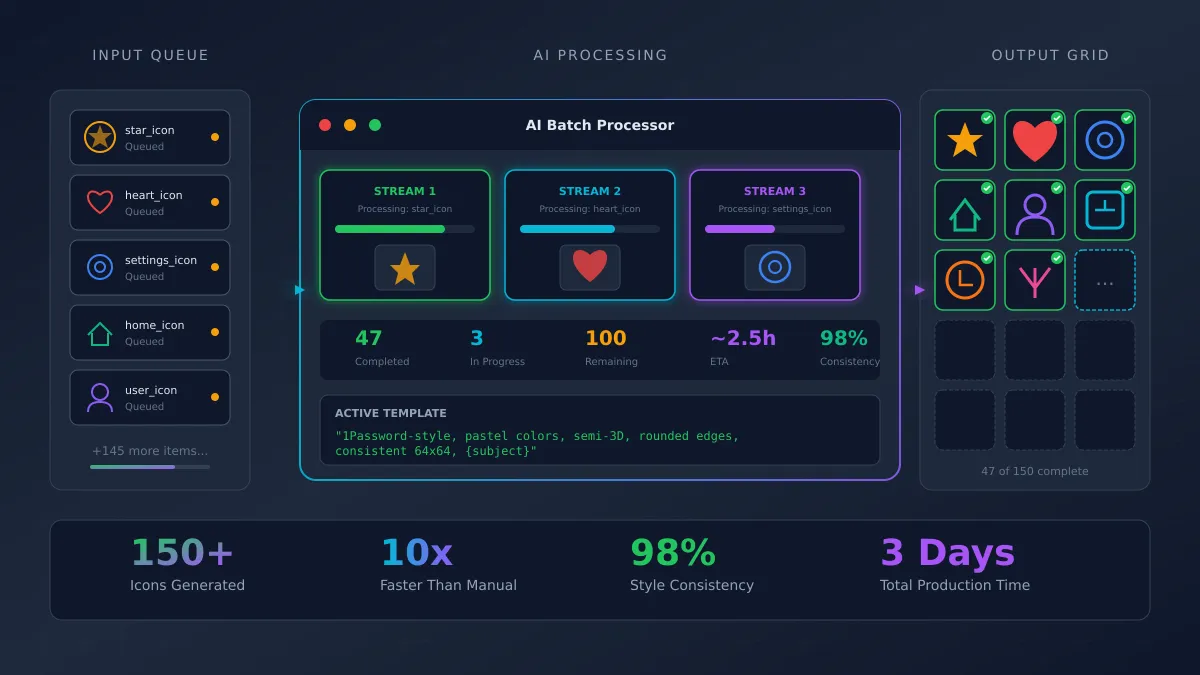
One mobile developer recently created 150+ consistent app icons in just 3 days. A content creator produced 124 coloring book illustrations in 4 weeks. A print-on-demand seller scaled to 200 designs in under a month. None of them are professional designers.
The secret? AI-powered batch processing workflows that transform how we approach large-scale SVG production. Instead of creating assets one at a time, these workflows let you generate dozens or hundreds of consistent graphics through systematic automation.
Manual design at scale is prohibitively slow and expensive. Traditional methods require 2-4 hours per icon when accounting for conceptualization, execution, and revisions. Multiply that by 100+ assets, and you're looking at months of work. AI batch processing collapses that timeline from months to days.
In this guide, we'll break down the exact workflows that make large-scale SVG production practical for individuals and small teams using an AI SVG generator.
What is Batch Processing in SVG Generation?
Batch processing refers to generating multiple SVG assets through a systematic, repeatable workflow rather than creating each asset individually from scratch. Think of it as the difference between hand-painting 100 signs versus setting up a screen printing system.
The key distinction from single-asset generation lies in consistency and templates. When batch processing, you establish a master style once, then apply that style across all variations. Each asset shares the same visual DNA: color palette, stroke weights, proportions, and overall aesthetic.
Single-asset workflows optimize for creativity and uniqueness. Batch workflows optimize for consistency and speed. Both have their place, but when you need 50+ assets that look like they belong together, batch processing is the only practical approach.
Batch processing applies to:
- Icon sets: Mobile apps, desktop software, web dashboards
- Illustration libraries: Educational materials, marketing assets, presentations
- Product images: E-commerce stores, catalog graphics, merchandise designs
- Design system components: UI elements, infographics, branded graphics
When Batch Processing Makes Sense
Not every project needs batch processing. Here's how to determine when to invest in setting up a systematic workflow.
Volume Thresholds
The breakeven point typically sits around 20+ assets. Below that threshold, the overhead of establishing templates and style guides exceeds the time saved. Above it, the efficiency gains compound rapidly.
At 50 assets, batch processing saves roughly 50% of total time. At 100+ assets, savings reach 70-80% compared to one-off creation.
Use Case Categories
App Icon Libraries (50-150+ icons)
Mobile and desktop applications require extensive icon sets. A typical app needs icons for navigation, actions, status indicators, and feature-specific graphics. Creating these individually would take weeks; batch processing reduces it to days.
Coloring Book Illustrations (100+ pages)
Digital coloring books and printable activities demand volume. Each page needs a unique subject while maintaining consistent line weights and complexity levels. Batch workflows let you create SVG illustrations at scale while preserving stylistic cohesion.
E-commerce Product Icons
Online stores need category icons, feature badges, and product attribute graphics. A store with 20 categories and 50 features suddenly needs 70+ icons that look unified.
Design System Components
Enterprise software and branded platforms require hundreds of UI elements. Batch processing ensures every button icon, status indicator, and interface graphic follows the same visual language.
The 5-Phase Batch Processing Workflow
Successful batch processing follows a structured approach. Skipping phases leads to inconsistent results and rework.
Phase 1: Style Foundation
Before generating a single production asset, establish your master template. This phase typically takes 30-60 minutes but saves hours later.
Create 3-5 test assets using your SVG generator to dial in:
- Color palette: Primary, secondary, and accent colors
- Stroke weights: Consistent line thickness across all icons
- Corner radius: Sharp, slightly rounded, or fully rounded corners
- Proportions: Icon boundary padding and internal spacing
- Complexity level: Simple silhouettes vs. detailed illustrations
Document everything. Your style guide becomes the reference for all subsequent prompts.
Phase 2: Category Planning
Map out all assets you need before generating anything. Systematic coverage prevents gaps and redundant work.
Organize assets into logical categories:
Navigation Icons (15)
├── Home, Search, Menu, Back, Forward
├── Settings, Profile, Notifications
└── Help, Info, Close, Minimize, Maximize, Share, Download, Upload

Action Icons (20)
├── Add, Delete, Edit, Save, Cancel
├── Copy, Paste, Cut, Undo, Redo
└── Play, Pause, Stop, Record, Refresh, Sync, Lock, Unlock, Bookmark, Flag
This inventory becomes your production checklist and helps identify opportunities to batch similar subjects together.
Phase 3: Template Prompting
Build reusable prompt structures that separate style constants from subject variables.
Master Template Structure:
[STYLE CONSTANTS], [SUBJECT VARIABLE]

Example:
"1Password-style icon, pastel colors, semi-3D, rounded edges,
consistent 64x64, white background, {subject}"
The subject variable is the only element that changes between generations. Everything else remains locked.
Style Constants Include:
- Visual style reference (brand or aesthetic)
- Color scheme
- Dimensional constraints
- Edge treatment
- Background handling
- Level of detail
Phase 4: Generation Sprints
Time-blocked production sessions maximize efficiency. Working in focused sprints prevents decision fatigue and maintains momentum.
Recommended Sprint Structure:
- 30-minute blocks with 5-minute breaks
- Category batching: Complete all navigation icons before moving to action icons
- Rapid iteration: Generate, evaluate, refine, move on
- Quality gates: Review every 10-15 assets for style drift
During sprints, resist the urge to perfect individual assets. The goal is volume with acceptable quality. Refinement comes later.
Phase 5: Review and Refinement
After generation sprints, conduct systematic quality control following your SVG creation workflow.
Review Checklist:
- Consistent stroke weights across all assets
- Color palette adherence
- Proportional sizing and padding
- Visual weight balance
- Edge treatment consistency
Flag outliers for regeneration. Minor adjustments can often be made directly in the SVG code rather than regenerating entirely.
Real-World Batch Processing Examples
These case studies come from actual users who've shared their workflows and results.
Case 1: Mobile App Icon Library
Project: 150+ icons for a productivity app
Challenge: A solo developer needed a complete icon set matching the aesthetic of premium apps like 1Password, but lacked design skills and budget for a professional designer.
Approach:
- Established style: "1Password-style, pastel colors, semi-3D, rounded edges"
- Categorized icons: 6 groups (navigation, actions, status, files, communication, settings)
- Created prompt template with locked style constants
- Generated in 2-3 hour daily sessions over 3 days
Results:
- 150 icons completed in approximately 8 total hours
- Traditional estimate: 75+ hours (30 minutes per icon minimum)
- 98% of icons required no regeneration
- Unified visual language throughout
The developer reported that the icons looked more consistent than sets they'd previously purchased, because AI maintained exact style adherence across all generations.
Case 2: Coloring Book Production
Project: 124 Studio Ghibli-inspired illustrations for a digital coloring book
Challenge: A content creator wanted to build a coloring book app with scenes inspired by anime aesthetics. Professional illustration would cost $50-100 per page.
Approach:
- Developed style guide over one week of experimentation
- Created scene categories: nature, villages, characters, creatures, objects
- Used systematic prompt structure: "[Ghibli style], line art, coloring page, [scene description]"
- Generated 30-35 illustrations per week over 4 weeks
Results:
- 124 illustrations completed
- Average 8 hours per week invested
- Total time: approximately 32 hours vs. estimated 300+ hours traditional
- Consistent line weights suitable for digital coloring
The key insight from this case: spending the first week purely on style development prevented countless regenerations later.
Case 3: Print-on-Demand Scale-Up
Project: 200 SVG designs for POD merchandise
Challenge: A POD seller wanted to rapidly expand their catalog across multiple niches without hiring designers or learning illustration software.
Approach:
- Identified 10 profitable niches through market research
- Created niche-specific style templates
- Generated 60-80 designs per week across niches
- Used AI SVG generator for rapid iteration
Results:
- 200 designs in 3 weeks
- Multiple styles maintained through separate templates
- Revenue began within first month of listings
- Ongoing production of 20-30 new designs weekly
This case demonstrates batch processing across multiple style templates rather than a single unified set.
Building Prompt Template Systems
Effective templates separate what stays constant from what changes. Here's how to build systems that scale.
Master Prompt Structure
[Reference Style] + [Technique] + [Colors] + [Constraints] + [Subject]
Breaking it down:
- Reference Style: "Flat design," "1Password-style," "Line art," "Isometric"
- Technique: "Minimal," "Detailed," "Gradient," "Solid fill"
- Colors: "Pastel palette," "Monochrome blue," "Brand colors #HEX"
- Constraints: "64x64," "Square format," "White background," "Transparent"
- Subject: The only variable element
Example Templates
App Icon Template:
Flat design app icon, minimal style, pastel blue and coral palette,
rounded corners, 64x64 square, white background, [SUBJECT]
Illustration Template:
Whimsical children's book illustration, soft watercolor style,
warm earth tones, simple shapes, centered composition, [SCENE]
Logo Template:
Modern minimalist logo, geometric style, single color black,
clean lines, scalable vector, [BRAND CONCEPT]
Negative Prompting for Consistency
Specify what to avoid to prevent unwanted variations. Learn more about prompt engineering for SVG creators.
[Style template], [Subject], avoid: gradients, shadows, 3D effects,
photorealistic elements, complex backgrounds
Negative constraints help AI models stay within boundaries when subjects might naturally suggest different treatments.
Time Savings Metrics
Understanding the math helps justify the initial investment in setting up batch workflows.
Traditional Timeline (Manual Design)
- Conceptualization: 15-30 minutes per asset
- Execution: 30-90 minutes per asset
- Revisions: 30-60 minutes per asset
- Total per asset: 1.5-3 hours average
For 100 icons: 150-300 hours
AI Batch Processing Timeline
- Style foundation: 1-2 hours (one-time)
- Template creation: 30 minutes (one-time)
- Generation per asset: 2-5 minutes
- Review/refinement: 5-10 minutes per asset
- Total per asset: 10-20 minutes average
For 100 icons: 17-35 hours (including setup)
Revision Cycle Comparison
Traditional design typically requires 3-5 revision cycles as stakeholders request changes. AI generation allows instant regeneration, reducing revision cycles to 1-3.
The compound effect means batch processing delivers 70-85% time savings at scale, as detailed in our analysis of AI SVG time savings.
Common Batch Processing Mistakes
Avoid these pitfalls that undermine efficiency gains.
Mistake 1: No Master Template Established First
Jumping straight into production without style foundation leads to inconsistent results. You'll spend more time regenerating than you saved.
Fix: Always create 3-5 test assets and document style parameters before production begins.
Mistake 2: Inconsistent Prompt Structure
Varying prompt format between generations introduces unwanted variation. AI models respond differently to rephrased instructions.
Fix: Copy-paste your exact template for every generation. Only swap the subject variable.
Mistake 3: Skipping the Calibration Phase
Assuming your first prompt attempt will work perfectly leads to wasted generations.
Fix: Budget 30-60 minutes for prompt refinement before committing to production runs.
Mistake 4: Not Batching Similar Subjects Together
Generating random subjects in random order creates context-switching overhead and style drift.
Fix: Complete entire categories (all navigation icons, then all action icons) before moving to the next group.
Mistake 5: Overcomplicating Prompts
Longer prompts don't mean better results. Excessive detail can confuse AI models and introduce inconsistency.
Fix: Keep style constants minimal and specific. Let the AI fill in reasonable details.
Scaling Production: From Dozens to Hundreds
Moving from 50 to 500+ assets requires additional organizational structure.
Session-Based Workflow
Divide production into focused sessions:
- Morning sessions: 2-3 hours, high-complexity assets
- Afternoon sessions: 1-2 hours, simpler variations
- Review blocks: 30-minute quality checks between sessions
This prevents burnout and maintains consistent quality throughout production.
Category Batching Strategy
Group related subjects to maintain context:
Week 1: Navigation + Action icons (50 assets)
Week 2: Status + Notification icons (40 assets)
Week 3: File + Communication icons (45 assets)
Week 4: Review, refinement, edge cases (15 assets)
Quality Gates at Milestones
Implement checkpoints to catch problems early:
- 10 assets: Quick style consistency check
- 25 assets: Detailed review against style guide
- 50 assets: Full audit before continuing
- 100 assets: Final review and documentation
Export Organization
Establish naming conventions and folder structure before production:
/icons
  /navigation
    nav-home.svg
    nav-search.svg
  /actions
    action-add.svg
    action-delete.svg
Consistent organization prevents chaos as asset counts grow.
FAQ
How many SVGs can I batch process at once?
There's no technical limit, but practical batches work best at 20-50 assets per session. This maintains focus while generating enough volume to see efficiency gains. Larger projects should be broken into category-based batches.
What's the optimal batch size?
For most workflows, aim for 25-30 assets per focused session. This takes approximately 2-3 hours including setup and review time. Smaller batches (10-15) work better for complex illustrations requiring more attention.
How do I maintain consistency across 100+ assets?
Three practices ensure consistency at scale: (1) Document your style template explicitly, (2) Use copy-paste prompts with only subject variable changes, (3) Implement quality gates every 25 assets to catch drift early.
Can I batch process with transparent backgrounds?
Yes. Include "transparent background" or "no background" in your style template. Ensure this constraint appears in every prompt for consistent results across the batch.
Conclusion
Batch processing transforms SVG production from an artisanal craft into a scalable system. The workflows described here have enabled individuals to produce icon sets, illustration libraries, and design systems that would previously require teams of designers or substantial budgets.
The key principles remain constant regardless of scale: establish your style foundation first, use templated prompts with locked constants, batch similar subjects together, and implement quality gates throughout production.
Whether you need 50 icons for an app or 500 illustrations for a content library, batch processing makes large-scale SVG production accessible to anyone willing to invest in systematic workflows.
Ready to scale your SVG production? Try these batch processing techniques with our AI SVG generator and see how quickly you can build a complete asset library.
Related Resources
- AI SVG Generator Complete Guide - Comprehensive overview of AI-powered SVG generation
- Create SVG Illustrations - Techniques for generating illustration-style graphics
- SVG Creation Workflow - Optimizing your end-to-end design process
- Prompt Engineering for SVG Creators - Advanced prompt techniques for better results
- AI SVG Time Savings - Detailed analysis of efficiency gains