Most profile pictures end up in a circle or a square, and none of the platform help pages checked for this article lists SVG as a profile picture format. A logo drawn for a header has to become a square image first, with enough room around it that a circle crop doesn't cut into it.
This example turns a generated cafe logo into one square master SVG and five PNG sizes, then checks them at the sizes platforms say they display.
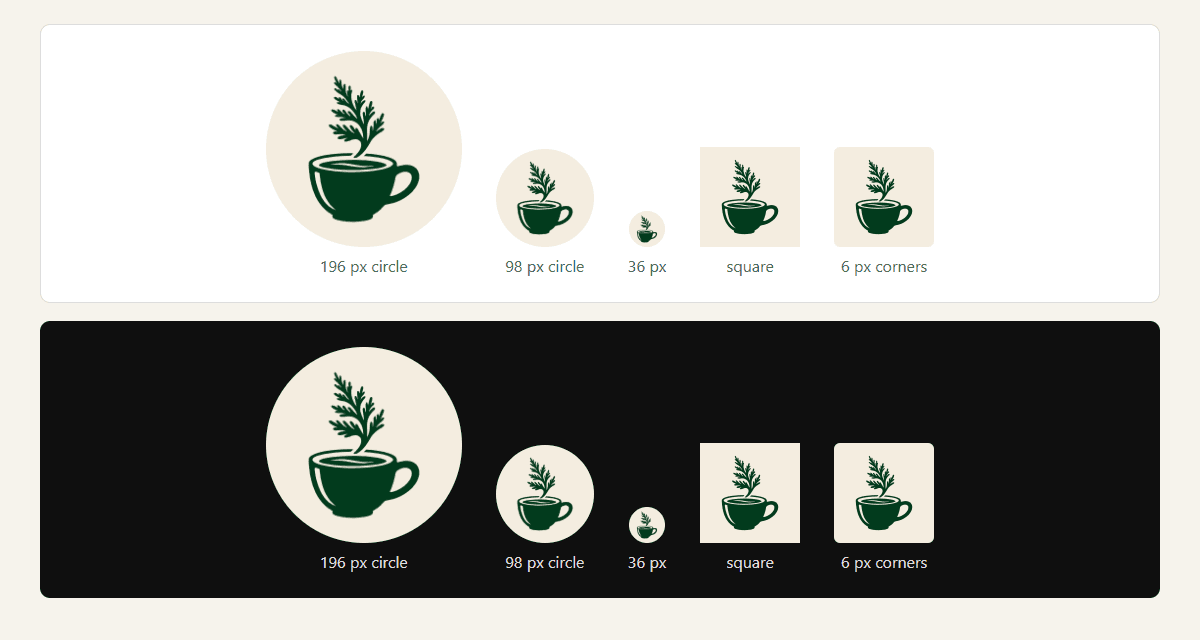
One PNG, clipped by the browser into the shapes platforms use. These previews are simulations, not screenshots of any platform.
The mark is the cup-and-sprig symbol of Cedar Cup, a fictional cafe. It was generated with the AI SVG generator on September 30, 2026 for the editable cafe logo walkthrough, which shows the prompt and the settings. No new generation was made for this article. The square master, the exports and the checks were prepared separately by an AI coding agent, and the PNGs were exported with SVG AI's SVG Code to PNG tool.
Open the crop previews or download the avatar set.
Watch the tutorial on YouTube. Its narration uses a synthetic ElevenLabs voice.
Use the symbol, not the name lockup
The cafe walkthrough ends with a 571 × 224 lockup: the symbol beside the name. Put that wide shape in a circle and most of the circle is empty, while the name shrinks until it can't be read.
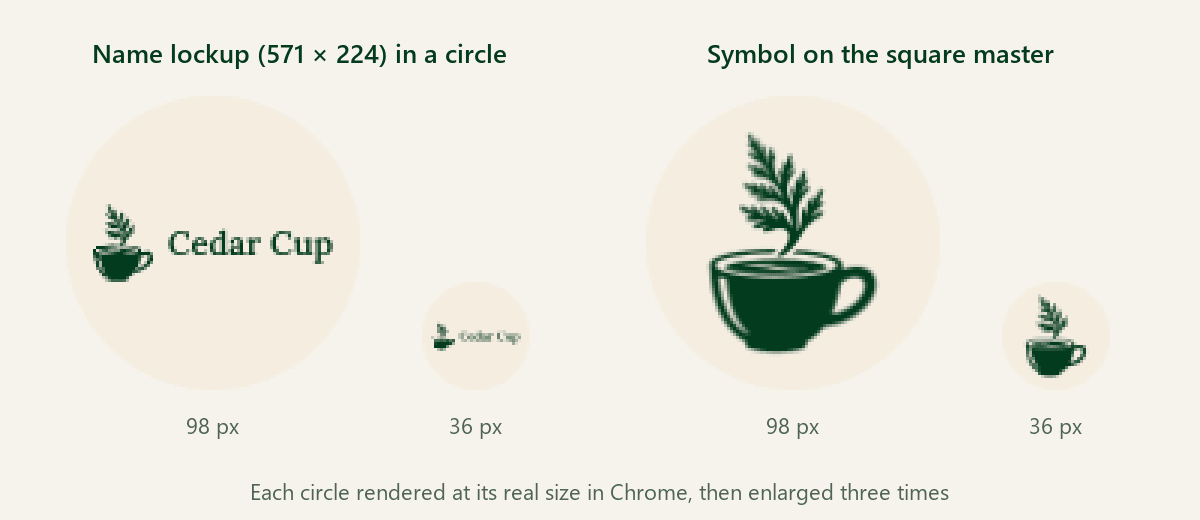
The lockup and the symbol at the same two circle sizes, rendered at real size and enlarged three times. At 36 px the name is a smudge; the cup still reads.
The avatar uses the symbol alone. The name can go in the profile's display name, where the platform sets it as text.
Make the SVG square before you export
The untouched download isn't square: its viewBox is 861.333 × 1118.667 units. Asking a converter for a square image then goes wrong in one of two ways.
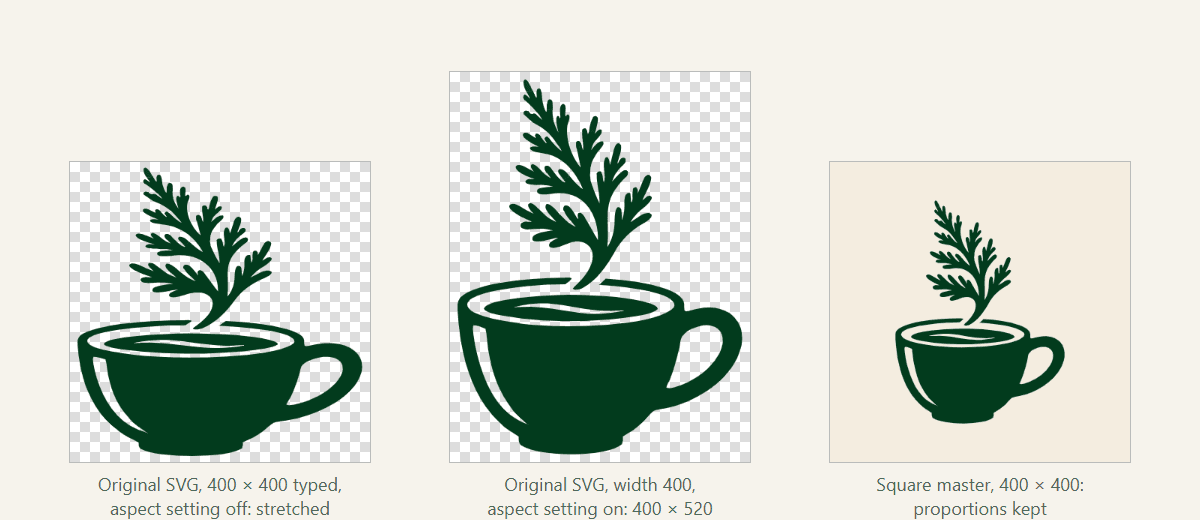
All three come from SVG AI's SVG Code to PNG tool:
- With "Maintain aspect ratio from SVG" switched off, typing 400 × 400 stretched the drawing. Its width-to-height ratio went from 0.76 to 0.99, so the cup came out about 30% wider.
- With the setting on, which is the default, typing a width of 400 gave a 400 × 520 image with the drawing reaching almost to its edges. A square or circle crop would cut into it.
- The square master, made below, came out at exactly 400 × 400 with the drawing's proportions kept.
Change the canvas, not the drawing.
Build a circle-safe square master
The master keeps all 55 paths exactly as generated. Only the root element changes, plus one new shape:
- a square viewBox;
- equal width and height (1024 here), so the tool's aspect setting locks to a square;
- no
preserveAspectRatio="none"; - a
<title>; - a background rectangle that fills the square.
<svg xmlns="http://www.w3.org/2000/svg"
     viewBox="352.177 -157.811 1446.732 1446.732"
     width="1024" height="1024">
  <rect x="352.177" y="-157.811" width="1446.732" height="1446.732" fill="#F4EDE0"/>
  <!-- the 55 generated paths, unchanged -->
</svg>
Two decisions set that viewBox:
- The center is the middle of the drawing's bounding box. Centering on the smallest circle around the drawing pushed the cup to the right, so the bounding box looked more balanced here.
- The side is chosen so the drawing's farthest point is 40% of the side from the center. A circle crop reaches 50%, so at least 10% of the side stays as background between the drawing and the edge of the circle.
The drawing then fills about 56% of the width and 74% of the height. 40% is a choice for this tall mark, not a rule. A wider or rounder mark needs its own check at the smallest size you will use.
To get these numbers for your own logo, open the SVG file in Chrome or Edge, open the developer console and paste:
const svg = document.querySelector('svg');
const box = svg.getBBox();
const cx = box.x + box.width / 2, cy = box.y + box.height / 2;
let far = 0;
for (const p of svg.querySelectorAll('path')) {
  const len = p.getTotalLength();
  for (let i = 0; i <= 1000; i++) {
    const pt = p.getPointAtLength(len * i / 1000);
    far = Math.max(far, Math.hypot(pt.x - cx, pt.y - cy));
  }
}
const side = far / 0.4;
console.log(`viewBox="${(cx - side / 2).toFixed(3)} ${(cy - side / 2).toFixed(3)} ${side.toFixed(3)} ${side.toFixed(3)}"`);
It prints a viewBox centered on the drawing's bounding box, with the farthest sampled point of every path at 40% of the side. For the Cedar Cup file it printed 352.151 -157.833 1446.780 1446.780, within 0.05 units of the master's viewBox. The snippet only measures path elements and ignores transforms on them, so if your logo uses other shapes or transformed groups, check the result in a preview before exporting. A simpler, more generous rule is a side of 1.25 times the diagonal of the bounding box, which always keeps every point within 40%; for Cedar Cup that gives 1688 units instead of 1447, and a smaller drawing.
Give the avatar an opaque background
A transparent PNG takes on whatever color the platform puts behind it. On a dark interface, this dark green mark almost disappears.
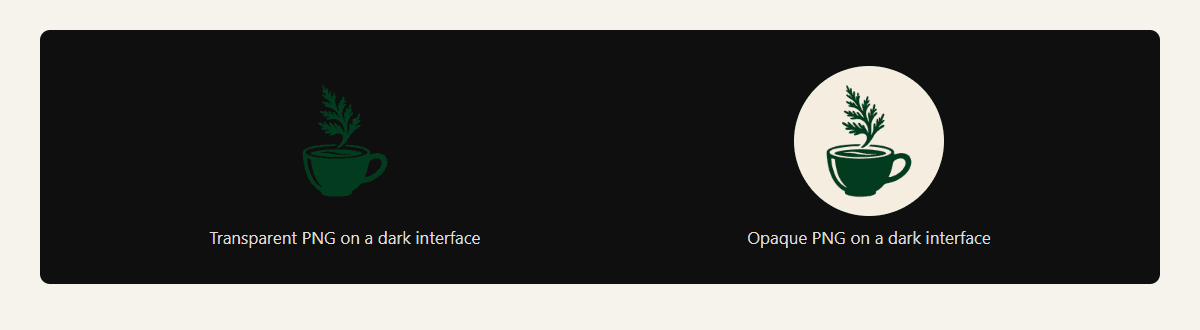
The same square canvas, exported with and without its background.
LinkedIn's image specifications say a transparent Page logo is shown on a white background and that logos appear on both light and dark backgrounds. The same picture shows in both themes, so a transparent avatar has to read on both. The master draws a cream #F4EDE0 square behind the mark instead, so every PNG is opaque and looks the same on both. The light and dark logo guide covers color variants for places where you choose the background.
The generated file also contains 26 near-white or grey paths at low opacity. On the cream background they don't matter: rendered at 400 px in Chrome, removing them changed no color channel of any pixel by more than 18 of 255 levels, so they were left in place.
Export the sizes platforms ask for
Paste the master into the SVG Code to PNG tool, type the same width and height, and keep "Maintain aspect ratio from SVG" on. Leave the background setting on Transparent: the master already draws its own background, so the PNG comes out opaque.
| File | Pixels | Bytes | For |
|---|---|---|---|
cedar-cup-avatar-1024.png | 1024 × 1024 | 94,441 | Slack maximum |
cedar-cup-avatar-720.png | 720 × 720 | 59,917 | Google Business |
cedar-cup-avatar-512.png | 512 × 512 | 39,261 | Slack minimum, GitHub |
cedar-cup-avatar-400.png | 400 × 400 | 28,579 | X, LinkedIn |
cedar-cup-avatar-320.png | 320 × 320 | 21,797 | Facebook Page |
All five came out at exactly the typed size and fully opaque. In each, the drawing kept its proportions to within 0.7%, and its farthest pixel was 40% of the width from the center. Every file is under GitHub's 1 MB limit and above Google Business Profile's 10 KB minimum.
Check the crops at display size
Facebook says a Page profile picture is cropped to a circle and shown at 176 × 176 pixels on computers, 196 × 196 on smartphones and 36 × 36 on most feature phones. YouTube says a channel's profile picture renders at 98 × 98. The crop previews show the 400 px PNG at those sizes, plus a square and a rounded square, on white and on near-black.
At 36 px the sprig's leaves merge into one small shape, but the cup and the sprig are still recognizable, so the drawing wasn't simplified. If your mark turns into a blob at the smallest size, simplify it then, and check again.
Some uploaders let you adjust the framing before saving; Slack's help describes this step. Keep the whole square in the frame so the padding you planned stays in the picture.
Platform requirements
Checked on the platforms' help pages on October 19, 2026. Sizes and shapes change, so check again before you upload.
Each placement name links to the help page it comes from.
| Placement | Size | Shape |
|---|---|---|
| Facebook Page | 320 × 320 | Cropped to a circle |
| YouTube | Shown at 98 × 98 | Not stated |
| X | 400 × 400 | Square for Premium Business |
| LinkedIn Page | 400 × 400 (min. 268) | Not stated |
| GitHub | About 500 × 500 | Not stated |
| Slack | 512 to 1024 | Not stated |
| Google Business Profile | 720 × 720 (min. 250) | Not stated |
| Placement | Files and limits |
|---|---|
| Facebook Page | PNG may work better for logos and text |
| YouTube | JPG, GIF, BMP or PNG; up to 15 MB |
| X | JPEG, GIF or PNG; under 2 MB |
| LinkedIn Page | PNG or JPEG; up to 3 MB |
| GitHub | PNG, JPG or GIF; under 1 MB; under 3000 × 3000 |
| Slack | Not stated |
| Google Business Profile | JPG or PNG; 10 KB to 5 MB |
LinkedIn shows transparent logos on white and, for the best resolution on its Pages, suggests a high-resolution JPEG instead of a PNG at the recommended size. The opaque master exports just as well to JPEG if you prefer that.
None of these pages lists SVG. Instagram and Pinterest aren't in the table because the help pages checked for this example didn't give a profile picture size.
What this example doesn't cover
No profile picture was uploaded to any platform for this example, so the crops above are browser simulations. Browser tab icons and home-screen icons have their own sizes and safe zones; the favicon set walkthrough covers those.
The download contains the square master SVG, the five PNGs, the untouched generated SVG, the crop preview page and a README explaining how each file was made.