Build a Cafe SVG Logo with a Business Name You Can Edit
By Ashesh Dhakal, Founder, SVG AI
svg logoeditable logo textcafe logoFigma
A logo can look like it contains text while giving you no way to type a different name. The letters may already be shapes. For a name you expect to revise, keep the symbol and typography separate while you build the logo.
This fictional Cedar Cup example starts with a cup-and-sprig symbol generated in SVG AI. The business name is added afterward in Figma with Lora SemiBold. The finished files include a version with editable SVG text and a separate outlined version for a fixed appearance without loading the font.
Open the working name-and-logo comparison or download the complete example.
The symbol is AI-generated; the type, spacing and composition are a separate Figma construction. Cedar Cup is a fictional demonstration.
Watch the workflow
The tutorial follows the generated symbol, the editable Figma source and the two exports, then compares their behavior in the working example.
Watch the tutorial on YouTube.
Generate the symbol without the name
Give the generator the visual task and reserve the exact lettering for a text layer. This example used Ultra, one SVG, and transparent background On on September 30, 2026. The displayed cost was four credits, and one generation was used.
Create a simple standalone cafe logo symbol for the fictional brand
Cedar Cup. One rounded ceramic coffee cup with a small handle, with
a single cedar sprig rising as steam above it. Bold dark forest green
shapes with generous open space, flat vector style, transparent
background. No words, letters, initials, tagline, border, badge,
gradient, shadow, mockup or scenery. Keep the full symbol visible
with padding. The business name will be added separately as editable text.
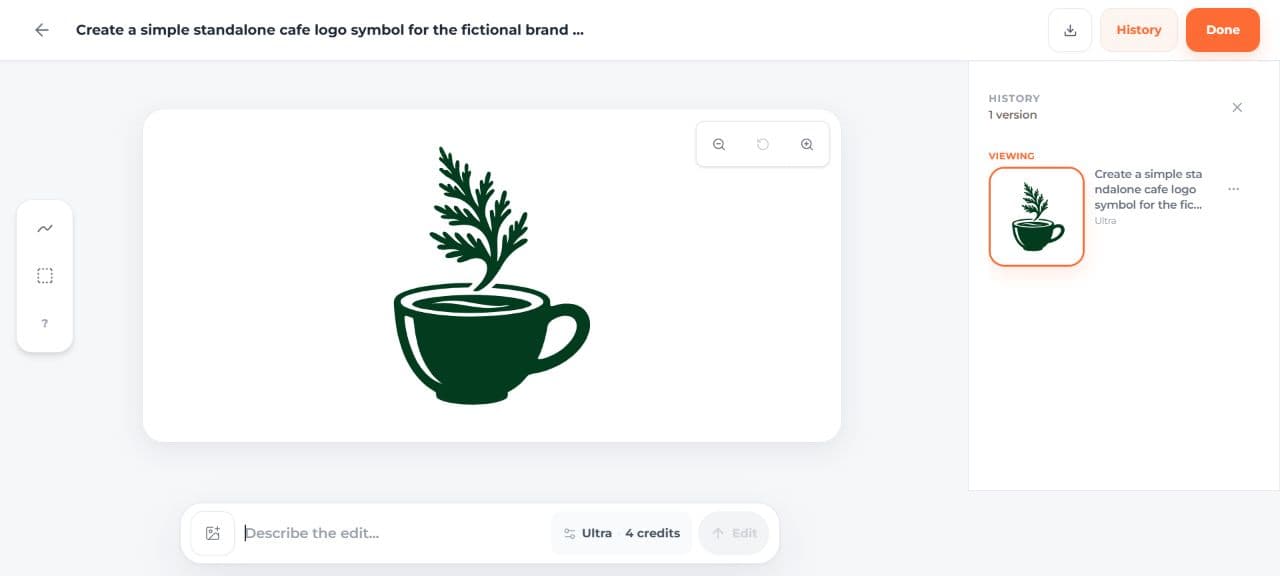
The result gives the cafe a recognizable cup and a botanical detail. The sprig is more intricate than a tiny interface icon needs, so this exercise uses it in a logo with room to read. Treat the sprig as stylized artwork and inspect it at the size you need.
Keep the untouched generated SVG. The file contains faint, partly transparent details as well as the main green shapes; it is not a single flat-color cut file. This composition retains those details. SVG AI downloads require paid access through an eligible subscription or credit purchase; check the current composer cost and export access for your account.

Add a real text layer in Figma
Import the downloaded symbol into a Figma Design file. Scale it proportionally, then add a text layer beside it and type Cedar Cup. Select Lora SemiBold for the name.
Lora is distributed under the SIL Open Font License in the Google Fonts repository. The example download includes the font and its license. Keep those together if you redistribute the font file.
The source composition uses these settings:
| Part | Setting in this example |
|---|---|
| Generated symbol | 176 units high, scaled proportionally |
| Business name | Lora SemiBold, size 72 |
| Text color | #023B1D, matching the main green in this symbol |
| Space between symbol and name | 28 units |
| Outer padding | 24 units on each side |
Use a horizontal auto-layout frame with centered cross-axis alignment. Set the frame to hug its contents and the name layer to auto width. That keeps the name beside the symbol when its length changes. These values are a starting composition, not universal logo-spacing rules.
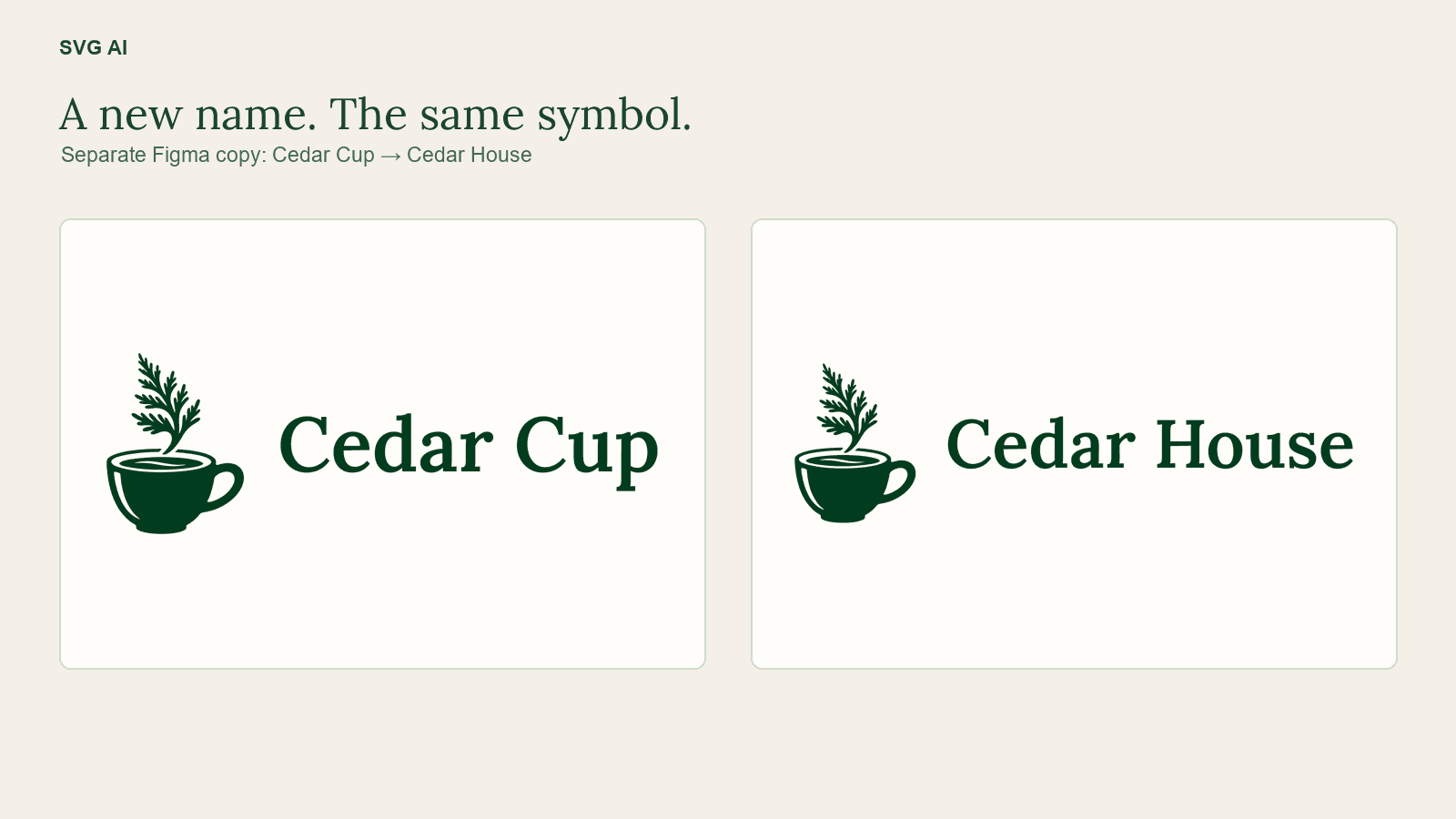
Keep the Figma text layer editable. In a separate copy, changing Cedar Cup to Cedar House widened the frame while retaining the symbol. For your own name, check the resulting spacing and overall width again; a longer word will occupy more of the destination.
Export two versions from the same master
Select the whole logo frame and add an SVG export. Figma outlines text by default. In the SVG export settings, switch Outline text off for the editable-text version, then export a second version with it on. Figma’s export-settings documentation explains this distinction.
| Download | What it retains | Use it when |
|---|---|---|
| Editable-text SVG | The name in a text element | You need to revise the wording and can provide the intended font |
| Outlined SVG | The name as path geometry | You want this lettering appearance without a font dependency |
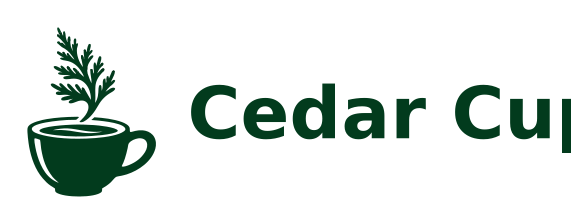
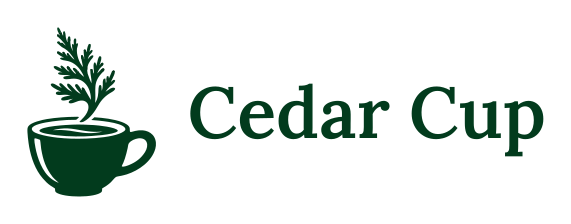
Both exported files have a 571 × 224 viewBox. The editable version contains one text element spelling Cedar Cup. The outlined version contains no text elements. Outlining does not turn the letters back into ordinary editable text later, so keep the master.
The standalone editable SVG names Lora but does not embed the font. On a device without it, a substitute font may change the appearance. The supplied comparison page loads the bundled Lora font and lets you change the text in an inline copy. That field changes the preview only; it does not overwrite either download.
Check the logo where it will appear
The working example places the outlined logo in a website header and a flat sign composition. Resize the page and inspect the name at the size someone will actually see it. The sign is a browser composition, not a photograph or a printed proof.
The full sprig remains useful at larger sizes, but its fine branches lose clarity as the whole logo gets smaller. If a tiny avatar is the real destination, prepare and inspect a simpler symbol separately rather than squeezing this whole wordmark into a square.
Use an appropriate alternative text such as Cedar Cup when the logo is the image that identifies a home link. Avoid repeating the name if the surrounding control already provides it.
For the next revision, return to the editable master, change the name, check its spacing, and export a new outlined copy. Keep the generated source too. That gives you a clear route back to the symbol, the typography and the delivered version without asking the generator to redraw the lettering.
If you are still choosing between a symbol, initials and a full name, the monogram-versus-wordmark comparison shows that earlier decision with a different example.