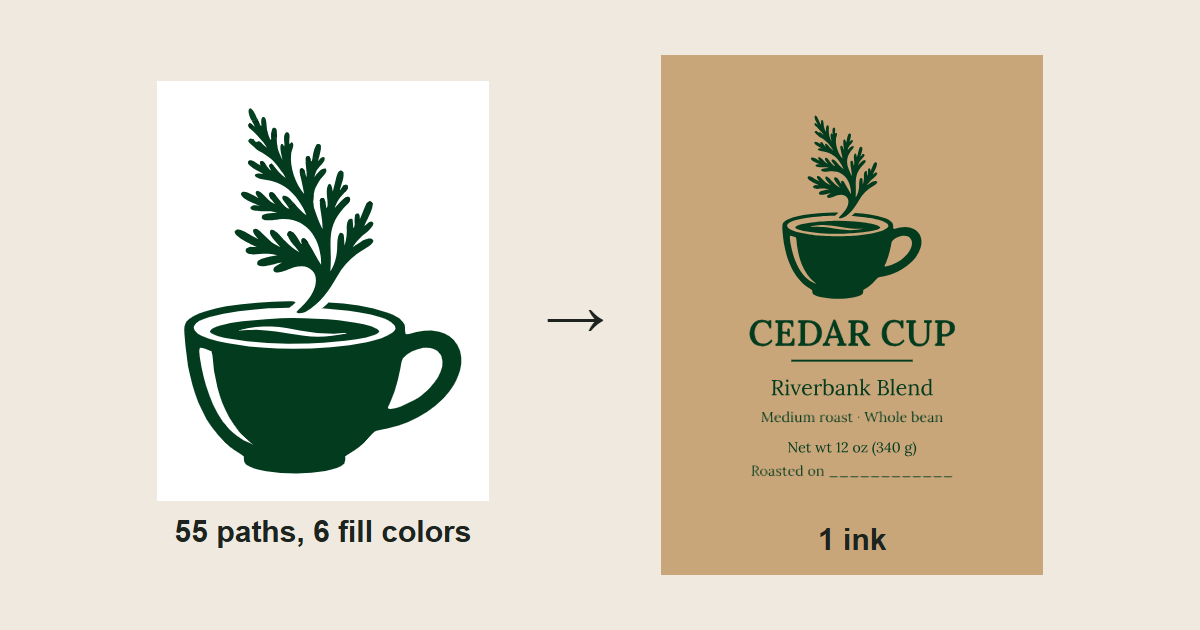
A label printed in one solid ink can't use a second green, a pale highlight or a shape at 3% opacity. Every shape either gets that ink at full strength or gets none. A generated logo can contain all three, even when it looks like one flat color on screen.
This example takes a generated coffee-cup mark, measures what is actually in the file, reduces it to one color, and places it on a 3 × 4 inch label with editable text and an outlined copy.
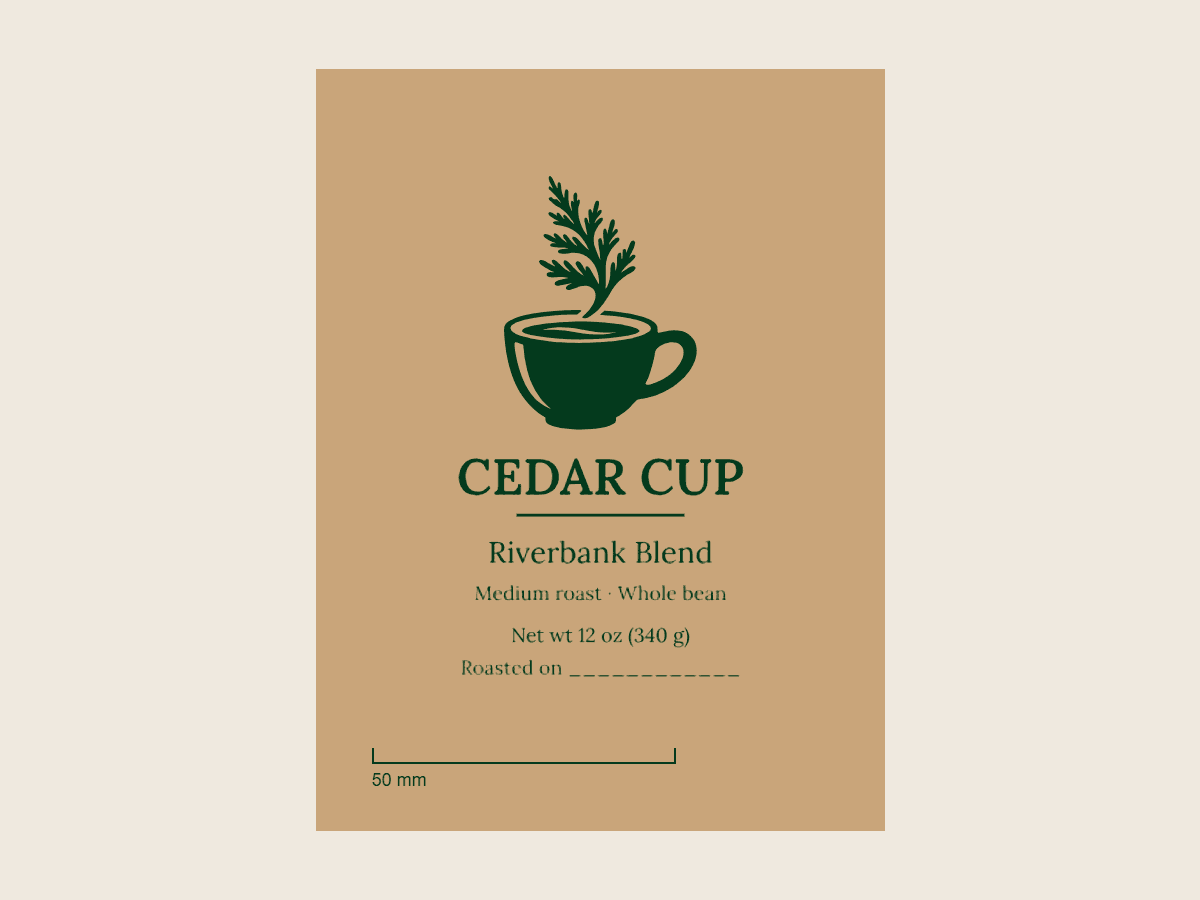
The finished label on a kraft-colored background. The background stands in for unprinted paper; it is not part of the files.
The mark is the Cedar Cup cup-and-sprig symbol, a fictional cafe brand. It was generated with the AI SVG generator on September 30, 2026 for the editable cafe logo walkthrough, which shows the prompt, the settings and the untouched download. No new generation was made for this article. The color reduction, label layout, text outlining and checks were prepared separately by an AI coding agent with Python scripts and Chrome. If you still need a mark, the SVG logo creation guide starts from a written brief.
Open the label preview or download the complete set.
Watch the tutorial on YouTube. Its narration uses a synthetic ElevenLabs voice.
Count what is in the generated file
Before changing colors, list them. The untouched download contains 55 path elements and no strokes, gradients, masks, filters or embedded images:
| Contents | Generated SVG | One-color SVG |
|---|---|---|
| Path elements | 55 | 1 |
| Opaque fill colors | 3 greens | 1 (#023B1D) |
Paths with fill-opacity | 26 | 0 |
| Strokes, gradients, masks, filters, images | 0 | 0 |
| File size | 34,226 bytes | 18,210 bytes |
The three greens are rgb(4,49,26) on 18 paths, rgb(2,59,29) on 6 and rgb(5,67,34) on 5. In the logo they're hard to tell apart on screen, although side-by-side swatches show the difference. Apart from the cup, most of these solid paths are sprig pieces traced separately.
The other 26 paths are near-white or grey with fill opacity between 1.2% and 28.6%. They use three more fills, two near-whites and one grey, so the file has six fill colors in all. Twenty-four of them sit along the edges of the sprig; the other two, at under 2% opacity, are in the cup's highlight and coffee surface. On a white page they are invisible; in a one-ink file they have no meaning, because a dark ink can't print a 3% white.
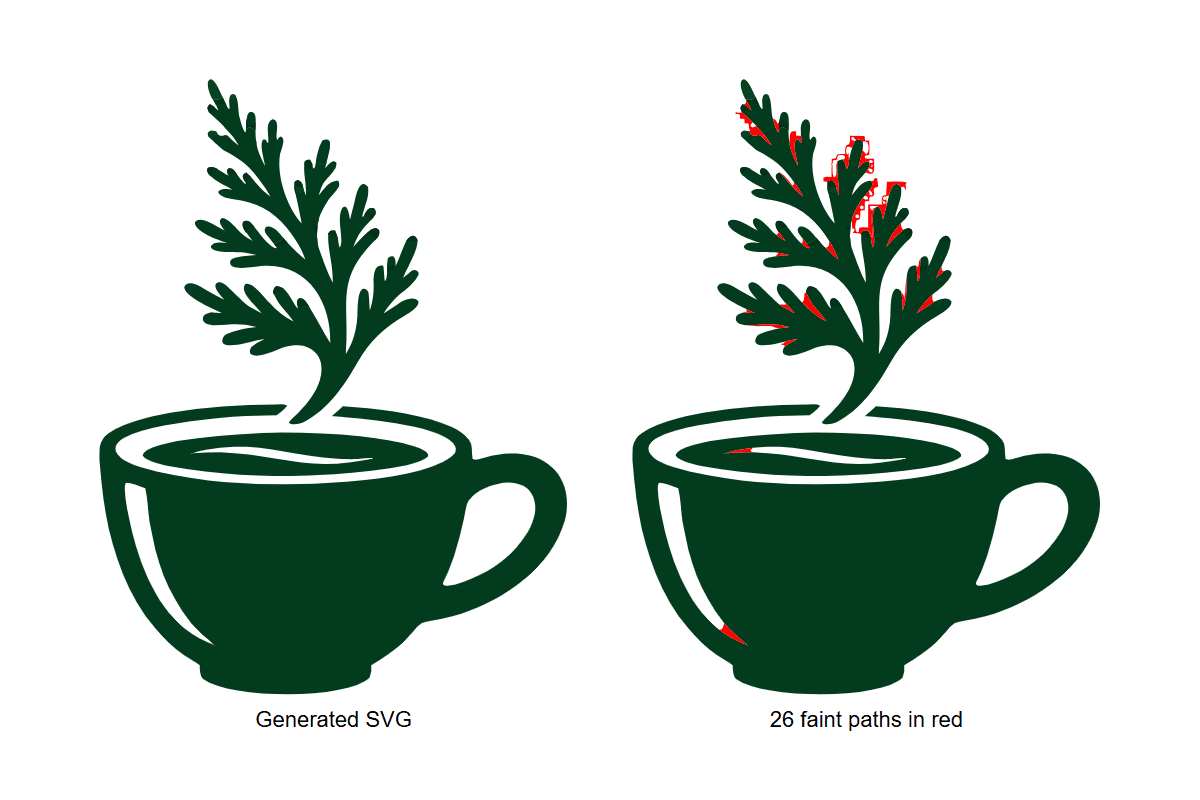
The 26 partly transparent paths, recolored red so you can see where they are.
Reduce the mark to one color
The change has two steps:
- Delete the 26 paths that have a
fill-opacityattribute. - Give the remaining 29 paths one fill,
#023B1D, the green already used for the Cedar Cup name.
Rendered side by side on kraft, the result is hard to tell from the original. That is the point: the visible artwork stays the same, and the file now contains exactly one color.
The 29 paths can then be joined into one path element by placing their path data one after another. In Chrome the joined path matched the 29 separate paths except along anti-aliased edges, and the file now hands over one shape instead of 29 pieces.
Keep the default nonzero fill rule when you join shapes like this. Several sprig tips overlap the main sprig, and with fill-rule="evenodd" those overlapping areas turn into holes:
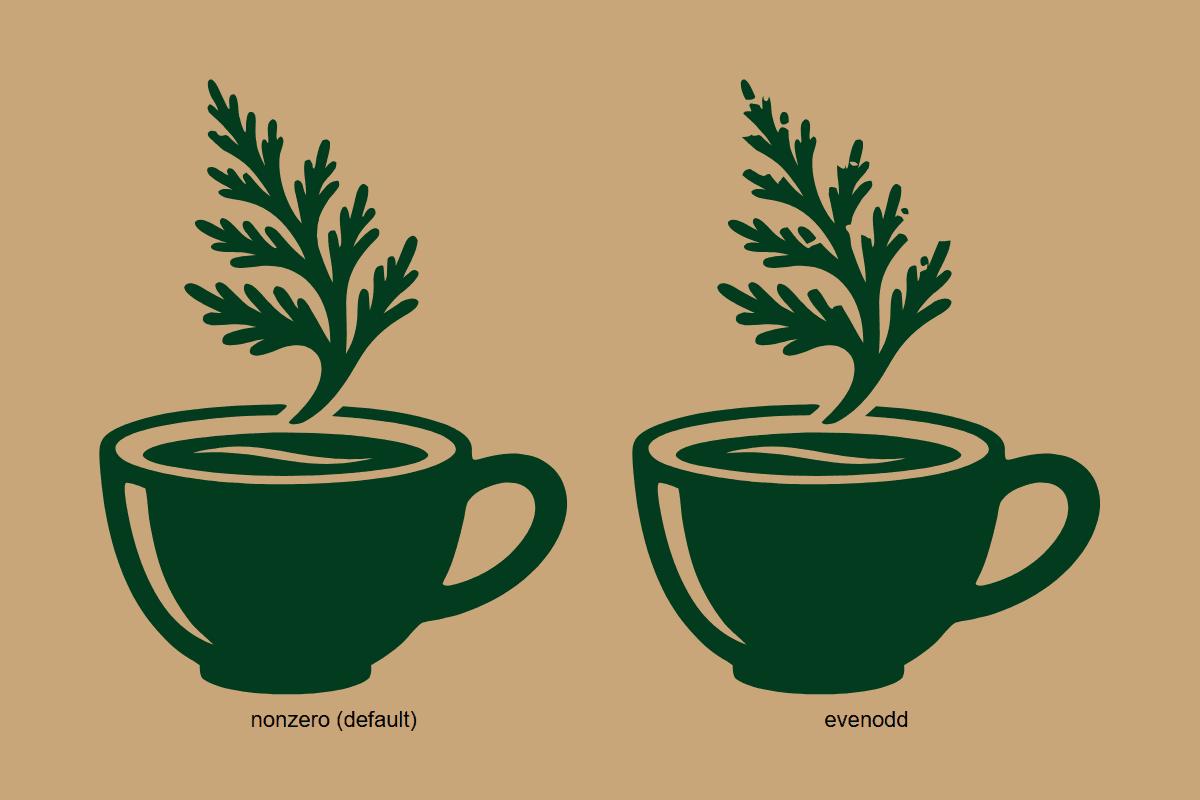
Left, the joined path with the default nonzero rule. Right, the same path with fill-rule="evenodd": where sprig tips overlap the sprig, the kraft background shows through as notches.
Nonzero works here because all the overlapping pieces are drawn in the same direction. When you join the paths of another file, compare the result with the original before you hand it over. If your editor offers a union or merge command, that removes the overlaps entirely and the fill rule no longer matters. The SVG painting specification describes how both rules decide what is inside a shape.
Make knockouts real holes
On a label printed in one ink on kraft paper, the light parts of the logo are the paper itself. A highlight should be an area with no ink, not a white shape painted on top. A dark ink can't print white.
In this mark the openings are already part of the geometry. The cup is a single path with two inner subpaths that cut the openings, so the kraft color shows through.
The versatile logo guide solves a different problem with an SVG mask, which hides part of a shape on screen. For a one-ink file, prefer real holes. A mask hides paint that is still in the file, while a hole is easy to check: where there is no shape, there is no ink.
Build the label in millimeters
The label is a separate SVG document sized in physical units:
<svg xmlns="http://www.w3.org/2000/svg"
     width="76.2mm" height="101.6mm"
     viewBox="0 0 76.2 101.6">
The viewBox matches the width and height, so one user unit is one millimeter, and the text and the mark are placed in millimeters: the mark sits in a box 44 mm tall that starts 9 mm from the top. Inside that box, the mark's path keeps the generated file's own coordinates and is scaled to fit. The drawing is about 42.3 mm tall and starts about 9.8 mm from the top, because the generated file has a little padding around it.
| Setting | Value |
|---|---|
| Label size (trim) | 76.2 × 101.6 mm (3 × 4 in) |
| Safe margin | 4 mm inside the trim |
| Mark | 44 mm box, centered (drawing about 42.3 mm tall) |
| Brand name | Lora SemiBold, 8.4 mm (about 24 pt) |
| Blend name | Lora Regular, 5 mm (about 14 pt) |
| Details | Lora Regular, 3.3 mm (about 9.4 pt) |
| Ink | #023B1D for every shape and text element |
The widest line, the brand name, is 47.9 mm wide, well inside the 68.2 mm between the safe margins. A separate proof file draws the trim in red and the safe margin as a dashed blue line. Those guides exist only in the proof copy.
The label has no background rectangle. The paper is the background, so the file contains only what gets ink.
Your label size and margins should come from your printer or label supplier. These are working values for this example, not a standard.
Keep the text editable, then outline a copy
The five text fields are real text elements with their own ids: brand, blend, roast, weight and date (the roast date). Open the editable SVG in a design or code editor and type a new blend name; for a design editor, install the Lora font from the download first so the text renders in Lora. A longer name must still fit within the 68.2 mm between the safe margins; neither the file nor the preview checks that for you. The fields are placeholders. This example does not check whether a real coffee label needs other information.
The text uses Lora, released under the SIL Open Font License. The editable SVG names the font but doesn't include it. The download keeps the font file and its OFL.txt together.
For a file that doesn't depend on the font, the outlined copy converts every line into path geometry. This example's copy was made with a script that shaped each line with HarfBuzz and drew Lora's glyph outlines at the same size and position. Rendered in Chrome at 10 pixels per millimeter with Lora loaded, the editable and outlined labels differed only along the anti-aliased edges of the letters: 12,935 pixels differed, and 465 of them by more than a quarter of the grey range.
Outlined text can't be edited as text again. Change the editable file, then outline a new copy in your editor. In Inkscape, select the text and use Path > Object to Path (Shift+Ctrl+C, listed in the Inkscape keyboard reference). In Illustrator, use Create Outlines (Shift+Ctrl+O, or Shift+Command+O on a Mac, listed in Adobe's shortcut guide). The cafe logo walkthrough shows Figma's Outline text export setting. Keep the editable file as your master.
Preview it at full size
The preview page shows the label at 76.2 mm wide in CSS units, with a 50 mm scale bar. Its fields change the preview only, not the downloaded files.
CSS defines one inch as 96 CSS pixels, as explained in the CSS Values specification. Whether that matches a real inch depends on your screen and zoom. Hold a ruler against the scale bar to see how far off your screen is. A screen preview is not a print proof.
What this file does not decide
#023B1D is a screen color in sRGB. SVG has no way to say "print this with a particular spot ink", so the color in the file is a reference for you and your printer, not an ink specification. Agree the actual ink and paper with whoever prints the label, and ask for a physical proof.
A printer can also screen one ink into lighter tints. This file uses none: every shape is meant to get the ink at full strength.
No print test was made for this example.
The download contains the one-color mark, the editable, outlined and proof labels, the untouched generated SVG, the Lora font and license, the preview page and a README listing how each file was made.