A dashboard panel with nothing in it is still a screen someone looks at, often in their first minutes with a product. An empty state turns that blank space into an explanation and a way forward: usually a small illustration, a heading that says what isn't there yet, a sentence or two about what will appear and how to start, and one action. This guide builds one for the Documents page of a new workspace in Papertrail, a fictional document app, around an SVG illustration made with SVG AI. It covers the decisions that make the state work: which kind of empty state it is, the words, the action's element, what the image means to a screen reader, how big the image can be on a phone, dark mode, and the different message a search with no matches needs.
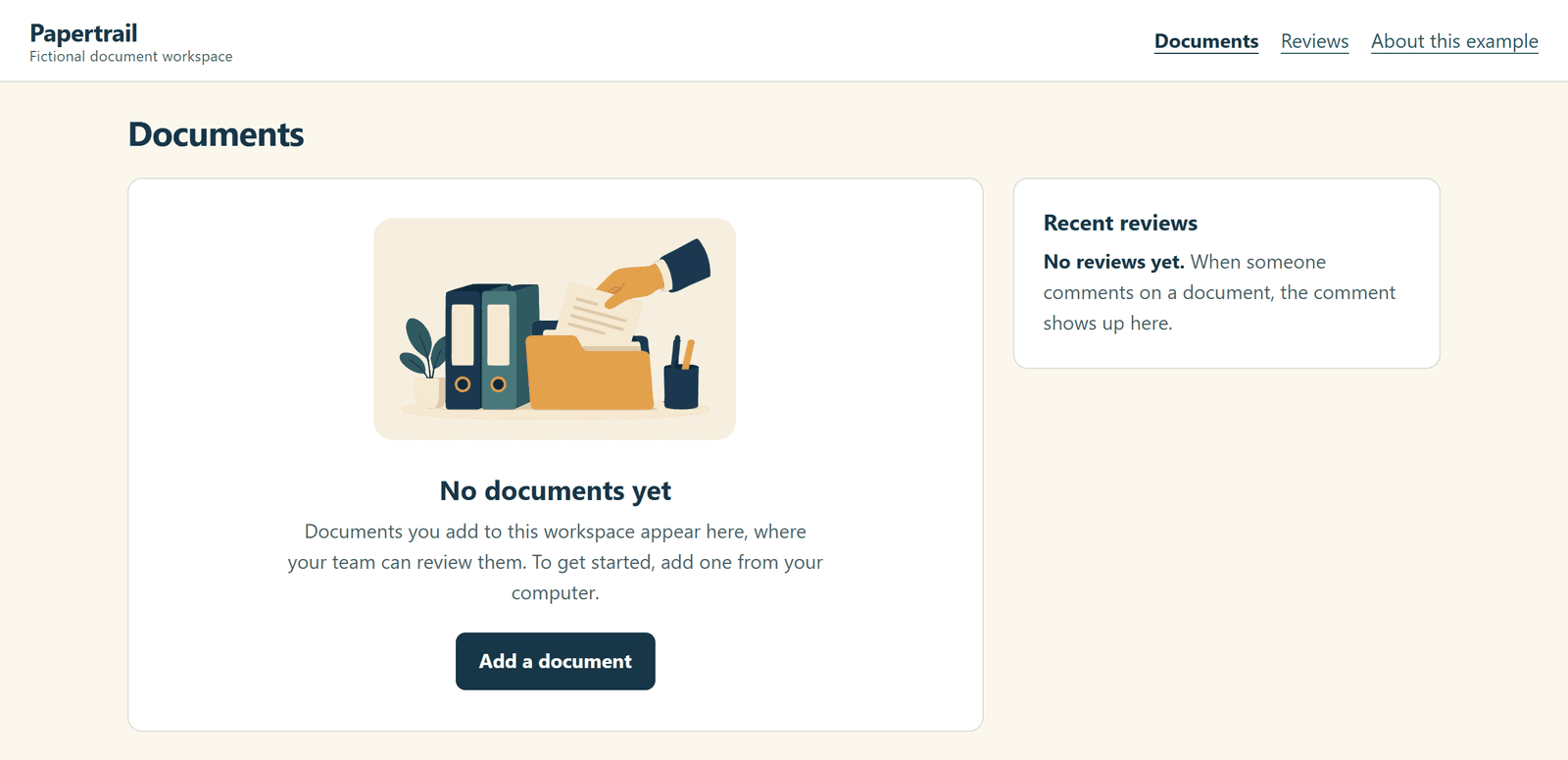
Papertrail and its Documents page are fictional, and the page is plain HTML, CSS and JavaScript, not SVG AI's dashboard. The illustration is the "organize" scene from Create a Matching Set of SVG Product Feature Illustrations. It was generated with the AI SVG generator on October 4, 2026 (Ultra, one SVG, transparent background), and that guide shows its prompt and the fit copy used here, which changes one attribute. No new generation was made for this guide. The example page and its checks were made by an AI coding agent, and AI assistance was used to write this guide and make its figures and video.
Open the example page or download the files: the page with its CSS and JavaScript, both SVG files, a README and the check results.
Watch the tutorial on YouTube. Its narration uses a synthetic ElevenLabs voice.
Decide which empty state you're designing
Design systems sort empty states by why the space is empty, and the reason shapes everything else:
- First use: nothing has been created yet. Carbon calls these "no data" empty states, for "first time use, no data yet". Atlassian calls this a blank slate and keeps the name "empty state" for a space someone has completed or cleared.
- No results: a search or filter matched nothing, but the data exists.
- Done or cleared: the person finished or removed everything, such as an empty inbox.
- Errors: no access, a failed load or missing setup. Primer says an error state's graphic "should not attempt to bring delight or be playful".
Papertrail's new workspace is a first-use state. The page has never had a document, so its job is to explain the page and start the first upload. That is where an illustration fits best: there is room, and the person is still learning what the page is for. The same panel also needs a no-results message later, which is a different state with a different design.
Write the heading, the sentence and the action
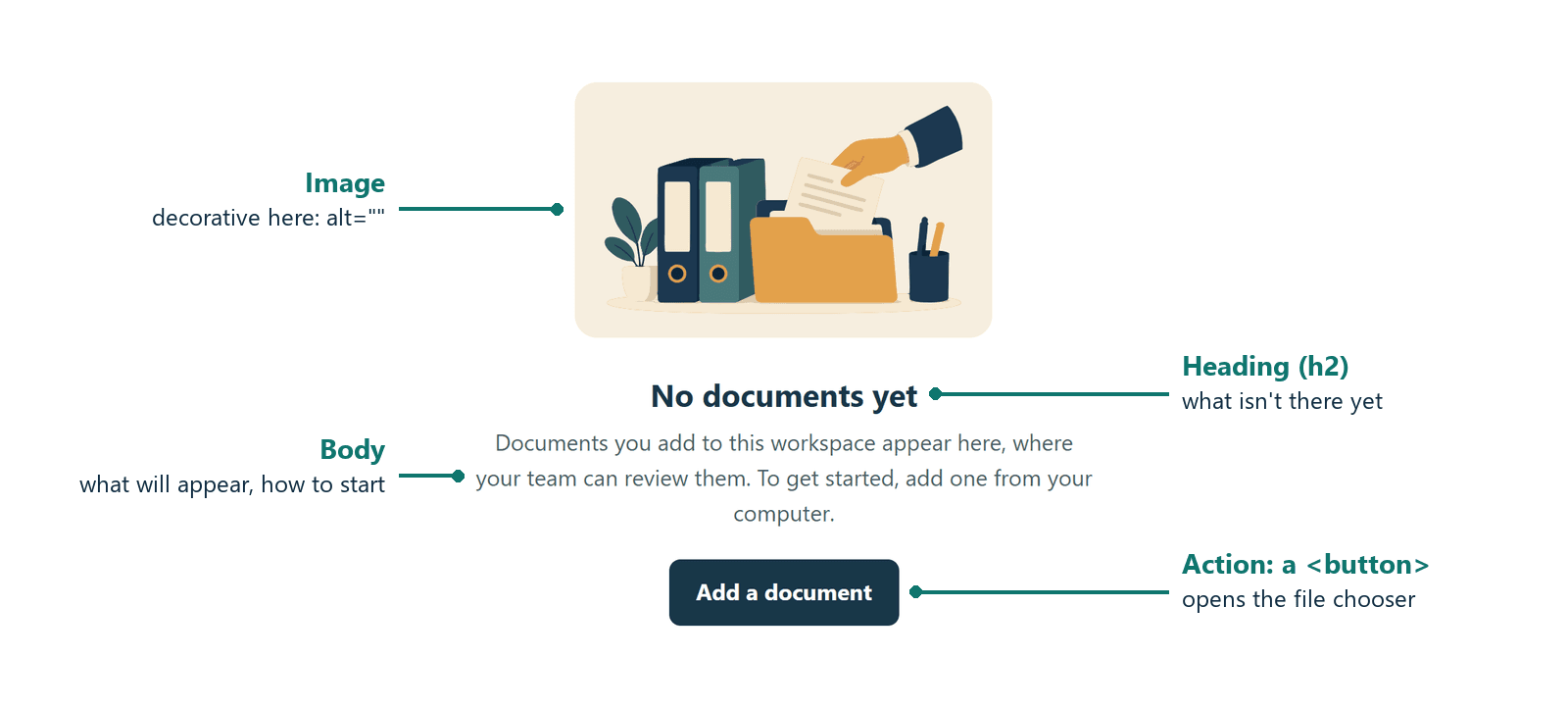
- Heading: "No documents yet". PatternFly's guidelines for a creation state say: "State what hasn't been created or added yet. Avoid saying that something hasn't been found because the user might interpret that as a system error." Its example is "No service accounts yet". The word "yet" also tells the person this is a beginning, not a failure.
- Body: one or two sentences, one saying what will appear here and one saying how to start: "Documents you add to this workspace appear here, where your team can review them. To get started, add one from your computer."
- Action: one, named with a verb and the thing it acts on: "Add a document". Primer encourages blankslates to use "one primary link or action", which keeps the next step obvious.
Carbon takes a different approach to the heading. It suggests writing it as a positive statement where possible, and says "Start by adding data assets" feels more positive than "You don't have any data assets". Either pattern works. Pick one and use it on every panel. Papertrail names what's missing, because "No documents yet" also explains why the page looks empty. Layout details differ between systems too. Carbon keeps the text and the action left-aligned (in a small tile it centres only the image above them), while this example centres the whole state, text included, in its panel.
Whatever the art shows, the heading, the sentence and the button must carry everything the person needs. The illustration only adds atmosphere.
Use a button or a link for the action
The element depends on what the action does, not on how it looks:
- It acts on the page (opens a file chooser, a dialog or a form): use
<button type="button">. The ARIA Authoring Practices describe a button as a widget that "enables users to trigger an action or event", and note that the actions buttons perform "are distinctly different from the function of a link". - It goes to another page (an upload page, a settings screen): use a link, an
<a>with anhref. GOV.UK's Button component says start buttons "do not usually submit form data, so use a link tag instead of a button tag", and Primer's Blankslate renders its primary action "as an anchor instead of a button" when it has a URL.
In Papertrail, "Add a document" opens the browser's file chooser, so it's a button that clicks a hidden file input:
<button type="button" class="primary" data-add>Add a document</button>
<input type="file" id="file-input" hidden>
const input = document.getElementById('file-input');
document.querySelectorAll('[data-add]').forEach(button =>
  button.addEventListener('click', () => input.click()));
A native button is focusable and responds to Enter and Space without extra code. In the example, pressing Tab reached it after the three navigation links, it showed a 3 px focus outline, and both Enter and Space opened the file chooser in Chrome and Edge. It measures 163 × 47 CSS pixels, well above the 24 × 24 minimum in WCAG 2.2's target size criterion.
Decide what the image means to a screen reader
Here the image adds no information. The heading and the sentence already say there are no documents and how to add one, so the illustration is decorative, and a decorative image gets an empty alt:
<img src="assets/organize-fit.svg" alt="" width="1891" height="1125">
- The
altmust be present and empty. The W3C's decorative images tutorial says "Leaving out the alt attribute is also not an option", because some screen readers then announce the image's file name. Technique H67 puts it this way: "Having a 'null' alt attribute is not the same as having no alt attribute." - Prefer
alt=""torole="presentation". The same tutorial says the role is "not as widely supported as using a null alt attribute". - Carbon reaches the same answer for most empty-state art: "As most empty state illustrations are considered decorative, they should be skipped by screen readers."
The same file was informative the first time it was used. In the feature illustrations guide, the scene illustrates a product feature next to a short caption, and its example page gives it the alt text "A hand places a document in a folder beside upright binders". The W3C calls the choice "a judgment that only the author can make, based on the reason for including the image on the page". Decide for each placement, not once per file. If your empty state's image shows something the text doesn't say, describe it in the alt text instead.
In Chrome 155 and Edge 155, the accessibility tree (read through the DevTools protocol) ignored the image, giving "emptyAlt" as the reason. It exposed the headings "Documents" (level 1), "No documents yet" (level 2) and "Recent reviews" (level 2), and one button named "Add a document". No screen reader was used, so this shows what the browsers pass on to assistive technology, not what a person would hear.
Size the image so the action stays on screen
The organize scene is wide: its viewBox is 1890.667 × 1125.333 units, about 1.68:1. Above a heading, that shape works well (Carbon calls the space above the title "generally better for wider images"), and it keeps the image short. That matters on a phone, where the heading and the button should be visible without scrolling. Three settings keep the image in shape:
- Whole-number width and height on the
<img>. The HTML Standard requires these attributes to be valid non-negative integers, and the SVG's own sizes are fractional. The example useswidth="1891" height="1125": the same ratio, rounded. They let the browser reserve the image's space before it loads. - A CSS width with
height: auto. The example setswidth: clamp(168px, 56vw, 264px): 264 px wide on a desktop panel, 210 px at a 375 px screen width and 179 px at 320 px. Below about 160 px, the paper's lines, the plant and the pen cup shrink to specks. On a panel that small, drop the image and keep the text, as Carbon advises: "If space is limited, use just text." - The fit copy. SVG AI's downloads carry
preserveAspectRatio="none"(every one used in these guides does). That setting only distorts the image when CSS gives its box a different shape from the image's own. The fit copy changes only that attribute, toxMidYMid meet, so any box shows the whole scene without stretching (MDN on preserveAspectRatio).
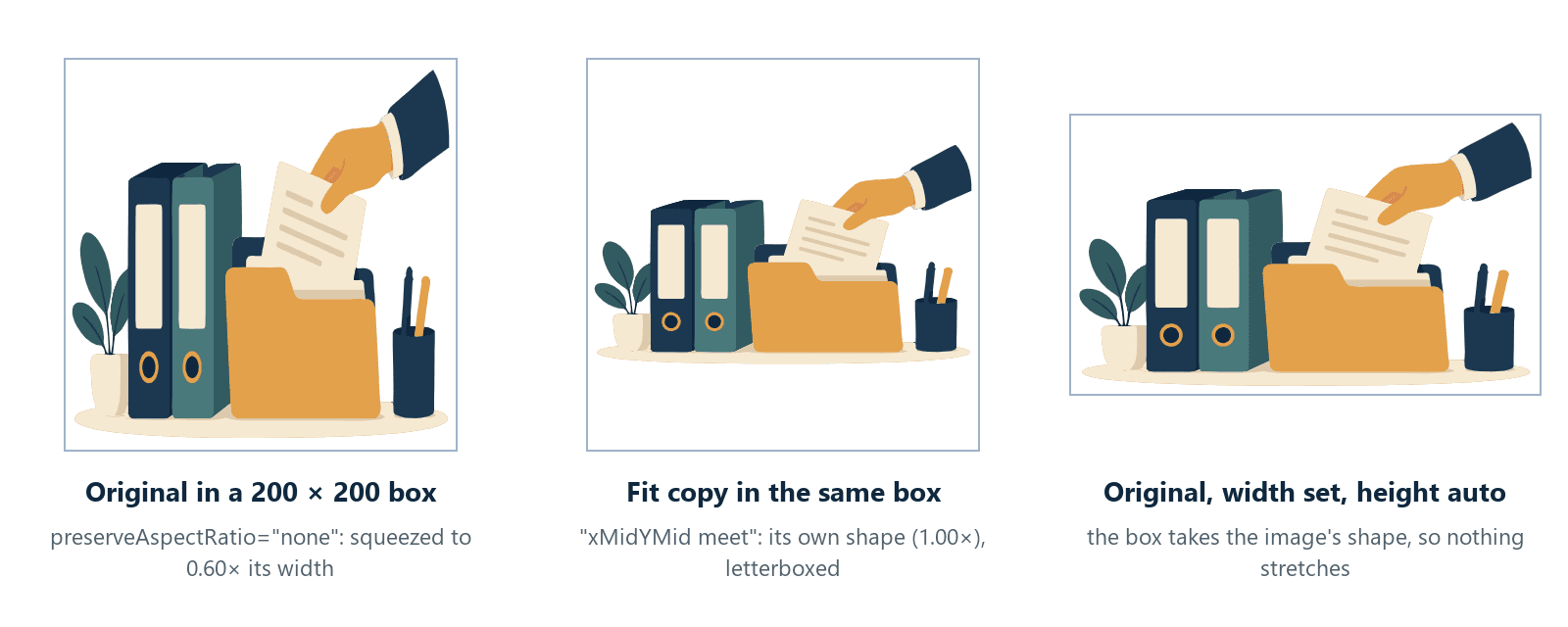
In Chrome and Edge, the original in a fixed 200 × 200 box was squeezed to 0.60 of its own width, and in a 240 × 96 box it was stretched to 1.49 times its width. The fit copy kept its shape in both boxes, and so did the original with height: auto.
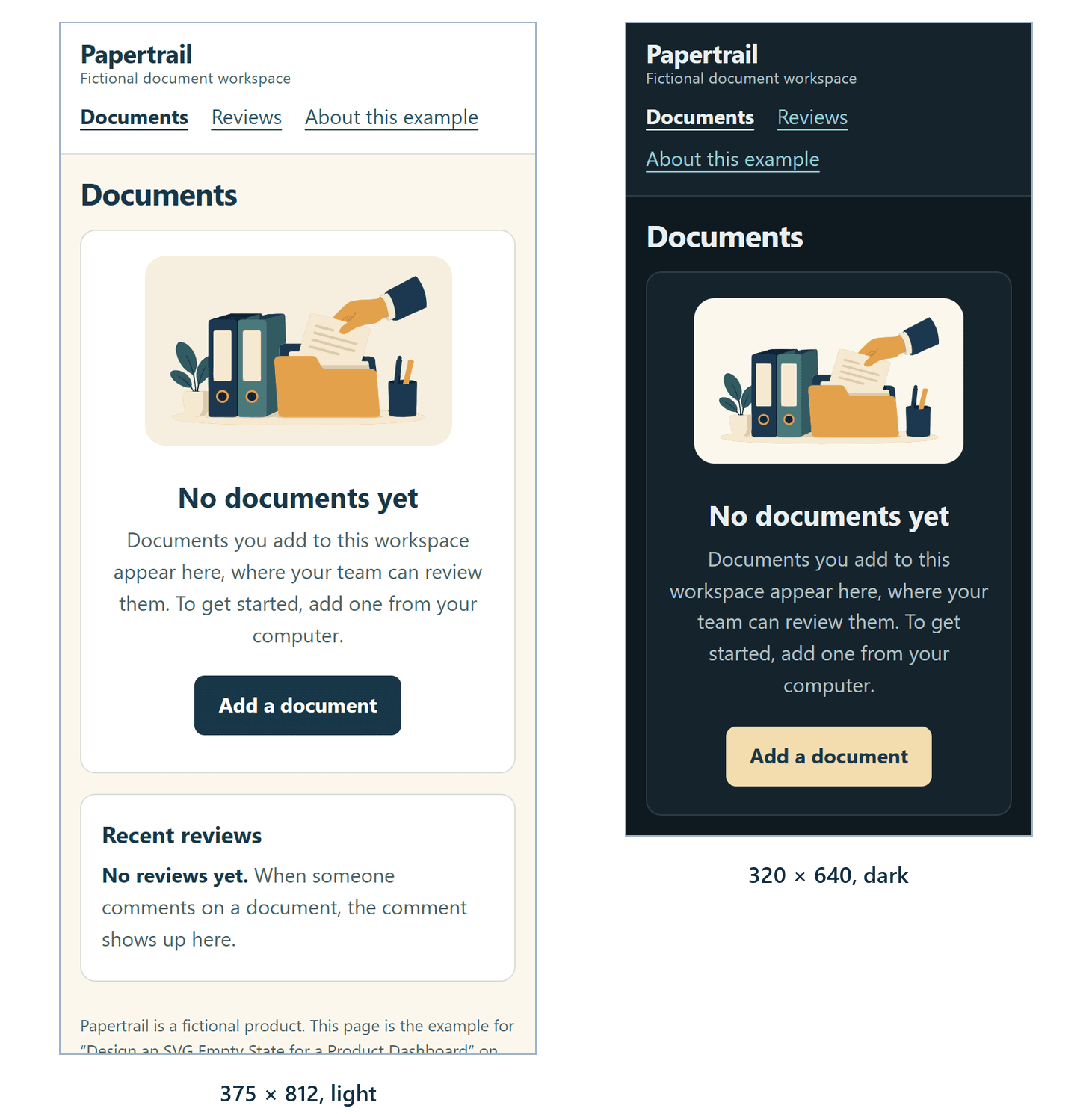
At 375 × 812 and 320 × 640 CSS pixels, the heading and the button were on screen without scrolling in both browsers (the button's bottom edge was at 561 and 601 pixels), and no tested width scrolled sideways. At 200% and 400% zoom of a 1280 × 800 window (tested as a 640 × 400 and a 320 × 200 CSS pixel viewport), the page reflowed into one column with no horizontal scrolling. The button then needs vertical scrolling, which WCAG's reflow criterion allows.
The space for the words comes from the page layout, not from empty space drawn into the art, which is the approach the hero illustration guide also takes.
Put a light plate behind it in dark mode
The scene has a transparent background, so the panel shows through it. In dark mode that's a problem. Two of its fills are deep navy, rgb(16, 37, 57) and rgb(28, 56, 80), and together they make up 19 of its 51 shapes, including the front binder, the sleeve and the pen cup. Against Papertrail's dark panel, they measure 1.03:1 and 1.32:1, so they nearly vanish.
Because the image is decorative, WCAG's non-text contrast criterion doesn't require anything here. It excludes graphics that are "for aesthetic purposes". This is a design decision, not a compliance one, but a half-invisible picture looks broken. The example keeps the image unchanged and puts it on a light plate, a rounded cream box, in both color schemes:
.empty-art {
  display: inline-block;
  margin-bottom: 20px;
  padding: 12px 16px;
  background: var(--plate);   /* cream in light and dark mode */
  border-radius: 16px;
}
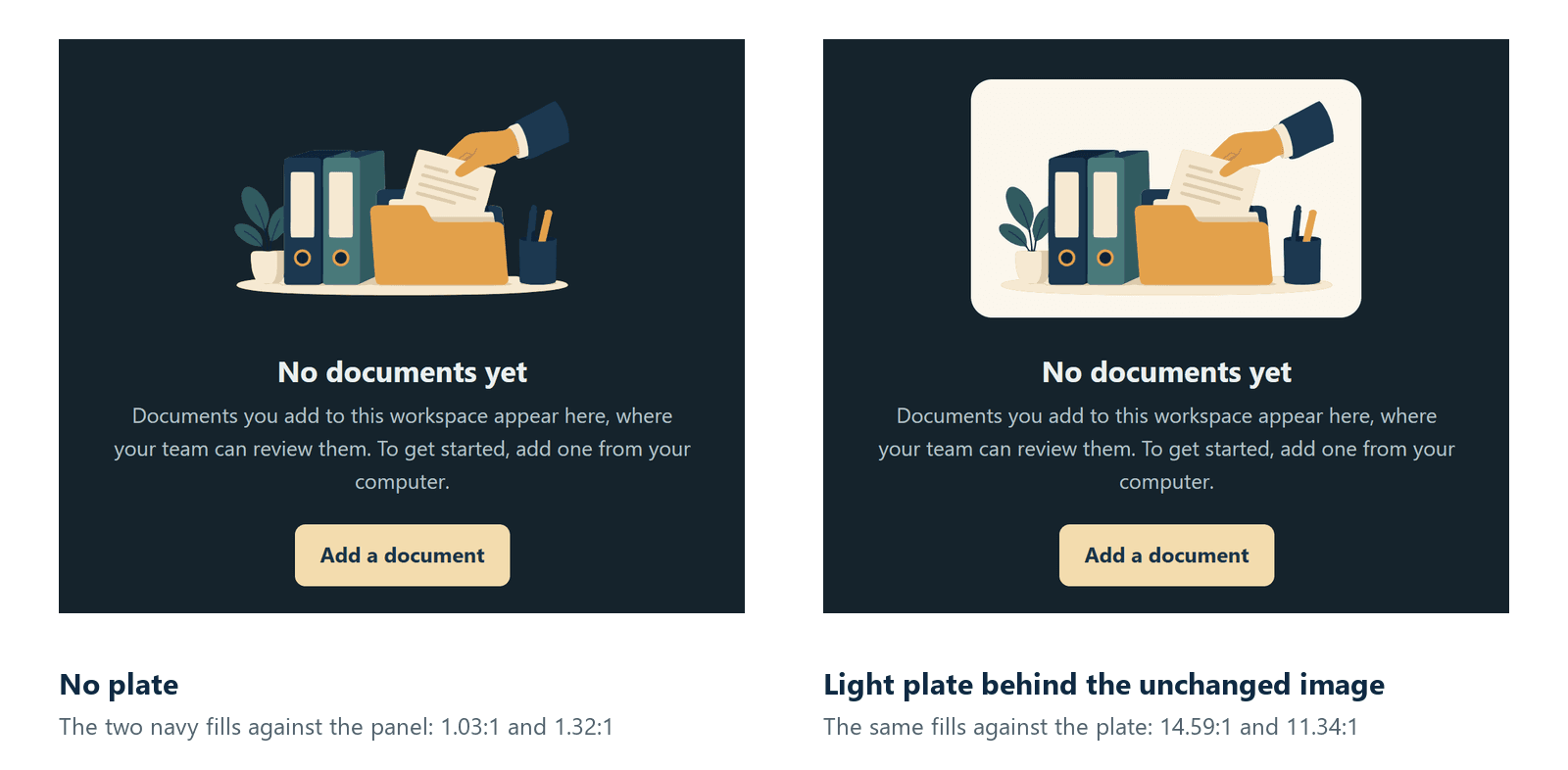
On the plate, the two navy fills measure 14.59:1 and 11.34:1. The alternative is a second, recolored SVG for dark mode, swapped in with <picture> and a <source media="(prefers-color-scheme: dark)">. That follows the browser or system setting, not an in-app theme switch, and it's one more file to keep in step with the first. All text and control colors on the page were checked in both modes: body text, buttons and links meet 4.5:1, and the focus outline and field borders meet 3:1.
Show only text when a search finds nothing
Once the workspace has documents, a search can still come back empty. That's a different state: the documents exist, and the person only needs to change the search. It needs no illustration and no prompt to add a document. PatternFly uses its small empty state for no-results states, and says to "Briefly state that no results were found." It also says not to include toolbars or filters in a full-page empty state "because the user doesn't have any items to search or filter", which is why Papertrail's search field only appears once there are documents.
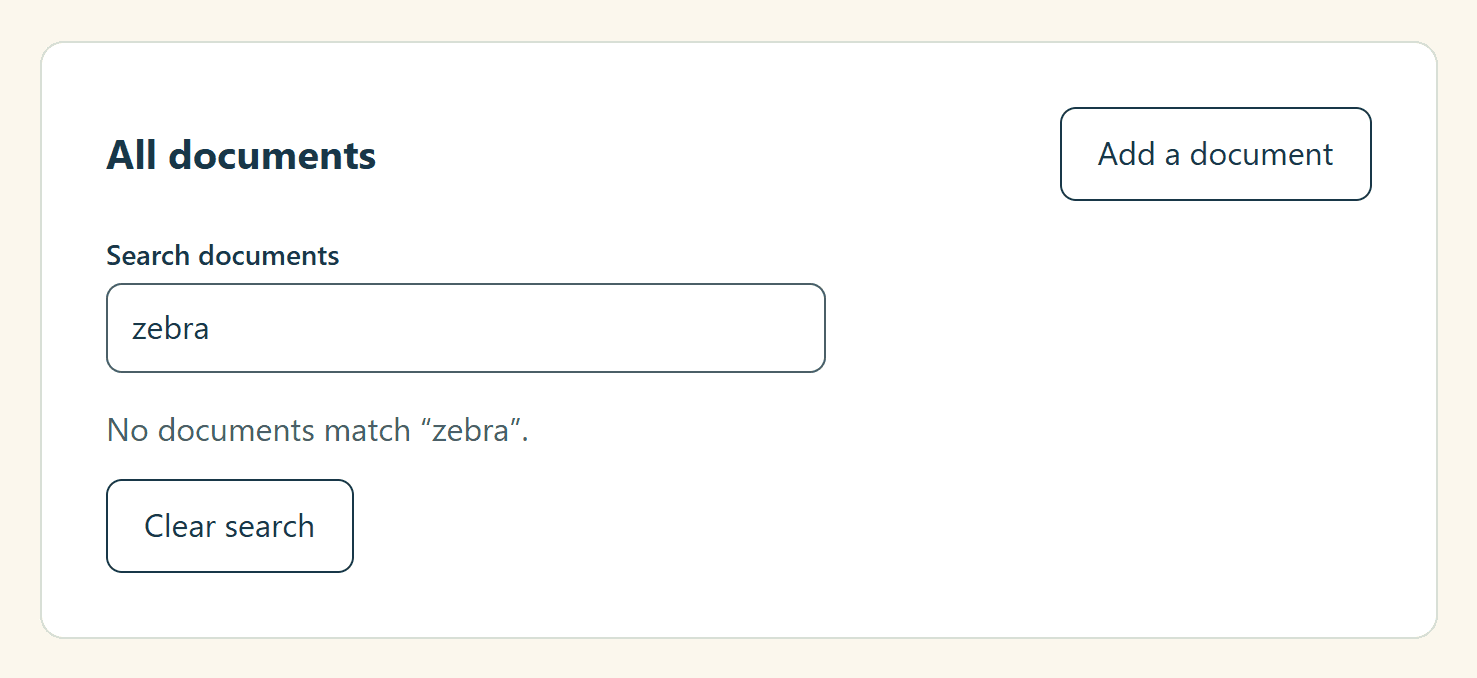
In the example, a search with no matches hides the list and shows "No documents match “zebra”." with a Clear search button. The message sits in a status region, so screen readers can announce it without focus moving:
<p id="search-status" role="status"></p>
<button type="button" class="secondary" id="clear-search" hidden>Clear search</button>
WCAG 2.2's status messages criterion names this case: a search result message such as "No results returned" is a status message if it doesn't take focus. In both browsers, the accessibility tree showed the message inside a status region with polite live updates. Clear search brought back all three documents and returned focus to the search field.
The search filters only once typing pauses for 250 milliseconds, so the list and the status region change once, not on every keystroke:
let pause;
search.addEventListener('input', () => {
  clearTimeout(pause);
  pause = setTimeout(filter, 250);
});
Typing "zebra" at one key every 100 milliseconds changed the status region's text once in both browsers.
The Recent reviews panel beside the list is a smaller first-use state, and it uses text only: "No reviews yet. When someone comments on a document, the comment shows up here." Carbon makes a similar point about crowded dashboards: when several widgets show an empty state at once, "an empty state that uses just text may be preferable". When several empty states can show at once, it also suggests "a tertiary button for the call to action", so the screen doesn't fill with primary buttons. This panel has no action at all, because reviews start from a document.
Don't show the empty state before the data loads
An empty state says there is nothing here. Shown while the data is still loading, it's wrong, and Nielsen Norman Group calls inaccurate system-status messages for empty states "particularly harmful". The example decides only after its (simulated) load has finished. Until then, the panel says "Loading documents…" and the empty state isn't shown:
// Simulated load. Until it finishes, the panel says "Loading documents…" and shows no empty state.
setTimeout(() => {
  documents = SAMPLES.slice(0, samples).map(d => ({ ...d, note: 'sample file' }));
  status.textContent = '';
  status.classList.add('vh');
  render(null);
}, delay);
render shows the first-use state only if the loaded list is empty. In a real app, the request that loads the documents takes the timer's place.
In both browsers, 0.2 seconds into a 1.5-second load, the panel showed "Loading documents…", and neither the empty state nor its heading was in the accessibility tree.
The loading message also holds the space the empty state will take. Both get min-height: 386px, a little more than the state's tallest measured height: it was 357 to 385 pixels tall at the 12 widths tested, from 1440 down to 320 pixels. Without that shared height, the panel grew when the load finished and pushed everything below it down, a layout shift of up to 0.27 on phones and 0.04 at 1280 × 800. With it, no layout shift was measured at any of the 12 widths, in Chrome or Edge.
Move focus when the state changes
The state changes while someone is on the page: adding the first document replaces the empty state with the list, and removing the last one brings the empty state back. When the element that had focus disappears, move focus somewhere sensible, or keyboard and screen reader users are dropped at the top of the page. In the example:
- Adding a file moves focus to the "All documents" heading, and a visually hidden status region says "Added Signed contract.pdf."
- Removing the last document moves focus to the "No documents yet" heading, which has
tabindex="-1"so a script can focus it without adding it to the Tab order.
Both worked the same way in Chrome and Edge.
What was checked, and what wasn't
The example page was checked in Chrome 155.0.8059.80 and Edge 155.0.4283.62 on Windows 11, served from a local web server: the widths, zoom levels and color schemes above, the keyboard path, the file chooser, focus after adding and removing a document, the accessibility tree, the image's shape in each box, the loading sequence and layout shift. The contrast ratios were calculated from the page's CSS colors. Not tested: Firefox, Safari, real phones, screen readers, forced colors (Windows contrast themes) and right-to-left languages.
To plan an empty-state illustration as part of a family of matching landing-page assets, see the AI SVG creation workflow. To make your own illustration, describe the scene and a transparent background in the AI SVG generator, then follow the steps above to place it.
Checklist
- Name the state first: first use, no results, done or cleared, or an error.
- Heading: what isn't there yet. Body: what will appear and how to start. One action, named with a verb.
- A button if the action works on the page, a link if it goes to another page.
alt=""when the words already say what the image shows; real alt text when they don't.- Whole-number
widthandheight, a CSS width withheight: auto, and no image in small panels. - On dark surfaces, a light plate behind transparent art, or a dark-mode version of the art.
- Text only, in a status region, when a search finds nothing.
- Decide on the empty state only after the data has loaded, and hold its space while loading.