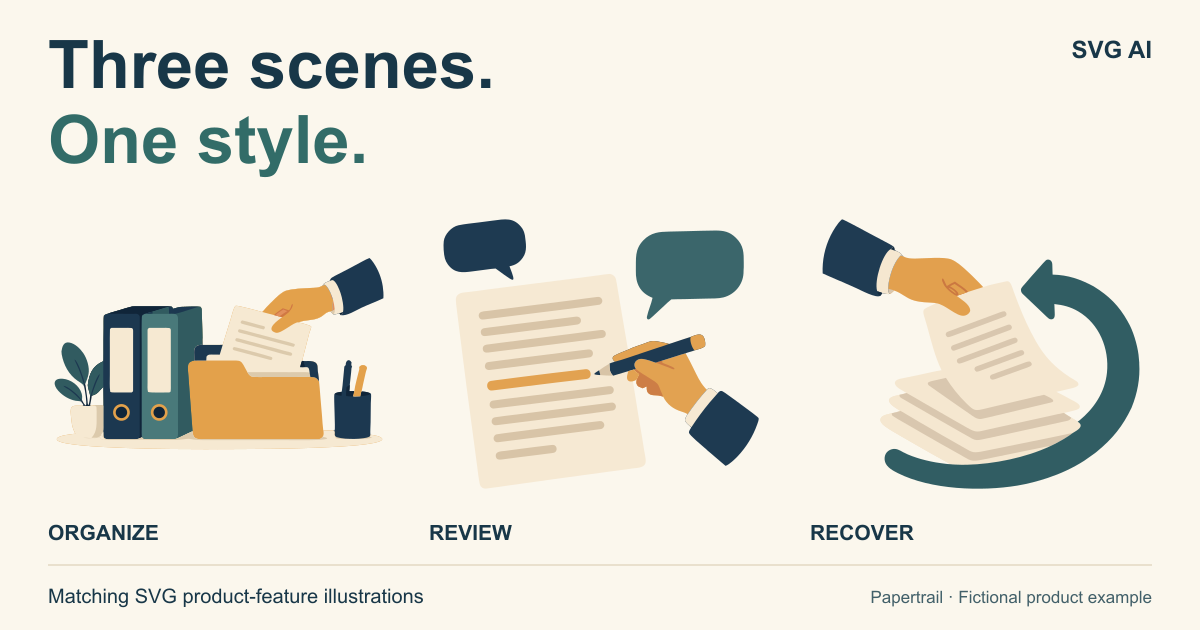
Give each feature its own action, then connect the drawings through a shared visual style. A filing scene, a document under review and a returning draft can belong together without repeating the same picture three times.
This example uses Papertrail, a fictional document workspace. Three SVG AI generations supply the artwork. The headings, feature descriptions, responsive page and fitting edits were written separately with AI-assisted coding, not generated by SVG AI.
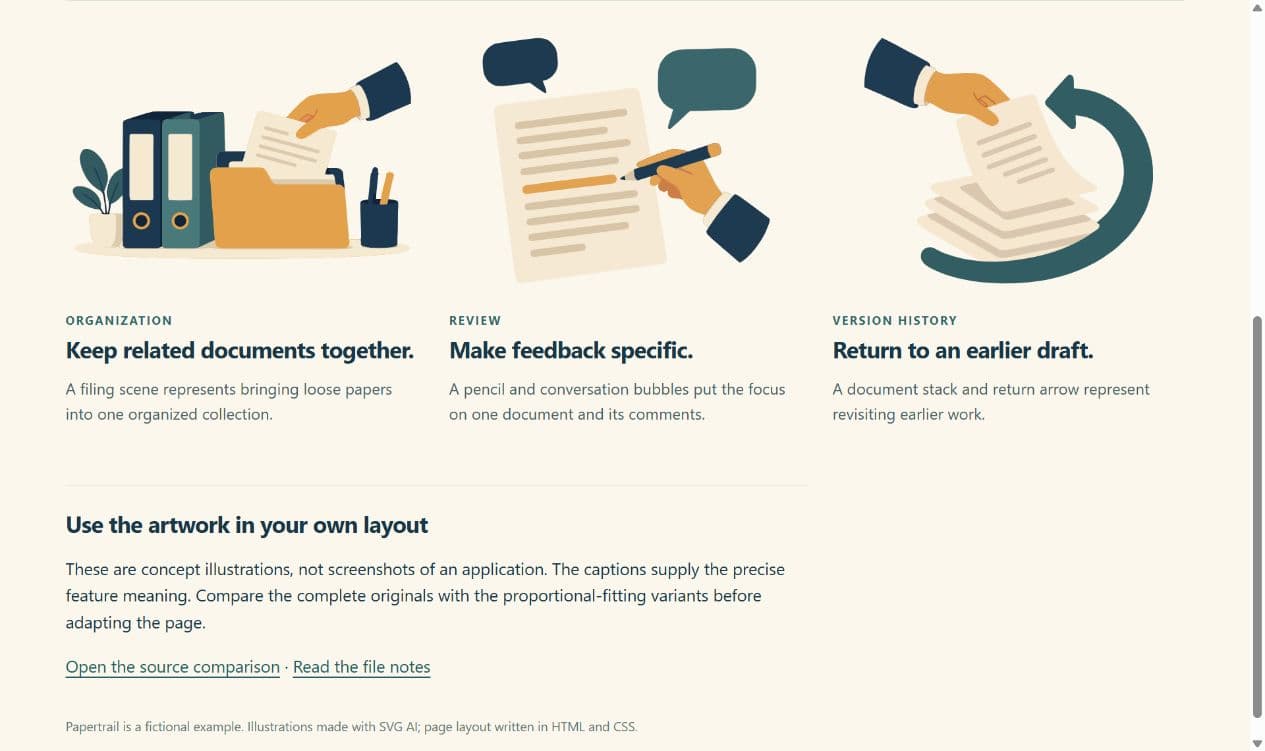
The finished set in its desktop layout. The recovery scene on the right includes the manual mirror explained below.
Open the feature-page example, compare the untouched exports, or download the complete example.
Watch the tutorial on YouTube. Its narration uses a synthetic ElevenLabs voice.
Decide what each scene should explain
Write the feature message before generating its illustration. The image should give the reader a visual clue; the page text still carries the precise meaning.
- Keep related documents together: A hand places a paper in a folder beside binders, suggesting grouping and storage.
- Make feedback specific: A pencil points to a document beside two speech bubbles, suggesting attention and conversation.
- Return to an earlier draft: A hand lifts a paper from a stack beside a curved arrow, suggesting earlier versions and return.
These are three parallel capabilities, not three steps in a single process. Each section needs to make sense on its own. Reusing the same folder drawing with different headings would give the pictures less to contribute.
Make one useful anchor illustration
The first scene establishes a navy, teal, ochre and cream direction, with rounded shapes and a simplified hand. In the AI SVG generator, the October 4, 2026 attempt used Ultra, 1 SVG and Transparent On. Each of the three generations displayed a cost of four credits. Check the options, costs and download access shown in your own account before starting.
The anchor prompt asked for a hand placing a document in an open folder, with two other folders nearby. It also specified a small editorial scene rather than an isolated app icon, and excluded lettering and interface screenshots. Read the complete original prompt.
The result has a hand, a folder and two upright binders. It also includes a small plant and pen cup. Those additions are retained. The useful decision is whether the scene still reads as organized documents at its display size, not whether every part of the request was followed literally.
Save the complete original before using it as a reference. The download contains organize-original.svg unchanged.
Reuse the style, give the next scene a different job
Open the anchor result's More actions menu and choose Add to Prompt. The result appears as an attached reference. Replace the text prompt with the next scene's subject; attaching a reference alone does not explain what should change.
For the review scene, the request keeps the palette and hand treatment but asks for a large document, a pencil pointing at one line and two empty speech bubbles. It explicitly excludes the folders, binders, plant and pen cup from the first drawing. Read the review prompt.
The third generation also uses the original organization illustration as its reference. Its new subject is a hand retrieving a document from a short stack, with a curved return arrow. It does not use the review result as an intermediate reference. Read the recovery prompt.
That makes the reference choice explicit: both later scenes relate back to the same anchor. It is not a guarantee of identical paint values, geometry or detail. Compare the complete results together instead of judging each in isolation.
Check direction as well as style
The recovery prompt requested a counterclockwise arrow. The exported arrow turns clockwise. The prepared display version mirrors the whole scene horizontally, which reverses the arrow and moves the hand to the opposite side too.
That is a manual transformation, not an AI correction. The comparison page shows the untouched original and mirrored version separately. Keep the original if its orientation fits your layout better. A whole-scene mirror is unsuitable when the artwork contains lettering or other details that must retain their direction.
For the exact wrapper used here, open the mirrored SVG. Its group uses transform="translate(2141.333 0) scale(-1 1)". The translation is twice the viewBox's starting x value plus its width: 2 × 125.333 + 1890.667. Recalculate that value for a different viewBox; copying this number into unrelated artwork can move it out of frame.

No path was redrawn or recolored in these display variants. The recovery scene's rendered geometry is reflected by an added group transform; its original path data and paint values remain inside that group.
Fit the three compositions without stretching them
The exported compositions have different proportions. Putting each into the same rectangular image box with its original preserveAspectRatio="none" setting can stretch the artwork.
The prepared variants use:
preserveAspectRatio="xMidYMid meet"
This fits each SVG's viewBox proportionally within the box and centers it. The SVG fitting reference explains the alignment and meet setting. It does not make the compositions identical or equalize every detail. The organization and review variants change only this attribute. The recovery variant also contains the manual mirror described above.
The feature page places the variants in equal-height image areas above ordinary HTML headings and descriptions. On a narrow page, the sections stack. The source comparison uses automatic image height for the original files so that the originals can be inspected without adding another aspect-ratio change.
Read the set in its intended layout
Open index.html after extracting the download. Compare the three scenes at a desktop width and a narrow phone width, then follow the "Explore the three scenes" link with the keyboard. Look at the pencil, document edges and return arrow at their displayed size, not only in a large editor preview.
In the displayed set, the wider organization scene uses less vertical space than the document and recovery scenes. It stays centered in the same image area, leaving room above and below rather than stretching the hand and binders. When adapting the layout, compare the main actions at that size before enlarging one scene or cropping away supporting objects.
The three scenes share a visual direction, while the feature text supplies the distinctions. Keep that division when adapting the example: generate the supporting artwork, write the real product claims in the page, and inspect the combination.
The package includes all three untouched SVG exports, the three prepared variants, exact prompts, the feature page, the source comparison, and screenshots of the generation steps and the finished layout. For planning a broader family with a logo, hero and supporting assets, the FlowMint creation walkthrough shows how those different roles can share a direction.