The Non-Designer's Guide to Using an AI SVG Maker (The AI Way)
By SVGAI Team
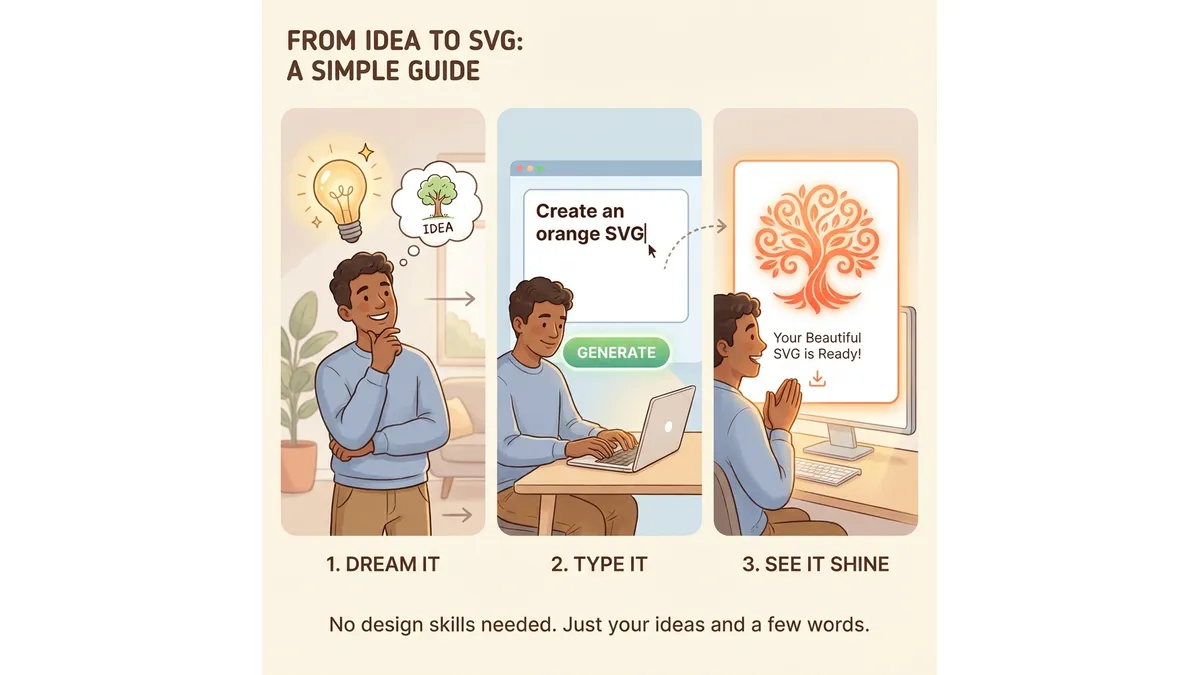
ai svg maker guidehow to use ai svg creatorbeginner svg tutorialai design for beginnerscreate svg files
Introduction
"I'm not a designer."
We hear this phrase constantly. It is spoken by startup founders, software developers, marketing managers, and newsletter writers. You have an idea in your head—a logo, an icon, a graphic for your landing page—but when you open professional design software, you feel completely lost.
The traditional design industry had a brutal gatekeeper: Skill. If you couldn't draw, you couldn't create. Adobe Illustrator alone takes hundreds of hours to master. Hiring a freelancer costs $50-500 per graphic and takes days.
The good news? The modern AI SVG Creator has torn down that gate. AI-powered tools are built specifically for non-designers—people who have vision but lack the technical skills to execute it.
This guide will teach you how to bypass the learning curve and start creating professional-grade vector assets today—no drawing required.
What is SVG AI?
SVG AI is the world's most powerful AI SVG Generator and AI SVG Maker. Our platform includes:
- Text to SVG Generator: Write a prompt, get a finished SVG in 10 seconds.
- Image to SVG AI Generator: Drop in reference images and receive crisp SVG paths.
- Hybrid SVG Generator AI: Combine image + text for precise control.
- AI SVG Maker & Editor: Iterate with prompts like "add butterflies" or "thicken outlines."
Proof of Scale: 60,000+ SVGs generated. Multilingual AI understands 50+ languages. Commercial usage rights included.
What is the "AI Way"?
The Old Way: Manual Translation
Traditional design requires a painful translation process:
Brain → Hand → Mouse → Software → Result
If any link in that chain is weak, your output suffers. Can't hold a steady hand? Wobbly lines. Don't understand Bezier curves? Jagged shapes. Never used Illustrator? Two hours just finding the right tool.
The New Way: Intent Translation
The AI Way dramatically simplifies this:
Brain → Text Prompt → AI → Result
If you can type the sentence "A blue coffee cup with steam rising," the AI handles everything else—shape construction, path optimization, color application, and export.
The Skill Gap Closes:
- Designer with 10 years experience: Creates icon in 20 minutes
- Non-designer with AI tools: Creates comparable icon in 30 seconds
The AI doesn't replace creativity—it removes the technical barrier between your idea and execution.
How to Get Started: A 3-Step Framework
Step 1: Define Your Goal (The "What")
AI is literal. Vague instructions produce vague results.
| Prompt Quality | Example | Result |
|---|---|---|
| Vague | "I want a logo" | Random generic shape |
| Better | "I want a mountain logo" | Mountain, but generic style |
| Best | "Minimal mountain peak icon for a camping app, single line art" | Exactly what you pictured |
The Rule: The more specific your vision, the closer the output matches.
Step 2: Construct the Prompt (The "How")
Use this simple 3-part formula:
- Subject: What is the object? (e.g., "Coffee Cup," "Mountain," "Rocket")
- Style: How should it look? (e.g., "Line art," "Geometric," "Flat," "Hand-drawn")
- Constraint: Colors, shapes, technical requirements (e.g., "Orange accent," "Circular frame," "For dark background")
Example Prompts for Non-Designers:
| Use Case | Prompt |
|---|---|
| App Icon | "Geometric coffee cup, Bauhaus style, flat design, orange and white" |
| Logo | "Minimalist mountain peak, single line, modern, suitable for tech startup" |
| Website Graphic | "Abstract wave pattern, gradient blue to purple, flowing curves" |
| Social Media | "Quote graphic frame, elegant borders, hand-drawn style" |
Step 3: Iterate and Refine with the AI SVG Editor
The first result is rarely perfect—and that's okay. AI tools are designed for iteration.
Common Refinements:
| Problem | Prompt to Fix |
|---|---|
| Too busy/complex | "Make it more minimalist" |
| Wrong aesthetic | "Change to a retro 80s style" |
| Needs emphasis | "Make the main element larger" |
| Wrong colors | "Change palette to navy blue and gold" |
| Too thin for use | "Thicken all lines for printing" |
SVG AI guarantees Real Vector Paths—meaning every output is editable, scalable, and production-ready.
The Multilingual Advantage
Our Multilingual AI understands prompts in 50+ languages perfectly. You don't need to translate your ideas into English.
Examples:
- Japanese: "ミニマルな山のロゴ" → Minimal mountain logo
- Spanish: "Icono de café geométrico" → Geometric coffee icon
- German: "Abstraktes Wellenlogo" → Abstract wave logo
The AI understands both the language and cultural design context.
Common Mistakes Beginners Make
1. Asking for Too Much Detail
Vectors work best when they are simple. Photorealistic detail defeats the purpose of vector graphics.
| Mistake | Better Approach |
|---|---|
| "A realistic portrait of a dog with individual fur hairs" | "A stylized illustration of a dog, flat vector art" |
| "Photorealistic mountain landscape" | "Geometric mountain silhouette, minimal style" |
| "Complex cityscape with every window" | "City skyline icon, simplified shapes" |
2. Using "Image to SVG" Converters Incorrectly
Beginners often find a blurry JPEG online and try to "convert" it. This produces jagged lines and thousands of unnecessary nodes.
The Fix: Don't trace bad images. Use our Image to SVG AI Generator to generate a new version from scratch based on the concept—not the pixels.
3. Expecting Perfection on First Try
Even professional designers iterate. Your first generation is a starting point, not a final product.
Healthy Workflow:
- Generate initial concept
- Identify what's working and what's not
- Refine with specific prompts
- Repeat 2-3 times until satisfied
4. Not Specifying Output Context
The same icon looks different for a website favicon vs. a t-shirt print.
Add Context to Your Prompt:
- "...for use as a small favicon" (simple, bold)
- "...for large format printing" (can include more detail)
- "...for vinyl cutting" (closed paths, thick lines)
Why This Matters for Non-Designers
1. Autonomy
You don't have to wait 3 days for a freelancer to respond. You don't have to explain your vision through endless revision rounds. You can create it yourself in 10 seconds and iterate instantly.
2. Cost Savings
Traditional logo design: $200-2,000. Freelancer icons: $50-100 each. Stock graphics: $10-50 per asset.
AI-generated SVGs: A fraction of the cost with unlimited revisions.
3. Commercial Rights
All plans include commercial usage rights. Use your creations for:
- Business logos and branding
- Products and merchandise
- Client work (agencies and freelancers)
- Digital products and marketing
4. Developer-Friendly Output
If you're a developer, you know the pain of receiving a "logo file" that's actually a 10MB PNG. AI-generated SVGs are Production Ready code—clean XML that you can style with CSS, animate with JavaScript, and embed anywhere.
Real-World Success Stories
Startup Founder: Created logo and icon set for MVP launch in one afternoon—would have taken 2 weeks with traditional process.
Newsletter Writer: Generates custom header graphics for each issue in under 5 minutes per graphic.
E-commerce Seller: Creates unique product graphics without paying licensing fees, increasing profit margins by 15%.
Conclusion
Being a "non-designer" is no longer a barrier to entry. With tools like SVG AI, you have a digital art department at your fingertips—one that works 24/7, never misunderstands your vision, and costs less than a single freelancer revision.
Stop being afraid of the blank canvas. Open the AI SVG Maker and start creating today. You might surprise yourself with what you can build.
Related Reading
- AI SVG Maker vs. Traditional Vector Tools: Why Automate Design? - Understand the technical advantages of AI-powered creation
- How to Make Custom SVGs for Cricut & Silhouette - Practical tutorial for crafters
- Fixing Blurry Vectors: Why You Should Re-Generate, Not Trace - Learn why AI generation beats image conversion