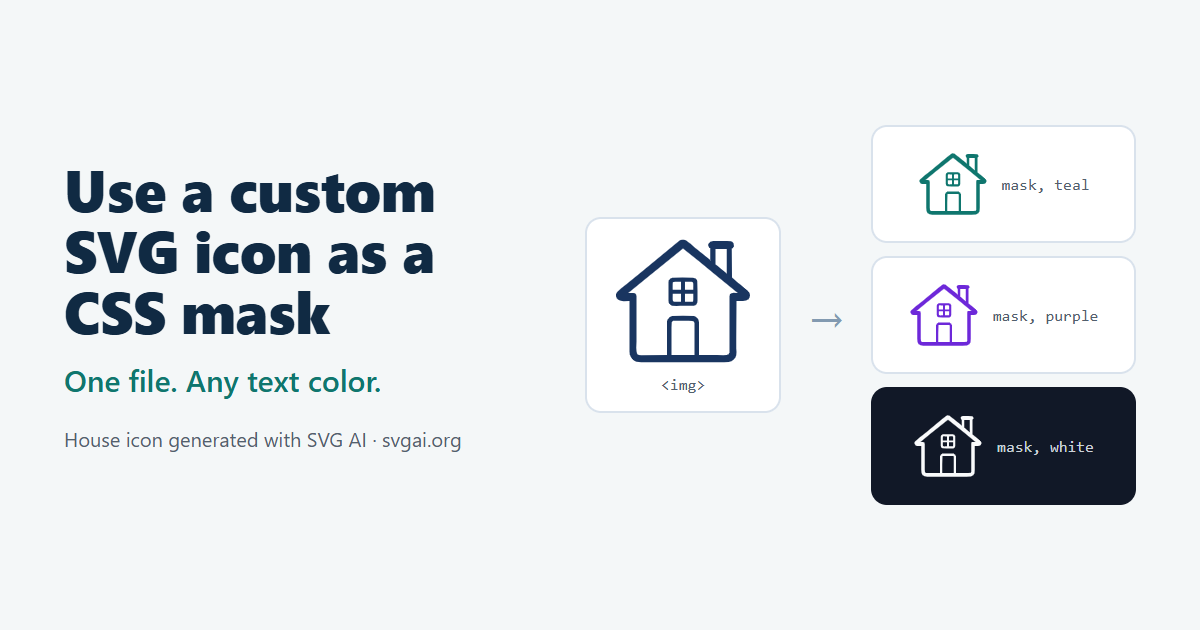
An SVG icon loaded with an <img> tag keeps the colors drawn in the file. The page's CSS color can't reach inside it, so the icon won't follow a link's hover color or switch to white on a dark bar. Pasting the SVG code into the HTML solves that, and the currentColor icon guide shows how. A CSS mask is another option: the SVG stays a separate file, no SVG markup goes into the page, and the icon can be set from a CSS class. CSS uses the file's shape to cut out the element's background color, and with background-color: currentColor the icon is drawn in the surrounding text color.
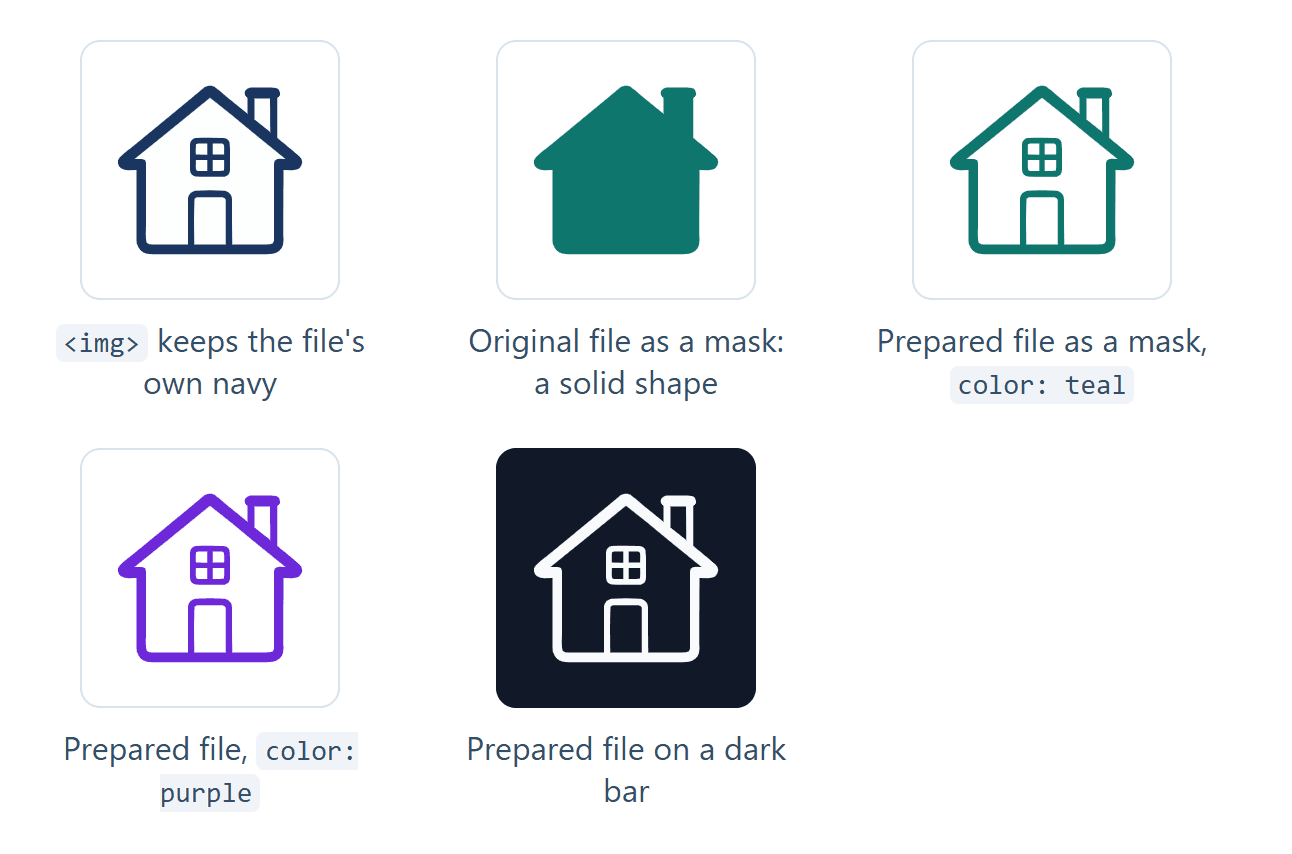
First: the downloaded file as an image. Second: the same file as a mask, which turns into a solid shape. The other three use a prepared copy of the file as a mask, with only the text color changed.
The house was generated with the AI SVG generator on September 16, 2026 (Classic, one SVG) for the house icon prompt comparison, which shows the full prompt. No new generation was made for this article. The prepared file, the example page and the browser checks were made separately by an AI coding agent, and AI assistance was used to write this guide and make its figures and video.
Open the example page or download the files.
Watch the tutorial on YouTube. Its narration uses a synthetic ElevenLabs voice.
How a mask paints the icon
A mask decides where an element is visible. With an SVG file as the mask image, the element shows wherever the file is opaque and disappears wherever it is transparent. The colors in the file don't matter, only how opaque each pixel is. The color you see is the element's own background color, and currentColor makes that the text color.
That has one consequence for the file: every shape you can see in it becomes part of the icon, including white ones.
Make the details transparent
The detailed prompt asked for a navy outline with a white house body. The file draws exactly that with filled shapes, in this order:
- a navy silhouette;
- a white body on top, with a door-shaped gap where the navy shows through;
- a navy window square on the body;
- six white shapes: the four window panes, the door and the chimney opening.
Used as a mask, white is as opaque as navy, so the original turns into a solid house.
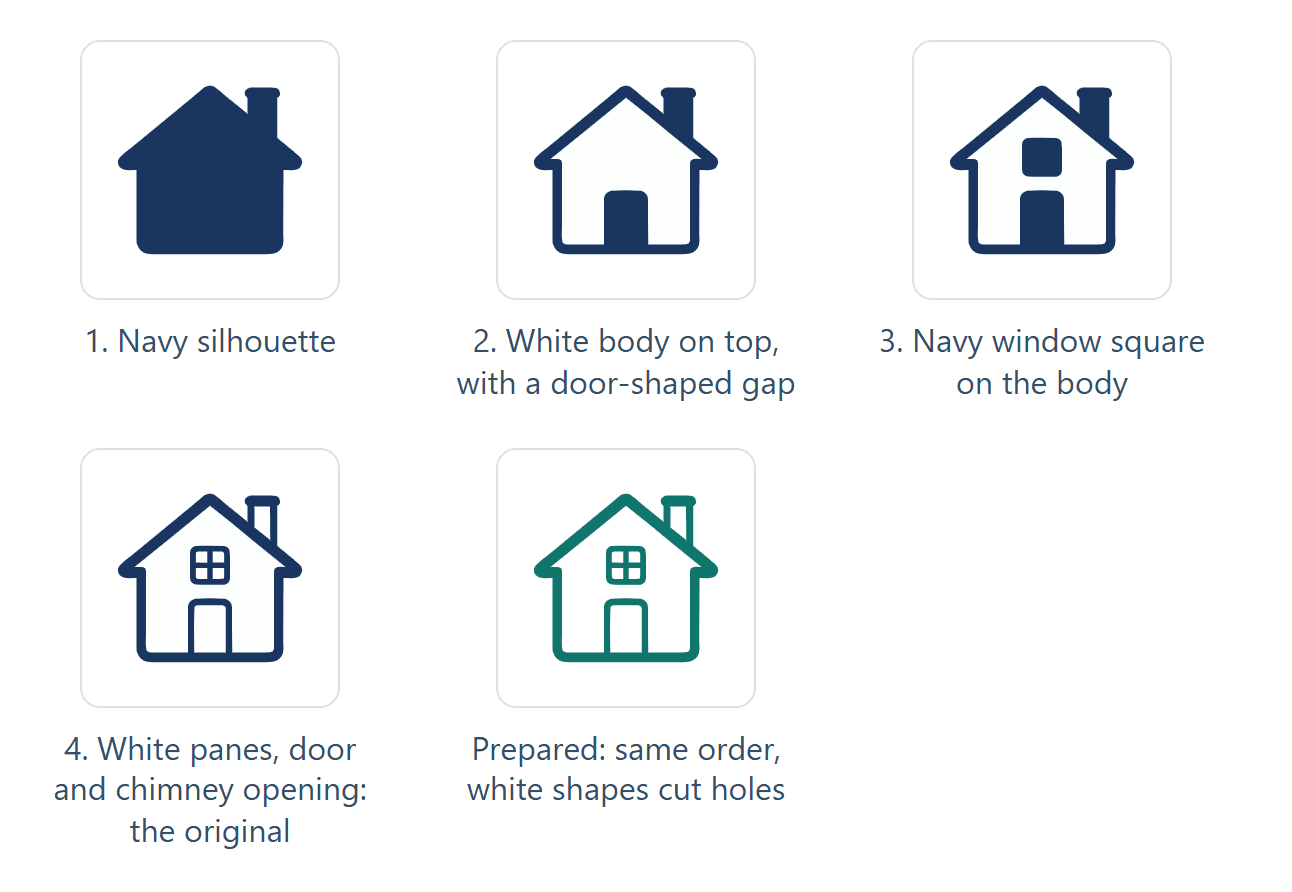
The order matters. Cutting every white shape out of every navy shape also removes the window frame, because it sits inside the white body. The prepared file keeps the original order instead. It draws the same nine paths inside an SVG <mask>, the navy ones in white (keep) and the white ones in black (cut), and paints a navy rectangle through it:
<svg xmlns="http://www.w3.org/2000/svg" viewBox="568 154.667 912 836" width="912" height="836">
  <title>House (prepared for a CSS mask)</title>
  <mask id="house" maskUnits="userSpaceOnUse" x="568" y="154.667" width="912" height="836">
    <path fill="#fff" d="…"/>  <!-- navy silhouette: keep -->
    <path fill="#000" d="…"/>  <!-- white body: cut -->
    <path fill="#fff" d="…"/>  <!-- navy window square: keep -->
    <!-- six more white paths in black: cut -->
  </mask>
  <rect x="568" y="154.667" width="912" height="836" fill="rgb(25,53,96)" mask="url(#house)"/>
</svg>
The path data is identical to the download. The other changes are small. The root element no longer has preserveAspectRatio="none", so the drawing keeps its proportions even if a mask is ever stretched to a box of a different shape. It also drops an inline style and the version attribute, and the file gains a <title>. Opened on its own, the prepared file still looks like the navy house; the white areas are now transparent.
Not every download needs this. The parcel icon in the example, from an AI edit shown in the prompt refinement guide, is one path with transparent holes, so it works as a mask unchanged. To check your own file, try it as a mask first: if you get a solid shape where you expected details, the details are painted on.
The CSS
The icon is an empty span next to the text it belongs to:
<a href="/"><span class="icon icon-house" aria-hidden="true"></span>Home</a>
These are the rules from the example's icon-mask.css (the download also has two comparison classes and a few more comments):
.icon {
  display: inline-block;          /* a plain span has no width or height */
  width: 1em;
  height: 1em;
  flex: none;
  vertical-align: -0.125em;
  background-color: currentColor; /* the visible color comes from here */
  mask-position: center;
  mask-repeat: no-repeat;         /* the default repeats the image */
  mask-size: contain;             /* the default uses the file's own size */
}

.icon-house { mask-image: url("house-mask.svg"); }

@media (forced-colors: active) {
  .icon { background-color: CanvasText; }
  a .icon { background-color: LinkText; }
  button .icon { background-color: ButtonText; }
}

@media print {
  .icon { -webkit-print-color-adjust: exact; print-color-adjust: exact; }
}
The icon is 1em square, so it scales with the font size, and it takes its color from the text. The house is 912 × 836 units, so contain draws it slightly shorter than the square and centers it.
The three mask- lines after background-color are needed because the browser defaults are made for patterns, not icons. With only mask-image set, a 48 px box showed nothing in Chrome and Edge: the mask is drawn at the file's own size, 912 × 836 px, from the top-left corner, and that corner of the house is empty. Each of the other settings fails in its own way:
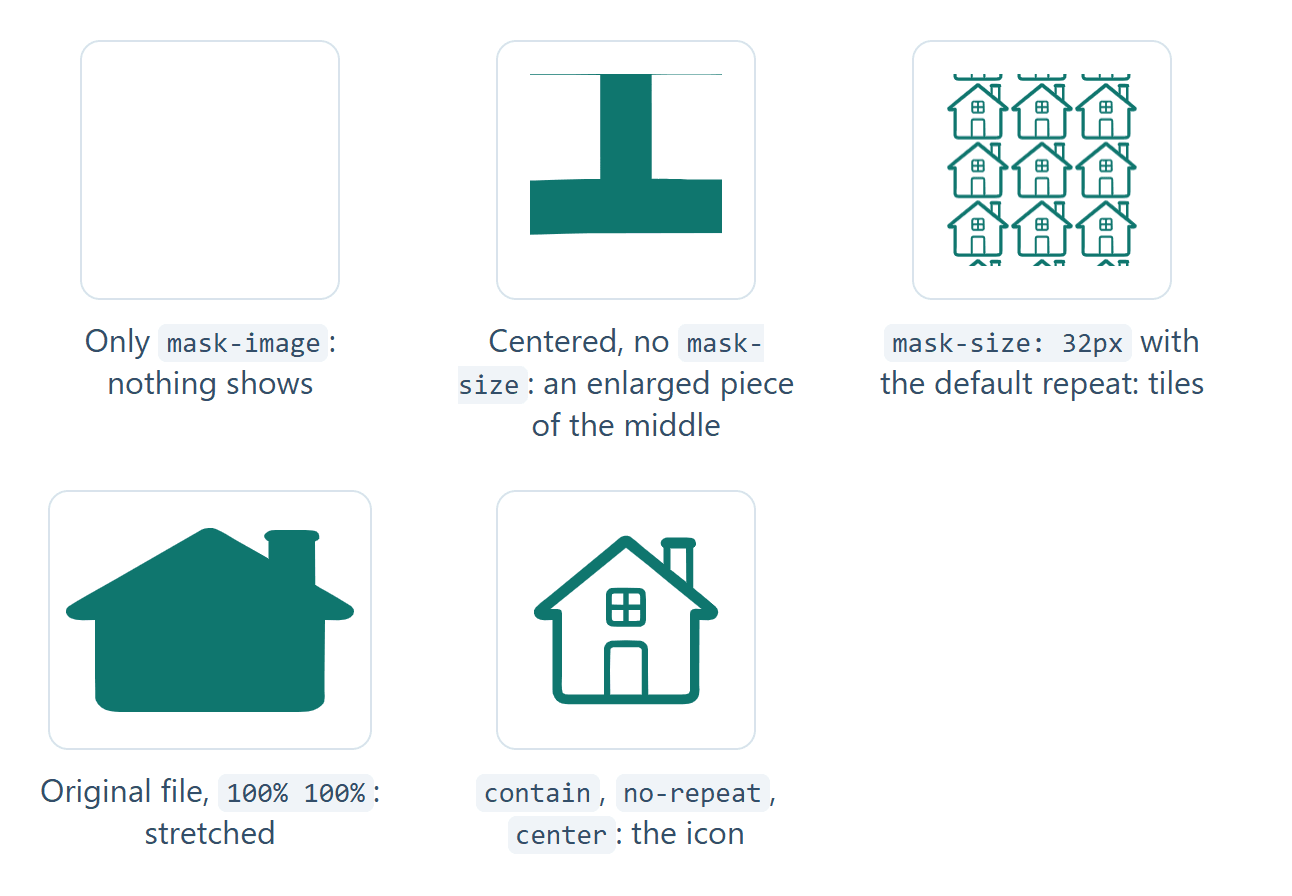
Without display: inline-block (or a flex or grid parent), the span stays inline and has a width of 0, so nothing shows either. mask-size: 100% 100% stretched the original download, which has preserveAspectRatio="none", to the shape of a wide box; contain keeps the drawing's proportions.
According to MDN's compatibility data, these unprefixed properties work in Chrome and Edge 120 and later, Firefox 53 and later and Safari 15.4 and later. Older Chrome, Edge and Safari versions need the same lines with a -webkit- prefix. This example was only checked in Chrome and Edge.
Serve the icon from your own site
Browsers load mask images with CORS rules (CSS Masking, security), unlike images in an <img> tag. In the checks:
- A mask file on another origin without an
Access-Control-Allow-Originheader didn't load, and the icon disappeared. The console reported the CORS block. The same file as an<img>loaded fine. - With that header, the cross-origin mask worked.
- With the example page opened from the hard drive (
file://), every masked icon disappeared. Use a local server instead, for examplepython -m http.serverin the example folder. - A mask URL that returns 404 also hides the element completely.
A failed mask leaves no broken-image sign, just an empty space. Keep a visible text label next to the icon, or name the control another way, so it still makes sense when the file doesn't load.
Keep the icon visible in forced colors
Windows contrast themes switch the browser to forced colors: it replaces page colors with the theme's own. Background colors become the theme's background, so an icon painted with background-color takes the same color as the page around it.
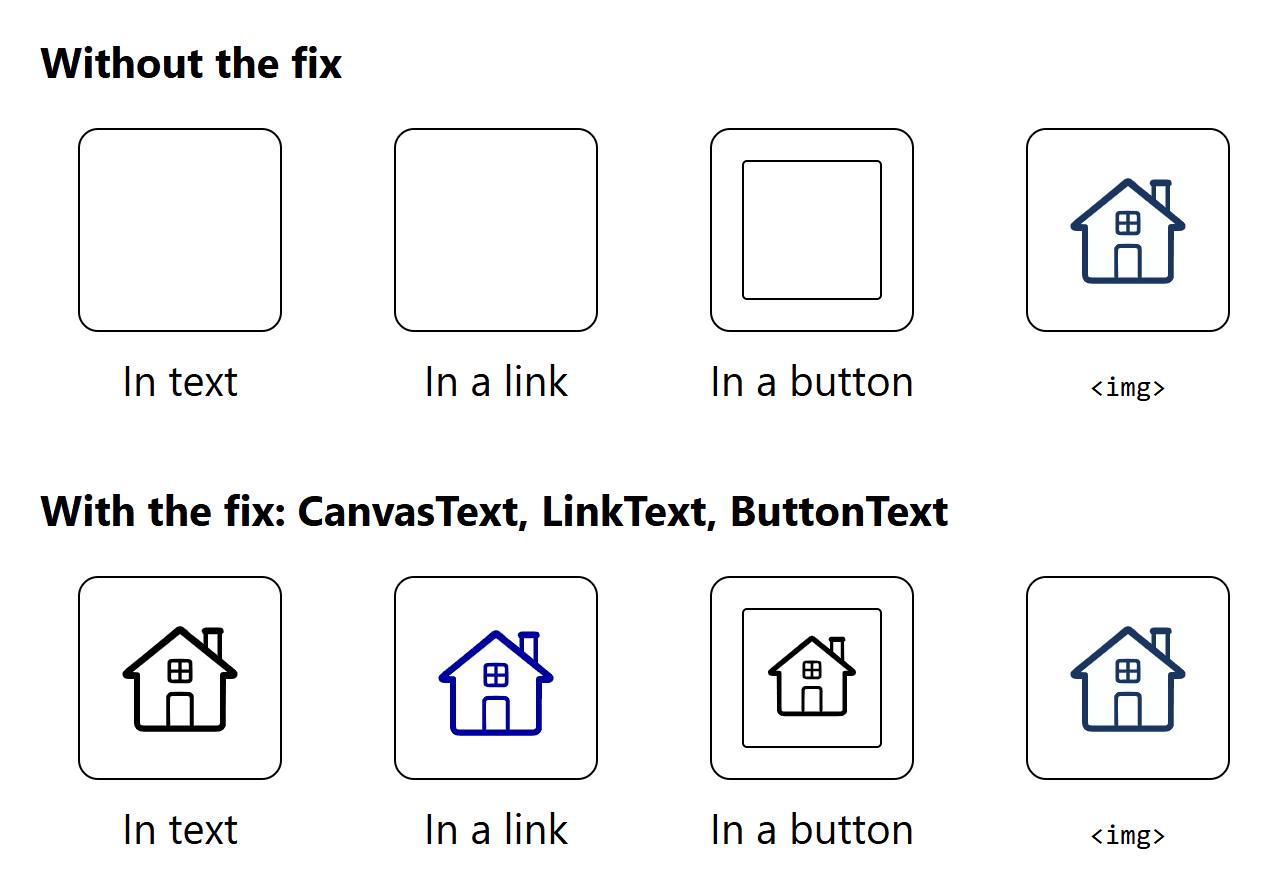
System colors are left alone, so the fix sets the icon to the color the theme uses for that kind of text: CanvasText for normal text, LinkText in links and ButtonText in buttons. This was checked with Chromium's forced-colors emulation in Chrome and Edge, not with a real Windows contrast theme. The <img> version kept its navy in forced colors.
Put the mask on a child element
A mask clips everything the element paints, including its focus outline. With the mask set on the button itself, keyboard focus showed no outline at all, although the button matched :focus-visible. With the mask on a span inside the button, the outline showed normally.
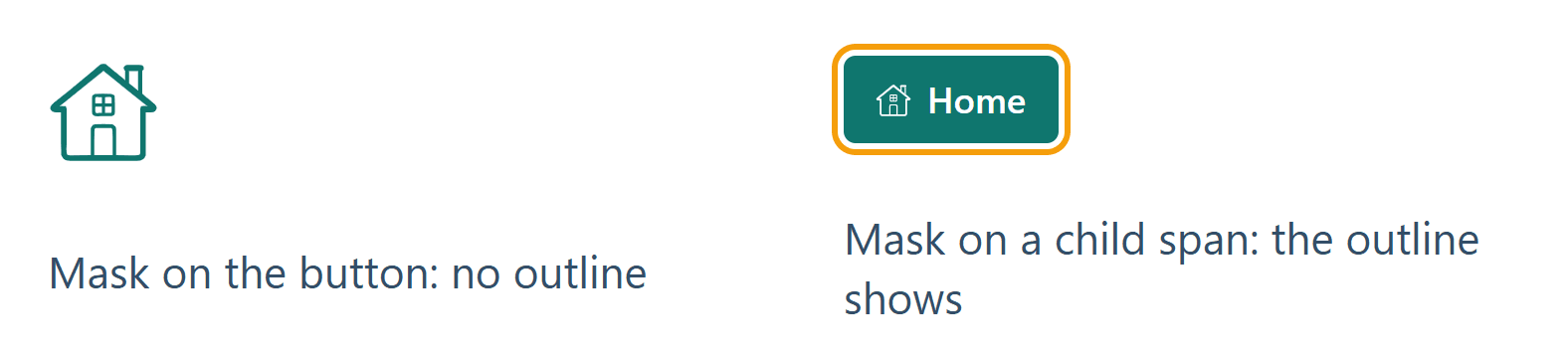
The masked span has no text, so assistive technology learns nothing from it. When the icon sits next to a visible word, hide it with aria-hidden="true" and let the word name the control. An icon-only link or button needs its own name, for example aria-label="Home". In Chrome's accessibility tree, the example's button and icon-only link were both named "Home", while the same controls without a label had empty names. That is a check of the computed names, not a test with a screen reader.
Printing
Browsers leave out background colors and images when printing unless the reader turns background graphics on, and a masked icon is a background color. In PDFs printed from Chrome and Edge with background graphics off, the icon was missing and the label printed. With background graphics on, or with print-color-adjust: exact on the icon, the icon printed. Chrome and Edge before version 136 only recognize the -webkit-print-color-adjust name, so the stylesheet sets both. The reader's print settings can still override this.
When a mask is the right choice
A mask suits a one-color icon that should stay a separate file: a CMS or Markdown page where you can't paste SVG code, icons set with CSS classes or pseudo-elements, or one file reused at many sizes and colors. It paints one color only. For two-tone icons, or when parts of the icon need their own styles, paste the SVG into the page instead.
It also adds failure modes that inline SVG doesn't have: the file has to load from your own site (or with CORS headers), a failed load leaves nothing visible, and forced colors and printing need the extra rules above.
What was tested
The example page and the checks ran in Chrome 155 and Edge 155 on Windows, in fresh browser profiles:
- the icon at 16, 24, 32 and 48 px, at normal and double pixel density;
- hover color, the dark bar and a 375 px wide phone layout (no horizontal scrolling);
- the size defaults, the 404, cross-origin and
file://cases; - forced-colors emulation, keyboard focus, computed accessible names and printing to PDF.
At 16 px and normal pixel density, this outline house is faint and its window details run together. Check your own icon at the smallest size you use; a solid version can read better that small.
Not tested: Safari, Firefox, real Windows contrast themes, screen readers, physical printers and real phones.
The download contains the original house file, the prepared file, the parcel icon, the stylesheet, the example page, a README and the check results.