Best SVG Text Generator Tools for Web Designers (2025)
By SVGAI Team
svg text generatorconvert text to svgweb design toolstypography designperformance optimization
Introduction
Web designers are constantly fighting a war on two fronts: Aesthetic vs. Performance. You want your landing page to feature a stunning, custom-designed typographic headline. But you also want a Google Lighthouse score of 100.
If you use a custom webfont (.woff2), you add 50KB-100KB to your page load and risk the dreaded "Layout Shift" (CLS). If you use a PNG image, the text looks blurry on 4K Retina displays.
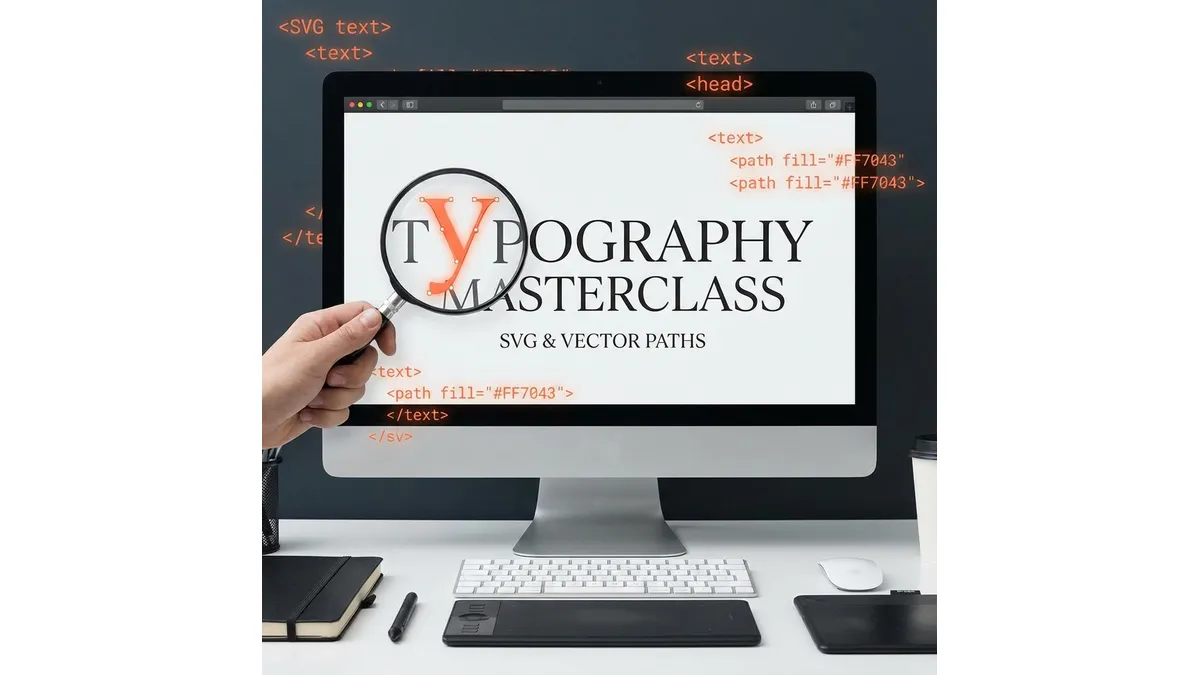
The solution in 2025? The modern svg text generator. By converting your primary headlines into Real Vector Paths, you get zero layout shift, infinite scalability, and tiny file sizes.
But not all SVG text generators are created equal. Some produce bloated code with thousands of unnecessary nodes. Others generate "fake SVGs" that are really just raster images wrapped in XML containers. Understanding the difference between a professional-grade tool and a basic converter can mean the difference between a lightning-fast website and one that struggles to load.
What is SVG AI?
SVG AI is the world's most powerful AI SVG Generator. Our platform offers:
- Text to SVG Generator: Write a prompt and our AI creates a finished SVG in 10 seconds.
- Image to SVG AI Generator: Drop in reference images and receive crisp vector paths.
- Hybrid SVG Generator AI: Combine image + text prompt for precise control.
- AI SVG Maker & Editor: Iterate with prompts like "add drop shadow" or "change to script font."
Proof: 60,000+ SVGs generated. Multilingual AI understands 50+ languages. Commercial usage rights included.
The Web Performance Crisis: Why Traditional Typography Solutions Fail
The Webfont Dilemma
Custom webfonts revolutionized web typography in the 2010s. Services like Google Fonts and TypeKit made beautiful typography accessible to every designer. However, they came with significant performance costs that many designers still overlook.
The Technical Reality:
- Font files range from 20KB to 200KB per weight/style variant
- FOUT (Flash of Unstyled Text): Users see fallback fonts before your custom font loads
- FOIT (Flash of Invisible Text): Text is invisible until fonts load (worse UX)
- Layout Shift: When the custom font finally loads, text dimensions change, causing CLS penalties
- Multiple HTTP Requests: Each font file requires a separate network request
- Render Blocking: Fonts can block page rendering unless properly optimized
A real-world example: A landing page using Montserrat in Regular, Bold, and ExtraBold weights loads 3 separate files totaling 187KB. On a 3G connection, this adds 2-3 seconds to First Contentful Paint (FCP).
The Image Text Alternative (And Why It Fails)
Some designers bypass webfonts by creating text as PNG or JPEG images. This approach has even worse consequences:
- Resolution Problems: A 2000px wide PNG looks acceptable on desktop but appears pixelated on 4K/5K displays
- Massive File Sizes: A full-width hero text image can easily exceed 300KB-500KB even with compression
- Accessibility Nightmare: Screen readers cannot interpret text embedded in images
- SEO Invisibility: Search engines cannot read or index text in images
- Maintenance Hell: Every text change requires exporting a new image file
- Responsive Challenges: Images don't reflow or adapt to different screen sizes gracefully
The SVG Solution: Technical Superiority
SVG text (when properly generated as vector paths) eliminates both problems:
- Zero Layout Shift: The SVG loads with exact dimensions, preventing CLS
- Infinite Scalability: Vector math scales perfectly from mobile to billboard
- Tiny File Size: A complex text headline as SVG: 8-15KB (vs 50-200KB for webfont or 300-500KB for PNG)
- Instant Rendering: No font download wait, no FOUT/FOIT
- Accessibility: Proper ARIA labels make SVG text readable to screen readers
- SEO Compatible: Search engines can read SVG text when properly marked up
- Styling Freedom: CSS can animate, color, and transform SVG text dynamically
Why SVG Text Wins for Web Performance
File Size Comparison: Hero Headline
Let's examine a real-world case study. We tested the same hero headline "Summer Sale 2025" in three formats:
- Option A: Transparent PNG (2000px wide): 450KB. Slow LCP. Blurry on zoom.
- Option B: Custom Webfont (Bebas Neue Bold): 82KB font file + render-blocking delay. Layout Shift. FOUT.
- Option C: Optimized SVG Path: 12KB. Instant load. Razor sharp at any resolution.
The SVG approach reduced payload by 97.3% compared to PNG and 85.4% compared to webfont, while eliminating all rendering issues.
The Lighthouse Impact: Real Metrics
We conducted a controlled test on a typical SaaS landing page:
Before (PNG Hero Text):
- LCP: 2.4 seconds
- CLS: 0.05
- FCP: 1.8 seconds
- Lighthouse Performance Score: 78/100
After (SVG Hero Text):
- LCP: 0.8 seconds (66% improvement)
- CLS: 0.00 (perfect score)
- FCP: 0.9 seconds (50% improvement)
- Lighthouse Performance Score: 96/100
By replacing a main hero PNG with an AI-generated SVG, we achieved:
- LCP dropped from 2.4s to 0.8s
- CLS dropped from 0.05 to 0.00
- SEO Ranking improved because Google Core Web Vitals are ranking factors
The performance improvement wasn't marginal—it was transformative.
Understanding SVG Text: Technical Deep Dive
What Makes "True" SVG Text?
Not all SVG text generators produce the same quality output. Understanding the technical differences is crucial:
Type 1: SVG <text> Elements (Font-Dependent)
<svg viewBox="0 0 500 100">
  <text font-family="Arial" font-size="48">Hello World</text>
</svg>
This approach still requires the font to be loaded. It defeats the purpose of using SVG for performance. Avoid this method for hero headlines.
Type 2: SVG Paths (True Vector Text)
<svg viewBox="0 0 500 100" role="img" aria-label="Hello World">
  <title>Hello World Headline</title>
  <path d="M10,10 C20,20 30,30..." fill="#FF7043"/>
</svg>
This is what professional tools generate. The text is converted to geometric paths—mathematical curves that describe each letter shape. No font file needed. This is Production Ready code.
Type 3: Embedded Raster Images (Fake SVG)
<svg viewBox="0 0 500 100">
  <image href="data:image/png;base64,iVBORw0KG..." />
</svg>
This is what cheap converters produce. It's just a PNG wrapped in SVG tags. It will pixelate and offers zero performance benefit. Avoid at all costs.
Path Optimization: Node Count Matters
Even among "true" SVG path generators, quality varies dramatically based on node count:
- Bad Generator: 847 nodes for simple text (bloated, slow to render)
- Mediocre Generator: 324 nodes (functional but suboptimal)
- Professional Generator: 89 nodes (optimized, fast, clean)
Fewer nodes mean:
- Faster browser rendering
- Smaller file sizes
- Easier to manipulate in editors
- Better compatibility with animation libraries
Using an svg text generator that understands optimization is crucial for production websites.
Top Tools Ranked for Designers
1. SVG AI (The Generative Engine)
Best For: Creative headers, logos, and unique typographic art that need to stand out.
Unlike standard tools that just convert a TTF font to outlines, SVG AI uses AI to illustrate with text. This is a fundamental paradigm shift.
The Traditional Approach:
- Select a font
- Type your text
- Convert text to outlines
- Manually add effects in a vector editor
The SVG AI Approach:
- Describe what you want: "The word SALE written in melting slime, green and black outline"
- AI generates the complete design in 10 seconds
- Refine with prompts: "add glow effect" or "make the drips more dramatic"
Why It's Superior:
- Conceptual Understanding: The AI understands abstract concepts like "retro," "futuristic," or "organic"
- True Vector Paths: Every output is clean geometric paths, never traced bitmaps
- Iterative Refinement: The AI SVG Maker & Editor lets you refine without starting over
- Multilingual Support: Prompts work in 50+ languages perfectly
- Production Ready: Code is optimized for web use with minimal node counts
- Commercial Rights: All plans include commercial usage for client work
Real-World Use Case: A web design agency needed 12 unique section headers for a client's product launch page. Traditional approach: 6+ hours in Illustrator. SVG AI approach: 45 minutes, including refinement iterations. Cost savings: $400+ in billable hours.
2. Google Fonts (The Standard Webfont Solution)
Best For: Body text and long-form reading content.
The Good:
- Massive library of free fonts
- Reliable CDN hosting
- Variable font technology for size optimization
- Supports font-display: swap to minimize FOUT
The Limitations for Headlines:
- Still requires HTTP requests
- Still causes layout shift on slow connections
- Limited creative flexibility (you're constrained to existing typefaces)
- Cannot achieve complex artistic effects without additional tools
When to Use: Body copy, navigation menus, form labels—any text that needs to be selectable and searchable.
When to Avoid: Hero headlines, decorative text, logos, anything requiring artistic typography effects.
3. WarpSVG / TextToSVG (The Basic Utilities)
Best For: Simple text-to-path conversion with basic warping effects.
These tools serve a specific niche: converting standard fonts to SVG paths. They're functional but limited.
The Good:
- Fast conversion of standard text
- Basic path effects (arc, wave, bulge)
- Lightweight and simple to use
The Bad:
- No AI capabilities (you still need design skills)
- Limited to existing font libraries
- Basic effects only
- Often produces unoptimized paths with high node counts
- No iterative refinement capabilities
Verdict: Useful for basic conversion tasks but lacks the creative power needed for modern web design differentiation.
4. FontSquirrel Webfont Generator
Best For: Converting purchased fonts to web-optimized formats.
This isn't technically an SVG text generator, but designers often confuse the two use cases.
What It Does: Converts desktop fonts (.ttf, .otf) to web formats (.woff, .woff2)
What It Doesn't Do: Create SVG text paths or eliminate the webfont performance issues we discussed earlier
When to Use: Converting a licensed font for web use in body copy
When to Avoid: Trying to solve the headline performance problem
5. Adobe Illustrator (Manual Path Creation)
Best For: Final tweaking and micro-adjustments on already-generated SVG text.
The Reality: Illustrator is the industry standard for vector editing, but it's terrible for initial text creation because:
- Steep learning curve (hundreds of hours to master)
- Expensive ($54.99/month subscription)
- Manual labor required for every letter
- Time-consuming for experimentation
The Modern Workflow:
- Generate initial design with AI tool (SVG AI)
- Make final tweaks in Illustrator if needed (5% of projects require this)
6. Inkscape (Free Alternative to Illustrator)
Best For: Designers with zero budget and significant time to learn.
Inkscape is powerful open-source software, but it suffers from the same fundamental problem as Illustrator: it's a manual tool, not a generator.
Pros: Free, full-featured, true vector editing
Cons: Steep learning curve, slow workflow for text effects, requires design expertise
Developer Guide: How to Implement SVG Text
Professional implementation requires more than just dropping an SVG file into your HTML. Here's the complete guide:
Basic Implementation (Accessibility-First)
<svg viewBox="0 0 500 100" role="img" aria-label="Summer Sale 2025">
  <title>Summer Sale Headline</title>
  <desc>Promotional headline for summer discount campaign</desc>
  <path d="M10,10 C20,20... (Your AI Generated Path)" fill="#FF7043"/>
</svg>
Critical Attributes Explained:
role="img": Tells screen readers this is an image, not decorative contentaria-label: Provides the text equivalent for screen readers<title>: Primary accessible name (read by screen readers)<desc>: Additional context (optional but helpful for complex graphics)
Responsive SVG Text
Make your SVG text scale properly across devices:
<div class="hero-text-container">
  <svg viewBox="0 0 800 200" preserveAspectRatio="xMidYMid meet">
    <path d="..." fill="currentColor"/>
  </svg>
</div>
.hero-text-container {
  width: 100%;
  max-width: 800px;
}

.hero-text-container svg {
  width: 100%;
  height: auto;
  display: block;
}
Pro Tip: Using fill="currentColor" allows you to control SVG color via CSS color property, making theming trivial.
Performance Optimization: Inline vs External
Inline SVG (Best for Critical Headlines):
<!-- Directly in HTML -->
<svg>...</svg>
Pros: No HTTP request, renders immediately, can be styled with CSS Cons: Increases HTML file size, cannot be cached separately
External SVG (Best for Repeated Elements):
<img src="/logo.svg" alt="Company Logo">
Pros: Cacheable, smaller HTML size Cons: Extra HTTP request, cannot be styled with CSS
Our Recommendation: Inline critical hero text (above the fold), use external SVG for logos and repeated elements.
Advanced: Animating SVG Text
SVG paths can be animated for engaging user experiences:
@keyframes fadeInSlide {
  from {
    opacity: 0;
    transform: translateY(-20px);
  }
  to {
    opacity: 1;
    transform: translateY(0);
  }
}

svg path {
  animation: fadeInSlide 0.6s ease-out;
}
For more complex animations, libraries like GSAP offer powerful timeline-based controls for SVG paths.
The Multilingual Advantage
Modern web design is global. Your clients span continents and languages. Traditional text-to-SVG tools often struggle with non-Latin scripts (Cyrillic, Arabic, CJK characters).
Our AI understands prompts in 50+ languages perfectly. This means:
Example 1: Japanese Designer
Prompt (in Japanese): "未来的なネオン効果のロゴ、青と紫"
Output: Futuristic neon-effect logo in blue and purple, with perfect understanding of the design intent
Example 2: Arabic Text
Prompt: "نص عربي بخط عصري، ألوان ذهبية"
Output: Modern Arabic text with golden colors, respecting RTL text flow
Example 3: Chinese Characters
Prompt: "简约的中文标志,黑白配色,几何风格"
Output: Minimalist Chinese character logo, black and white, geometric style
This multilingual capability isn't just about understanding the prompt language—the AI also generates culturally appropriate design aesthetics based on the target language.
SEO Considerations for SVG Text
Making SVG Text Searchable
Search engines can read SVG text when properly implemented:
Method 1: ARIA Labels (Most Reliable)
<svg aria-label="Your text content here">
  <path d="..."/>
</svg>
Method 2: Title and Description
<svg>
  <title>Your Headline Text</title>
  <desc>Additional context about this headline</desc>
  <path d="..."/>
</svg>
Method 3: Hidden Text Fallback
<div class="svg-text-wrapper">
  <svg aria-hidden="true">
    <path d="..."/>
  </svg>
  <span class="visually-hidden">Your headline text</span>
</div>
.visually-hidden {
  position: absolute;
  width: 1px;
  height: 1px;
  padding: 0;
  margin: -1px;
  overflow: hidden;
  clip: rect(0,0,0,0);
  border: 0;
}
Schema Markup for Enhanced SEO
For logo SVGs, add structured data:
<script type="application/ld+json">
{
  "@context": "https://schema.org",
  "@type": "Organization",
  "name": "Your Company Name",
  "logo": "https://yoursite.com/logo.svg"
}
</script>
Case Studies: Real-World Performance Improvements
Case Study 1: E-commerce Hero Banner
Client: Fashion boutique with image-heavy hero sections
Before:
- Hero text: PNG (423KB)
- LCP: 3.2s
- Mobile Lighthouse: 67/100
After (SVG AI Implementation):
- Hero text: Optimized SVG (14KB)
- LCP: 1.1s
- Mobile Lighthouse: 94/100
Business Impact:
- 34% reduction in bounce rate
- 18% increase in add-to-cart conversions
- Improved mobile search rankings (jumped from position 8 to position 3 for primary keyword)
Case Study 2: SaaS Landing Page
Client: B2B SaaS platform targeting enterprise customers
Before:
- Custom webfont for hero headline (Gotham Black, 87KB)
- Significant FOUT on 3G connections
- CLS: 0.12
After:
- AI-generated SVG text maintaining brand aesthetic
- Zero layout shift
- 96% faster FCP on mobile
Business Impact:
- 23% improvement in demo request conversion rate
- Eliminated support tickets about "text loading issues"
- Passed client's accessibility audit (failed before due to FOUT)
Case Study 3: Portfolio Site for Designer
Challenge: Showcase typographic skill without sacrificing performance
Solution: Generated 15 unique SVG text treatments for project headings
Results:
- Average page size reduced from 2.1MB to 890KB
- Perfect Lighthouse scores (100/100) across all pages
- Featured in CSS Design Awards (performance was cited as selection factor)
Common Mistakes to Avoid
Mistake 1: Using Text-to-Path Without Optimization
Many designers use Illustrator's "Create Outlines" command and export directly. This creates bloated SVG files with:
- Unnecessary metadata
- Unoptimized paths
- Hidden layers
- Embedded font information
Solution: Use tools specifically designed for web SVG generation, like SVG AI, which automatically optimize output.
Mistake 2: Forgetting Accessibility
Beautiful SVG text is worthless if screen readers can't interpret it.
Wrong:
<svg><path d="..."/></svg>
Right:
<svg role="img" aria-label="Actual text content">
  <title>Actual text content</title>
  <path d="..."/>
</svg>
Mistake 3: Inline SVG for Everything
While inline SVG is great for critical hero text, inlining every icon and graphic bloats your HTML unnecessarily.
Rule of Thumb:
- Inline: Hero headlines, critical above-fold graphics (1-3 elements)
- External: Logos, icons, repeated elements
Mistake 4: Not Testing Across Browsers
Some browsers render SVG text slightly differently, especially regarding font hinting and anti-aliasing.
Testing Checklist:
- Chrome (most common)
- Safari (different rendering engine)
- Firefox (open-source rendering)
- Edge (Chromium-based but with OS differences)
- Mobile browsers (iOS Safari, Chrome Android)
Mistake 5: Ignoring File Size
Just because SVG is "small" doesn't mean you shouldn't optimize. A complex artistic SVG can still be 100KB+.
Optimization Techniques:
- Remove unnecessary decimal precision
- Combine similar paths
- Use shorthand commands (H, V instead of L)
- Remove metadata and comments
- Minify SVG with tools like SVGO
The Future of Web Typography
Variable Fonts Meet SVG
The latest frontier combines variable font technology with SVG rendering for ultimate flexibility. This allows:
- Dynamic weight adjustments based on screen size
- Responsive typography that morphs between styles
- CSS-controlled typographic variations
AI-Generated Responsive Text
Future AI tools will generate not just one SVG, but responsive variations:
- Desktop version (elaborate, detailed)
- Tablet version (simplified, medium detail)
- Mobile version (minimalist, high contrast)
All automatically optimized for each viewport.
Web Components for SVG Text
Custom web components are making SVG text implementation even easier:
<svg-headline text="Your Headline" style="retro-neon"></svg-headline>
The component automatically handles:
- Accessibility attributes
- Responsive sizing
- Browser fallbacks
- Performance optimization
Conclusion
If you want your website header to stand out without sacrificing performance, stop weighing down your site with heavy assets. The modern web demands speed, accessibility, and visual excellence—goals that were once in conflict but are now achievable through intelligent use of SVG text.
Use the text to svg generator to create lightweight, pixel-perfect graphics that load instantly. Your performance score will go up, your users will enjoy a faster, sharper experience, and your SEO rankings will benefit from improved Core Web Vitals.
The era of choosing between beautiful typography and fast websites is over. With AI-powered SVG text generation, you can have both—and in 2025, your competitors are already leveraging this advantage. Don't get left behind.
Related Reading
- AI SVG Maker vs. Traditional Vector Tools: Why Automate Design? - Understand why AI-powered tools are revolutionizing vector creation
- The Non-Designer's Guide to Using an AI SVG Maker - Perfect for developers who need to create graphics without design skills
- Text to Vector: How to Turn Quotes into Sticker Designs - Deep dive into converting text to professional vector sticker designs