SVG Theming Systems: System Preferences and Manual Overrides
By Ashesh Dhakal, Founder, SVG AI
svg themingdark mode svgcss variables svgtheme switching vectors
This theme switcher offers three choices: light, dark and the system preference. It also needs a clear rule for which choice wins. In this example, a manual choice overrides the system; selecting System gives control back to the device preference.
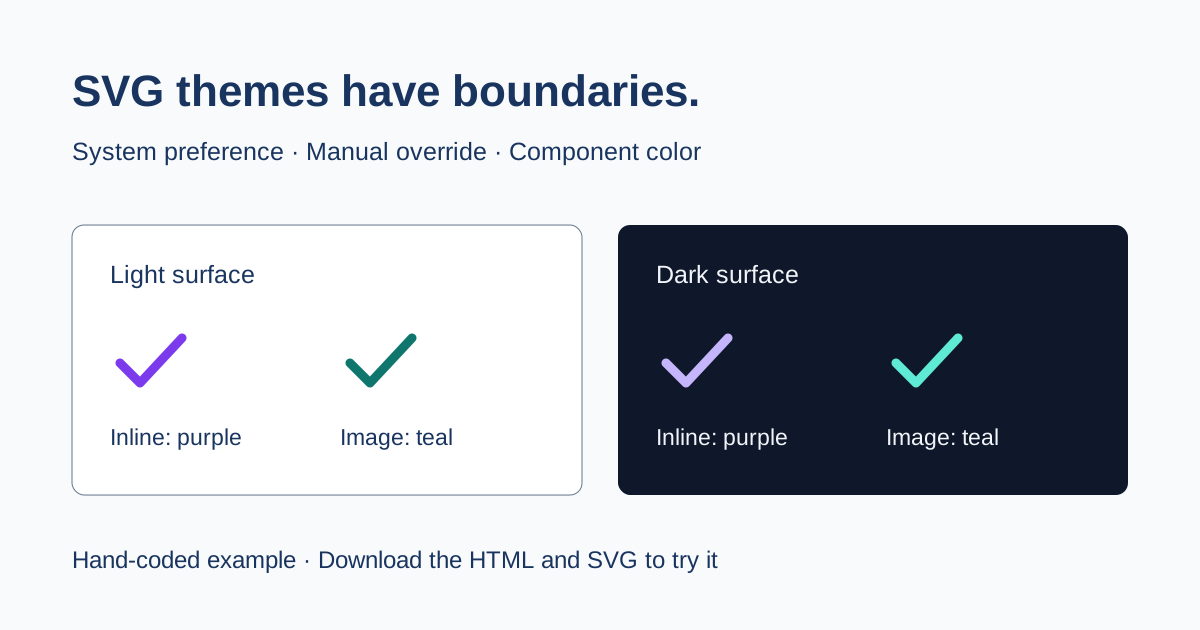
Open the complete theme example. Change the theme, then enable Use purple in this component. The inline checkmark follows that purple color. The external SVG image keeps its own teal palette, while still switching between its light and dark variants.
The HTML, SVG and illustration were written by hand for this tutorial. They do not demonstrate an automatically generated theme system. For the simpler task of converting a generated mark to a button icon, use the currentColor button guide.
Give system and manual choices separate rules
The page stores the choice in data-theme on the root HTML element. Light is the fallback. A dark system preference only applies when the choice is system; it cannot override a reader who explicitly selected Light.
:root {
  color-scheme: light;
  --surface: #ffffff;
  --text: #18345f;
  --accent: #0f766e;
  --border: #64748b;
}
:root[data-theme="dark"] {
  color-scheme: dark;
  --surface: #0f172a;
  --text: #f1f5f9;
  --accent: #5eead4;
  --border: #94a3b8;
}
@media (prefers-color-scheme: dark) {
  :root[data-theme="system"] {
    color-scheme: dark;
    --surface: #0f172a;
    --text: #f1f5f9;
    --accent: #5eead4;
    --border: #94a3b8;
  }
}
The custom properties hold the page's paint values. color-scheme also tells the browser which scheme the element uses; it does not automatically replace literal fills inside arbitrary artwork. The page applies background: var(--surface) and color: var(--text) to its body, and color: var(--accent) to each icon-and-label row.
The complete HTML file includes the labeled select control, CSS and JavaScript. Save it beside theme-mark.svg so its relative image URL resolves. You can open the HTML locally to try the visual behavior; use a local web server if you want predictable origin-based storage behavior.

Separate page color from image-document color
An inline SVG belongs to the page. This hand-coded path uses its inherited color as the stroke:
<svg viewBox="0 0 24 24" width="40" height="40"
     aria-hidden="true" focusable="false">
  <path fill="none" stroke="currentColor" stroke-width="2"
        stroke-linecap="round" stroke-linejoin="round"
        d="M5 12l4 4L19 6" />
</svg>
MDN defines currentColor as the element's color value. The component checkbox changes --accent on the sample container, so the inline mark and both text labels become purple.
An SVG loaded through img is a separate document. The page's purple color does not pass into its paths. That does not mean an external SVG cannot respond to dark mode: this file includes its own palette and media query.
<svg xmlns="http://www.w3.org/2000/svg" viewBox="0 0 24 24">
  <title>Checkmark with its own light and dark palette</title>
  <style>
    :root { color: #0f766e; }
    @media (prefers-color-scheme: dark) {
      :root { color: #5eead4; }
    }
  </style>
  <path fill="none" stroke="currentColor" stroke-width="2"
        stroke-linecap="round" stroke-linejoin="round"
        d="M5 12l4 4L19 6"/>
</svg>
For an SVG embedded as an image, the prefers-color-scheme media feature can reflect the embedding element's color scheme. The example sets that scheme explicitly for Light and Dark. The image therefore switches its own teal palette even when the page theme differs from the system preference.
| Change in the example | Inline SVG | External SVG image |
|---|---|---|
| Select Light | Uses the light page accent | Uses its internal light palette |
| Select Dark | Uses the dark page accent | Uses its internal dark palette |
| Enable the purple component color | Becomes purple with its label | Stays teal; only its surrounding label becomes purple |
Use inline markup when the artwork must follow arbitrary component colors or states. A self-contained external SVG can work when its own light/dark palettes are sufficient. Inspect a generated file before either approach: literal fills, gradients and embedded images need deliberate handling.
Save the choice without depending on storage
The example remembers the theme under svg-theme-example in local storage. The initialization script accepts only system, light or dark and runs in the document head before the page content. The change handler updates data-theme immediately, then attempts to save the choice.
control.addEventListener('change', () => {
  root.dataset.theme = control.value;
  try {
    localStorage.setItem('svg-theme-example', control.value);
  } catch {}
  reportTheme();
});
The surrounding declarations and reportTheme function are in the complete HTML. A storage failure leaves the control usable for that visit. It does not synchronize preferences to another device or account. The purple checkbox is a temporary demonstration setting and resets when the page reloads.
A matchMedia change listener updates the visible active-theme message when the system preference changes. CSS performs the actual repaint. When the select contains Light or Dark, the explicit choice continues to win.
Check the colors and controls in context
The checkmarks in this example sit beside equivalent visible text, so the inline SVG uses aria-hidden="true" and the image has empty alt. The Theme select and component-color checkbox have labels. A visible focus outline supports keyboard navigation; try the controls with Tab and the keyboard as well as a pointer.
Check every theme independently. WCAG's non-text contrast criterion requires at least 3:1 against adjacent colors for visual information needed to identify relevant controls, states and graphical objects, with specified exceptions. It is not a blanket requirement for every decorative pixel. Text has its own contrast requirements.
A dark palette is not an accessibility certification. Check focus, labels, important shapes, disabled and selected states, and forced-color behavior in the browsers and assistive technology your project supports. This example changes colors immediately and introduces no theme-transition animation.
Troubleshoot a theme that does not follow the control
- The system overrides a manual choice: restrict the system media-query selector to
[data-theme="system"]. - Text changes but an inline path does not: inspect the path for a literal fill or stroke that bypasses
currentColor. - An image ignores the component accent: page color does not cross the image boundary. Use inline SVG or edit the external file's own palette.
- The external image follows the wrong light/dark scheme: inspect the embedding element's
color-schemeand the media query inside the SVG. - The choice disappears after reload: local storage may be unavailable, cleared or associated with a different origin. Keep a usable default and avoid making storage essential to the control.
The complete example and its SVG let you inspect each boundary with one small asset. Keep that behavior separate from the artwork itself when you bring a more complex icon into a theme system.