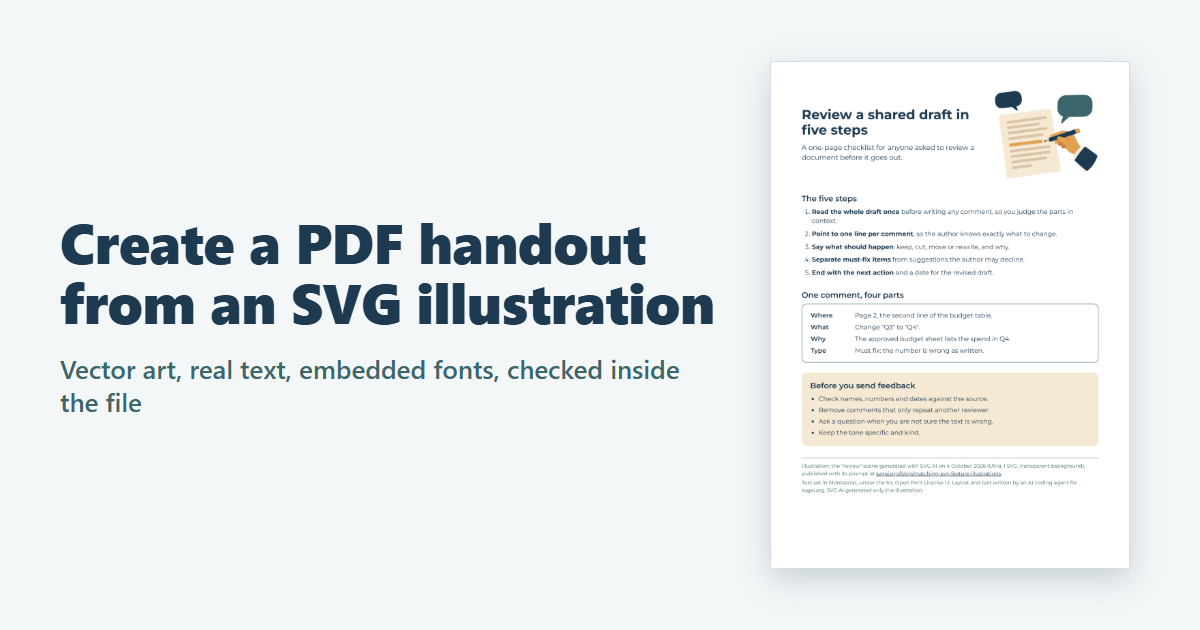
A one-page handout is a simple way to share something outside your own tools: a checklist for a workshop, a one-page guide for a class, a summary for reviewers. If its illustration is an SVG, the PDF can keep it as shapes that stay sharp at any zoom, next to real text that people can select, copy and search. This guide builds a one-page A4 handout, a checklist for reviewing a shared draft, around an SVG illustration, prints it to PDF with Chrome and Edge, and then checks the PDF itself instead of trusting the preview: what happened to the illustration, the fonts, the text, the link and the page.
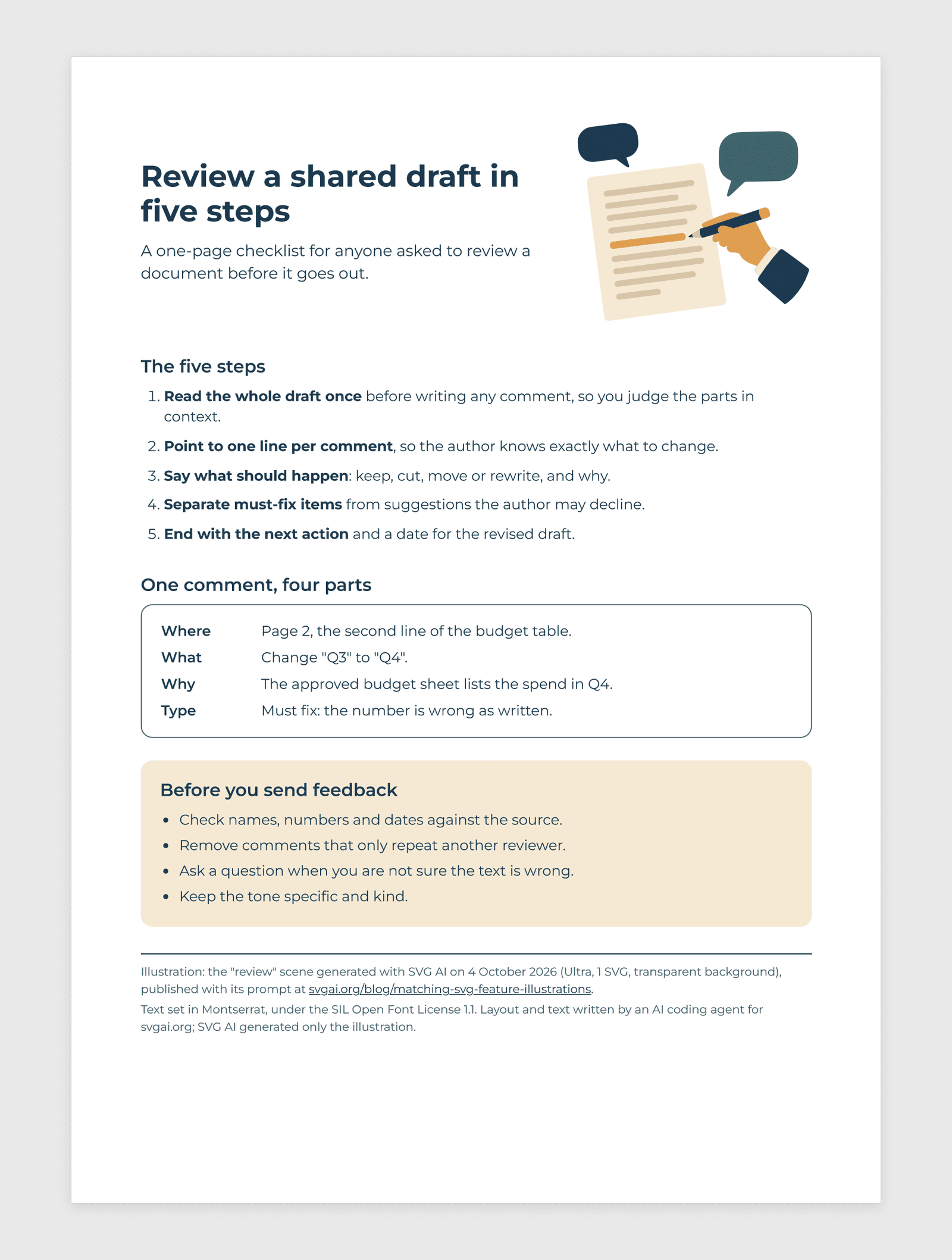
The illustration is the review scene from Create a Matching Set of SVG Product Feature Illustrations. It was generated with the AI SVG generator on October 4, 2026 (Ultra, one SVG, transparent background), and that guide shows its prompt. No new generation was made for this guide, and the illustration's paths are unchanged. SVG AI generated only the illustration: the handout's layout and text, the PDF exports and the checks were made by an AI coding agent, and AI assistance was used to write this guide and make its figures and video.
Open the PDF, open the handout page or download the files: the handout's HTML and CSS, the font files with their licence, both copies of the illustration, the PDF, a README and the check results.
Watch the tutorial on YouTube. Its narration uses a synthetic ElevenLabs voice.
Why build it as a web page
A browser already knows how to set text around an image, and Chrome and Edge can write what they draw straight into a PDF: both files made for this guide name "Skia/PDF m155" as their producer. This illustration, made only of filled shapes, went into both PDFs as vector paths, and the HTML text went in as real text in an embedded font. Not every SVG goes in that way: in a Chrome test, a circle with a blur filter came out as an image, which the image count in the checks below would catch. So you can design the handout with the HTML and CSS you already know, and then check what the PDF holds.
That is a different job from our SVG to PDF converter, which places a picture of your SVG on an A4 page. Its result screen says so ("This PDF contains a raster image of your SVG"), and it's quick when you only need the image in a PDF. For a handout with text and links, build the page in HTML.
Use the proportional copy of the illustration
The original export, review-original.svg, has preserveAspectRatio="none", so it stretches to fill whatever box it is given, in the PDF exactly as in the browser. Printed in a box 120 mm wide and 40 mm tall, it filled the whole box, which squashed it to 38% of the height its proportions call for. The copy published with the earlier guide, review-fit.svg, changes only that attribute to xMidYMid meet, which keeps the proportions in any box: in the same box it was drawn 46 mm wide and 40 mm tall, centred.
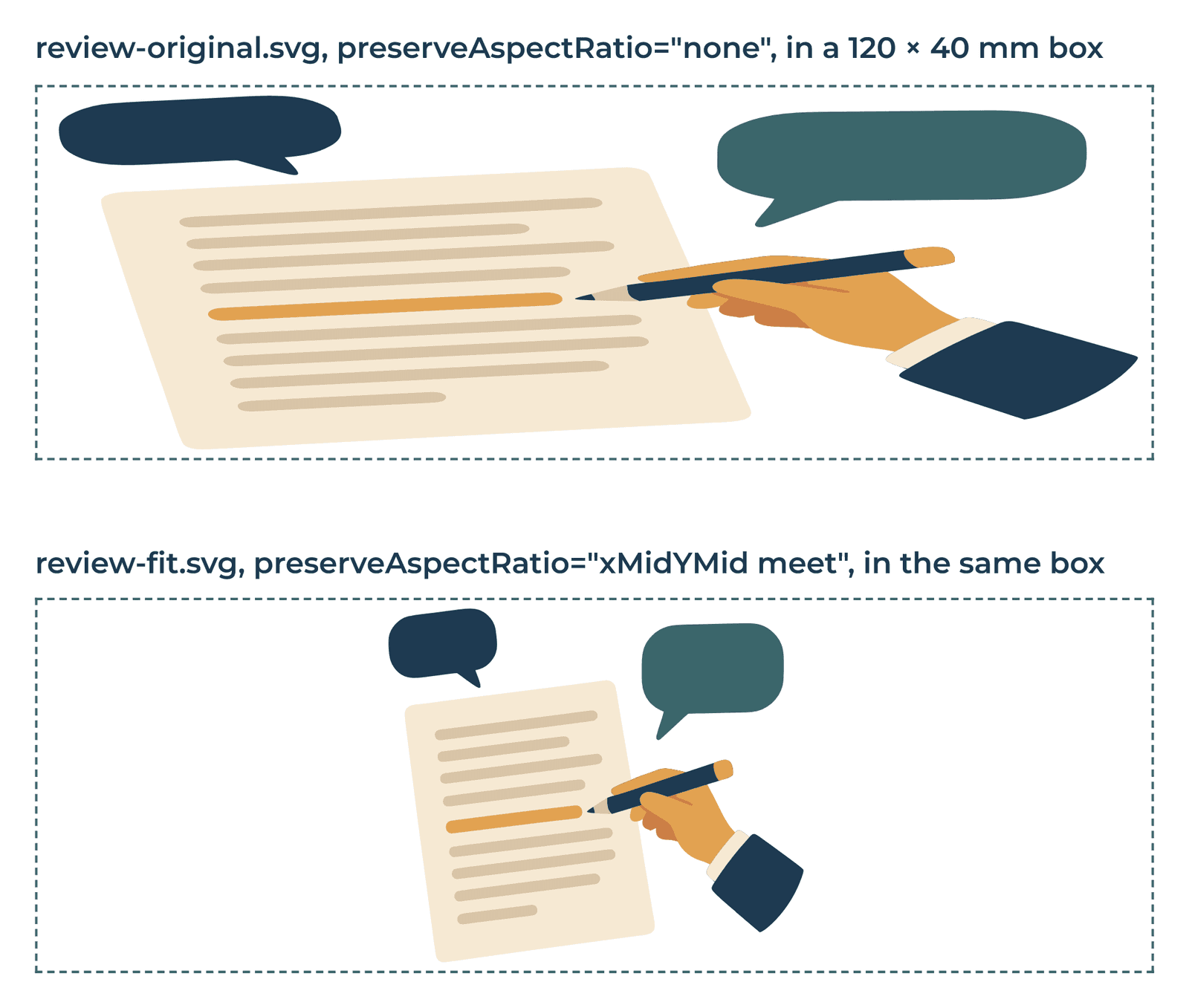
The handout uses the proportional copy:
<img src="assets/review-fit.svg" width="1958" height="1697"
     alt="A hand points a pencil at one line of a document, with two empty speech bubbles beside it.">
The width and height attributes give the image its proportions before it loads; the CSS sets its printed width, 62 mm. The alt text describes it in words, and both browsers copied it into the PDF (see the checks below).
Use an <img>, not a CSS background image. A background image is part of the page's background, so it depends on background printing. With background printing turned off (how that was tested is described below), a copy of the page with the illustration as a CSS background and without print-color-adjust lost it entirely, while the <img> printed either way. The print-color-adjust rule shown below kept that background image, but an <img> doesn't need it. A background also has no alternate text: printed with Chrome from the command line, the CSS-background copy's PDF had no figure in its tags at all.
Choose a font the PDF can embed
Fonts can go wrong in a PDF without anyone noticing. Chrome's PDF output embedded a static TrueType font as a font subset: a real font program holding only the letters the page uses. A variable font, or an OpenType font with PostScript (CFF) outlines, was written as Type 3 instead: every letter becomes a small drawing, with no font program in the file.
Printed with Chrome, the same handout set in the installed variable Montserrat came out with 29 Type 3 fonts and 156,106 bytes. With three static instances of the same font, it has three embedded TrueType subsets and 37,515 bytes, and the same text.
The example uses static instances made from the Montserrat variable font (Version 8.000) with the fontTools library, at weights 400, 600 and 700:
from fontTools.ttLib import TTFont
from fontTools.varLib import instancer

for style, weight in (("Regular", 400), ("SemiBold", 600), ("Bold", 700)):
    font = TTFont("Montserrat-VariableFont_wght.ttf")
    static = instancer.instantiateVariableFont(font, {"wght": weight}, updateFontNames=True)
    static.save(f"Montserrat-{style}.ttf")
updateFontNames=True gives each file its own name. Without it, the instances keep the variable font's default name, Montserrat-Thin, which is what a PDF's font list would then show for every weight. The Montserrat project also publishes static TrueType files; they weren't used or tested here.
Montserrat is under the SIL Open Font License 1.1, which allows embedding the font in a document, in full or as a subset (OFL FAQ, 1.12). The ZIP shares the font files themselves, so it also carries the licence text and the copyright line, as the licence requires.
One more font setting changes the text in the PDF: ligatures. With Montserrat's default ligatures, Chrome wrote the "fi" in words like "five" and "specific" into the PDF as the single character "fi" (U+FB01), 5 times on this page, so the extracted words no longer match what you typed. font-variant-ligatures: none turns them off, and the text extracted from the PDF matched the page's text word for word.
Set the page in CSS
The page size and margins live in the stylesheet:
@font-face {
  font-family: "Montserrat Handout";
  src: url("fonts/Montserrat-Regular.ttf") format("truetype");
  font-weight: 400;
}
/* ...the same for SemiBold (600) and Bold (700) */

@page { size: A4; margin: 16mm 18mm; }

html { -webkit-print-color-adjust: exact; print-color-adjust: exact; }

body {
  font-family: "Montserrat Handout", sans-serif;
  font-size: 10.5pt;
  font-variant-ligatures: none;
}
Chrome's A4 page measured 209.9 × 297.0 mm (594.96 × 841.92 points), a fraction of a point narrower than ISO A4's 595.28 points. For US Letter, change size: A4 to size: letter; that version measured 215.9 × 279.4 mm. The page followed the CSS margins: the area Chrome printed into began 18.0 mm from the left edge and 15.9 mm from the top, within 0.2 mm of the margins in the CSS.
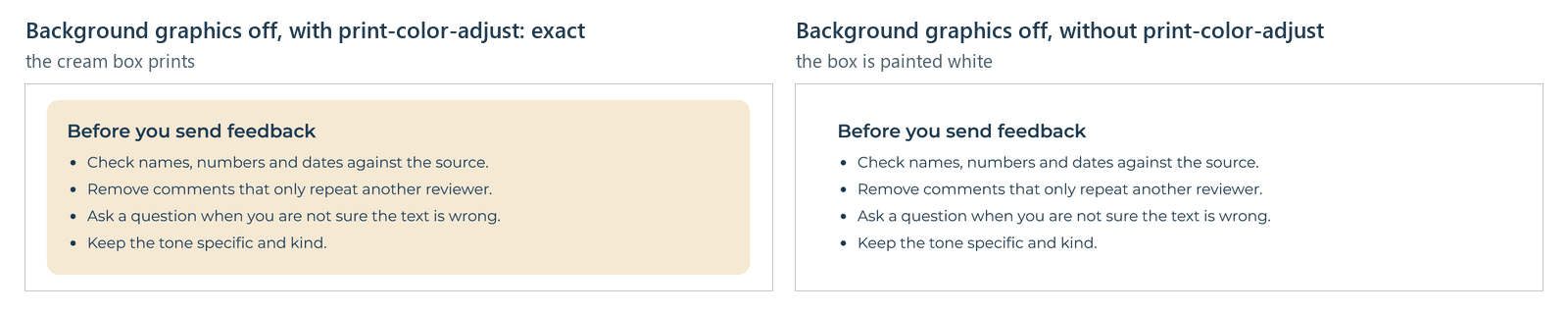
The tinted box is a background colour, and backgrounds depend on a print setting. To test it, the page was also printed through Playwright's page.pdf with background printing turned off, which drives the same installed Chrome: without print-color-adjust: exact the box came out white, and with it the box kept its cream colour. It's a request, not a guarantee: MDN notes that the user can override it and that each browser decides how to handle it.
The example also has a @media screen rule, so the HTML file looks like a sheet of paper when you open it in a browser. It doesn't change the PDF.
Print it from the command line
With handout.html and its fonts and assets folders in C:\handout (the ZIP puts them in a folder named review-handout), this prints the page with Chrome on Windows:
"C:\Program Files\Google\Chrome\Application\chrome.exe" --headless --no-pdf-header-footer --user-data-dir=C:\handout\pdf-profile --print-to-pdf=C:\handout\review-handout.pdf C:\handout\handout.html
--headlessprints without opening a window.--no-pdf-header-footermatters most. Without it, Chrome stamps a header and footer on the page: the date and time, the page title, the full path of the HTML file on your computer and the page number. A path under your user folder includes your Windows user name.--user-data-dirpoints the run at a throwaway profile folder instead of your everyday browser profile. Delete the folder after the browser has closed: the headless browser can keep running for a while after writing the PDF.--print-to-pdfnames the PDF to write.
For Edge, use the same flags with "C:\Program Files (x86)\Microsoft\Edge\Application\msedge.exe". The command can return before the PDF is written, so wait until the file appears before opening it (it took from about 2 to 16 seconds in these tests). The paths are where the browsers were installed on the test machine. The README in the ZIP has the same commands for the folder you run them in, a PowerShell version and the commands that delete the profile folder.
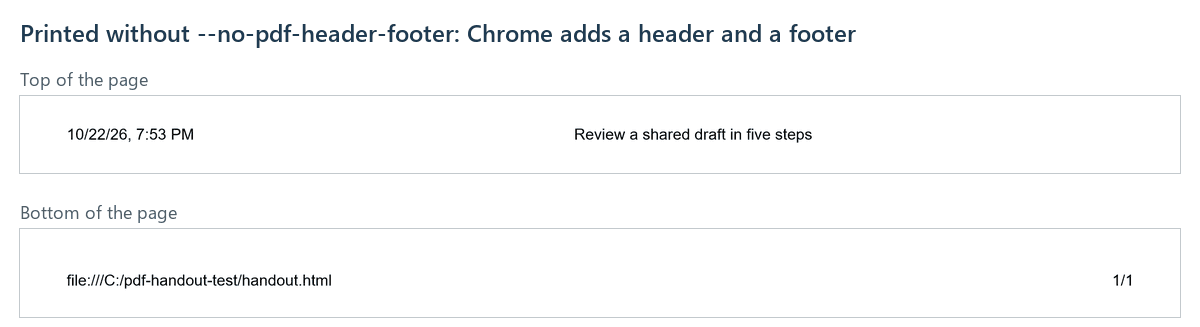
Chrome's command line printed background colours without being asked: the cream box appeared even in a copy of the page without print-color-adjust. Many people print with Ctrl+P and Save as PDF instead. That dialog's options, such as headers and footers, background graphics, paper size and margins, weren't tested for this guide, so if you use it, run the same checks on its file.
Check the PDF
Open the file and check what is actually in it. Both PDFs were inspected with the pypdf library and rendered to images; the full results are in check-results.json in the ZIP. In both the Chrome and the Edge PDF:
- Pages and size: 1 page, 209.9 × 297.0 mm.
- The illustration: vector paths and 0 images, with all 6 of its fill colours present as exact values.
- Fonts: 3 embedded TrueType subsets (MontserratRoman-Regular, SemiBold and Bold), no Type 3.
- Text: the extracted text matches the HTML, with no ligature characters.
- Link: the footer link is a clickable link to the earlier guide.
- Tags: the file is tagged, with its language set to English, and the illustration is a Figure whose alternate text is the
<img>'salt. - Header and footer: none, and no file path anywhere in the file.
- File size: 37,515 bytes (Chrome) and 37,529 bytes (Edge).
Chrome's and Edge's files differed only in their Creator line and timestamps.
Zoomed in on the same detail, the difference from an image PDF is plain. The converter's PDF of the same file holds one picture, 1436 × 1245 pixels, and no text; the handout's illustration is still shapes.
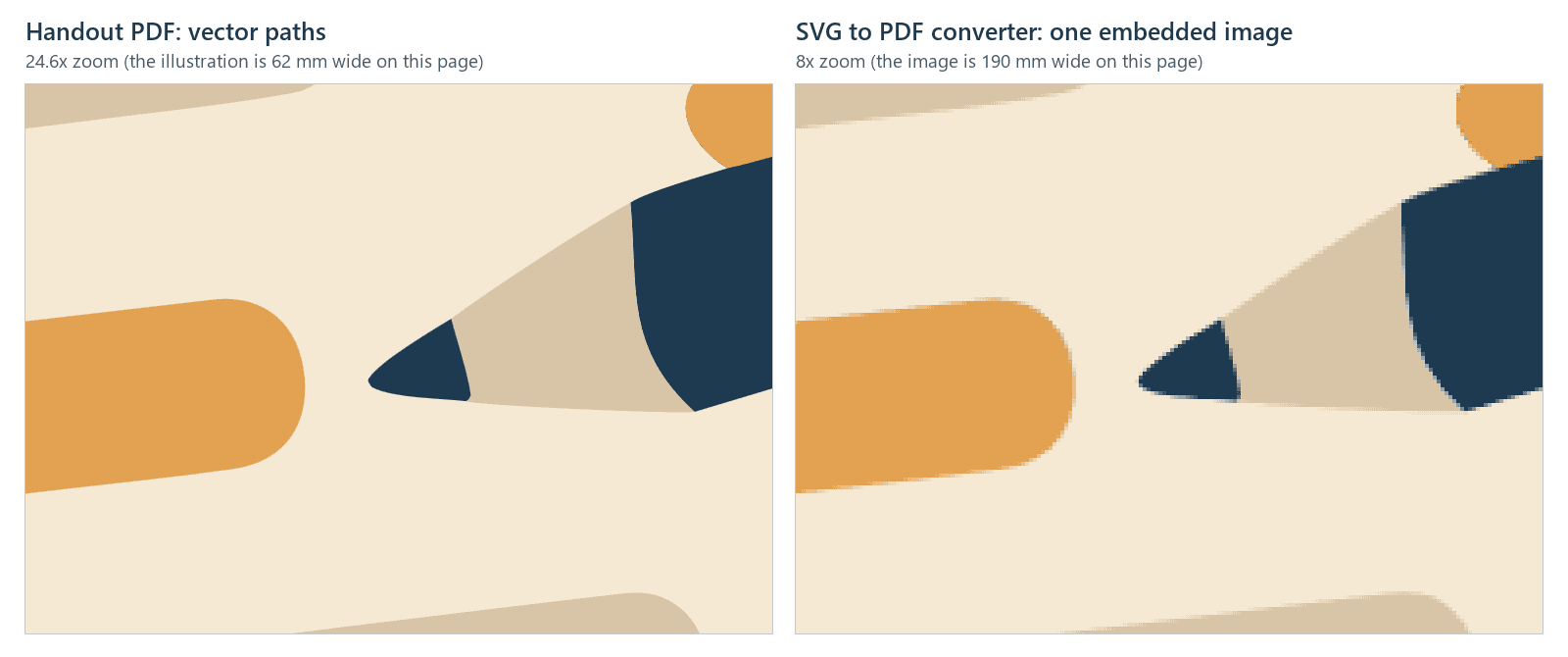
You don't need code for the first checks: zoom in to 800% on the illustration's edges, select a sentence and paste it somewhere, and click the link. To list the fonts and count the images, a few lines of Python with pypdf are enough:
from pypdf import PdfReader

page = PdfReader("review-handout.pdf").pages[0]
for font in page["/Resources"]["/Font"].values():
    font = font.get_object()
    print(font["/Subtype"], font.get("/BaseFont", "(no name)"))
print(len(page.images), "images")
For the handout, with pypdf 6.19, it prints /Type0 /AAAAAA+MontserratRoman-Bold, /Type0 /BAAAAA+MontserratRoman-Regular, /Type0 /CAAAAA+MontserratRoman-SemiBold and 0 images: Chrome wrote each embedded TrueType subset as a Type0 font, and the six capital letters and the plus sign at the start of each name mark a subset. On the copy set in the variable font, it prints /Type3 (no name) 29 times: those fonts carry no font name or font program, only drawn letters.
What was tested, and what wasn't
Tested: Chrome 155.0.8059.80 and Edge 155.0.4283.62 on Windows 11, printing the handout from the command line, with the checks above. Copies of the page with one change each were printed with Chrome only: US Letter, ligatures on, the variable font, no print-color-adjust, the illustration as a CSS background, and the command without --no-pdf-header-footer. The background-printing tests used Playwright 1.61's page.pdf with the same installed Chrome.
Not tested: the print dialog (Save as PDF) and its defaults; Firefox, Safari, Word, Google Docs, Inkscape and Microsoft Print to PDF; printing on paper. The PDF's colours are RGB, with no CMYK, bleed or PDF/X settings: it's a digital handout, not a file prepared for a print shop. The tags exist, but no PDF/UA or WCAG validator was run, so the file isn't claimed to meet either.
To make an illustration for your own handout, generate it in the AI SVG generator with the Transparent setting on, as this scene was. If its export has preserveAspectRatio="none", as this one did, make a proportional copy as above (xMidYMid meet), and run the same checks on your PDF.
Checklist
- Use a proportional copy of the illustration (
xMidYMid meet) in an<img>withwidth,heightandalt. - Use static TrueType fonts whose licence allows embedding, and ship the licence with the font files.
- Turn ligatures off so the PDF's text matches yours.
- Set the paper size and margins with
@page. - Keep tinted boxes with
print-color-adjust: exact, and check them with background printing off. - Print with
--headless --no-pdf-header-footerand a throwaway--user-data-dir. - Check the file: the illustration as paths with no images, embedded font subsets and no Type 3, the text, the link, the page size, and no header or path.