Build a Process Diagram with Custom SVG Symbols and Editable Labels
By Ashesh Dhakal, Founder, SVG AI
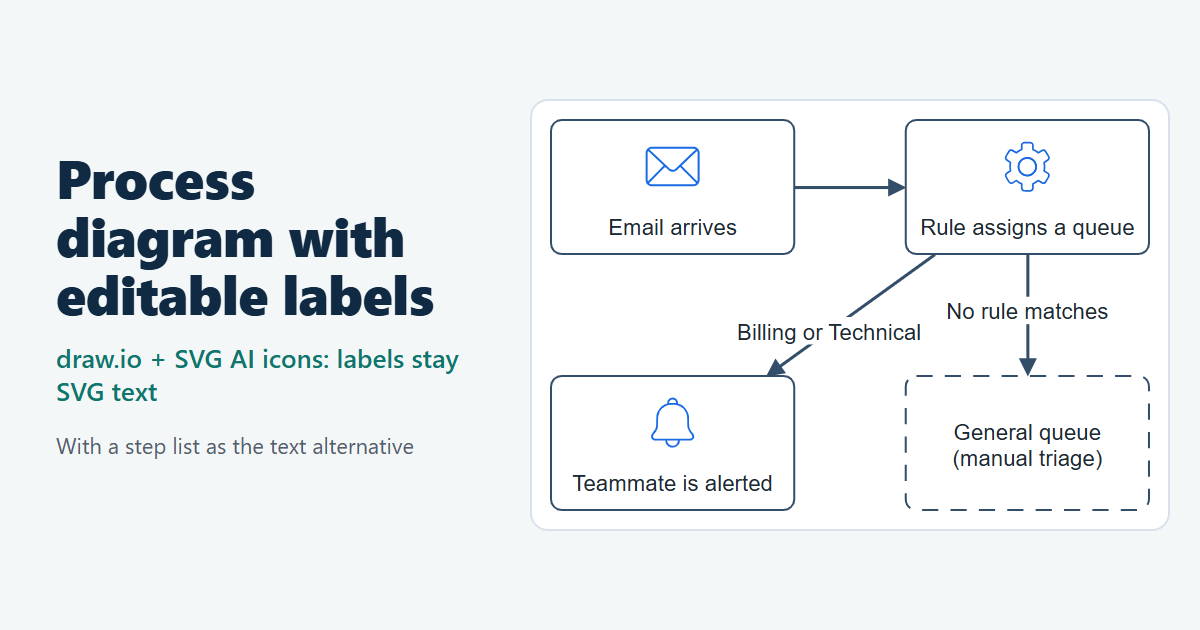
A process diagram stays useful only while its words are right. Steps get renamed, so someone has to change the labels, and readers who can't see the picture need the same steps as text. This guide builds one complete example, a support team's email routing, in draw.io from three SVG AI icons. Its connectors stay attached to the steps, and its labels are still real text in the exported SVG. Then it adds a title and a description in SVG AI's SVG Code Editor, puts the steps under the diagram as a list, and checks the result in Chrome and Edge.
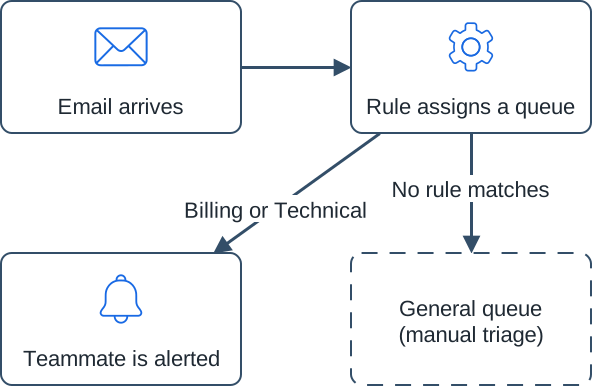
- Email arrives: a customer email lands in the shared support inbox.
- Rule assigns a queue: a routing rule reads the subject line and assigns Billing or Technical.
- No rule matches: the email goes to the general queue for manual triage.
- Teammate is alerted: the person covering that queue gets a notification.
The support team and its process are fictional. The envelope, gear and bell were generated with the AI SVG generator on September 5, 2026 (Classic, one SVG each, transparent background) for the text-to-SVG icon tutorial, which shows their prompts. They are used unchanged, and no new generation was made for this guide. The diagram, the edits and the checks were made by an AI coding agent, and AI assistance was used to write this guide and make its figures and video.
Open the example page or download the files: the draw.io source, the final SVG, the three icons, the label list and the check results.
Watch the tutorial on YouTube. Its narration uses a synthetic ElevenLabs voice.
Write the steps before you draw
List the steps, the arrows between them and the exact words of every label first. For this diagram:
- Cards: Email arrives (envelope), Rule assigns a queue (gear), Teammate is alerted (bell), and a text-only card, General queue (manual triage).
- Arrows: from Email arrives to Rule assigns a queue; from Rule assigns a queue to Teammate is alerted, labeled "Billing or Technical"; from Rule assigns a queue to the general queue, labeled "No rule matches".
That list does three jobs later. It is the check for the labels in the finished file, the source of the text alternative, and the place to change wording before you touch the drawing.
Here the order was reversed: the three icons already existed, and the process was written to fit their usual meanings (a message, a setting, a notification). For your own process, write the steps first and then generate a symbol for each one. Keep the meaning in the label. A bell says "notification", not who gets it.
Build it in draw.io
draw.io is a free diagram editor that runs in the browser without an account. Version 32.5.8 was used here. Its connectors are attached to the shapes they join, so moving a card drags its arrows along. An icon is a separate shape, so select it together with its card before moving one, or group the two (Arrange > Group).
- Draw a rounded rectangle for each step. Here the cards are 240 × 132 px, white, with a 2 px #334E68 border, and the text-only card has a dashed border. Put each label at the bottom of its card, under the icon: in the Format panel's Text tab, set the vertical alignment to Bottom. draw.io's default label is 12 px and centred, where an icon would cover it; the example's labels are 22 px Arial in #1F2933 with 14 px of bottom spacing, and the connector labels are 22 px too.
- Drag each icon file onto the canvas, set it to 64 × 64 px and place it at the top of its card.
- Connect the cards: hover over a card, drag one of its four blue arrows onto the next card, and double-click a connector to type its label. Drop the arrow on the card's text, not on its icon: the icon is a separate shape, and a connector dropped on it attaches to the icon. New connectors are orthogonal (routed with right-angle bends), thin and black. To match the example, select them, choose Straight in the Style tab's Waypoints menu, and set the line width to 3 and the color to #334E68. Check that no connector crosses a card.
- Select everything (Edit > Select All), open the Format panel's Text tab and expand Advanced. Turn off Formatted Text, then Word Wrap. With the icons selected too, both boxes can show as unchecked although the labels are still formatted, so tick each box and untick it again. To check the result, open the exported SVG in a text editor or SVG AI's SVG Code Editor and search for
foreignObject: there should be none.
The example itself was entered as diagram XML (Extras > Edit Diagram does the same), so its sizes are exact. The steps above were checked by the AI coding agent in draw.io, with scripts sending the mouse and keyboard events. On the example, a card moved with the mouse kept its connectors. On a test diagram built as described (cards from the sidebar, a label typed with Enter for its second line, a connector dragged from a hover arrow, a label added by double-click, and the envelope file added through draw.io's import function, which is what a drop calls), step 4 turned every label into SVG text, including that connector label and the two-line label, and Straight in the Waypoints menu made the connector straight.
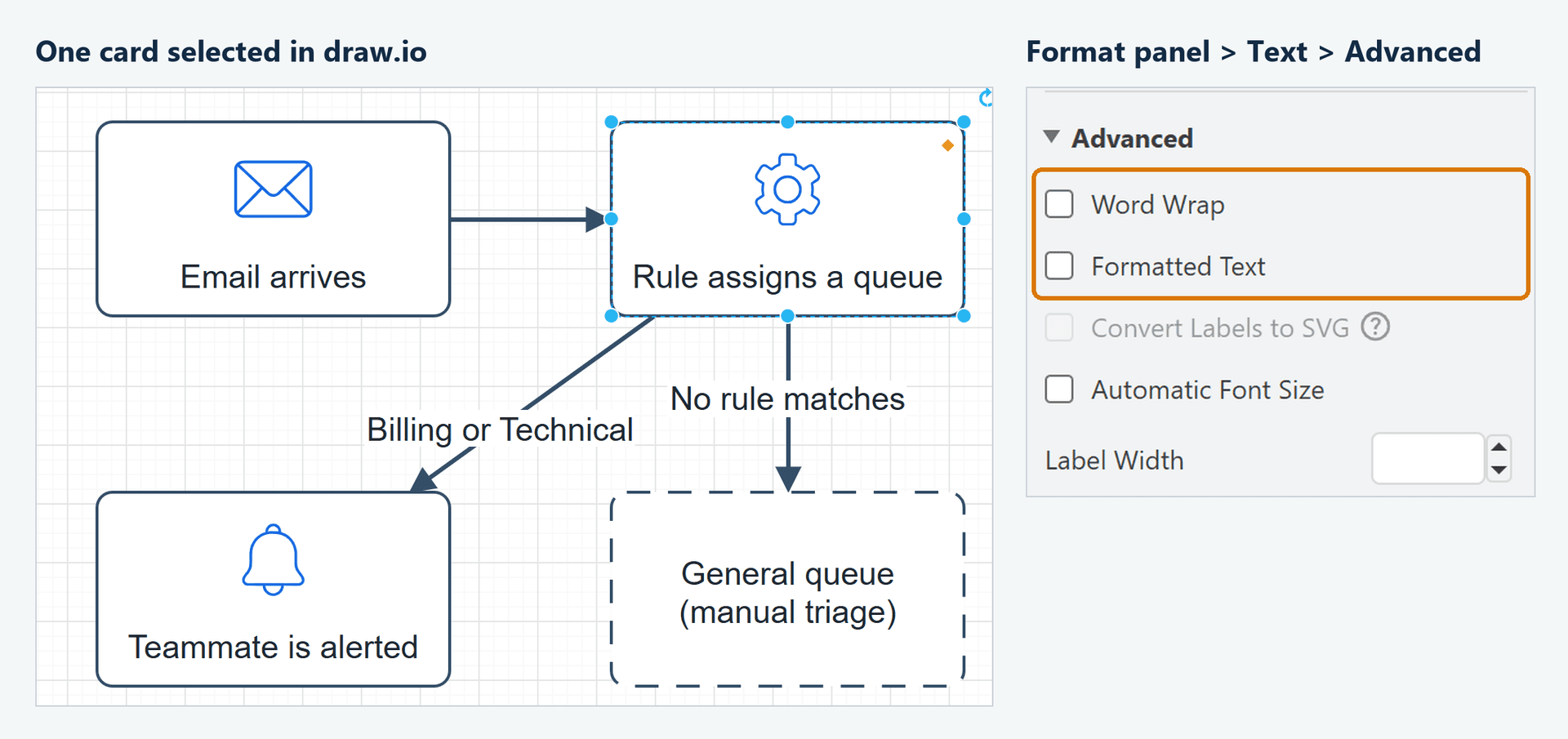
Step 4 decides whether the labels stay text. With Formatted Text on, draw.io exports each label as HTML inside the SVG (a <foreignObject>). Browsers show it, but draw.io's documentation says SVG editors such as Inkscape and Illustrator show "Text is not SVG - cannot display" instead. With both options off, each label is exported as an SVG <text> element. Plain labels don't wrap, so a two-line label needs a manual line break, as in "General queue" / "(manual triage)". If a label needs bold or italic words, the same section has Convert Labels to SVG for formatted labels.
Export a plain SVG
Use File > Export as > SVG with these settings:
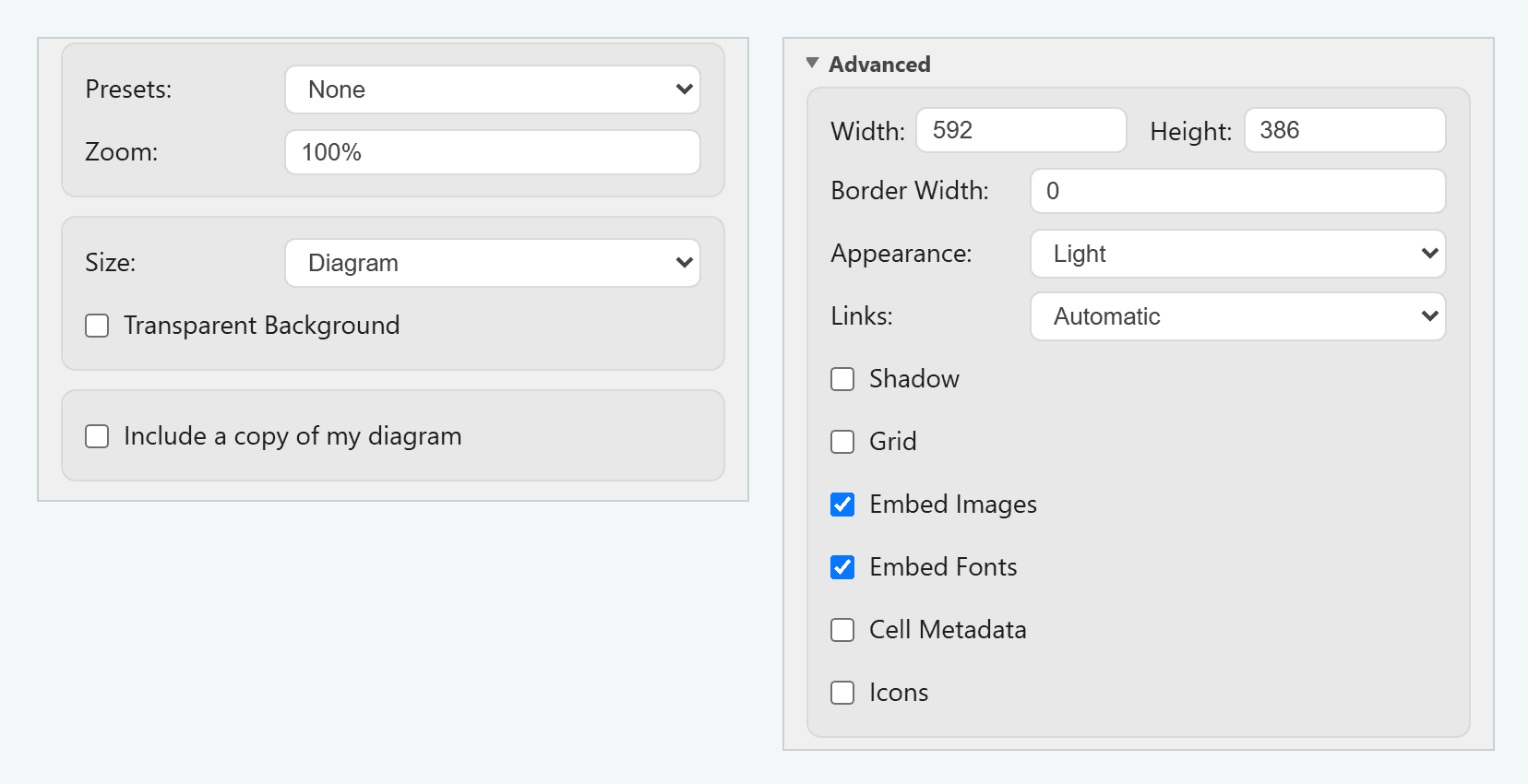
- Include a copy of my diagram: off. When it's on, draw.io stores the whole diagram inside the SVG so the file can be reopened for editing. That made this file 44 KB instead of 19 KB, and the next section shows a catch. Keep the .drawio file as the editable source instead.
- Appearance: Light. The default, Automatic, wrote 27
light-dark()colors into the file. With a dark color scheme, the diagram turned dark (light lines and labels on near-black) while the blue icons stayed the same. Light keeps the colors that were checked for contrast. - Embed Images: leave it on.
The export is a 592 × 386 SVG with seven <text> elements, no <foreignObject> and no <image>. Each icon became a nested <svg> with its original path data, byte for byte. A dropped icon file and one added through the Insert Image dialog exported the same way.
The <text> elements come out in process order: Email arrives, Rule assigns a queue, Billing or Technical, Teammate is alerted, No rule matches, General queue, (manual triage). draw.io writes elements in their stacking order, and here each labeled connector sits just before the card it points to. That order is what a browser exposes when the SVG code is placed in a page without the edits below, and what you get when you copy the text.
Edit labels in the .drawio file
Three tests in draw.io show why the .drawio file should stay the master copy:
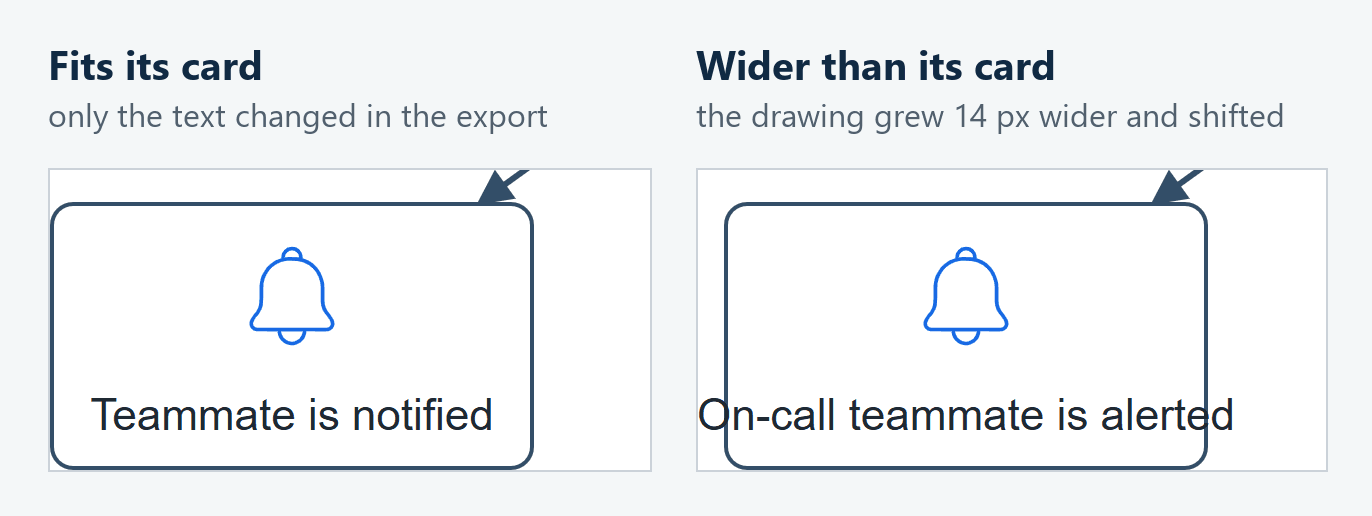
- Changing "Teammate is alerted" to "Teammate is notified" and exporting again changed only that text in the SVG.
- "On-call teammate is alerted" is wider than its card. The label ran past both sides of the card, the drawing grew 14 px wider, and every other element moved. Check each new label in the editor, and add a line break or widen the card.
- A
<text>element edited by hand in an exported SVG shows the new words in a browser. If that file also holds the diagram copy (Include a copy of my diagram on), draw.io reopens the copy and the hand edit is lost.
A new export doesn't have the title, description and ARIA attributes from the next section, so add them again after every export and update the step list on your page.
Give the diagram a text alternative
On a page, show the SVG with an <img> and a short alt text, and put the steps right below it as a list. The W3C's tutorial on complex images calls this a two-part text alternative: a short description that identifies the image and says where the long description is, and a long description, which it suggests showing as part of the main content:
<figure>
  <img src="support-email-routing.svg" width="592" height="386"
       alt="Support email routing diagram. The steps are listed below it.">
</figure>
<ol>
  <li>Email arrives: a customer email lands in the shared support inbox.</li>
  <li>Rule assigns a queue: a routing rule reads the subject line and assigns Billing or Technical.
    <ul><li>No rule matches: the email goes to the general queue for manual triage.</li></ul>
  </li>
  <li>Teammate is alerted: the person covering that queue gets a notification.</li>
</ol>
The file also got a name and a description of its own, typed into SVG AI's SVG Code Editor:
<svg role="img" aria-labelledby="diagram-title" aria-describedby="diagram-desc" …>
  <title id="diagram-title">Support email routing</title>
  <desc id="diagram-desc">A customer email arrives, a routing rule assigns it to the Billing or
    Technical queue, and the teammate covering that queue is alerted. If no rule matches,
    the email goes to the general queue for manual triage.</desc>
  <defs/><rect fill="#FFFFFF" width="100%" height="100%" …/>
  <g aria-hidden="true"><!-- the cards, icons, connectors and labels --></g>
</svg>
An <img> ignores all of this and uses only its alt text. The edits matter when the SVG code is pasted into a page, and the title also shows as the browser tab's name when the file is opened on its own.
Chrome's and Edge's accessibility trees, as their DevTools show them, contained:
<img>with alt text, then the list: one image named by the alt text, then the list with its nested item.- The final SVG code in the page: one image named "Support email routing", with the description.
- The same without
aria-hiddenon the drawing group: that image, plus the seven labels as text inside it. - The draw.io export as it came out: an unnamed SVG with the seven labels in document order.
The tree Windows offers through UI Automation, which the Narrator screen reader reads, differed in one case. Read from the same browsers, the image with role="img" had no child elements even without aria-hidden, as WAI-ARIA expects for an image, whose children are presentational. Only the unedited export exposed the seven labels there. aria-hidden="true" on the group makes the DevTools tree match. How screen readers announce each version was not tested.
Check it at the size readers see
- Text size. The labels are 22 px in a 592 px wide drawing, and an image scaled to fit the page shrinks them with it. On the example page they measured about 13 px on a 390 px wide screen, 12 px at 360 px and 11 px at 320 px. That's why the connector labels are as large as the card labels, and why the list under the diagram matters on small screens.
- Contrast. Against white, the label text measured 14.8:1, the connectors and card borders 8.6:1 and the three icons 4.9:1 to 5.1:1. WCAG 2.2 asks for 4.5:1 for text and 3:1 for the parts of a graphic needed to understand it.
- Fonts. The labels use Arial, Helvetica, sans-serif: common system fonts, with any sans-serif font as the fallback. An SVG shown with
<img>can't load external resources (MDN), so a web font linked from the file wouldn't load. With Verdana, a wider font, the longest card label measured 234 px, still inside its 240 px card with about 3 px to spare on each side. - Connections. A script confirmed that each connector starts on its source card and ends at the right target, and that the connector labels overlap neither the cards nor each other.
Chrome and Edge drew the <img> version and the inline version the same.
What was tested
The checks ran in Chrome 155 and Edge 155 on Windows, with the files served from a local web server:
- element counts, label order and the icon paths compared with the original files;
- connector ends, label positions, contrast and label size at page widths from 320 to 1280 px;
- label fit with Verdana and Georgia;
- the accessibility trees of the four versions above, in DevTools and in Windows UI Automation.
The draw.io checks ran in draw.io 32.5.8 in Chrome, driven by scripts: step 4, the card move and the Waypoints menu through its interface with mouse and keyboard events; the exports through its Export as SVG dialog; and the file opening, the icon import and the two label changes through draw.io's own functions rather than its menus.
Not tested: screen readers, Safari, Firefox, real phones, other editors opening the SVG, and printing.
The download contains the draw.io source, the final SVG, the example page, the three unchanged icons, the labels and text alternatives as a text file, a README and the check results.