AI-PoweredFreeMulti-Format

Image Vectorizer — Convert Any Image to a Clean Vector with AI

Vectorize any image with AI into a scalable vector graphic. Upload PNG, JPG, GIF, WebP, BMP, or TIFF — the AI creates clean vector paths in SVG, PDF, AI, or EPS. Free, no signup.

Instant conversion
AI-Powered

Drop your image (PNG, JPG, GIF, WebP, BMP, TIFF) file here

or click to browse from your computer

Supports image (PNG, JPG, GIF, WebP, BMP, TIFF) · Max 5MB · Instant conversion

Why Vectorize an Image?

Raster images (PNG, JPG, WebP) are made of pixels — they pixelate when enlarged and lose quality at larger sizes. Vector images (SVG, EPS, PDF) are made of mathematical paths that scale infinitely without quality loss. Four reasons to vectorize:

  • Scalable to any size — vectorize once and the same file works at 16 pixels (favicon) and 36 feet (billboard) without quality loss.
  • Editable in any vector tool — Adobe Illustrator, Figma, Sketch, Inkscape, Affinity Designer all open SVG natively. You can recolor, reshape, and restructure paths individually.
  • Smaller file sizes — for logos, icons, and graphics with limited colors, SVG is typically 5-10× smaller than equivalent high-resolution PNG.
  • Print-ready — print shops, embroidery digitizers, and laser cutters require vector files. Vectorize once and your design is ready for any production workflow.

What You Can Vectorize

Our AI vectorizer is built for designers and producers who need clean vector output for downstream production workflows. Eight common use cases:

  • Print-on-demand merchandise — vectorize a logo or design once and scale it across every product mockup on Printful, Printify, Gelato, or your own POD pipeline. T-shirts, hoodies, mugs, posters, tote bags — all scale from a single SVG.
  • Laser cutting — convert raster artwork to vector paths that laser cutters can read directly. Compatible with LightBurn, GlowForge, Boss Laser, Epilog, Trotec — vector path output that the cutter follows with the laser head.
  • Embroidery digitizing — vectorize logos for export to embroidery software (Wilcom, Embird, Hatch). Clean color regions translate cleanly into stitch files (DST, PES, EXP) — no path simplification needed first.
  • Screen printing — separate color regions in a vectorized SVG become discrete print plates. One vectorized file produces output for every plate in a multi-color print run.
  • Vinyl cutting — Cricut, Silhouette, Brother, and other vinyl cutters read vector paths. Rasterized images can't cut cleanly; a vectorized SVG makes the design machine-ready.
  • Sticker production — kiss-cut and die-cut stickers need vector outlines for clean edges at every scale. Vectorize once and the same file produces stickers at any size from 1 inch to 12 inches.
  • Tattoo template artwork — vectorized line art is the format tattoo artists request because it scales to any body location and any size without losing detail.
  • Billboard and signage design — print shops require vector files for any output above ~36 inches. Vectorizing your design once means the same source file produces business cards, posters, and billboards.

Vector Output for Real Design Workflows

Every vectorized result downloads as a real, scalable vector — not a raster embedded inside a vector wrapper. The vectorizer outputs four formats directly from the result panel, all generated from the same clean Bezier path data:

  • SVG — W3C-compliant scalable vector graphics, the web-native standard. Opens in every modern browser, Adobe Illustrator, Figma, Sketch, Inkscape, Affinity Designer, Cricut Design Space, and Silhouette Studio.
  • PDF — vector-preserving PDF for print, design hand-off, and universal viewing. Opens in Acrobat, Preview, every browser, and any vector editor.
  • AI — Adobe Illustrator-compatible vector file. Modern .ai files are PDF-based, so the file you download opens directly in Illustrator with editable paths.
  • EPS — Encapsulated PostScript for legacy print, embroidery digitizing software (Wilcom, Embird, Hatch), sign-cutting, and any workflow that requires an EPS source.

The vectorizer adapts to the type of image you upload. Logos and icons get sharp Bezier paths with high color fidelity. Photos get clean color zones with stylized regions suitable for print and merchandise. Illustrations get balanced curves that retain the original artistic intent. Every path is editable individually — recolor a region, reshape an outline, animate a piece, or extract a sub-element for re-use.

Click Download SVG for the default web-native format, or use Also save as: PDF · AI · EPS in the result panel to download the specific vector format your downstream workflow needs.

How We Compare to Other Vectorizers

Most existing image-vectorizing tools fall into three categories — and each has a known limitation our AI is designed to solve.

Free auto-tracers (potrace, ImageMagick, Inkscape's Image Trace). Free, but mechanical: they follow pixel edges and produce vectors with hundreds of unnecessary anchor points, often reducing color to black-and-white only. Output requires aggressive cleanup before being usable.

Classical AI / auto-trace tools (vectorizer.io, vectorizer.ai). vectorizer.io's classical auto-trace handles color but uses pixel-edge logic, so output still needs manual node reduction. vectorizer.ai layers deep-learning post-processing on a classical auto-trace — quality is comparable to ours for logo and icon work, but they paywall beyond a small free tier.

VectorMagic. One of the highest-quality classical vectorizers for color tracing, but creates excessive anchor points and is subscription-only past a small free preview.

Kittl's vectorizer. Built into a paid design platform; quality is comparable, but you need a Kittl account and subscription.

Adobe Illustrator's Image Trace. Fast and built into Illustrator, but mechanical — output often looks traced and typically requires significant manual cleanup.

Our AI vectorizer is free, requires no signup, and uses semantic shape recognition rather than pixel-edge tracing — the result has far fewer anchor points, smaller file sizes, and immediate editability. Output is multi-format (SVG, PDF, AI, EPS) so designers can take our vectors directly into any workflow without an Illustrator detour.

Each example below is a vectorized SVG from this AI vectorizer. Open any of them in your vector editor of choice — every path is editable, every color region is a discrete fill, and every file scales from favicon to billboard without quality loss.

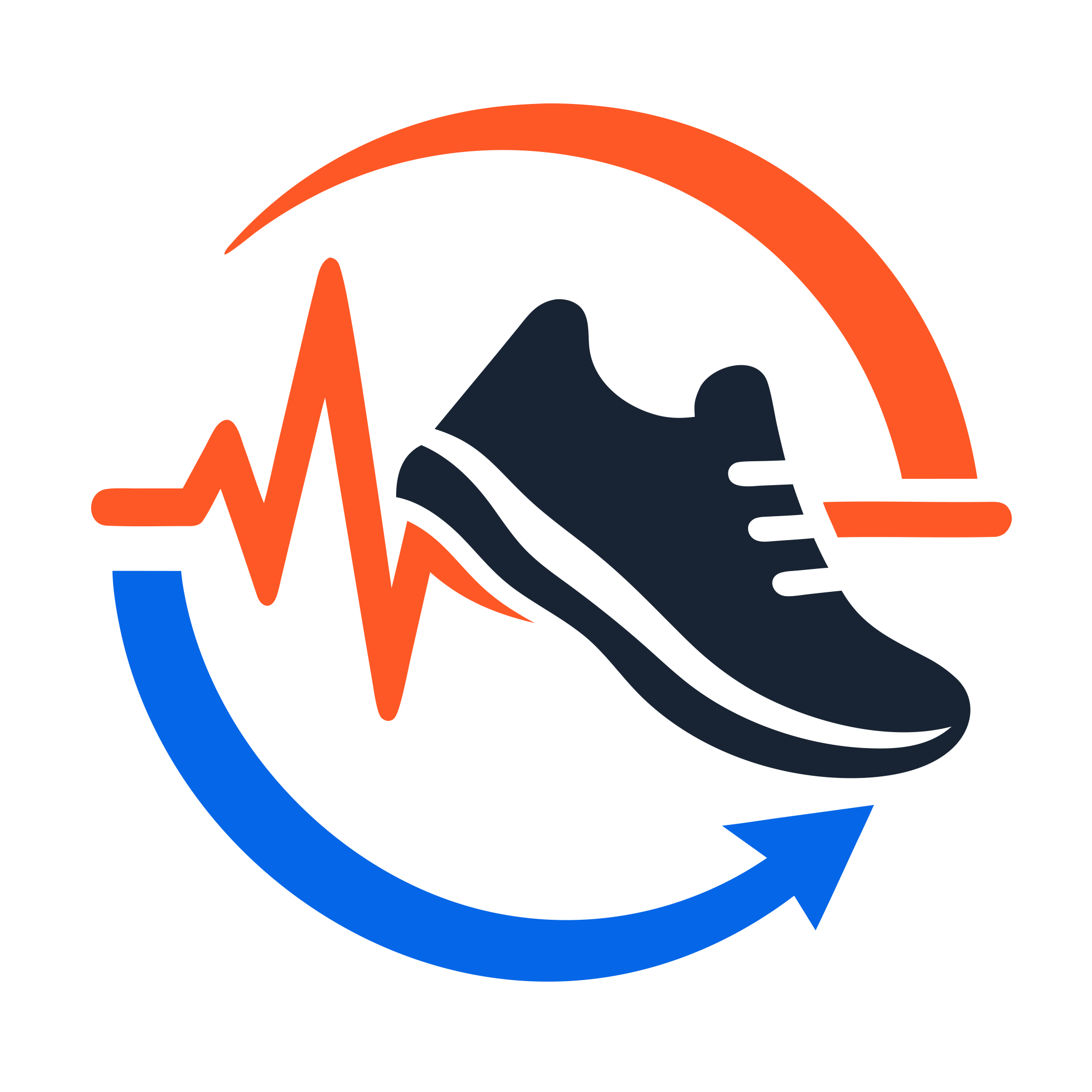
Fitness brand logo vectorized to clean SVG with the AI image vectorizer, demonstrating sharp Bezier curves and color preservation
Fitness brand logo: clean vector output
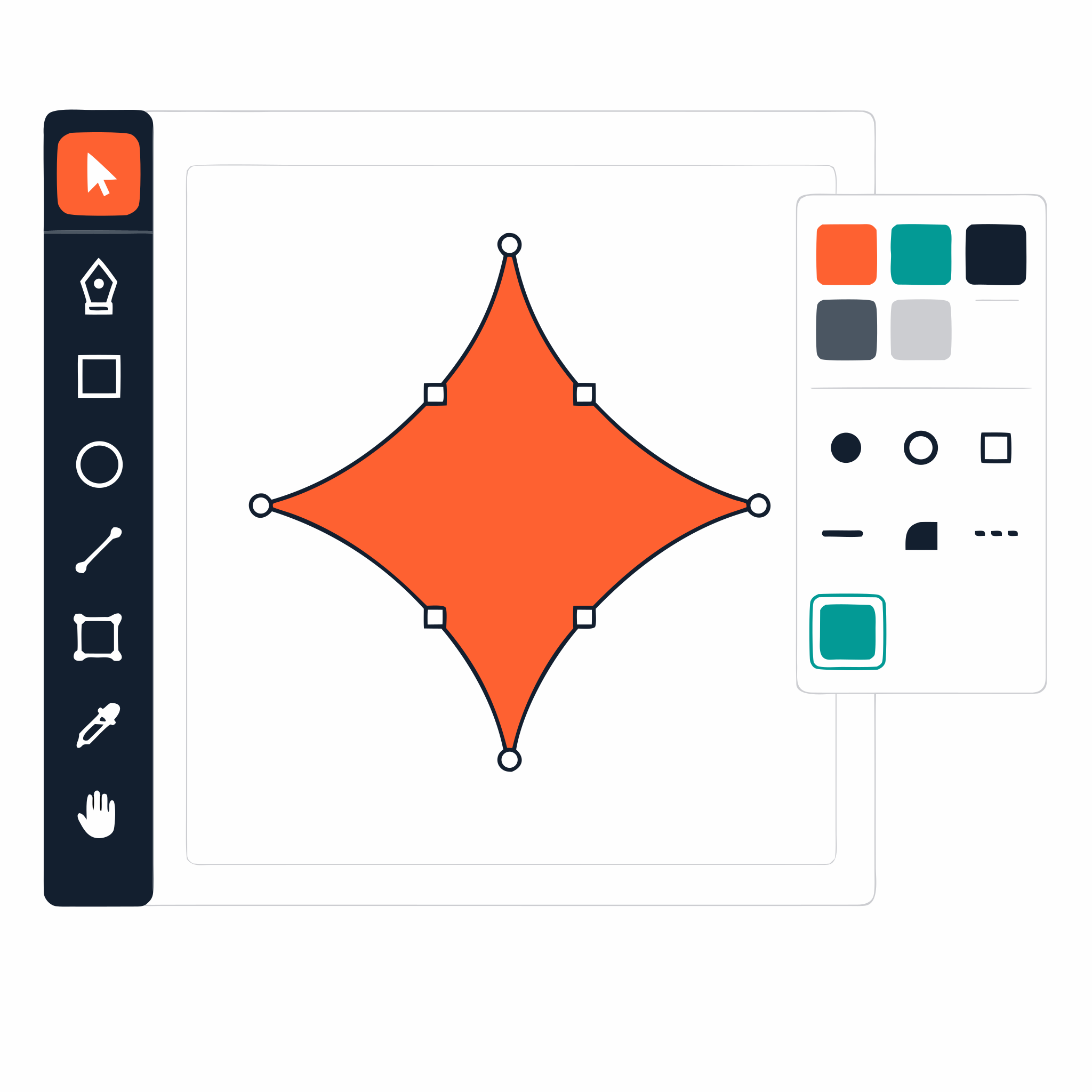
Website hero illustration vectorized for scalable web and print use with the AI vectorizer
Website illustration as scalable vectors
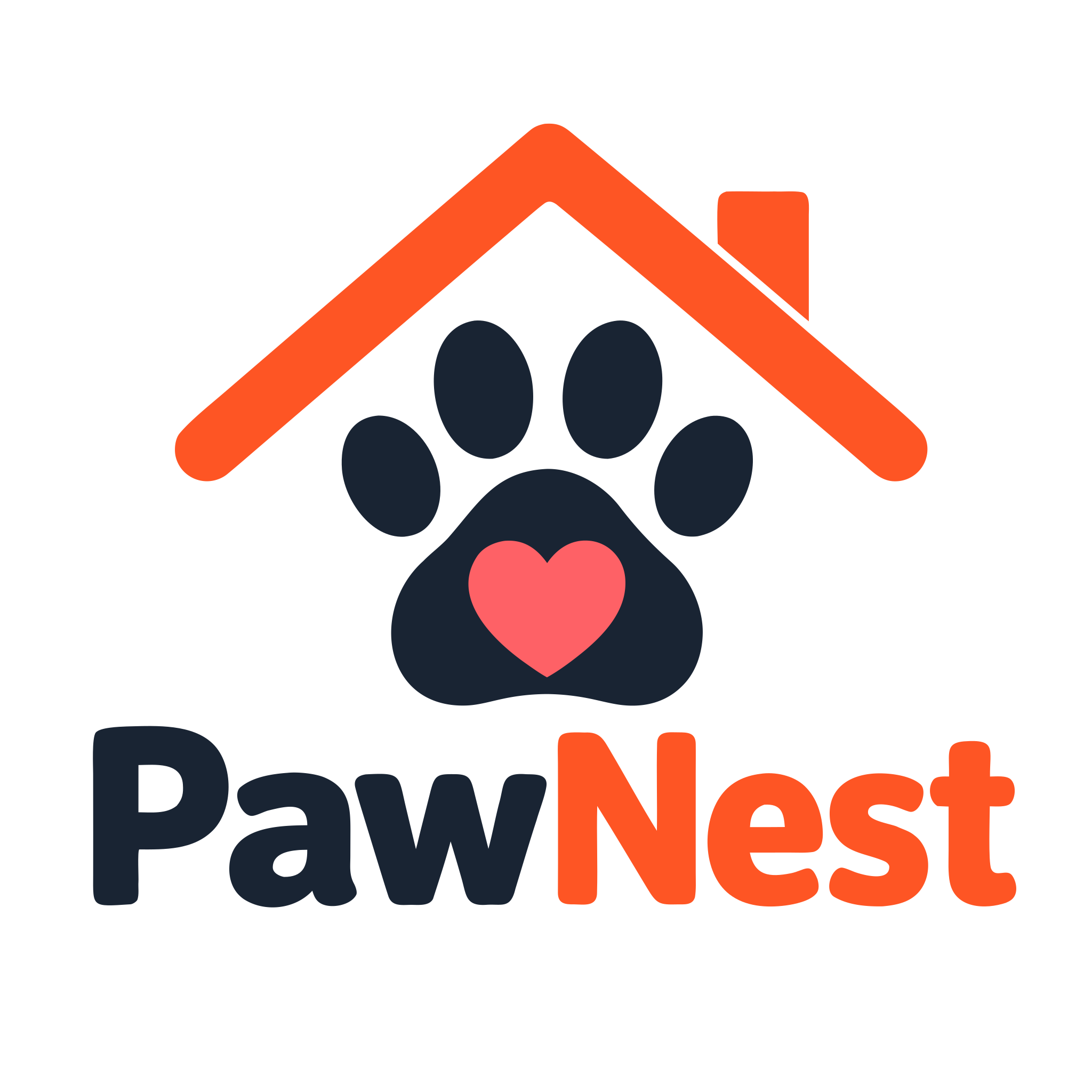
Pet-care brand logo PNG vectorized to SVG with full color preservation and editable paths
Pet-care logo with full color
Abstract pattern artwork vectorized to SVG for print-on-demand merchandise and apparel
Abstract pattern for print-on-demand
Product label vectorized to SVG for kiss-cut and die-cut sticker production with crisp edges
Product label for sticker production
Launch sticker artwork vectorized for high-quality print at any size with the AI vectorizer
Launch sticker vectorized for print
E-commerce checkout icon set vectorized to clean SVG with consistent line weights at any scale
E-commerce icon set
Real-estate brand mark vectorized to SVG with editable paths for use in Adobe Illustrator or Figma
Real-estate brand mark

Frequently Asked Questions

What is an AI image vectorizer?

An AI image vectorizer is a tool that converts a raster image (PNG, JPG, WebP) into a clean, scalable vector graphic (SVG, EPS, PDF) using machine learning. Unlike traditional auto-tracers that mechanically follow pixel edges, an AI vectorizer understands shapes and color regions semantically, producing editable Bezier curves with far fewer anchor points.

How does AI vectorization differ from auto-tracing?

Auto-tracers follow pixel edges; the AI understands shapes. Tools like potrace, vectorizer.io, and Illustrator's Image Trace produce mechanical pixel outlines with hundreds of unnecessary anchor points. Our AI generates a small number of clean Bezier curves that capture the essence of the design — output is immediately editable, with no manual cleanup.

Can I vectorize a photo into a vector?

Yes — with a stylized result. Our AI converts photos into vector interpretations with distinct color regions and clean shapes (ideal for poster art, t-shirt designs, sticker production). Photorealistic detail is preserved as recognizable color zones rather than per-pixel reproduction.

What file formats can I vectorize?

Input: PNG, JPG, JPEG, GIF, WebP, BMP, and TIFF up to 5 MB — the format is auto-detected from the file header (GIF, BMP, and TIFF are auto-converted to a vectorizer-compatible format under the hood). Output: SVG, PDF, AI, or EPS — all four download directly from the result panel as real vector files (no rasterization). The output opens in Adobe Illustrator, Figma, Sketch, Inkscape, Canva, and any vector tool.

Is the AI image vectorizer free?

Yes — the AI image vectorizer is free with no signup. Convert as many images as you need, with no watermarks and no daily limit on standard tier. Anti-abuse rate limiting kicks in only at extremely high volume; past that we ask you to create a free account.

How does the vectorizer handle transparent backgrounds?

Transparent regions in your source image are preserved as transparent regions in the vector output. Logos, icons, and any image with an alpha channel layer cleanly on any background — no manual masking required.

Will the vectorized SVG match my original colors?

Yes — full multi-color preservation. The AI maps each color region in the source into a matching vector fill. Output is true multi-color vector, not black-and-white tracing. Even gradients render as discrete color zones with high fidelity.

Can I edit the vectorized SVG in Illustrator or Figma?

Yes. Whether you download SVG, PDF, AI, or EPS, the output uses clean, structured Bezier paths that open and edit cleanly in Adobe Illustrator, Figma, Sketch, Inkscape, Affinity Designer, and any vector tool. Each path can be modified, recolored, restructured, or animated individually.

How does this compare to vectorizer.ai or VectorMagic?

Our AI vectorizer is free with no signup; vectorizer.ai paywalls beyond a small free tier and VectorMagic requires subscription. Quality is comparable for logo, icon, and illustration work — our semantic shape recognition matches their best output. We win on cost (free vs paid) and on multi-format export (SVG, PDF, AI, EPS) for print, cut, and embroidery workflows.

Can I vectorize a logo to SVG?

Yes — logos are the ideal input. Upload any PNG, JPG, GIF, WebP, BMP, or TIFF logo and download the result as SVG, PDF, AI, or EPS. Crisp edges and matching colors at every scale from a 16-pixel favicon to a 36-foot billboard.

How do I vectorize an image with AI?

To vectorize an image with AI: (1) drag and drop your PNG, JPG, GIF, WebP, BMP, or TIFF onto the converter at the top of this page, (2) wait about 10 seconds while the AI analyzes shapes, color regions, and edges, then (3) download as SVG, PDF, AI, or EPS — all four formats are real vectors. No software install, no signup, no settings to configure — the AI handles edge detection and path optimization automatically. The output works in Adobe Illustrator, Figma, Sketch, Inkscape, Canva, and any vector tool.

How do I make a vector image?

To make a vector image from a raster source, upload your PNG, JPG, GIF, WebP, BMP, or TIFF to the vectorizer above. The AI converts it into a clean vector in about 10 seconds — choose SVG, PDF, AI, or EPS as the download format. No software to install, no signup, no settings to configure. The same workflow handles every common phrasing: make a vector image, convert image to vector, turn an image into a vector, or vectorize an image.