Test SVG Code: Parse the XML and Inspect the Preview
A file can have well-formed XML and still contain the wrong colors, an invisible shape or a distorted layout. Start with the structural check, then inspect the rendering and the file you will use.
1. Preview a complete example
Open the SVG code preview tool and paste this complete three-shape badge. It is manually written code, not an AI output.
<svg xmlns="http://www.w3.org/2000/svg" viewBox="0 0 24 28">
  <rect x="4" y="2" width="16" height="24" rx="3" fill="#18345F" />
  <path d="M8 21 17 6 14 20Z" fill="#F97316" />
  <circle cx="12.5" cy="16" r="1.7" fill="#18345F" />
</svg>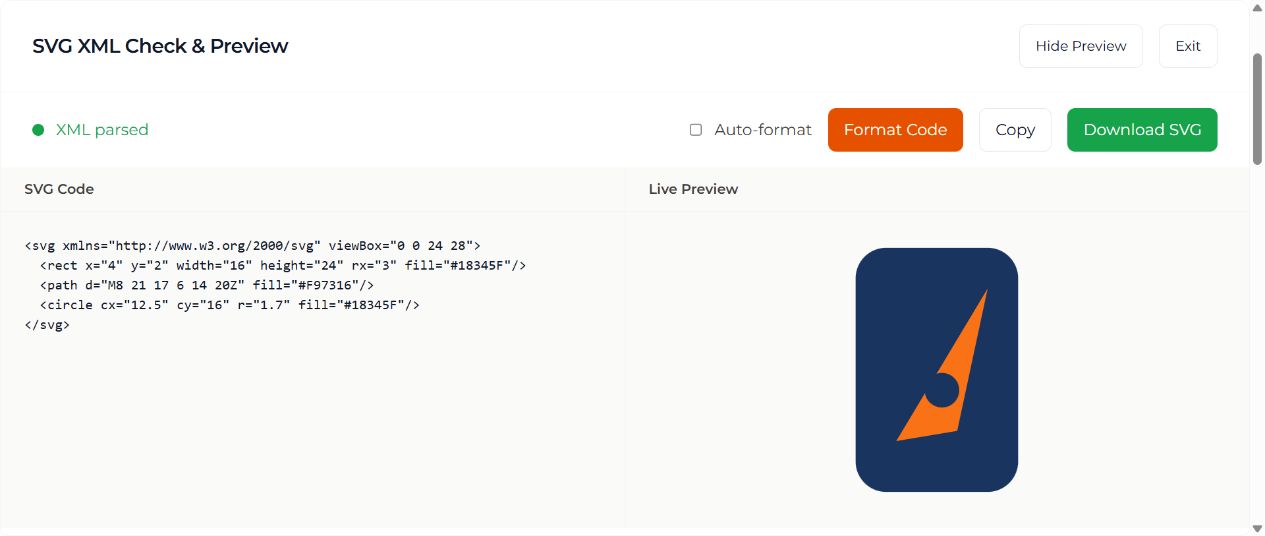
The drawing has a navy rounded rectangle, an orange triangle and a navy circle. Its viewBox is 24 units wide and 28 units high. A viewBox-only SVG should display without requiring a fixed pixel width in its source.
The tool checks XML parsing and the SVG root namespace. Its “XML parsed” status confirms that check; it does not certify visual quality, accessibility or every SVG attribute.
2. Test a nesting error
In a copy, insert an opening <g> after the root and put its closing </g> after </svg>. The tags are closed in the wrong order. The XML parser should report an error, and downloading stays disabled until the structure is corrected.
Move the group closing tag inside the SVG closing tag to repair the nesting. Counting opening and closing tags alone does not establish valid XML.
3. Inspect the rendering
Restore the original example. Check the needle, corners and drawing bounds. Change only the orange fill to #0F766E and inspect the result. If the graphic disappears, compare its fill with the background and its coordinates with the viewBox.
The preview uses an SVG image context. Scripts and interactive document behavior do not run there. Test an inline SVG in its actual interface if it needs to inherit page CSS or respond to events. The currentColor button example demonstrates why an inline icon and an image behave differently.
4. Check the saved source
Download the SVG, open it again and inspect the saved code. Copy and formatting controls are conveniences, not a substitute for this check. Keep the original when changing colors, structure or dimensions.
For a generated example, the five practical SVG file checks include an untouched dashboard download, an AI revision, manual corrections, a raster-wrapper control and repeatable measurements.
Use the AI SVG generator when you need a new graphic. For a precise change to known markup, edit that value directly and repeat the relevant checks. The three-shape badge tutorial explains the coordinates used here.