Custom SVG Image Creation: From Concept to Final Design - Complete Original Artwork Guide
By SVGAI Team
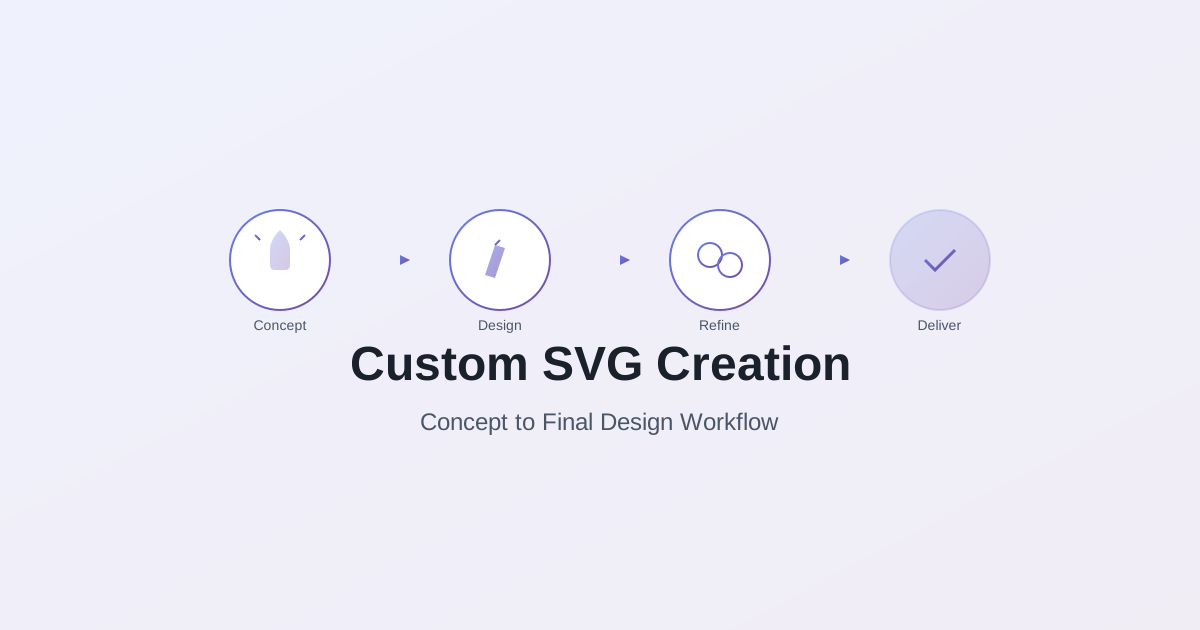
custom svg creatororiginal svg imagesbespoke svg designcustom vector artworksvg from scratch
Creating custom SVG images from scratch—transforming abstract concepts into polished vector artwork—represents the pinnacle of creative control in digital design. Our AI SVG Creator platform empowers designers to craft bespoke vector imagery that precisely matches project requirements, brand guidelines, and artistic vision without relying on templates, stock graphics, or photo conversions.
This comprehensive guide walks through the complete custom SVG creation process: from initial concept development and sketching through technical execution and final optimization, ensuring your original vector artwork meets professional standards while maintaining the efficiency and scalability that make SVG the ideal format for modern design.
Why Create Custom SVG Images?
Beyond Templates: The Value of Original Artwork
Template/Stock Limitations:
- Generic appearance (others use same assets)
- Limited customization options
- Licensing restrictions and fees
- Doesn't perfectly match brand/project
- Compromised creative vision
Custom Creation Advantages:
- 100% unique: Never seen elsewhere
- Perfect fit: Exactly matches requirements
- Full ownership: No licensing concerns
- Brand alignment: Precise color, style, proportions
- Creative expression: Your vision,uncompromised
Business impact:
- Distinctive brand identity
- Competitive differentiation
- Consistent cross-platform presence
- Long-term asset value
- Pride of craftsmanship
When Custom SVG Creation Makes Sense
Ideal Scenarios:
1. Brand Identity Development
- Logos and wordmarks
- Brand pattern systems
- Icon sets matching brand aesthetic
- Illustration style unique to brand
ROI justification: One-time investment creates assets used for years
2. Specific Technical Requirements
- Exact dimensions or aspect ratios
- Precise color matching (Pantone, brand colors)
- Specific file size constraints
- Accessibility requirements
Value: Off-the-shelf solutions rarely meet precise specs
3. Unique Creative Vision
- Artistic style not available in stock
- Conceptual illustration of specific idea
- Visual metaphor for abstract concept
- Storytelling through original imagery
Outcome: Template customization can't achieve true originality
4. Long-Term Asset Development
- Building reusable component library
- Establishing visual language
- Creating scalable design system
- Developing proprietary aesthetic
Strategy: Investment compounds over time
AI SVG Creator tools accelerate custom creation—generate original icons, logos, and illustrations from text descriptions instantly as starting points for bespoke refinement.
When NOT to create custom:
- Tight deadline with limited budget
- Generic/commodity imagery sufficient
- Temporary/one-time use
- Testing concept before committing
The Custom SVG Creation Process: Overview
Six Phases of Professional Development
Phase 1: Concept & Planning (20% of timeline)
- Define requirements and constraints
- Research visual direction
- Develop mood boards
- Create initial sketches
Phase 2: Rough Design (15% of timeline)
- Digital rough compositions
- Explore variations
- Refine chosen direction
- Client/stakeholder review
Phase 3: Detailed Design (30% of timeline)
- Vector construction
- Precise path creation
- Color application
- Layering and organization
Phase 4: Refinement (20% of timeline)
- Alignment and spacing
- Consistency checks
- Testing at various sizes
- Detail polishing
Phase 5: Optimization (10% of timeline)
- Path simplification
- File size reduction
- Export preparation
- Format variations
Phase 6: Delivery & Documentation (5% of timeline)
- Final exports
- Usage guidelines
- Source file organization
- Documentation
Timeline reality: Complex illustration: 8-20 hours | Icon set: 4-8 hours | Logo: 10-30+ hours (including revisions)
When you need rapid concept exploration, Our AI-powered svg generator lets you create graphics from multiple descriptions—generate design variations instantly to find the perfect custom direction before investing production time.
Phase 1: Concept Development & Planning
Defining Requirements
Essential Questions Before Starting:
1. Purpose and Context
- Where will image be used? (Web, print, both?)
- What problem does it solve?
- What emotion/message should it convey?
- Who is the target audience?
2. Technical Specifications
- Required dimensions or aspect ratio?
- Color mode (RGB, CMYK, specific palette)?
- File size constraints?
- Scalability range (icon to billboard)?
3. Brand and Style
- Existing brand guidelines to follow?
- Aesthetic preferences (minimalist, detailed, playful, serious)?
- Approved color palettes?
- Reference examples of liked styles?
4. Deliverables
- File formats needed (SVG, PNG, PDF)?
- Variations required (color/mono, horizontal/vertical)?
- Source files and layers needed?
- Timeline and revision expectations?
Document answers before opening design software—clarity now prevents rework later.
Research and Inspiration Gathering
Effective Research Workflow:
1. Visual Inspiration Collection
- Dribbble, Behance for style exploration
- Pinterest boards for composition ideas
- Industry-specific examples
- Competitor analysis (to differentiate)
Organize by: Color palette, composition, style, detail level
2. Conceptual Research
- Understand subject matter deeply
- Visual metaphors and symbolism
- Cultural considerations and meanings
- Accessibility implications
3. Technical Research
- SVG capabilities and limitations
- Best practices for intended use case
- Performance considerations
- Platform-specific requirements
Time investment: 1-3 hours for typical project, more for complex/unfamiliar subjects
Output: Mood board with 15-30 reference images, annotated with "like this color", "this composition", "this level of detail"
Sketching and Ideation
Why sketch before going digital:
- Faster iteration (10 sketches in time for 2 digital versions)
- Fewer constraints (explore freely)
- Avoid software distraction
- Better creative flow
Sketching Workflow:
Round 1: Thumbnail Sketches (15-30 minutes)
- Small (2-3" size), quick sketches
- Explore 10-20 different directions
- Focus on composition, not detail
- Circle favorites
Round 2: Refined Sketches (30-60 minutes)
- Larger size (4-6"), more detail
- 3-5 strongest concepts from Round 1
- Add key details and refinements
- Consider variations
Round 3: Final Sketch (30-90 minutes)
- One chosen direction
- Detailed enough to guide digital work
- Resolve composition questions
- Photograph or scan for digital reference
Digital alternative: Sketch directly on tablet (iPad + Procreate, Samsung + Concepts) if preferred, but separate sketching from vector creation
Phase 2: Digital Rough Design
Setting Up Your Workspace
Artboard Configuration:
For Web Graphics:
- Square: 1000×1000px (scales to any needed size)
- Wide: 1200×630px (social media standard)
- Icon: 512×512px (covers most needs)
For Print:
- Set to actual size in inches/mm
- 300 DPI equivalent resolution
- Include bleed area (typically 0.125")
For Flexible Assets:
- Use vector units (not pixels)
- Define via viewBox for perfect scaling
- Design at medium target size
Grid and Guide Setup:
- Enable grid (8px or 10px for web, 0.125" for print)
- Set up alignment guides
- Use ruler divisions for precision
- Enable snap-to-grid for geometric elements
Color Palette Preparation:
- Import brand colors as swatches
- Add complementary palette if needed
- Organize by usage (primary, secondary, accent)
- Label clearly
Blocking Out Composition
Step 1: Basic Shapes Start with primitive shapes (rectangles, circles, ellipses):
- Establish overall proportions
- Define key element placement
- Create visual hierarchy
- Test balance and flow
Don't worry about: Details, perfect curves, colors (use placeholders)
Do focus on: Composition, spacing, hierarchy, balance
Step 2: Layering and Organization Group related elements immediately:
- Background layer
- Midground/main subject layers
- Foreground/accent layers
- Guides and notes (non-printing)
Naming convention: "background-gradient", "main-figure-body", "accent-highlights"
Why organization matters now: Prevents chaos in detailed phase
Step 3: Rough Detailing Add enough detail to evaluate direction:
- Key shapes defined
- Proportions established
- Color blocking applied
- Basic relationships resolved
This is 30-40% finished appearance—enough to judge direction, not final polish.
Review and Iteration
Self-Review Checklist:
- Composition balanced and visually interesting?
- Hierarchy clear (eye flows naturally)?
- Proportions feel correct?
- Color palette working?
- Style matching vision/references?
- Technical requirements met?
Stakeholder Review (if applicable):
- Present multiple variations if possible (de-risks approval)
- Explain reasoning behind choices
- Request specific feedback
- Clarify which elements still rough
Common iteration scenarios:
- Composition adjustment: Shift element placement, adjust sizing
- Style refinement: More/less detail, different aesthetic
- Color exploration: Alternative palettes
- Concept pivot: Fundamentally different approach
Budget 1-2 revision rounds at this phase—cheaper to iterate now than after detailed work.
For rapid iteration cycles, our AI SVG Maker generates concept variations from text descriptions in seconds—create multiple custom directions instantly to accelerate stakeholder alignment.
Phase 3: Detailed Vector Construction
Precision Path Creation
Pen Tool Mastery:
Creating Clean Paths:
-
Minimal anchor points
- Fewer points = smoother curves, smaller file
- Click and drag (bezier handles) for curves
- Click only for sharp corners
- Aim for 30-50% fewer points than instinct suggests
-
Handle discipline
- Symmetrical handles for smooth curves
- Broken handles for directional transitions
- Equal handle length balance on both sides
- Adjust handles, don't add more points
-
Closed path discipline
- Always close paths intended as fills
- Check for gaps (magnify to verify)
- Use pathfinder to combine when appropriate
Shape Building Techniques:
Boolean Operations:
- Union: Combine shapes (multiple circles → organic blob)
- Subtract: Cut out shapes (donut from circles)
- Intersect: Keep only overlap (create complex cutouts)
- Exclude: Remove overlap, keep remainder
Use cases: Creating complex shapes from simple primitives is more efficient than drawing from scratch
Compound Paths:
- Create shapes with holes (letters, frames)
- Build complex icons from simpler parts
- Maintain editability longer
Color Application Strategies
Solid Color Approach:
Benefits:
- Smallest file size
- Easy to edit and recolor
- Fast rendering
- Best for icons, logos, flat illustrations
Best practices:
- Limit palette (5-10 colors for cohesion)
- Use named/global colors (update everywhere when changed)
- Maintain sufficient contrast
- Test in grayscale for value structure
Gradient Usage:
When gradients enhance:
- Adding depth and dimension
- Creating focal points
- Smooth color transitions
- Realistic lighting effects
Gradient efficiency:
- Linear gradients: Small file impact
- Radial gradients: Moderate impact
- Gradient meshes: Huge impact—use sparingly
- 2-3 stops optimal, 5+ stops question necessity
Gradient best practices:
- Reuse gradients (save as swatch)
- Use transparency in stops (not separate overlays)
- Test at smallest intended size (detail may disappear)
Advanced Color Techniques:
Blending modes:
- Multiply for shadows
- Screen for highlights
- Overlay for texture
- Color for hue shifts without value change
Use judiciously: Each mode increases complexity
Opacity variations:
- Layer transparent elements
- Create depth without gradients
- Subtle overlays for visual interest
Stroke and Fill Refinement
Stroke Considerations:
When to use strokes:
- Line art and outlines
- Technical illustrations
- Decorative borders
- Icon details
Stroke settings:
- Weight: Consider smallest viewing size (1-2px strokes may disappear)
- Caps: Round for organic, square for technical, butt for precision
- Joins: Round for smooth, miter for sharp, bevel for controlled corners
- Dashes: Creative pattern possibilities, but increases file size
Fills vs. Strokes:
- Fills: More reliable rendering, easier to control
- Strokes: Can create issues at small sizes, alignment matters
Best practice: Convert strokes to fills for final output (expand stroke) unless variability needed
Detail Level Decisions
The Detail Paradox:
More detail ISN'T always better:
- Increases file size
- Slows rendering
- May disappear at small sizes
- Harder to edit later
Strategic detail application:
High detail where it matters:
- Focal points
- Brand-critical elements
- Features visible at typical viewing size
Simplified detail elsewhere:
- Backgrounds
- Peripheral elements
- Areas too small to appreciate detail
Testing protocol:
- View at 25%, 50%, 100%, 200%
- If detail invisible at intended size, remove it
- Optimize for most common viewing scenario
Phase 4: Refinement and Polish
Alignment and Consistency
Pixel-Perfect Alignment:
Why alignment matters:
- Professional appearance
- Visual rhythm and harmony
- Reduces visual clutter
- Respects viewer's eye
Alignment techniques:
- Use align tools (not manual nudging)
- Align to pixel grid for web graphics
- Distribute spacing evenly
- Use guides for consistency
Consistency Checks:
Spacing:
- Consistent margins around elements
- Even padding within containers
- Proportional white space
- Breathing room prevents cramping
Sizing:
- Related elements proportionally sized
- Visual weight balanced
- Hierarchy through scale
- Similar elements consistently sized
Styling:
- Stroke weights consistent across similar elements
- Border radius matching (if using)
- Shadow/effect application uniform
- Color usage systematic
Testing at Target Sizes
Multi-Size Testing Protocol:
For Icons (16-64px):
- Test at exact pixel sizes: 16, 24, 32, 48, 64px
- Ensure recognizability at smallest size
- Check stroke weights (2px stroke may dominate at 16px)
- Verify no detail disappears
For Logos (varies):
- Test at minimum reproduction size (often 1" or 40px wide)
- Verify at maximum size (billboard/trade show)
- Check reversed (light on dark, dark on light)
- Test on various backgrounds
For Illustrations (typically 500-2000px):
- Test at common web widths (375px mobile, 768px tablet, 1200px desktop)
- Verify detail visible but not overwhelming
- Check on light and dark backgrounds
- Print test if print usage intended
Adjustment based on testing:
- Simplify details lost at small sizes
- Increase stroke weights if too thin
- Adjust contrast if elements blending
- Refine proportions if distorted
Color Refinement
Color Harmony Check:
- All colors work together cohesively
- Intentional color choices (not accidental variety)
- Limited palette (5-10 colors ideal)
- Purposeful accent colors
Accessibility Testing:
Contrast ratios (WCAG standards):
- Normal text: 4.5:1 minimum
- Large text (18pt+): 3:1 minimum
- Non-text (UI elements): 3:1 minimum
Tools: WebAIM Contrast Checker, Adobe Color Accessibility
Color-blindness consideration:
- Don't rely solely on color to convey meaning
- Test with color-blindness simulators
- Use patterns/shapes as redundant indicators
Print Preparation (if applicable):
- Convert RGB to CMYK
- Check color shifts (screen vs print)
- Use Pantone spot colors if brand-critical
- Proof with printer
Final Detail Polish
Micro-Adjustments:
- Fine-tune anchor points for perfect curves
- Adjust spacing by 1-2px for visual balance
- Refine gradients for smooth transitions
- Perfect symmetry where intended
Quality inspection:
- Zoom to 400% and inspect paths
- Look for stray anchor points
- Check for unnecessary complexity
- Verify no overlapping duplicate shapes
Edge cases:
- Very small details (< 2px at target size): Remove
- Barely visible elements: Delete or emphasize
- Clashing adjacencies: Add separation
- Visual tangents: Adjust to break contact
Phase 5: Optimization for Delivery
Path Optimization
Simplification Techniques:
1. Reduce Anchor Points
- Simplify path command (typically 50-70% point reduction tolerable)
- Manually remove unnecessary points
- Smooth command to perfect curves
- Test appearance after simplification
Typical reduction: 30-50% without visible quality loss
2. Merge Overlapping Shapes
- Unite adjacent same-color shapes
- Pathfinder operations to combine
- Eliminate hidden shapes beneath others
- Flatten appearance when editing complete
3. Remove Invisible Elements
- Delete shapes 100% covered by others
- Remove empty groups
- Eliminate unused symbols/definitions
- Clean up off-artboard elements
4. Optimize Curves
- Round coordinates to nearest 0.01 (not 0.000001)
- Use shorthand path notation
- Combine consecutive similar commands
File Size Targets and Strategies
Target Benchmarks by Type:
Icons:
- Simple (2-3 colors): 1-3 KB
- Moderate (5-6 colors): 3-8 KB
- Complex (8+ colors, gradients): 8-15 KB
Logos:
- Wordmark: 5-10 KB
- Icon + wordmark: 10-20 KB
- Detailed emblem: 15-30 KB
Illustrations:
- Simple graphic: 15-40 KB
- Detailed illustration: 40-100 KB
- Complex scene: 100-250 KB
If exceeding targets:
1. Aggressive simplification
- Reduce paths by 50%+
- Simplify gradients to solid colors
- Decrease detail level
- Merge similar colors
2. Strategic rasterization
- Embed complex textures as small PNGs
- Rasterize photo-realistic elements
- Vectorize structural elements only
3. Regional optimization
- High detail only on focal point
- Simplified backgrounds
- Eliminate peripheral complexity
Export Preparation
Clean Up Before Export:
1. Organize Layers
- Logical grouping and naming
- Remove unused layers
- Flatten when appropriate
- Preserve editability in source file
2. Expand Text (if needed)
- Convert text to outlines for portability
- Or embed fonts
- Save text-editable version separately
3. Check Bounds
- Trim artboard to content
- Remove excess canvas
- Verify viewBox settings
4. Remove Metadata
- Strip editor-specific data
- Remove comments (unless documenting)
- Eliminate hidden elements
Export Settings:
For Web:
- Minified SVG (no whitespace)
- Optimize paths
- Decimal precision: 2-3 decimals sufficient
- Inline styles vs. attributes (depends on use)
For Print:
- Unminified (human-readable)
- High precision
- Embed color profiles
- Include high-res PNG preview
For Developers:
- Semantic IDs and classes
- Commented structure
- Optimize but keep readable
- Include usage documentation
Creating Variations
Common Variations Needed:
Color Variations:
- Full color (primary)
- Single color / monotone
- Reversed (light/dark swaps)
- Brand color alternatives
Format Variations:
- Horizontal / vertical layouts
- Square / widescreen ratios
- Icon-only / full treatment
- Compact / expanded versions
Size Optimizations:
- Web-optimized (small file)
- Print-optimized (high quality)
- Responsive variants (simplified for mobile)
Save as templates: Create master file with all variations for future updates
Phase 6: Delivery and Documentation
Preparing Deliverables
Standard Deliverable Package:
1. Final Assets
- SVG (optimized for web)
- PNG (2-3 sizes: @1x, @2x, @3x)
- PDF (print-ready, CMYK if applicable)
- JPG (if needed for platforms not supporting SVG)
2. Source Files
- Editable SVG (not optimized, layers intact)
- Native format if applicable (.ai, .sketch, .fig)
- Original sketches (documented)
3. Documentation
- Usage guidelines
- Color specifications (hex, RGB, CMYK, Pantone)
- Minimum size requirements
- Clear space rules
- Do's and don'ts
4. Organized Package
project-name-assets/
├── final/
│   ├── logo-full-color.svg
│   ├── logo-single-color.svg
│   ├── logo-reversed.svg
│   └── png/ (various sizes)
├── source/
│   ├── logo-source.svg
│   └── logo-working.ai
├── documentation/
│   └── usage-guidelines.pdf
└── README.md
Usage Guidelines
Essential Documentation:
Color Specifications:
- Primary colors with exact values (hex, RGB, CMYK, Pantone)
- Secondary/accent colors
- Approved color combinations
- Color variations for different contexts
Sizing Rules:
- Minimum reproduction size
- Ideal size ranges
- Scaling guidelines
- Responsive considerations
Clear Space:
- Minimum spacing around asset
- Isolation from other elements
- Background requirements
- Protection zone dimensions
Approved Usage:
- Correct implementations (examples)
- Acceptable variations
- Contextual applications
Prohibited Usage:
- Don't stretch/distort
- Don't alter colors outside specified variations
- Don't add effects (shadows, outlines, etc.)
- Don't modify or recreate
Platform-Specific Guidance:
- Web implementation notes
- Print specifications
- Social media optimizations
- Email considerations
Archiving and Version Control
Source File Management:
Version Naming:
- project-name_v1.0_2025-10-15.svg
- Increment for significant changes
- Date stamp for time reference
- Descriptive labels for branches
Archive Organization:
- Keep all versions (disk space is cheap)
- Organize by project and date
- Include notes on changes between versions
- Backup to cloud and local drives
Future-Proofing:
- Save in multiple formats
- Document software versions used
- Export backward-compatible versions
- Maintain both optimized and source files
Advanced Custom SVG Techniques
Creating Icon Systems
System Consistency:
- Unified style language
- Consistent stroke weights
- Common grid system
- Shared visual metaphors
Efficiency through symbols:
- Create base shapes as symbols
- Reuse across icon set
- Update symbol propagates changes
- Reduces file size in sprite sheets
Building Scalable Component Libraries
Component approach:
- Modular design elements
- Mix-and-match capabilities
- Variants with shared base
- Update once, apply everywhere
Use cases:
- Illustration systems
- Pattern libraries
- Brand asset collections
Accessibility Considerations
Making SVGs accessible:
1. Semantic Structure
- Meaningful
<title>element - Descriptive
<desc>for complex images role="img"attributearia-labelledbylinking
2. Keyboard Navigation (for interactive SVGs)
- Focusable elements
- Logical tab order
- Visible focus indicators
3. Screen Reader Testing
- Test with actual screen readers
- Verify title/description read correctly
- Ensure decorative images marked properly
4. Motion Sensitivity
- Respect prefers-reduced-motion
- Provide static alternatives
- Make animations pausable
Frequently Asked Questions
How long does it take to create a custom SVG image from scratch?
Timeline varies by complexity and experience level. Beginners: Simple icon (4-8 hours), logo (15-40 hours), illustration (20-60 hours). Professionals: Icon (1-3 hours), logo (6-20 hours), illustration (8-30 hours). These include full process from concept through delivery. Factors affecting time: Detail level, revision rounds, stakeholder approval process, technical requirements. Budget 2-3x initial estimate for complex projects with multiple stakeholders. Efficiency improves dramatically with experience and established workflows.
Do I need to know how to draw to create custom SVG images?
Basic drawing skills help but aren't strictly required. Strong composition sense, understanding of visual balance, and design principles matter more than drawing ability. Many excellent SVG designers can't draw realistically but excel at arranging shapes, choosing colors, and creating visual hierarchy. Tools and techniques in this guide compensate for limited drawing skills. That said, sketching abilities (even rough) significantly speed ideation. Recommendation: Improve drawing skills gradually while leveraging our AI SVG Creator tools that handle technical execution, letting you focus on creative decisions.
What's the difference between creating custom SVG images and editing templates?
Custom creation: Start with blank canvas, design specifically for project needs, achieve true originality, full control over every element, time-intensive, perfect fit. Template editing: Start with existing design, modify colors/text/some elements, faster completion, generic appearance, limitations on customization depth, licensing considerations. Templates work for standard needs, tight budgets, quick turnarounds. Custom creation justified when: Brand identity critical, unique requirements exist, long-term asset value important, differentiation necessary. Hybrid approach: Use templates for inspiration/rough layout, rebuild from scratch in your style.
How do I price custom SVG creation services?
Three common pricing models: 1) Hourly ($50-150/hour based on experience/market), track time meticulously, works for undefined scope. 2) Fixed project (icon: $100-500, logo: $500-5000+, illustration: $300-2000+), requires accurate scoping, preferred by clients for certainty. 3) Value-based (charge based on client value, not time), highest earnings potential, requires understanding client's business. Factors affecting price: Complexity, usage rights, revision rounds, timeline, client type (startup vs. enterprise). Include licensing clarity: Exclusive rights vs. non-exclusive, commercial use scope, sublicensing.
Can I create animated SVG images or are they static only?
Yes, SVG supports animation through: 1) CSS animations (color, transform, opacity), 2) SMIL (declarative animation within SVG), 3) JavaScript libraries (GreenSock, Anime.js for complex sequences). Create static SVG first, then add animation as enhancement. Our platform generates animation-ready SVG with clean structure, semantic IDs/classes for easy targeting. Common animations: Hover effects, loading spinners, scroll-triggered reveals, interactive illustrations. Considerations: File size increases with animation complexity, test performance across devices, provide static fallback, respect prefers-reduced-motion for accessibility.
What software do I need to create custom SVG images?
Desktop software options: Professional (Adobe Illustrator $54.99/mo - industry standard, Affinity Designer $69.99 one-time - Illustrator alternative), Free (Inkscape - powerful open source, Vectornator/Linearity Curve - Mac/iPad). Web-based: Figma (free-$15/user/mo), our AI SVG Creator platform (AI generation + manual tools), Vectr (free, basic). Requirements for choice: Budget, operating system, feature needs, learning curve tolerance, collaboration requirements. Recommendation: Start with free option (Inkscape/Figma), invest in professional tools when revenue justifies, use our platform for AI-assisted starting points + quick iterations.
How do I maintain consistency across multiple custom SVG images in a set?
Establish design system before creating individual pieces: 1) Style guide (document stroke weights, corner radius, color palette, detail level, visual metaphors). 2) Grid system (use consistent grid across all pieces for alignment, sizing). 3) Component library (save reusable elements as symbols/components, use across set). 4) Template file (create master file with approved colors, styles, guides as starting point). 5) Regular review (assess consistency throughout process, not just at end). 6) Batch processing (create multiple pieces in single file to maintain context). Tools: Style guides in Figma, CC Libraries in Adobe, export templates.
What's the best approach for creating SVG images that work in both web and print?
Design at vector scale (not pixels), use appropriate color modes (RGB for web/screens, CMYK for print), test in both contexts early, create format-specific exports. Workflow: 1) Create in RGB at sufficient detail for print, 2) Export web-optimized version (simplified, smaller file), 3) Export print version (CMYK converted, higher detail preserved, embedded color profile). Key differences: Web prioritizes file size and performance, print prioritizes color accuracy and resolution-independence. Compromise strategy: Design for print requirements, then simplify for web (easier than adding detail later). Include bleed for print, generous clear space for digital display.
Conclusion: Crafting Original Vector Artwork
Creating custom SVG images from concept through completion represents the most creatively fulfilling approach to vector design—no templates, no compromises, just your vision transformed into scalable, efficient digital artwork. The comprehensive process outlined here—from initial concept development and sketching through detailed vector construction, refinement, optimization, and professional delivery—ensures your original artwork meets technical standards while expressing unique creative vision.
Our AI SVG Creator platform supports every phase of custom creation: AI-assisted ideation when you need inspiration, professional vector tools for precise execution, optimization features for delivery-ready files, and the flexibility to work entirely from scratch or incorporate references as needed. Whether you're designing brand identity, developing illustration systems, or creating one-of-a-kind artwork, mastering custom SVG creation empowers you to build distinctive visual assets that perfectly serve your projects.
Key takeaways:
- Plan thoroughly before opening design software (requirements, research, sketching)
- Work iteratively from rough to refined (don't perfect prematurely)
- Organize layers and use consistent naming from the start
- Test at target size throughout process, not just at end
- Optimize strategically (balance quality with file efficiency)
- Document usage and maintain organized archives
- Build component libraries and systems for efficiency
- Invest time in craft—custom creation compounds value over time
Start creating original SVG artwork that stands apart from template-driven design, perfectly matches project requirements, and provides long-term value as unique, fully-owned creative assets.
For designers who prefer describing concepts over drawing, AI Text to SVG tools transform written descriptions into custom vector artwork—generate original illustrations, icons, and graphics instantly from plain text prompts as starting points for bespoke development.
Related Resources
Explore our comprehensive SVG image creator guide for broader context on all image creation methods including AI generation, photo conversion, and when to use each approach.
Learn how to create SVG images from photos when starting with photographic reference is more appropriate than creating from scratch.
Master SVG image editing techniques to refine and perfect your custom creations with advanced post-production optimization strategies.
Build foundational knowledge with our SVG creator guide covering essential vector design principles that elevate any custom creation project.